


A Full Guide To Your Account Spending Limit On Facebook Ads (2026)



Account spending limit on Facebook ads is one of the most common barriers when trying to scale campaigns. Many advertisers hit this limit without fully understanding why it exists. In this guide, we break down everything you need to know, from how the spending limit works to what triggers it, and practical ways to increase your limit safely in 2026.
What Is The Account Spending Limit On Facebook Ads?
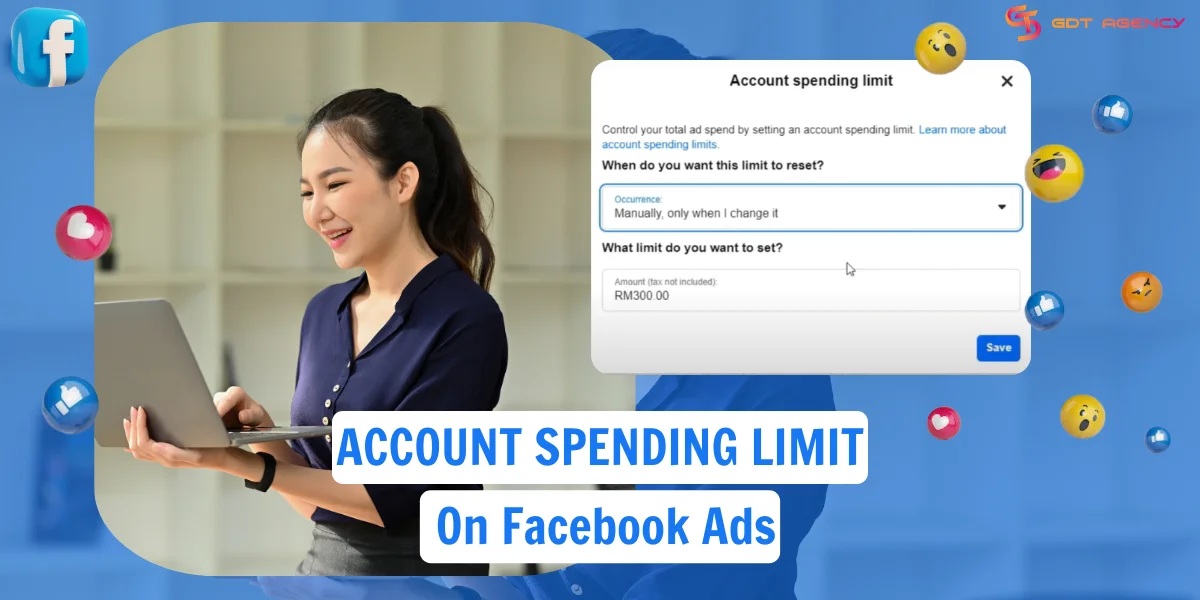
An ad account spending limit is a flexible lifetime cap on the total amount of money that your ad can spend across all campaigns that you’re running from the time you set it.
In Facebook ads, there are 3 types of spending limits you may encounter that can be set to a campaign, an ad account, or on a daily basis.
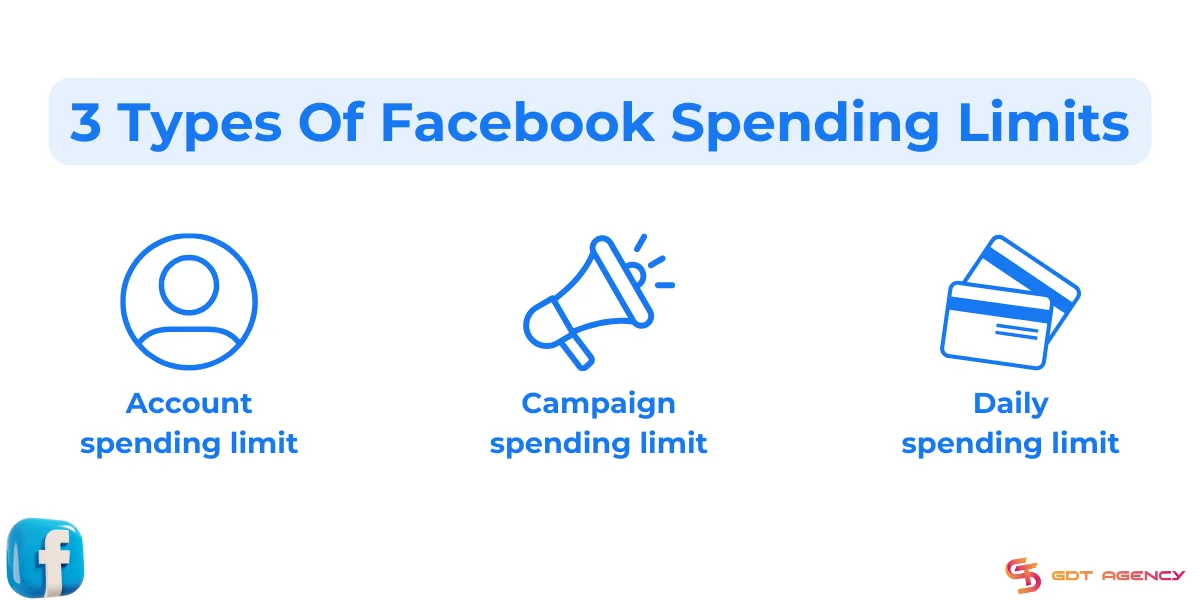
- Account spending limits: controls how much you can spend across all campaigns running on an ad account in a lifetime. When the spending amount reaches the limit, all ads running on this account will turn off.
- Campaign spending limits: the highest amount you are willing to spend on a campaign for a lifetime. When this limit is reached, all ads in this campaign will be paused.
- Daily spending limits: control how much you can spend in a day. When your expenditure reaches this limit, Facebook will stop delivering your ads until 00:00 in your ad account’s time zone.
By setting an ad account spending limit, advertisers can control costs and ensure that they don’t exceed the desired ad budget. When aligning the limit with the overall advertising budget, you can optimize results for your business.
How Ad Account Spending Limit on Facebook Ads Work?
Based on 5 years of experience working with Facebook ads, most scaling issues come from advertisers confusing spending limits with budgets, or trying to push spend too fast on a new account. Therefore, understanding how this system works is critical if you plan to scale Facebook ads steadily.
The ad account spending limit doesn’t affect ad delivery or performance. However, once your account reaches this limit, your campaigns stop running, and the account stops spending, even if individual campaign or ad set budgets are still active.
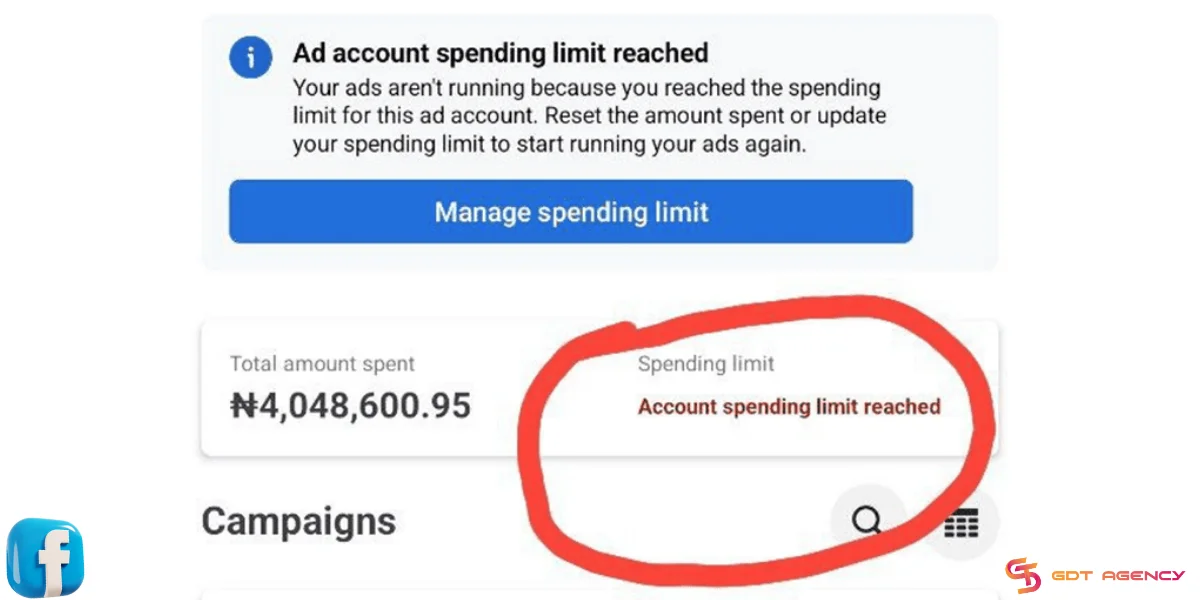
To continue advertising, you must either increase the spending limit or remove it manually. You may also reset the amount spent toward the threshold.
For example, if your ad account has a $250 spending limit and you have already spent $250 in total, Facebook will pause all ads immediately. You will see a notification asking you to increase the limit before ads can resume.
>>>Read More: Why Are My Facebook Ads Not Spending? How To Fix It Quickly?
Why Should We Use Facebook’s Account Spending Limit?
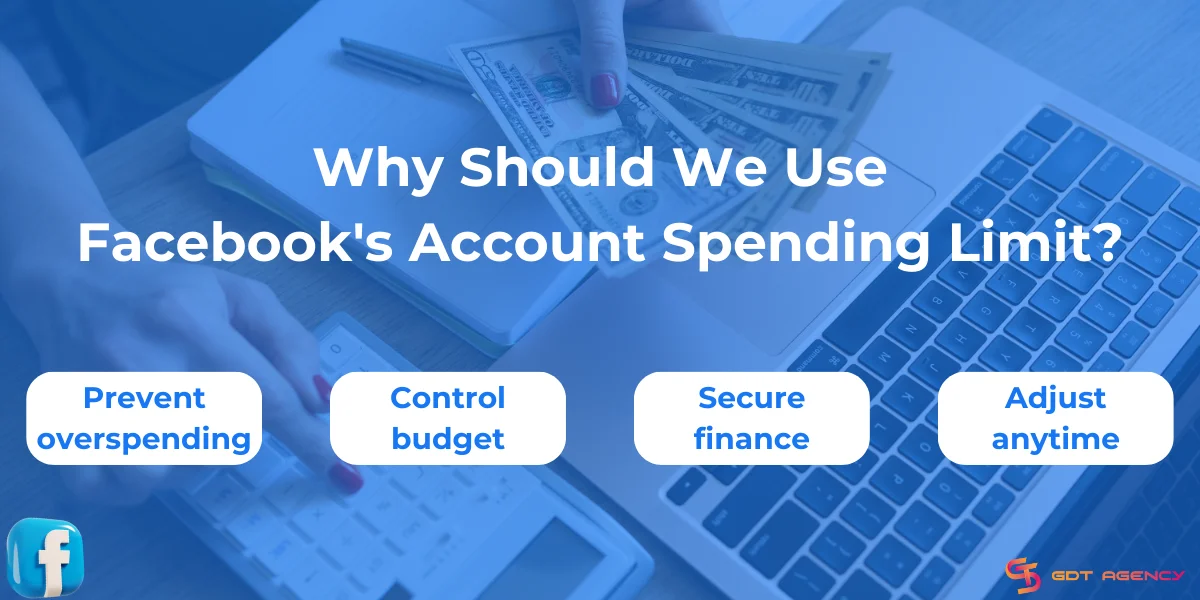
Meta designs the account spending limit for a reason. By using this feature, Facebook advertisers can:
- Prevent overspending: Avoid spending too much, even when ad costs escalate out of control.
- Control budget: Remind advertisers to plan campaign budgets appropriately.
- Secure finance: Limit losses in case of account hacked or unauthorized access.
- Adjust anytime: Provide flexibility to increase, reduce, or remove limits as needed.
The account spending limit on Facebook ads allows advertisers to focus on executing high-performing ads. No need to worry about overshooting the budgets you have planned.
How To Set Up Your Facebook Account Spending Limit?
Your account spending limit can be managed in Facebook Ads Manager, on both mobile devices and desktops. In which each type of spending limit has its own way to set up:
Setting Account Spending Limit
You and all account admins can set a spending limit for your ad account in Facebook Ads Manager to prevent exceeding your planned amount. Here’s how to set a spending limit on a Facebook ad account:
Step 1: Access Payment Settings

Log into Facebook and navigate to Facebook Ads Manager.
Select Billing and Payments from the left sidebar.
Then, click Payment Settings.
You can switch to the ad account you want to manage the spending limit from the dropdown menu at the top right.
Step 2: Go to Account Spending Limit
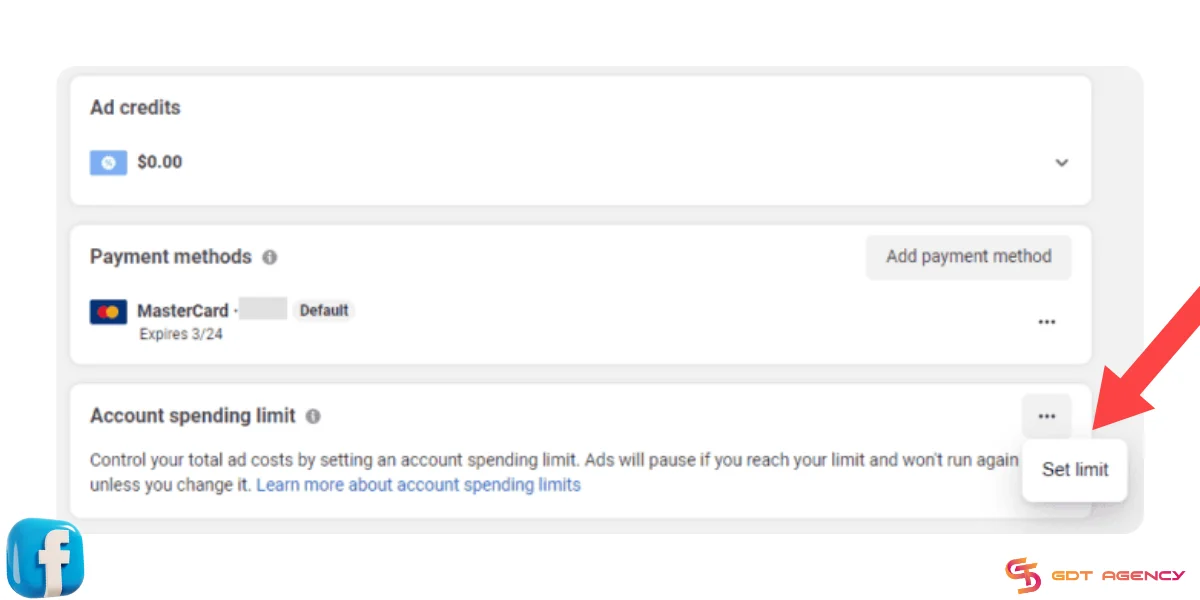
Scroll down the Payment Settings page.
The Account Spending Limit section is under the Payment Methods section.
Step 3: Choose Your Action
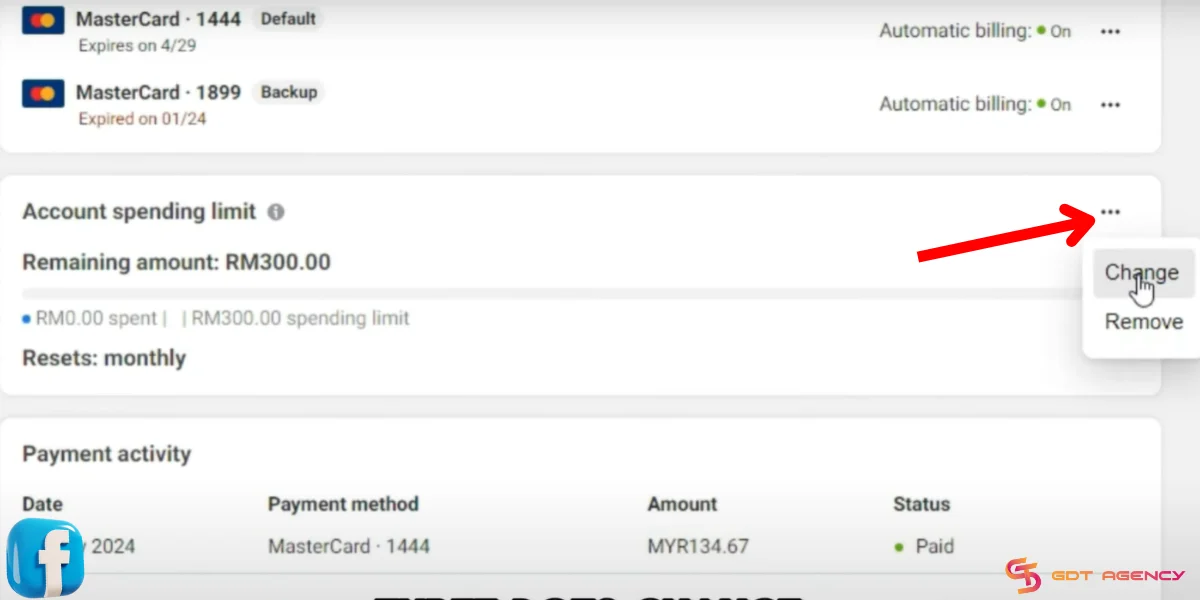
Click on the (…) on the right and see available options.
- If you haven’t set up a spending limit for your ad account, you can select Set Limit.
- If you need to increase or reduce the spending limit, hit Change.
- If you want to remove your spending limit, click Remove.
- If you want to reset the amount spent to $0, choose Reset.
Step 4: Set Up Your Account Spending Limit
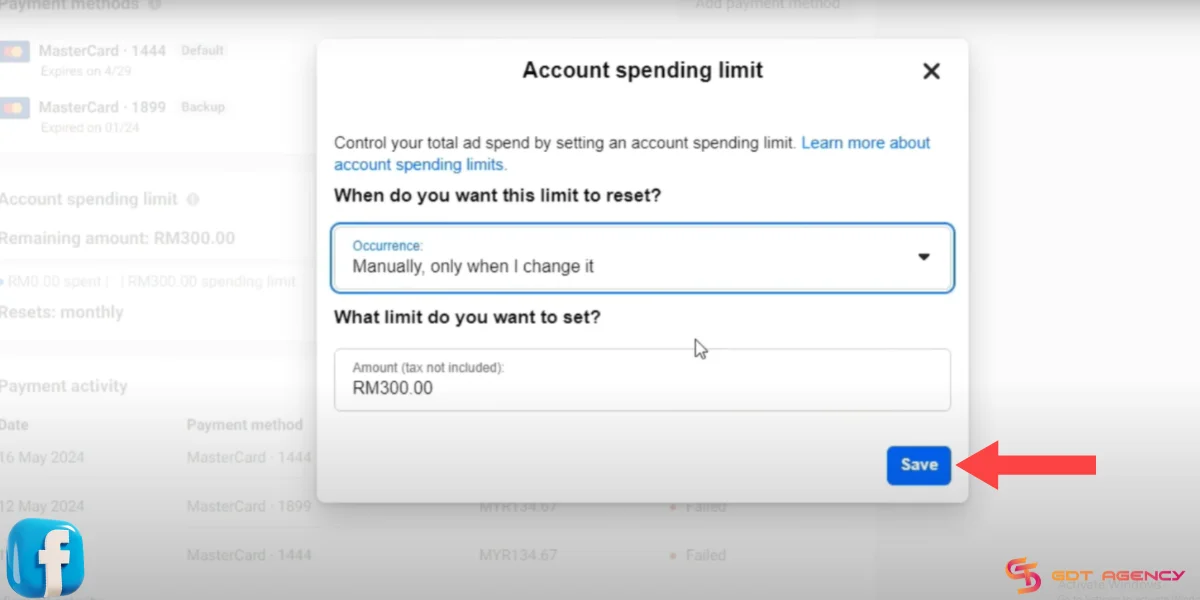
When you hit Set Limit or Change, a pop-up window appears,
Here, you can select:
- When you want this limit to reset. You may just set it to reset automatically on the 1st day of every month. Or you put it to manually reset only when you make changes.
- The spending limit you want to set. Enter the desired amount here. Remember that this limit does not include taxes, so the actual billed amount can be higher.
Step 5: Review and Save
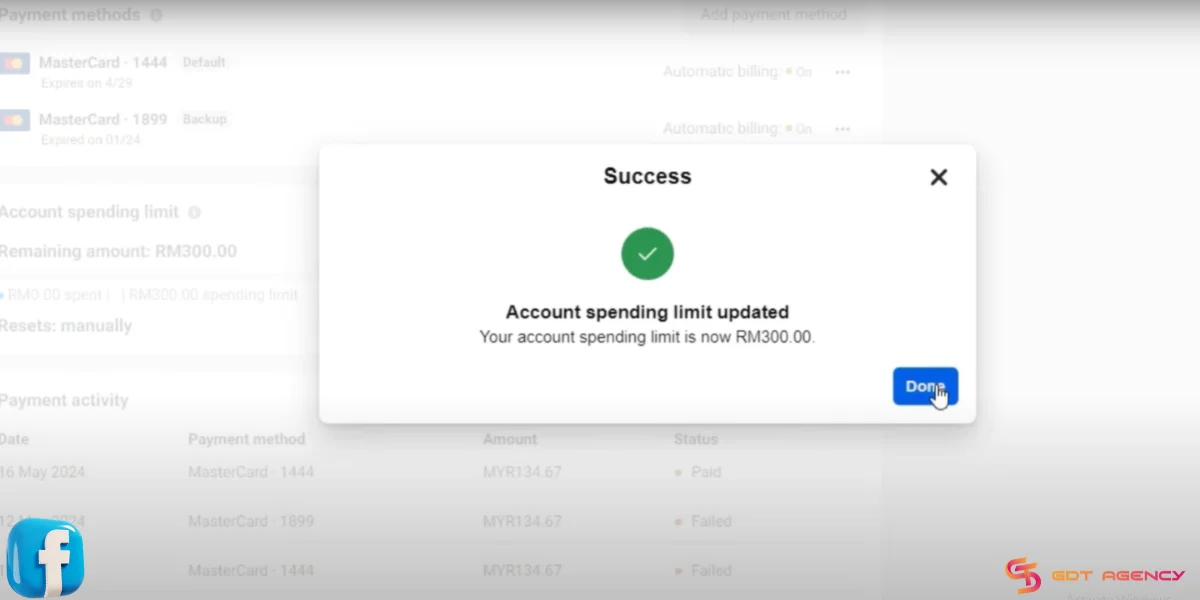
Once you’ve done with your Facebook account spending limit settings, select Save to confirm the changes.
Finally, review the notification and hit Done.
Setting Campaign Spending Limit
For the campaign spending limit, you can use CBO (campaign budget optimization) to set the campaign lifetime budgets instead and leave them untouched. Here’s how to set a spending limit for a Facebook campaign:
Step 1: Go to Campaign
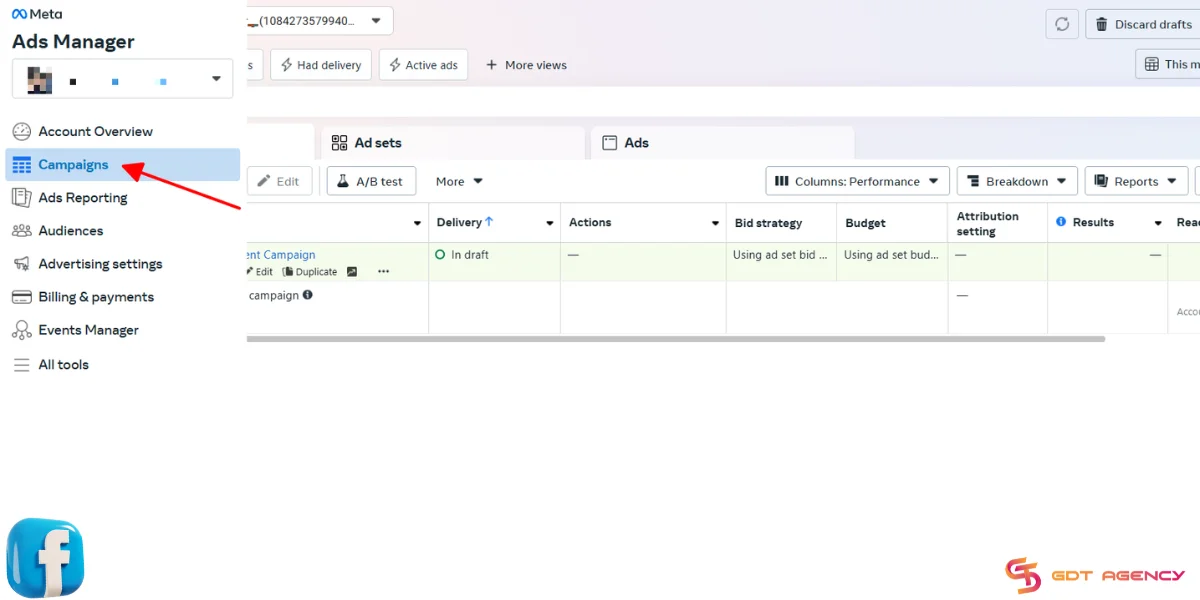
- Navigate to Facebook Ads Manager, then select Campaigns.
- Find the campaign you want to set a limit for in the campaign column.
Step 2: Edit the Campaign
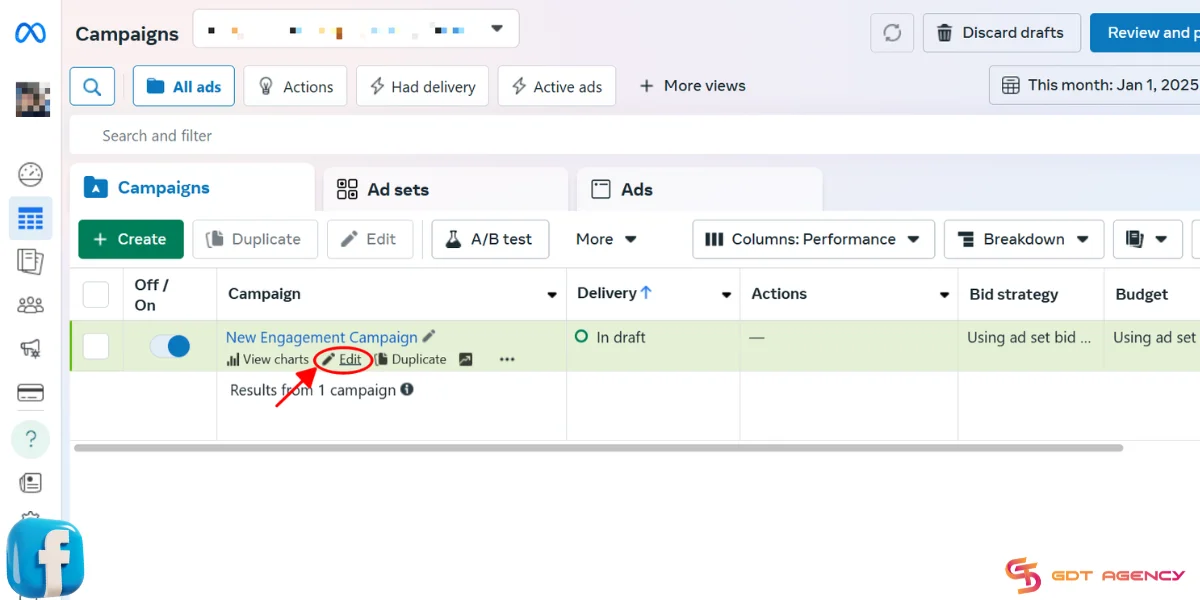
- Under the campaign title, select Edit.
- In the Campaign details section, select Show More Options.
Step 3: Add a Campaign Spending Limit
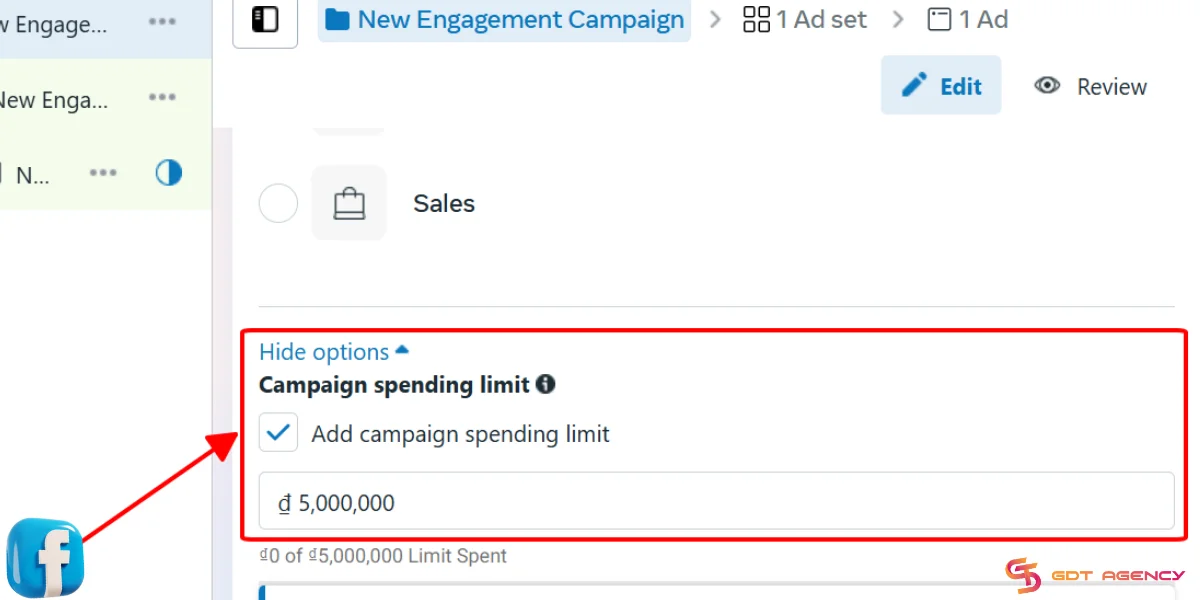
- Select Add campaign spending limit.
- Enter your desired limit.
Step 4: Save the Campaign Spending Limit
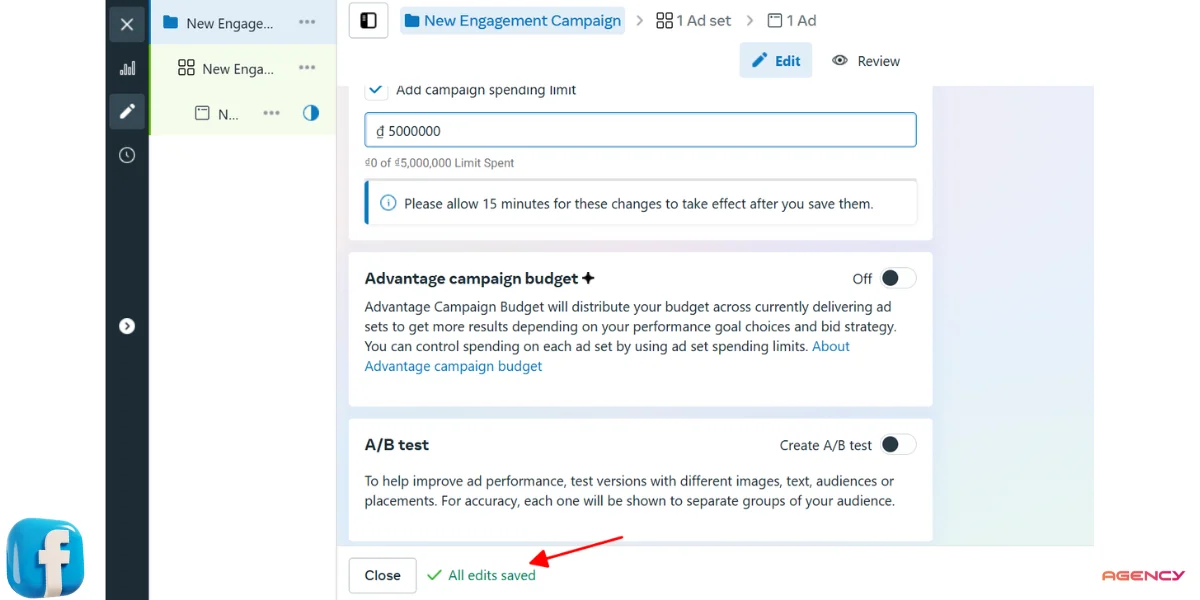
- Click Save.
- Wait 15 minutes for this change to apply.
--> Like account spending limits, campaign spending limits are optional. You can change or remove them anytime.
Setting Your Daily Spending Limit
Unlike the account or campaigns spending limits that you can set up by yourself, the daily spending limit is set up by Meta. Meta sets this limit mainly to manage risk. The daily spending limit will be set based on how reputable your ad account is:
- New ad accounts with low reputability often have low daily spending limits.
- Aged and high-spending accounts may have a higher threshold.
- Exceptionally trusted ad accounts like Facebook agency accounts can have unlimited spending limits, which allows advertisers to scale their budgets freely.
Note: If Your Ad Account Reaches Spending Limit
1. If you are using a postpaid ad account and have reached the spending limit, you need to change or remove it. You can follow usual steps to reset, remove, or change the spending cap or click the “Manage spending limit” button from the notification for quick access.
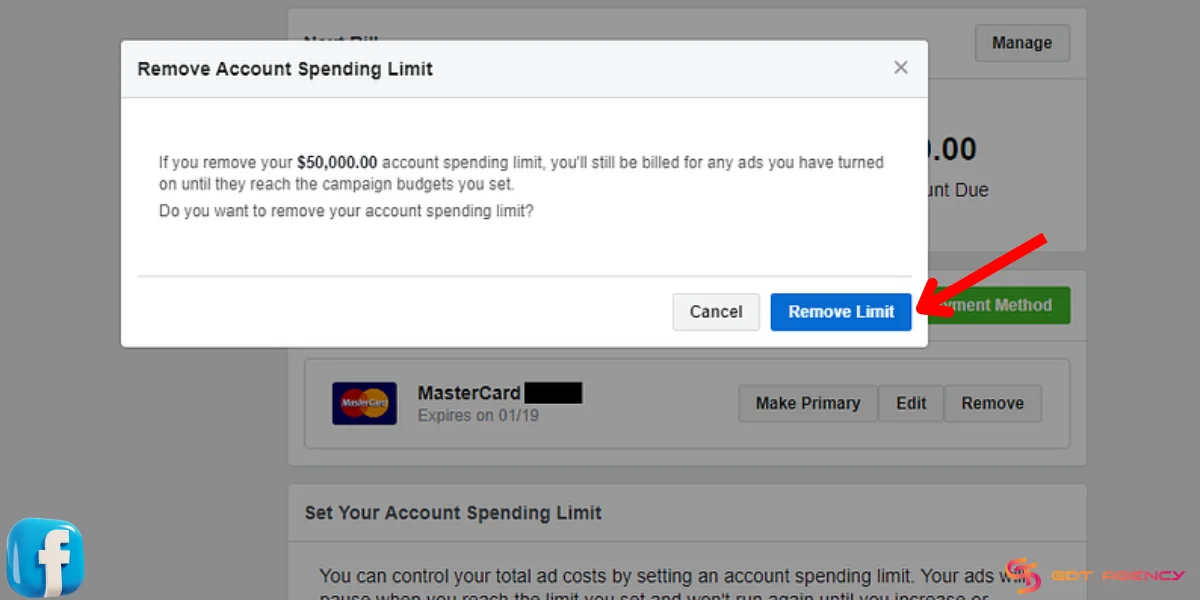
2. If you are using prepaid ad accounts and receive a notification that you need to increase or reset the account spending limit. Just top up your balance and ignore the notification. Your ads are still working anyway.
Increase The Account Spending Limit on Facebook Ads
Increasing the account spending limit on Facebook ads is not instant. Facebook raises limits based on trust, not requests alone. The goal is to show stable behavior over time. Here is some tips to increase the account spending limit that you can refers:
1. Spend Consistently, Not Aggressively: Remember to avoid jumping budgets too fast. Based on my experience, gradual and consistent spending will create stability signals. Accounts that try to scale sharply often stay capped longer.
2. Keep Payment History Clean: You should use a reliable payment method and avoid failed charges. Repeated payment issues are one of the fastest ways to block limit increases.
3. Follow Policy Carefully: Violating Facebook policy will slow down the trust growth. Even small disapprovals can affect how quickly Facebook raises your limit. Therefore, you have to read and follow the Facebook ad policy carefully.
4. Let the Account Age Naturally: New ad accounts almost always start with low limits. Time matters. Accounts that run smoothly for weeks or months are more likely to get higher caps.
5. Use Business Manager and Verified Assets: Accounts connected to a verified Business Manager, domain, and business information tend to gain trust faster.
6. Avoid Frequent Changes: Constantly creating and deleting campaigns, ad sets, or accounts can raise red flags. Therefore, keep changes intentional and measured.
Conclusion
The ad account spending limit on Facebook ads is Facebook’s way of controlling risk while your account builds trust. I hope that this article can help you understand more about account spending limit on Facebook ads to avoid sudden pauses, and scale in a controlled way.
If you have any questions or need additional help, don’t hesitate to contact GDT Agency. Our expert team is always ready to help. You can also follow our blogs for more useful information, as well as knowledge about Facebook ads!

Follow if you find it useful


You can contact us, with our experience in successfully deploying thousands of conversion advertising campaigns, GDT Agency confidently believes we can help you optimize effectiveness and maximize cost savings with advertising operations.

How to Run Successful Instagram Ads in 2026: The Creative & Infrastructure Blueprint
To run successful Instagram ads in 2026, advertisers must combine vertical-first creative optimization (specifically high-energy
19/05/2026

Top 8 Anti-detect Browsers for Multi-Ad Accounts Management
Managing multiple ad accounts across platforms like Meta, Google, and TikTok can be a significant
13/05/2026

Instagram Ads vs Facebook Ads 2026: Which Platform Wins for Your Business?
Instagram Ads vs Facebook Ads in 2026 does not have a single winner because the
13/05/2026


