Fix Facebook Ads Not Delivering: 12 Causes and Solutions for Advertisers

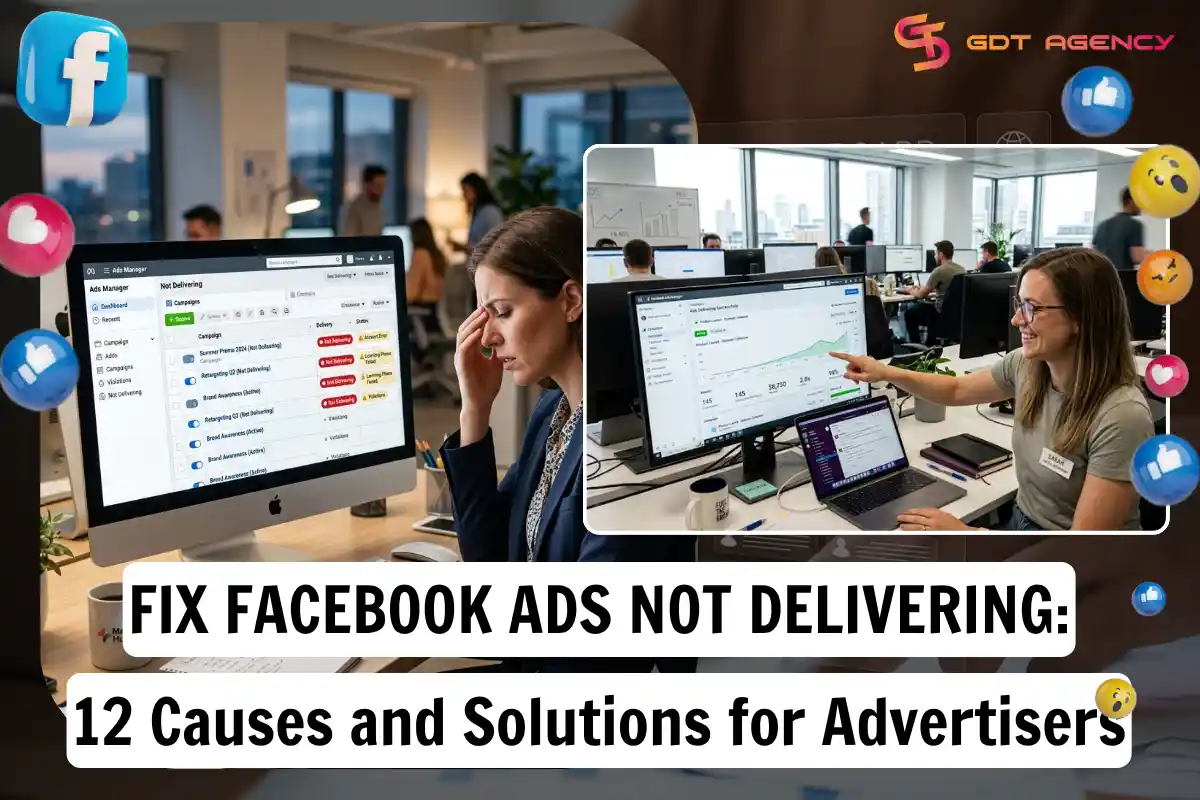
Facebook ads not delivering for one of three broad reasons: an account or payment problem, a setup issue with budget, bid, or targeting, or a review and policy issue with the ad itself. In most cases, advertisers can find the exact cause inside Ads Manager within a few minutes, once they know where to look. This guide breaks down the 12 most common causes behind non-delivering ads, from restricted accounts to audience overlap to the learning phase, and gives you a clear troubleshooting process to follow.
Before you dig into individual causes, it helps to understand what “not delivering” actually means inside Ads Manager, since this status is different from “rejected” or “in review.” Many advertisers confuse these three states, which leads them to fix the wrong problem or wait for something that will never resolve on its own.
Beyond the common causes, a smaller group of advertisers run into rarer issues tied to Special Ad Categories, iOS tracking permissions, or seasonal auction pressure during Q4. These cases need a different kind of fix, since they are not bugs but built-in platform rules.
To help you move from diagnosis to action, this article also includes a step-by-step troubleshooting process you can run through every time an ad stops delivering, no matter which of the 12 causes is behind it.
- What Does “Ad Not Delivering” Mean on Facebook?
- Why Are My Facebook Ads Not Delivering?
- 1. Ad Account Is Restricted or Disabled
- 2. Payment Method Declined or Restricted
- 3. Bid Too Low for the Auction
- 4. Daily Budget Too Small for the Audience
- 5. Audience Size Too Narrow
- 6. Audience Overlap Between Ad Sets
- 7. Low-Quality or Repetitive Ad Creative
- 8. Ad Copy or Landing Page Policy Violation
- 9. Your Ad is Rejected
- 10. Your Ad is Still Under Review
- 11. Ad Stuck in Learning Limited
- 12. Ad Set or Campaign Scheduled Incorrectly
- How to Troubleshoot Facebook Ads Not Delivering
- Phase 1: The Account Check (Infrastructure)
- Phase 2: The Ad Level Check (Compliance & Status)
- Phase 3: The Ad Set Level Check (The Auction)
- Phase 4: The Schedule Check
- What Are the Rare and Advanced Reasons Facebook Ads Stop Delivering?
- How Special Ad Category Restricts Delivery for Housing, Credit, and Employment Ads
- How iOS 14 and App Tracking Transparency Affect Ad Delivery
- What Is Auction Overlap and How Does It Hurt Delivery
- Why Do Ads Deliver Slower During Q4 and Holiday Seasons
- Final Thought
- FAQs
- 1. Why are my Facebook ads active but not delivering?
- 2. How long should I wait before troubleshooting Facebook ads that are not delivering?
- 3. Can a restricted Facebook ad account cause ads not to deliver?
- 4. Does increasing my budget fix Facebook ads that are not delivering?
- 5. Can Facebook agency ad accounts reduce delivery problems?
- 6. What is the difference between “Not Delivering” and “Not Spending” in Facebook Ads?
- 7. How can I prevent Facebook ads from not delivering in the future?
What Does “Ad Not Delivering” Mean on Facebook?
As an expert at GDT Agency with more than 5 years of experience working with Facebook ads under multiple account types, from standard to Facebook agency ad accounts, I can say that “Ad not delivering” is a status Facebook Ads Manager shows when an active ad is not generating impressions, even though the campaign, ad set, and ad are all technically live. In other words, the ad is turned on, but Facebook’s auction system is not showing it to anyone.
This status is easy to confuse with two other, similar-looking situations. An ad “in review” is still being checked by Facebook’s automated and manual systems and has not been approved yet. An ad that is “rejected” has already failed that review and needs to be edited before it can run again. A “not delivering” ad, by contrast, has usually passed review and sits in an active state, but something else, like budget, bid, or targeting, is stopping it from entering or winning the auction.
You can usually spot a non-delivering ad from a few signs inside Ads Manager:
- The delivery column shows “Not Delivering” instead of “Active.”
- Impressions, reach, and spend all stay at zero for more than a few hours.
- Ads Manager shows a small blue or yellow warning icon next to the ad set name.
- The ad set status reads “Learning Limited” instead of “Learning” or “Active.“
Facebook’s own Meta Business Help Center treats this as a distinct troubleshooting category and points advertisers to check settings at the campaign, ad set, and ad level separately, since the cause can sit at any one of those three levels.
Why Are My Facebook Ads Not Delivering?
There are 12 common causes behind non-delivering Facebook ads, grouped into four areas: account and payment issues, budget and bid issues, targeting issues, and creative or review issues. Below, each cause is explained with a real example so you can match it against what you are seeing in your own account.
1. Ad Account Is Restricted or Disabled
A restricted or disabled ad account cannot deliver any ads, regardless of how the campaign is set up. Facebook applies restrictions when it detects repeated policy violations, unusual account activity, or a failed identity check.
For example, an account that runs several ads with misleading claims in a short period may get a 7-day restriction on new ad creation, even while its live ads keep running or pause entirely, depending on the severity. You can check this under Account Quality in Ads Manager, which shows any current restrictions and the reason behind them.
→ If you discover that your Business Account, Page, or Ad Account has been restricted, read our guide Facebook Ad Account Recovery and Restriction: Identify & Fix for step-by-step instructions on identifying the restriction, submitting an appeal, and preventing future restrictions.
2. Payment Method Declined or Restricted
An ad stops delivering the moment Facebook cannot charge the payment method on file. This happens when a card expires, a bank blocks the charge as suspicious, or the account hits its spending limit.
A common example: an advertiser’s bank flags a Facebook charge as fraud because the billing address does not match the card’s home country, so every future charge fails until the advertiser confirms the transaction with their bank or adds a new card. Ads Manager shows this clearly under Billing, usually with a “Payment Declined” notice.
3. Bid Too Low for the Auction
Every Facebook ad competes in an auction against other advertisers targeting similar audiences. If your bid sits well below what others are willing to pay, your ad loses most or all auctions, so it never delivers.
For instance, an advertiser bidding $2 per result in a competitive niche like insurance or finance, where average bids run $8 to $12, will barely spend any budget, since the ad rarely wins. Raising the bid, or switching to a bid strategy like “Highest Volume” without a bid cap, often restores delivery within a day.
4. Daily Budget Too Small for the Audience
A daily budget that is too small compared to your audience size limits how often your ad can enter the auction, which slows or stops delivery.
As an example, a $5 daily budget targeting a broad U.S. audience of 5 million people will barely register, since that budget cannot compete often enough against advertisers spending $50 to $200 per day on the same audience. A general rule is to keep daily budget at least equal to the estimated cost of 10 to 15 conversions for that audience and objective.
5. Audience Size Too Narrow
Facebook uses algorithms to display ads effectively to responsive people (requires at least 1,000 users in a given target audience). If the audience is too small, there aren’t enough users for the ad to reach and display. The algorithm also cannot learn to function properly, leading to no delivery.
For example, targeting a custom audience of website visitors from the last 3 days in a low-traffic store might leave you with only 300 people, well below the few thousand Facebook generally needs for stable delivery. Checking the “Estimated Audience Size” indicator in Ads Manager before publishing helps catch this early.
6. Audience Overlap Between Ad Sets
Audience overlap happens when you have multiple ad sets targeting the same group of people. Facebook has a built-in rule: You cannot bid against yourself.
When two or more ad sets in the same account target largely the same people, they end up competing against each other inside Facebook’s own auction, which can suppress delivery on one or both ad sets.
A common case: an advertiser builds one ad set targeting “Interest: Yoga” and another targeting “Interest: Fitness,” not realizing that 70% of the same users fall into both audiences. Facebook’s Audience Overlap tool, found under Audience settings, flags this percentage directly so you can merge or separate the audiences.
7. Low-Quality or Repetitive Ad Creative
Ads with low relevance or creative that has run unchanged for too long often see reduced delivery, since Facebook’s ranking system downgrades ads that get weak engagement or negative feedback.
For instance, an ad running the same static image for three months straight may show a “Below Average” quality ranking in the Ad Relevance Diagnostics, which reduces how often Facebook shows it compared to fresher creative from competitors. Refreshing the visual, copy, or format, like switching from a static image to video, usually improves this ranking within a few days.
8. Ad Copy or Landing Page Policy Violation
An ad that violates Facebook’s advertising policies, either in its copy or its destination page, will see delivery paused or completely blocked, even if it was approved once before.
As an example, an ad promising “guaranteed weight loss results” or a landing page that does not match what the ad promises can trigger a policy flag mid-campaign, since Facebook re-checks live ads periodically, not just at launch. Reviewing the Advertising Standards page for prohibited claims before publishing helps prevent this.
9. Your Ad is Rejected
Facebook has its own advertising policies and standards that require advertisers to follow when advertising. If your ad doesn’t comply with the Facebook advertising policies, it will be rejected. A rejected ad cannot deliver at all until the advertiser fixes the issue and resubmits it, since rejection means the ad already failed the review process outright.
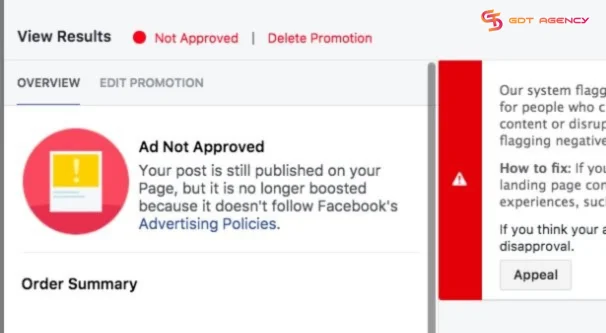
A restricted or disabled ad account cannot deliver any ads, regardless of how the campaign is set up. Facebook applies restrictions when it detects repeated policy violations, unusual account activity, or a failed identity check.
- Prohibited content: Advertising products or services that are illegal or harmful. For example: drugs, weapons, tobacco, cryptocurrency, etc.
- Misleading claims: Making false or exaggerated claims, using deceptive tactics to attract clicks.
- Personal attributes: Targeting audience based on sensitive personal attributes. For example: race, ethnicity, religion, sexual orientation, or health conditions.
- Low-quality or disruptive content: Promoting irrelevant, spammy, or disruptive content. This can worsen the user experience.
For example, an account that runs several ads with misleading claims in a short period may get a 7-day restriction on new ad creation, even while its live ads keep running or pause entirely, depending on the severity. You can check this under Account Quality in Ads Manager, which shows any current restrictions and the reason behind them.
10. Your Ad is Still Under Review
Every new or edited ad goes through a review process before it can deliver to ensure that every ad complies with Facebook advertising policies and standards, and this usually takes under 24 hours, but can stretch longer during high-volume periods or when the ad touches a sensitive category.
When your ad stays “in review,” it blocks delivery because Facebook won’t spend any budget til the review process has finished, so your campaign is showing “not delivering”.
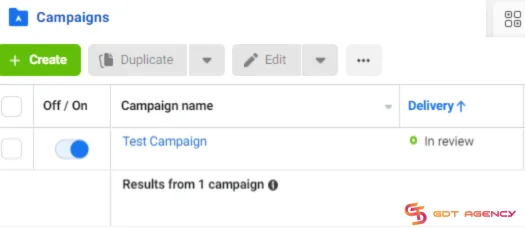
>>> If you are waiting for more than 48 hours or even longer, but your ads are still stuck in review, you can refer to this article to learn how to help your ads escape from “in review” status: Facebook Ad Stuck In Review? Here’s How To Escape.
11. Ad Stuck in Learning Limited
An ad set enters “Learning Limited” status when it does not generate enough optimization events, usually around 50 per week, for Facebook’s algorithm to learn who to show the ad to.
For example, an ad set optimizing for purchases on a store that only gets 10 to 15 sales a week will likely stay in Learning Limited indefinitely, since it never reaches the threshold Facebook needs. Combining several ad sets into one, or switching to a higher-volume optimization event like “Add to Cart,” often resolves this.
12. Ad Set or Campaign Scheduled Incorrectly
When you use the “Run ads on a schedule” feature, you are telling Facebook to only enter the auction during specific hours of the day. While this seems like a good way to save money, it is a frequent cause of delivery failure. An ad that appears active but was actually scheduled to run later, or set up with the wrong time zone, will show zero delivery until its actual start time arrives.
The Facebook ad auction is a 24/7 global competition. When you limit your ads to only run, for example, between 6:00 PM and 9:00 PM, you are drastically reducing the number of auctions you can enter.
If the competition during those specific hours is high, your bid might not be high enough to win a spot. And because you’ve blocked the “cheaper” hours of the day, the system has nowhere else to spend your budget, leading to zero delivery.
As an example, an advertiser in New York sets a campaign to start at “9:00 AM” without noticing the ad account’s time zone is set to Los Angeles, so the ad does not actually start until noon Eastern Time. Double-checking the campaign schedule and the account’s time zone under Settings prevents this simple but common mistake.
How to Troubleshoot Facebook Ads Not Delivering
To fix a “Not Delivering” status on Facebook ads based on Meta’s official troubleshooting logic, you should start at the Account level (the foundation), move to the Ad level (compliance), and finish at the Ad Set level (the auction mechanics).
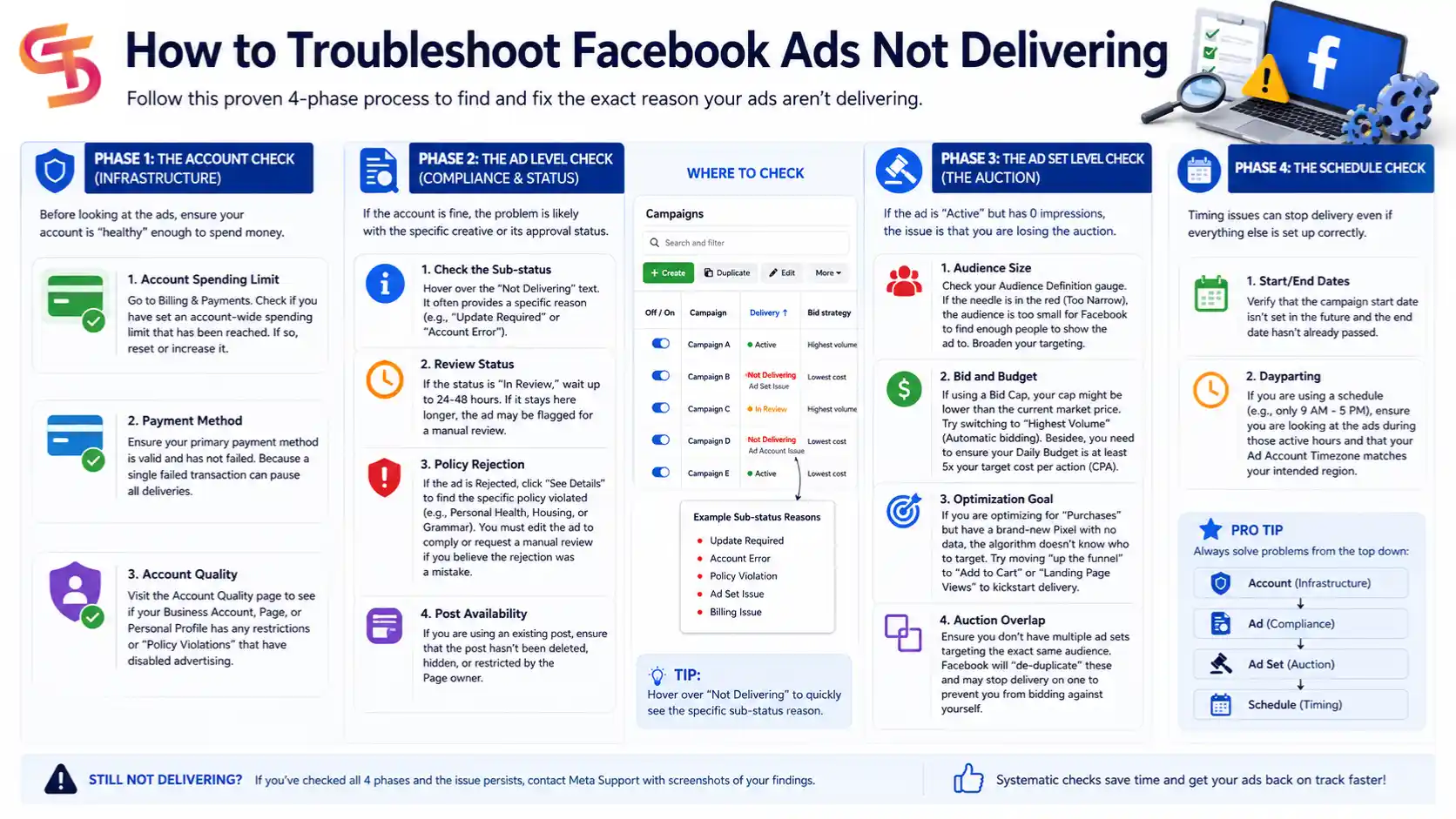
Phase 1: The Account Check (Infrastructure)
Before looking at the ads, ensure your account is “healthy” enough to spend money.
- Account Spending Limit: Go to Billing & Payments. Check if you have set an account-wide spending limit that has been reached. If so, reset or increase it.
- Payment Method: Ensure your primary payment method is valid and has not failed. Because a single failed transaction can pause all deliveries.
- Account Quality: Visit the Account Quality page to see if your Business Account, Page, or Personal Profile has any restrictions or “Policy Violations” that have disabled advertising.
Phase 2: The Ad Level Check (Compliance & Status)
If the account is fine, the problem is likely with the specific creative or its approval status.
- Check the Sub-status: Hover over the “Not Delivering” text. It often provides a specific reason (e.g., “Update Required” or “Account Error”).
- Review Status: If the status is “In Review,” wait up to 24-48 hours. If it stays here longer, the ad may be flagged for a manual review.
- Policy Rejection: If the ad is Rejected, click “See Details” to find the specific policy violated (e.g., Personal Health, Housing, or Grammar). You must edit the ad to comply or request a manual review if you believe the rejection was a mistake.
- Post Availability: If you are using an existing post, ensure that the post hasn’t been deleted, hidden, or restricted by the Page owner.
Phase 3: The Ad Set Level Check (The Auction)
If the ad is “Active” but has 0 impressions, the issue is that you are losing the auction.
- Audience Size: Check your Audience Definition gauge. If the needle is in the red (Too Narrow), the audience is too small for Facebook to find enough people to show the ad to. Broaden your targeting.
- Bid and Budget: If using a Bid Cap, your cap might be lower than the current market price. Try switching to “Highest Volume” (Automatic bidding). Besides, you need to ensure your Daily Budget is at least 5x your target cost per action (CPA).
- Optimization Goal: If you are optimizing for “Purchases” but have a brand-new Pixel with no data, the algorithm doesn’t know who to target. Try moving “up the funnel” to “Add to Cart” or “Landing Page Views” to kickstart delivery. Check your Audience Definition gauge. If the needle is in the red (Too Narrow), the audience is too small for Facebook to find enough people to show the ad to. Broaden your targeting.
- Auction Overlap: Ensure you don’t have multiple ad sets targeting the exact same audience. Facebook will “de-duplicate” these and may stop delivery on one to prevent you from bidding against yourself.
Phase 4: The Schedule Check
- Start/End Dates: Verify that the campaign start date isn’t set in the future and the end date hasn’t already passed.
- Dayparting: If you are using a schedule (e.g., only 9 AM – 5 PM), ensure you are looking at the ads during those active hours and that your Ad Account Timezone matches your intended region.
What Are the Rare and Advanced Reasons Facebook Ads Stop Delivering?
Beyond the 12 common causes, a smaller set of advertisers run into delivery problems tied to platform rules rather than account setup. These cases are less frequent, but worth knowing, since they need a different fix than adjusting budget or bid.
How Special Ad Category Restricts Delivery for Housing, Credit, and Employment Ads
Ads related to housing, credit, or employment fall under Facebook’s Special Ad Category, which removes access to many detailed targeting options, like age, gender, and certain interests, to comply with anti-discrimination regulations. An advertiser running a job listing ad without declaring it as a Special Ad Category may see it rejected or delivery-limited once Facebook detects the mismatch between the content and the targeting settings used.
How iOS 14 and App Tracking Transparency Affect Ad Delivery
Apple’s App Tracking Transparency framework, introduced with iOS 14, requires apps to ask users for permission before tracking their activity across other apps and websites. When a large share of an audience opts out of tracking, Facebook’s algorithm has less data to optimize delivery, which can slow down or limit how many people an app-install or conversion campaign reaches, especially for advertisers who rely heavily on iOS users.
What Is Auction Overlap and How Does It Hurt Delivery
Auction overlap happens when multiple ad sets from the same advertiser, not just similar ones, end up competing directly against each other in the same auction for the same person. This is different from the audience overlap covered earlier, since it can happen even with distinct audiences if Facebook groups them into the same underlying auction pool, which spreads budget thin across ad sets and can suppress delivery on the weaker ones.
Why Do Ads Deliver Slower During Q4 and Holiday Seasons
Delivery naturally slows down during Q4 and around major holidays, since a much larger number of advertisers compete for the same audience at the same time, driving up average bids across the platform. An advertiser running the same budget and bid settings that worked well in September may see noticeably slower delivery in late November, simply because the auction has become more competitive, not because anything in their account changed.
Final Thought
Facebook ads not delivering is more than a temporary inconvenience because it completely stops your campaigns from reaching potential customers and wastes valuable time during critical launch or scaling periods. In most cases, the problem comes from account issues, policy compliance, audience setup, bidding, or campaign structure rather than Facebook itself. By following the troubleshooting steps in this guide, you can identify the root cause faster, restore ad delivery, and prevent the same issue from happening again.
If you need expert support diagnosing complex delivery issues or want a more stable advertising infrastructure with Facebook agency ad accounts, GDT Agency is always ready to help you get your campaigns back on track.
FAQs
1. Why are my Facebook ads active but not delivering?
An active status does not guarantee that your ads are entering the auction. Ads may remain active but fail to deliver because of account spending limits, payment issues, policy reviews, audiences that are too narrow, low bids, poor ad quality, or account restrictions. Checking the Delivery status and Ads Manager diagnostics is the fastest way to identify the cause.
2. How long should I wait before troubleshooting Facebook ads that are not delivering?
You should wait up to 24 hours for newly published ads because Meta may still be reviewing or learning from your campaign. If your ads still receive no impressions or spend after 24 to 48 hours, you should begin checking your account status, payment method, audience size, bidding strategy, and policy compliance.
3. Can a restricted Facebook ad account cause ads not to deliver?
Yes. If your ad account, Business Manager, or Facebook Page has been restricted, Meta may stop all ad delivery regardless of your campaign settings. Before adjusting your campaign, verify your account status in Account Quality and resolve any restrictions that prevent your ads from entering the auction.
4. Does increasing my budget fix Facebook ads that are not delivering?
Not always. Increasing your budget only helps if a low budget is the actual cause. If your ads are blocked by policy violations, account restrictions, payment failures, or audiences that are too narrow, increasing the budget will not restore delivery. Always identify the root cause before making budget changes.
5. Can Facebook agency ad accounts reduce delivery problems?
Facebook agency ad accounts cannot eliminate every delivery issue because Meta still evaluates each campaign individually. However, they often provide stronger account trust, higher spending capacity, fewer payment interruptions, and more stable infrastructure, which can reduce common account-level delivery issues.
6. What is the difference between “Not Delivering” and “Not Spending” in Facebook Ads?
These terms are closely related but not identical. Not Delivering means your ads are not entering the auction or reaching users, so they receive no impressions. Not Spending refers to campaigns that spend little or no budget, often because they are not delivering effectively. Many of the underlying causes, such as account limits, bidding issues, or audience restrictions, overlap.
7. How can I prevent Facebook ads from not delivering in the future?
You can reduce delivery problems by maintaining a healthy ad account, using a valid payment method, following Meta’s advertising policies, avoiding overlapping audiences, setting realistic budgets and bids, improving creative quality, and monitoring your Account Quality regularly. Building consistent account trust over time also helps Meta deliver your campaigns more reliably.