


How To Recover Deleted Ads In Facebook: Step-by-Step Guide in 2026


You need to accept one hard truth first. You cannot fully recover deleted ads in Facebook once it is permanently deleted. The system does not offer a true “undo” button to restore deleted ads, but you can rebuild them by checking deleted filters in Ads Manager. If they still appear under the “Deleted” filter in Ads Manager, you can duplicate the deleted asset to create a new, active version that mirrors your original settings. If they do not appear, you must recreate them manually.
Step-by-Step Guide on How To Recover Deleted Ads in Facebook
As an expert who has spent more than 5 years working with Facebook ads and Facebook ad accounts agency, based on my experience, I’ll start off by saying that if you have not created and published an ad by mistake, or you hit the ad limit and can’t create any more, you should never delete Facebook ads, because you will lose valuable data and cannot fully recover them later. According to a discussion of advertisers’ experts on Reddit, when you delete Facebook ads, only the Pixel data remains, while the ad-level data is lost.

If you have already deleted a campaign, ad set, or ad, don’t worry, because there is still a practical way to bring it back by using a simple duplication process inside Meta Ads Manager, and the steps below will guide you through exactly how to do it.
Step 1: Access Ads Manager
You must access the Meta Ads Manager dashboard first. This platform serves as the central hub for managing your advertising assets. You can find this tool within your Business Suite or by visiting the direct Ads Manager URL.

Step 2: Filter by Delivery
You need to locate the search and filter bar near the top of the table. You click the Filters dropdown or use the search bar inside Ads Manager and hover over the Delivery option to control which ads the system shows.
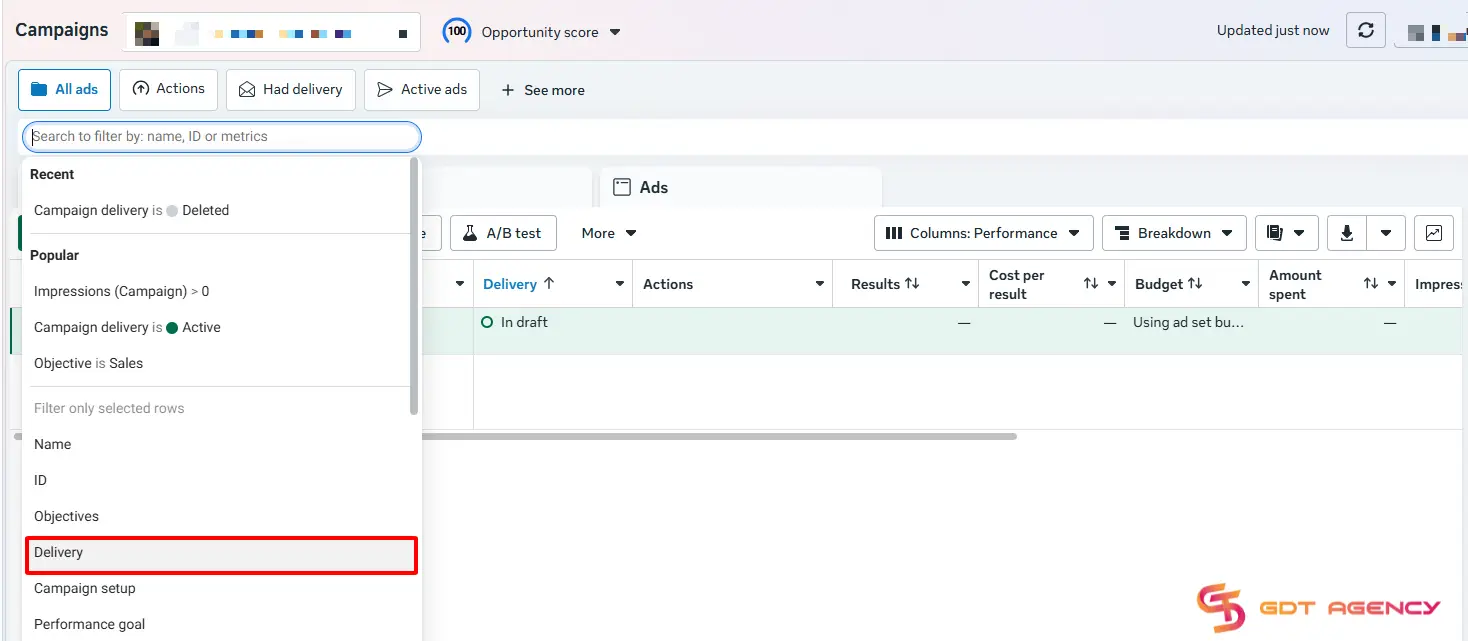
Step 3: Choose Deleted
You should select the Deleted option from the list of delivery statuses. This action refreshes your view to display campaigns, ad sets, or ads that you previously removed but are still stored in the account history.
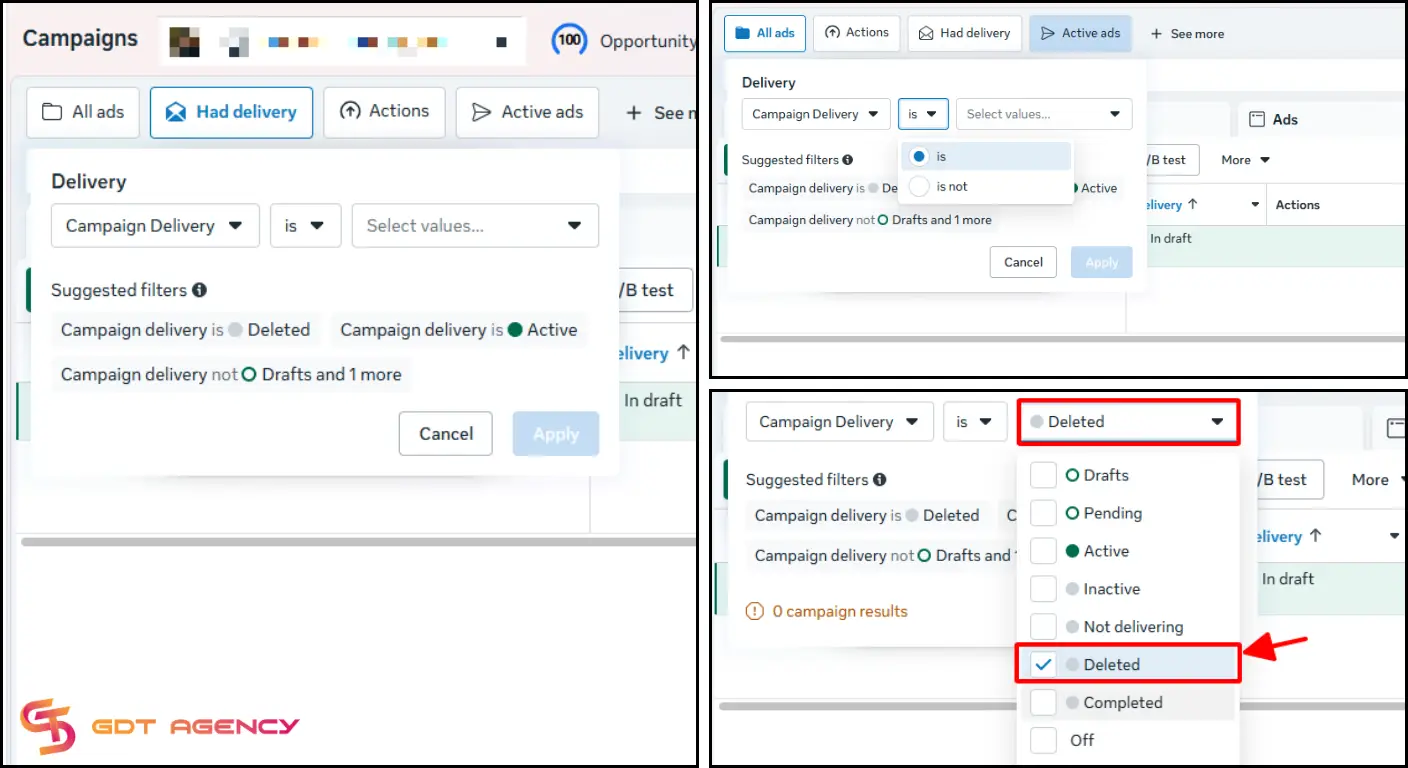
These items will appear with a “Deleted” label in the delivery column.
Step 4: Select Date Range
The system only shows items that were active during the currently selected period. You should adjust the date range at the top right of the dashboard.
Make sure you choose a time period that covers the original run dates of the ad you want to find, or the system may not display it.
Step 5: Duplicate the Item
You select the deleted campaign, ad set, or ad that you want to recover. You click the Duplicate button to create a new version with the same structure, targeting, and creative

You cannot reactivate a deleted asset directly because Meta treats deletion as permanent. You must check the box next to the deleted ad, ad set, or campaign.

Click the Duplicate button to create a functional copy of the original content. When you duplicate an ad, Meta Ads Manager automatically adds “– copy” to the end of the ad name. You can rename the new ad if you want a clearer organization, or you can keep the original name so it is easier to combine data in your reports.
Another thing you should note is that the duplicated ads will have different ad IDs in Meta Ads Manager. If you use ad ID as a dynamic tracking parameter, you will see two separate data lines for the old ad and the new one in your reports.
Step 6: Review and Publish
You review all settings carefully, including budget, audience, placements, and tracking. You click Publish to launch the duplicated ad as a new active campaign.

The duplication process creates a draft version of your deleted ad. You should check the budget, targeting, and creative elements for accuracy. Click the Publish button once you verify all settings to launch the new version.
>>> Read more: Solution To Remove Fake Leads From Facebook Ads
What Do I Have To Do If I’m Not Find My Deleted Ads in the Delivery Deleted Filter?
If you do not find the deleted ads in the filter, you cannot recover them through duplication anymore. At that point, you need to switch your mindset from “restore” to “rebuild.” Your only real option is to rebuild it using any data you can recover. Here is what you should do instead:
- Check Change History in Meta Ads Manager: You should open Account Overview and review past actions. You look for the deleted campaign, ad set, or ad. You extract key details like targeting, budget, placements, and optimization goal. This step gives you the blueprint.
- Reuse saved assets: You should go to your media library and find images, videos, and ad copy. Facebook usually keeps these even after deletion. You can rebuild the ad faster with the same creatives.
- Check external tracking or backups: You can also open spreadsheets, tracking tools, or reports where you logged campaign data. Many experienced advertisers store ad copy and settings outside Facebook for this exact situation.
- Rebuild manually: You create a new campaign, ad set, or ad using the collected data. You can follow the same structure as closely as possible to maintain performance consistency.
In short, if the deleted item does not appear in the filter, it is gone from the interface. Therefore, to avoid this next time, instead of deleting them, you can pause your ads. This can keep your data intact and make future recovery much easier.
Important Note When Recovering Deleted Facebook Ads
During the process of performing the guide on how to recover deleted ads on Facebook, there are several important notes to pay attention to in order to avoid mistakes or misunderstand the steps for ad recovery. Reading additional essential knowledge will also greatly assist you in your advertising journey by preventing the repetition of serious errors. I have summarized these notes briefly and comprehensively below:
You can’t make a deleted ad work the same way
You cannot make a deleted ad function exactly as it did before. My simple guide involves creating a duplicate of the deleted ad and activating it. If you want the deleted ad to continue functioning as it did before, meaning you want it to continue generating conversions just like before deletion, that is not possible.

You can read the content below for a more detailed understanding of this.
Understanding the Learning Phase
Having a clear understanding of the Learning Phase is also crucial if you are looking to recover deleted ads or make changes to existing ad content.

In brief, the Learning Phase is the process where Facebook reads and distributes your ads to the audience. Whether you are recovering ads following my guide or making some edits during the ad recovery, or even modifying active ads, it initiates the Learning Phase anew.
What does that mean? It means you will need to wait for an additional period for Facebook to understand your ad, and it will be similar to the process of waiting for Facebook to distribute a new ad template. It takes time.
>>> If your ads are stuck in the learning phase and performance feels unstable, you should read this guide to understand what is happening and how to fix it: Fix Facebook Ads Stuck in Learning Phase
FAQs
1. Can I recover deleted ads without duplicating them?
No, you cannot restore a deleted ad to its original state. Meta treats deletion as a permanent removal of that specific asset ID. The only way to “bring back” the content is to find the deleted item and duplicate it, which creates a new ID and a fresh version of the ad.
2. Will the new duplicated ad keep its original likes and comments?
The new ad will not retain any of the social proof from the deleted version. Because the duplication process creates a brand-new post or ad asset, all previous likes, shares, and comments remain attached to the deleted ID and do not transfer over to the new one.
3. Does duplicating a deleted ad affect the learning phase?
Yes, the duplicated ad will start a completely new learning phase. Even if the settings and creative elements are identical to the old ad, the system treats it as a new entry. The algorithm must gather fresh data to optimize delivery for your target audience.
4. How far back can I find deleted ads in the filter?
You can find deleted ads from any point in the history of your ad account as long as you set the date range to Lifetime. Meta stores this data indefinitely for reporting purposes, so you can retrieve a campaign from years ago if the account is still active.
5. Why does my ad still show “Deleted” after I duplicated it?
The “Deleted” label remains on the original asset. When you click duplicate, the system creates a separate, new entry in your table. You must clear the “Deleted” filter to see your new draft or active ad, which will appear with a status like In Review or Active.
6. Can I recover a deleted Ad Account?
No, recovering a deleted ad account is different from recovering an ad. If an entire ad account is closed or deleted, you typically cannot reactivate it. You would need to create a new ad account within your Business Manager to start advertising again.
Final Thought
Deleting Facebook ads often feels like a quick fix, but it usually creates bigger problems later because you lose data, insights, and flexibility. If you have already deleted something, you still have a path to recover it through duplication, but only if it remains visible in Meta Ads Manager. If it does not, then your only real option is to rebuild using whatever data you can find.
If you have any questions, need expert guidance to elevate your campaigns, or want to cooperate with a trustworthy provider to rent Facebook agency accounts, don’t hesitate to reach out to GDT. Our team of experienced professionals is ready to provide tailored solutions and support to help you achieve your advertising goals.

Follow if you find it useful


You can contact us, with our experience in successfully deploying thousands of conversion advertising campaigns, GDT Agency confidently believes we can help you optimize effectiveness and maximize cost savings with advertising operations.

How To Create A Facebook Prepaid Ad Account In 5 Minutes (2026)
A Facebook prepaid ad account is a manual payment account that requires advertisers to add
15/06/2026

Facebook Postpaid Ad Account: How It Works and When You Should Use It
A Facebook postpaid ad account is a billing model that lets advertisers run campaigns first
15/06/2026

Facebook BM2500: What It Really Means And How To Get It 2026
Facebook BM2500, also known as Business Manager 2500, is a high-level Meta Business Manager account
13/06/2026


