


How to Set Up a Google Ads Account: A Complete Step-by-Step Guide


To set up a Google Ads account, go to the Google Ads website, sign in with your Google account, and click “Start Now.” Next, enter your business information, choose your advertising goal, set up billing details, and create your first campaign by selecting a campaign type, target audience, budget, and keywords. Once Google verifies your payment method and settings, your Google Ads account becomes active and ready to run ads.
Key Takeaways:
- A Google Ads account helps businesses advertise across Google platforms.
- Setting up an account requires a Google account, billing method, and business information.
- Expert Mode offers better control than Smart Mode.
- Conversion tracking is essential for measuring campaign performance.
- Small testing budgets help reduce risk for beginners.
- Strong targeting and relevant keywords improve results.
What You Need Before Setting Up a Google Ads Account?
A Google Ads account is an online advertising account that businesses and marketers use to create, manage, and track paid ads across Google platforms, including Google Search, YouTube, Gmail, Google Maps, and partner websites.
As a professional account manager with years of experience manage Google ads account, especially Google Ads agency account at GDT Agency, here are the things you need to prepare before you create and set up a Google ads account:
1. A Google Account: You need a Google account to access Google Ads. It is better to use a business email account instead of a personal one because it keeps business assets organized.
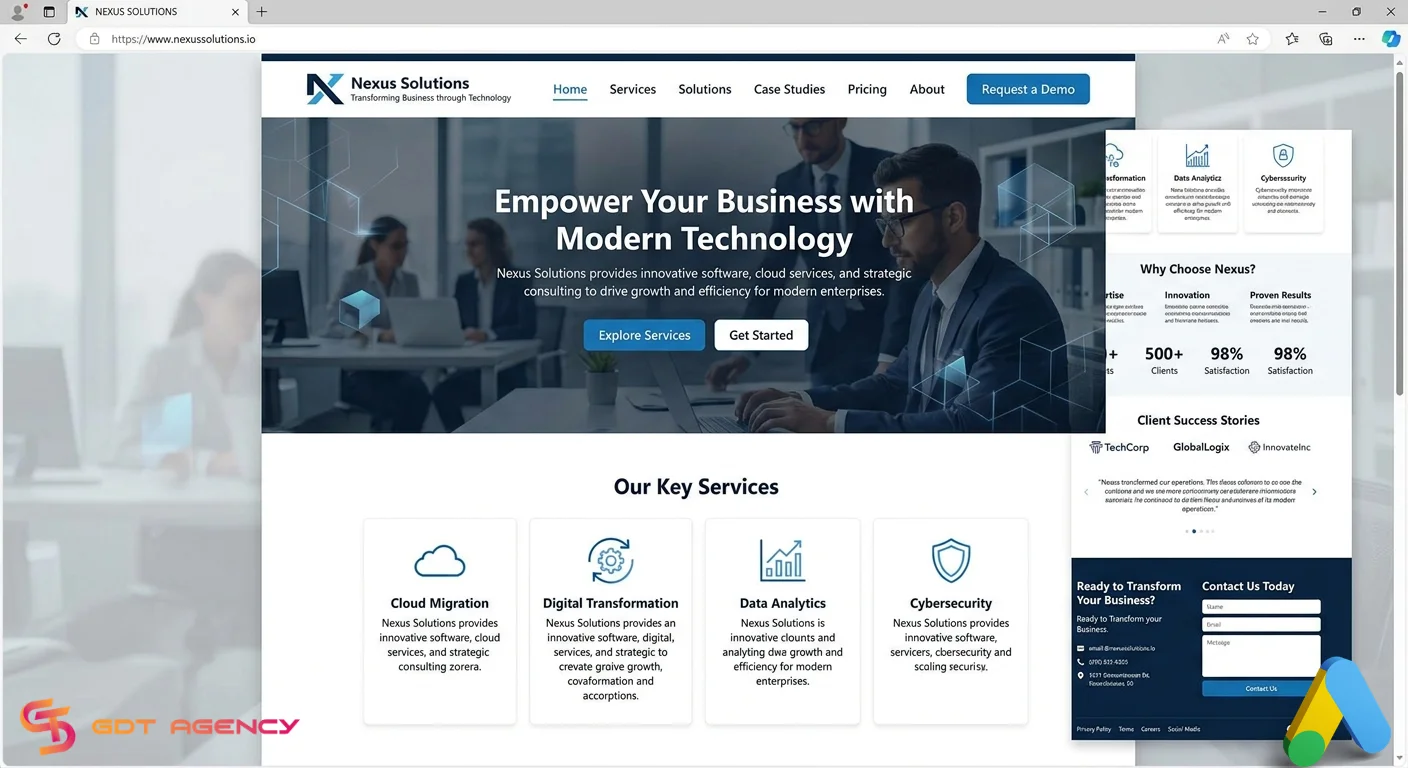
2. Business Website or Landing Page: Google Ads works best when users have a clear destination after clicking an ad. Make sure your website loads properly, works on mobile devices, and includes clear information about your products or services.
3. Billing Information: Google requires billing information before ads can run. Prepare a payment method such as a debit card, credit card, or bank account depending on your country.
4. Marketing Goal: Know what you want to achieve before launching ads. Common goals include: Website traffic, Lead generation, Product sales, Brand awareness, App downloads, Store visits.

Step-by-Step Guide on How to Set Up a Google Ads Account
Setting up a Google Ads account only takes a few minutes, but following the right process can help you avoid common mistakes and prepare your campaigns for better results.
Step 1: Visit Google Ads Website
Go to Google Ads and click the “Start Now” button. You can either create a new account or sign in using an existing Google account.

Step 2: Sign In to Your Google Account
You can use your business Google account whenever possible. This setup makes account management easier if multiple team members need access later. Google may ask you to verify your identity for security reasons.

If you are not familiar with the verification process, you can read our complete guide on Google Ads account verification to understand the requirements and avoid approval delays.
Step 3: Enter Your Business Name and Website URL
Normally, after you sign in, the pop-up of Create your first campaign in a few easy steps will appear and require you to enter your business name and website URL, because Google often pushes beginners into Smart Mode. Fill in your buisness information.

If you want to skip creating a campaign immediately, look for a link that says “Not ready for a campaign? Set up an account only“. This method gives you time to properly configure settings before spending money.
Step 4: Confirm Your Account Settings
At this step, you need to ensure your business name, website, and industry are correct to allow Google to tailor your experience.
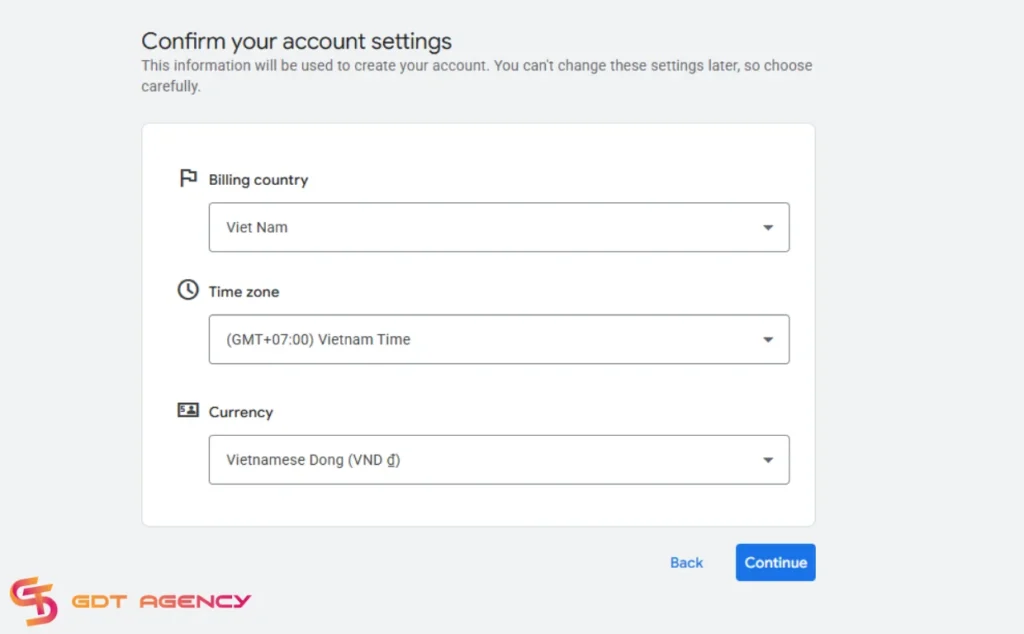
Double-check this information because Google does not allow easy changes later. Your currency and timezone directly affect reporting and payment settings.
Step 5: Add Billing Information
Next, add your payment details. Depending on your country, Google may offer:
- Automatic payments
- Manual payments
- Monthly invoicing for eligible businesses
Make sure your billing information matches your business details to avoid account issues. After you add your billing information, click Submit to finalize the creation of your account.
FAQs
1. Is Google Ads free to set up?
Yes. Creating a Google Ads account is free. You only pay when your ads start running.
2. How long does it take to set up a Google Ads account?
Most users can complete account setup in 10 to 30 minutes, depending on billing verification and campaign preparation.
3. Do I need a website to use Google Ads?
In most cases, yes. A website or landing page helps users take action after clicking your ad.
4. Can I pause my Google Ads campaigns anytime?
Yes. Google Ads allows advertisers to pause, edit, or stop campaigns whenever needed.
Final Thought
Learning how to set up a Google Ads account is easier than many businesses expect, but proper setup matters. Choosing Expert Mode, configuring billing correctly, linking tracking tools, and creating well-structured campaigns can significantly improve advertising performance.
Instead of rushing to launch ads immediately, spend time building the right foundation. A properly configured Google Ads account helps reduce wasted budget and improves long-term campaign results.

Follow if you find it useful


You can contact us, with our experience in successfully deploying thousands of conversion advertising campaigns, GDT Agency confidently believes we can help you optimize effectiveness and maximize cost savings with advertising operations.

How To Start A Google Ads Agency Account? A Complete Step-by-Step Guide
To start a Google Ads agency account, you need to create a Google Ads Manager
14/05/2026

How to Complete Google Ads Account Verification in 2026?
Google Ads account verification is the process of confirming your identity or business information to
14/05/2026

Google Ads Campaign Types: Complete Beginner Guide in 2026
Google Ads gives advertisers multiple campaign types because different business goals require different delivery systems.
12/05/2026


