How to Set Up A Facebook Agency Ad Account in 2026?


Setting up a Meta agency ad account in 2026 requires a 3-step foundation: building your Business Suite profile, verifying your legal entity, and securing Partner Access. Each step builds trust inside Meta’s system. That trust directly affects how stable your campaigns run and how far you can scale. If you skip one of these steps, your account will look weak in Meta’s eyes, and that usually leads to restrictions sooner or later.
Key Takeaways:
- Agency ad accounts offer higher stability and spending limits than personal accounts
- Meta now prioritizes account trust and history more than ever
- You need three core steps to set up a proper agency structure
- Skipping verification or partner access increases the risk of bans
How To Set Up a Facebook Agency Account In 3 Clear Steps
In 2026, running ads on Meta Platforms no longer starts with a simple ad account. Most advertisers, who rely on personal accounts, face random restrictions, low spending limits, and unstable performance now due to the low-trust problem. That shift has pushed serious marketers toward Facebook agency ad accounts.

Unlike personal accounts, agency setups offer higher spend ceilings and dedicated support, which helps you maintain peak Account Health. For agencies, setting up an account currently is no longer just about filling out a form. It is about building a “high-trust” infrastructure to avoid bans and maximize the performance of Meta’s latest AI tools.
>>> Curious about the reason why you should use a Facebook agency ad account instead of a personal ad account? Click HERE to explore now!
Phase 1: Build a Strong Business Manager Foundation
Everything starts inside Meta Business Manager. A Business Manager (now often called a Meta Business Portfolio) acts as the central hub for your agency. Typically, Meta uses this structure to evaluate the trustworthiness of your setup before you even run a single ad.
If your Business Manager looks weak, your ad account will inherit that weakness.
Step 1: Create Your Business Manager the Right Way
In a desktop browser, you will need to go to business.facebook.com and then log in with your personal Facebook or Instagram account (Don’t worry, your personal profile and business activities stay separate).
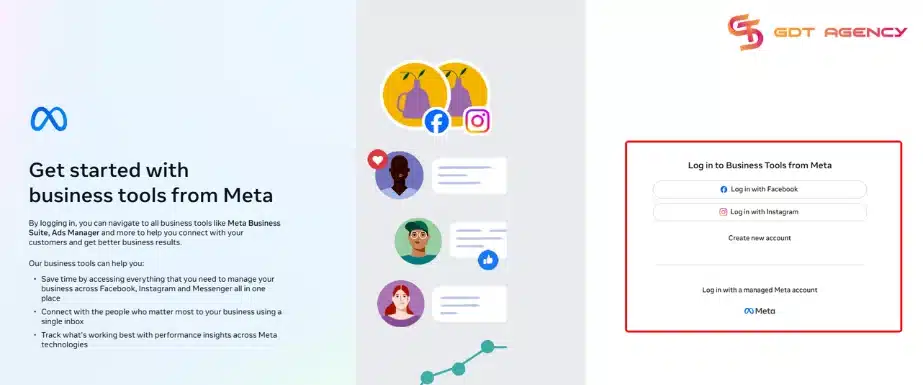
Step 2: Create Account
Click the ” Create a business portfolio button from the drop-down menu.
Step 3: Enter Business Details
You will be asked to enter your business name, your full name, and a business email address. Enter your business details, including the name of your business portfolio, your first name and surname, and your business email address.
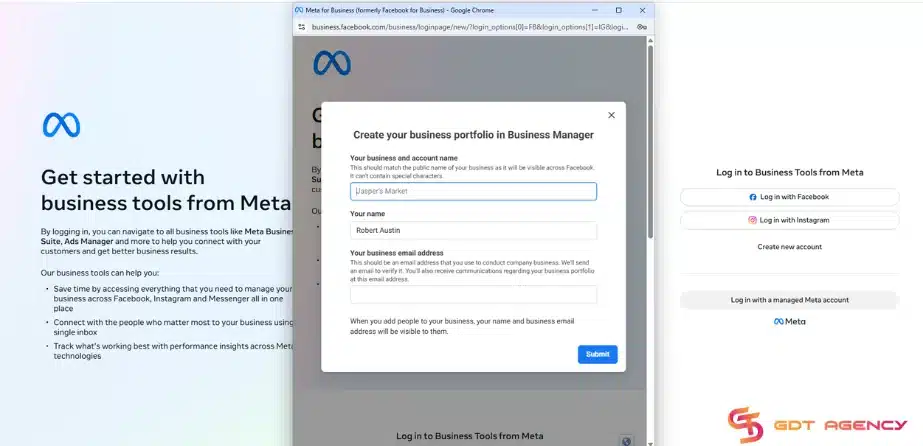
I recommended that you use a professional business email (e.g., name@yourcompany.com) rather than a personal Gmail account if you plan to scale long-term.
Step 4: Confirm Email
After submitting the information, Meta will send you a confirmation email. You have to open the email and verify your account. Once verified, you will gain access to your Meta Business dashboard. Based on my experience, Meta will not let you run ads until this step is done.
Once inside Meta Business Suite, look to the bottom-left corner of the dashboard and click on “Settings.”
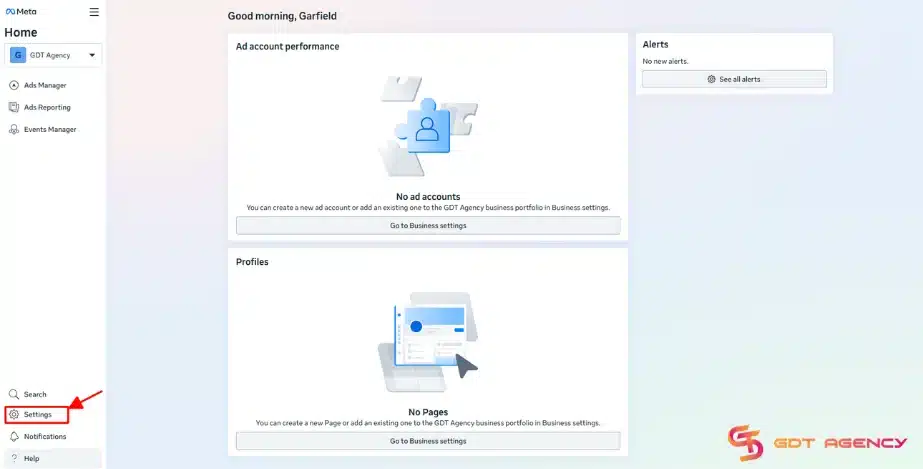
You will see the section where you manage everything related to your business assets, including:
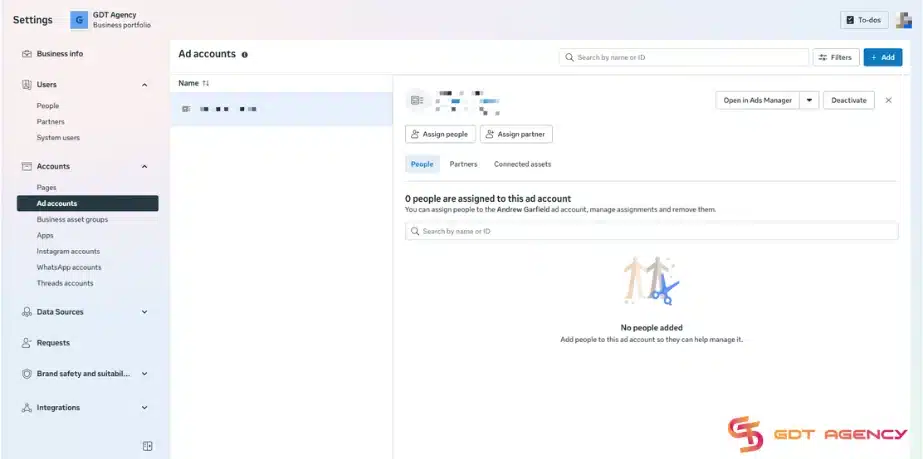
- Ad accounts
- Facebook Pages
- Instagram accounts
- Apps
- Payment methods
- People and permissions
Note: If you already have a Business account, simply log in and continue to the next step.
Step 5: Create the Ad Account
Now that you have your Business Portfolio, next you will need to create the actual account that handles the ads. Inside Business Settings, click on “Ad Accounts” under the Accounts section. Then click the blue “Add” button and choose “Create a New Ad Account”.
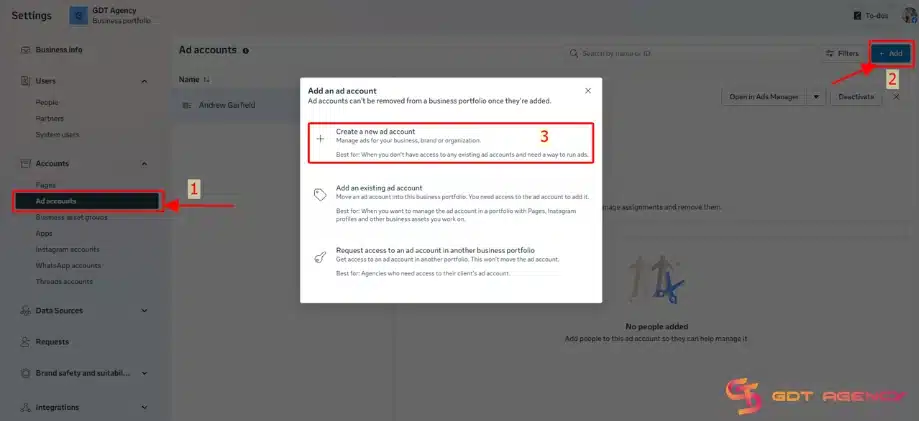
Next, enter the following details:
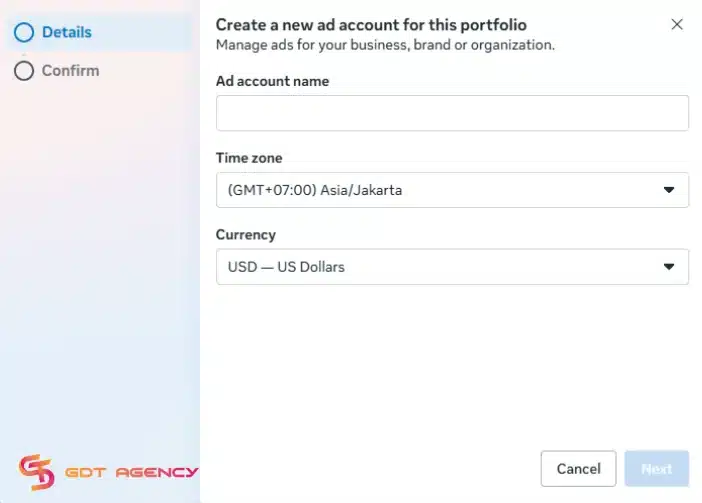
- Ad Account Name: Choose a clear and structured name like [Brand Name] – Main Account. This helps you stay organized if you manage multiple accounts later.
- Time Zone: Select your correct time zone carefully. This cannot be changed after creation. Your reporting, billing cycles, and daily budgets will follow this time zone.
- Currency: Choose the currency you want to use for payment. This also cannot be changed later. If you select the wrong currency, you will need to create a completely new ad account.
After filling in these details, click “Next” > agree with the terms > click Create ad account.
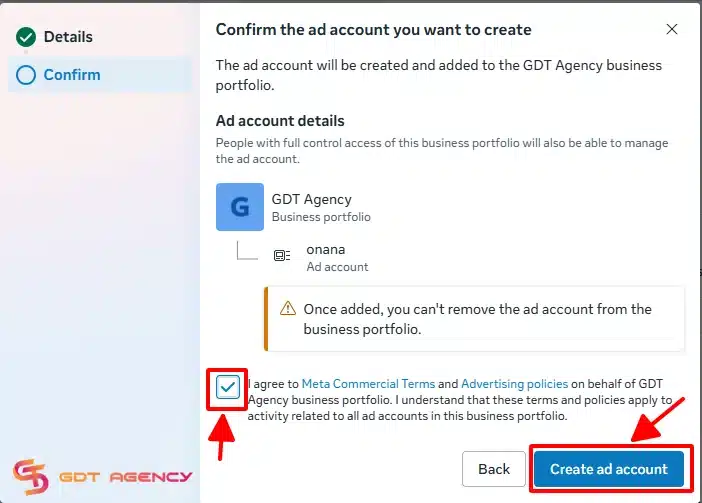
Once you create an ad account, Meta will now ask who will own the ad account. You should assign it to your Business Manager rather than to a person. After that, you must assign people to the ad account and define their permissions.
There are three main permission levels:
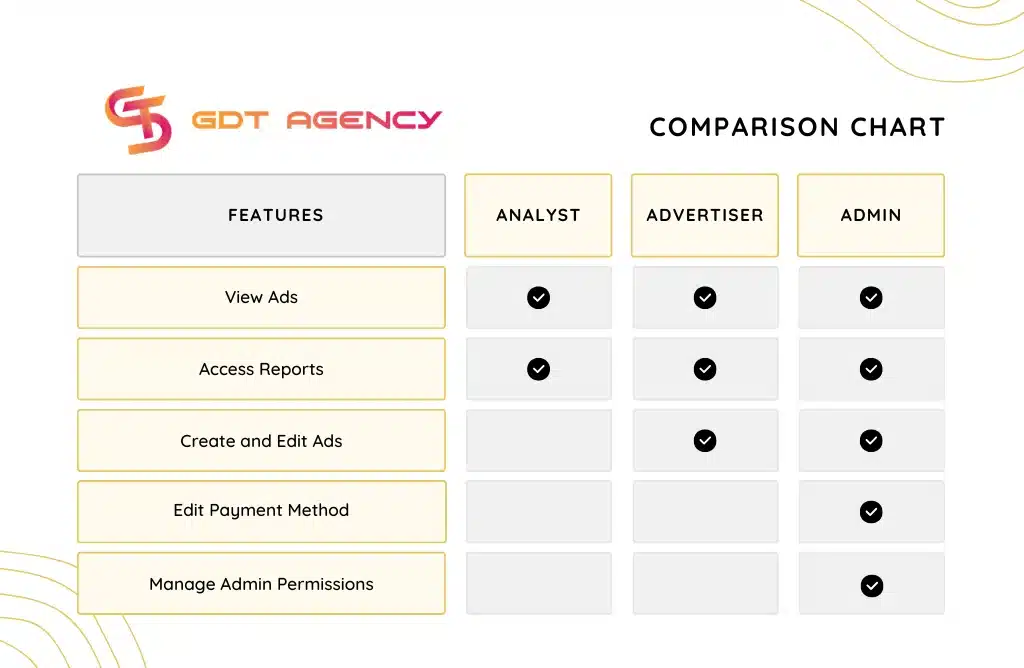
If you are running ads alone, assign yourself as Admin to avoid future access issues. If you are working with a team, carefully decide who should have which level of access. Clear role assignment will help prevent internal conflicts and security risks.
Step 6: Set Up Payments and Security
Your ad account cannot run ads without a valid payment method. In 2026, Meta is extremely strict about billing. Therefore, setting up correctly will prevent your account from being paused or flagged in the future.
- Payment Methods: In the same Settings menu, go to Billing & payments.
- Add Payment Method: Link a business credit card, PayPal (available in some regions), or online banking (depending on country availability).
After adding your payment method, set it as the primary payment method. Based on my experience, I really recommend that you add a backup payment method, so that in case your primary card expires or is declined, Meta will not pause all active ads immediately.
Once you finish setting up your payment method, go to Security Center and ensure 2FA is turned on for all admins because Meta often restricts ad accounts that don’t have this enabled.
>> Related Article: How To Add A Payment Method To A Facebook Ad Account
Step 7: Connect Your Assets
To actually run an ad, your new ad account needs to be connected to a Facebook Page because you will not be able to publish ads without a connected Page. In Settings, go to “Pages” under Accounts. Click “Add” and choose either: Add an existing Page, Request access to a Page, or Create a new Page.
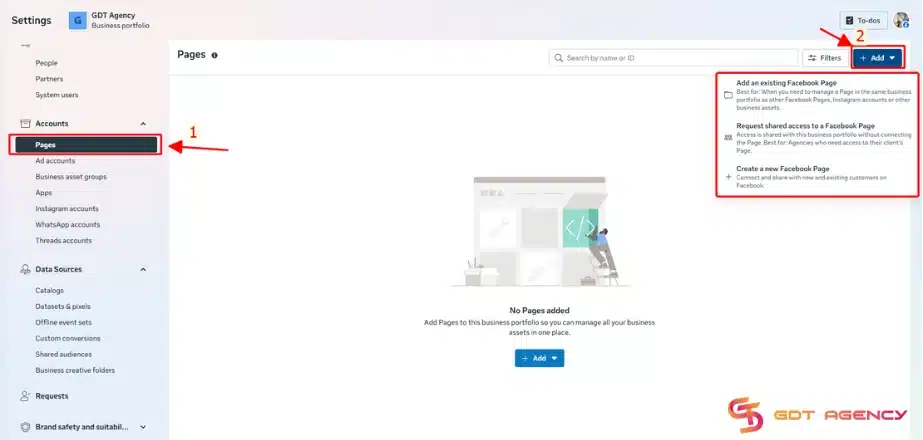
If you already own the Page, select “Add a Page” and follow the instructions. If you do not already have a page, choose “create a new page” and follow the instructions.
If you have an Instagram account, go to Instagram accounts in the sidebar and link it as well. This allows you to run ads on both platforms from one place.
Step 8: Set Up Meta Pixel for Tracking
If you plan to run conversion campaigns or track website performance, you need to set up a Pixel. Inside Business Settings, go to “Data Sources” and click “Pixels.” Then click “Add.”
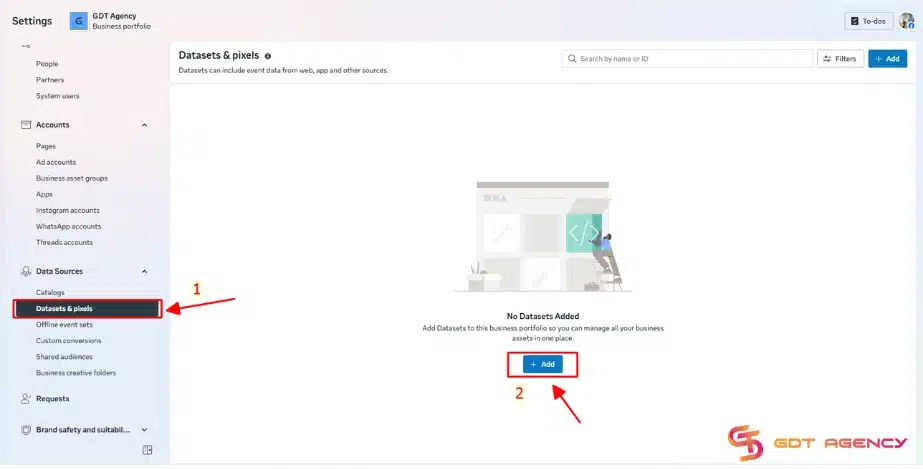
You should give your Pixel a name and follow the instructions to install it on your website. You can install it manually, through a developer, or using integrations like Shopify or WordPress plugins.
The Pixel allows you to track actions such as: Page views, Add to cart, Purchases, Leads, etc. Without proper tracking, you will not have accurate data to optimize your campaigns.
Phase 2: Verify Your Business
Meta does not fully trust your account until you complete business verification. Without it, your spending limit, account stability, and support access all stay restricted. You may be required to submit:
- Legal business registration documents.
- Business address.
- Phone number verification.
Based on my experience, business verification will increase trust with Meta and reduce the risk of account restrictions.
→ After your ad account, payment method, Page, and Pixel are ready, you can start creating ads using Meta Ads Manager.
Phase 3: Get Access To The Facebook Ad Account
For agencies, freelancers, and marketers, the cleanest way to onboard a new account is to request access as a Partner. This method is preferred because it creates a clear boundary between your agency’s team and the client’s internal assets. Keep in mind that, before requesting, you need to contact your client for their business portfolio ID, contact name, and contact email.
Note: You can instruct your client to find their business portfolio ID in the Business portfolio info page:

Now is the full-step guide on how to get access to Facebook ad accounts and business assets as a partner.
- Go to your Meta Business Manager, select the Business Portfolio you want to use to ask for access to your client’s business portfolio, and click on the Settings icon next to it.
- In the Settings menu located on the left side of the screen, select Partners
- Click the Add button below Partner to request access from

- Choose Get Started

- Fill out the pop-up form with the partner’s contact info and partnership info, then select Next: Request asset types

- Select types of assets (such as pages and ad accounts) and permissions (partial or full control) as you want, then choose Next: Confirm and review

- Review your request before you Send it to your client

- Now, ask your client to check for an email from the Business Manager. Tell them to click on View in Business Manager, choose specific assets and levels of permissions to share, then confirm.

Now, you will have access to your client’s pages and Facebook ad accounts in this business portfolio.
How Can I Connect My Pixel And Custom Audiences From My Personal Business Manager To The Agency Account?
Connecting your personal assets to an agency account requires a “Partner” connection within Meta Business Suite. This process keeps you in control of the ownership while allowing the agency to use the data for your campaigns.
Since Meta has updated its terminology for 2026, the Pixel is now managed under Datasets.
Step 1: Get the Agency’s Business ID
You must ask your agency contact for their Business Manager ID (a 15- or 16-digit number). You cannot complete the connection without this.
Step 2: Connect the Pixel (Datasets)
To share your data tracking, follow these steps:
- Open Business Settings in your Meta Business Suite.
- Go to the Data Sources section on the left-hand menu.
- Select Datasets (formerly Pixels).
- Choose the specific Pixel/Dataset you want to share.
- Click Assign Partners.
- Enter the Agency Business ID and toggle on the “Manage Dataset” or “Partial Access” permission depending on their needs.
Step 3: Connect Custom Audiences
Sharing audiences is a separate step from sharing the Pixel itself:
- Navigate to the Audiences section in Ads Manager.
- Check the box next to the Custom Audience you want to share.
- Click the Share button at the top of the list.
- Enter the Agency Business ID.
- Note: If your Custom Audience is a Customer List (uploaded CSV), you must also share the Ad Account ownership or ensure the agency has “Business Account” level access to use those specific identifiers.
FAQs
1. Do I Have Control Over Content And Audiences When Using An Agency Account, or Does The Agency Have Full Admin Control?
You retain primary control over your assets. The agency typically functions as a Partner rather than the owner. You decide exactly which audiences and creative assets the agency can access. You can revoke their access at any time through your Business Settings.
While the agency needs “Manage” permissions to run ads effectively, they do not have “Full Admin Control” over your entire Business Manager unless you manually grant it.
2. Can I Share The Account With My Team Within My Own Business Manager?
Yes. You can assign your team members to any asset within your own Business Manager. You simply go to People in your settings, add your team members, and then assign them to the specific Ad Account, Dataset (Pixel), or Page.
3. How Does The Agency Grant Account Access?
Most agencies use the Meta Business Portfolio to manage access. The agency sends a request to your Business ID. You approve the request in your settings. This process keeps your personal login private. You maintain full ownership of the assets.
4. Do I Have Full Control Over My Campaigns?
Yes, you still have full control over your campaigns, whether you are renting an agency account from an account provider or hiring an agency to manage your ads.
However, most businesses hire agencies to handle the day-to-day optimizations, so while you have the control to change things, it is best to coordinate with your account manager to avoid conflicting edits.
5. How Long Does It Take To Start Running Ads?
The setup time to the time advertisers can start running ads varies based on the account providers. Normally, the timeline usually falls between 24 and 72 hours once the technical setup is complete.
For example, at GDT Agency, you can access the high-trust ad account and start running ads within 24 hours. However, at other providers like Orange Trail, advertisers have to wait from 1 to 3 business days to access and start running ads.
Conclusion
Setting up a Facebook agency account is an investment in your business infrastructure. The landscape of Meta advertising now favors high-trust entities over individual profiles. By following the three steps of building a foundation, verifying your legal entity, and securing partner access, you move away from the risk of random bans.
If you have any questions, need additional help, or want to rent a Facebook agency ad account, feel free to contact GDT Agency. Our expert team with seasoned experience is always ready to help you.

Follow if you find it useful


You can contact us, with our experience in successfully deploying thousands of conversion advertising campaigns, GDT Agency confidently believes we can help you optimize effectiveness and maximize cost savings with advertising operations.