How to Change Your Facebook Ads Account Name (Step-by-Step Guide)


You can change your Facebook Ad account name through Meta Business Suite or Ads Manager in a few minutes, and the process only requires admin access to the account. Business Suite gives you the most direct route, since the account name field sits right inside your business settings. Ads Manager offers a similar path for users who manage their account outside Business Suite, so you can pick whichever tool you already work in most.
Many advertisers first search for this task because they mix up three separate settings: the ad account name, the name of an individual ad, and their personal Facebook profile name. Each one lives in a different part of the platform and controls a different thing, so renaming the wrong field wastes time and can confuse teammates who rely on consistent labels. The ad account name is the one that shows up on invoices, in Business Manager, and across every report tied to that account.
Permission also shapes this process more than most advertisers expect. Meta ties the ability to rename an account to your role inside the business portfolio, not just your login. An admin can rename the account in seconds, while an editor or analyst sees the field but can’t touch it. Agencies and larger teams run into this limitation often, since several people may share access to one account without holding equal permissions.
Below, we walk through both renaming methods step by step, explain exactly who holds the rights to make the change, and cover the most common reasons Meta blocks the edit so you can fix the issue quickly instead of guessing at the cause.
- How to Change Facebook Ad Account Name in Business Suite
- Step-by-Step Instructions
- Who Can Make This Change?
- How to Change Your Facebook Ads Account Name via Ads Manager
- Accessing Account Settings in Ads Manager
- Saving and Confirming Your New Name
- What Is the Difference Between Renaming an Ad Account and Renaming an Ad?
- Why Can’t I Change My Facebook Ads Account Name?
- Common Naming Restrictions and Policy Violations
- What to Do If You Don’t Have Admin Access
- How to Rename Multiple Ad Accounts as an Agency
- Renaming a Rented or Agency Ad Account: What You Need to Know
- Final Thought
- FAQs
- Can I change my Facebook Ads account name more than once?
- Does changing my ad account name affect my campaigns or ad delivery?
- Will my ad account ID change if I rename the account?
- Can a client see the account name I set, or only my team?
- What if the account name field doesn’t save after I click Save Changes?
How to Change Facebook Ad Account Name in Business Suite
You change your Facebook Ads account name in Business Suite by opening your business settings, selecting the ad account, and editing the name field directly. Meta built this feature into the account overview page, so you don’t need any extra tools or third-party apps to complete it.
As an expert at GDT Agency with years of experience working with Facebook ads and multiple ad accounts, from standard, BM, to Facebook agency accounts, based on my experience, I have broken the process into clear steps and explain who holds the rights to make this edit.
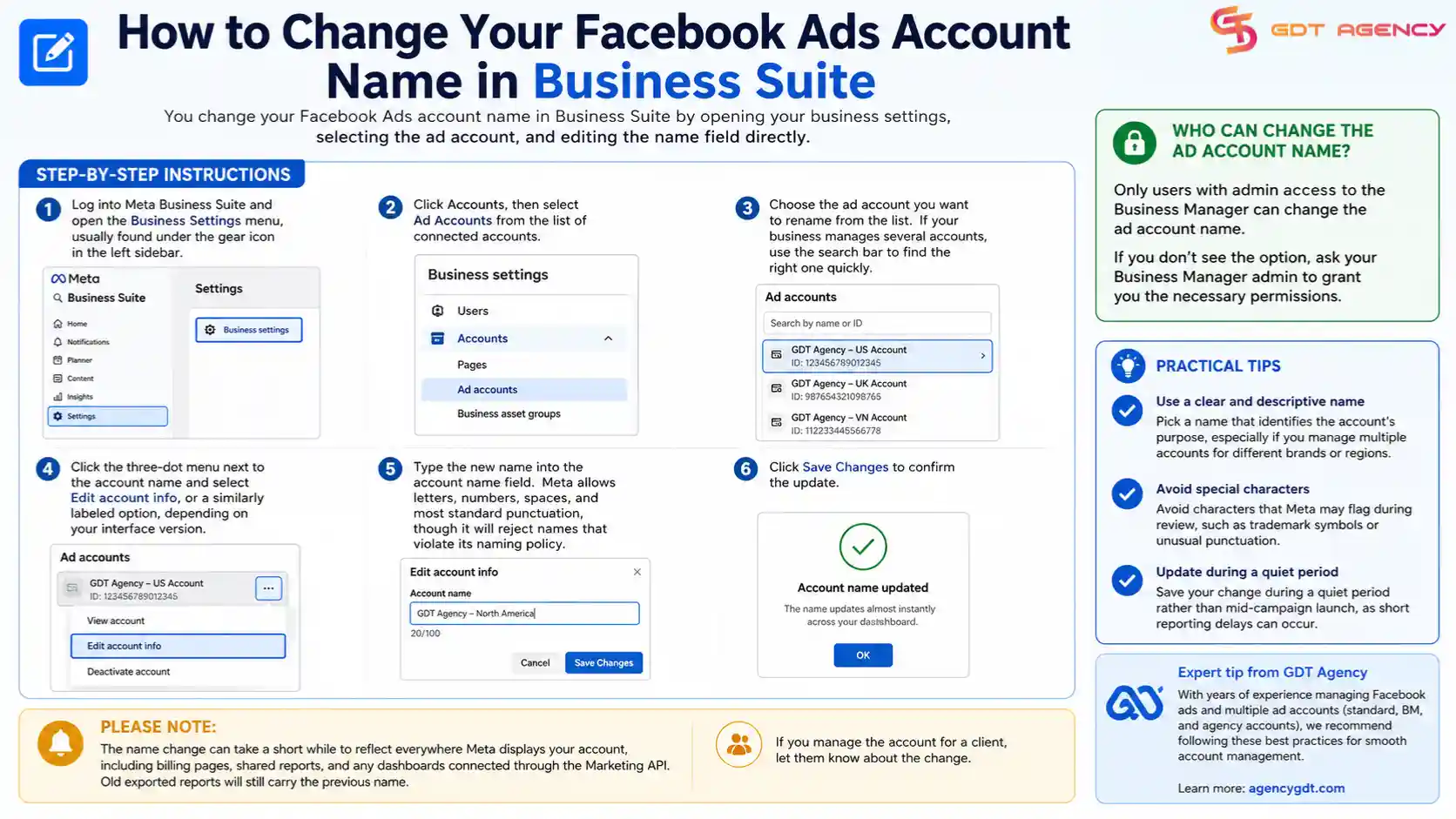
Step-by-Step Instructions
Follow these steps to rename your ad account inside Meta Business Suite:
- Log into Meta Business Suite and open the Business Settings menu, usually found under the gear icon in the left sidebar.
- Click Accounts, then select Ad Accounts from the list of connected accounts.
- Choose the ad account you want to rename from the list. If your business manages several accounts, use the search bar to find the right one quickly.
- Click the three-dot menu next to the account name and select Edit account info, or a similarly labeled option, depending on your interface version.
- Type the new name into the account name field. Meta allows letters, numbers, spaces, and most standard punctuation, though it will reject names that violate its naming policy.
- Click Save Changes to confirm the update.
The name updates almost instantly across your dashboard, though it can take a short while to reflect everywhere Meta displays your account, including billing pages, shared reports, and any dashboards connected through the Marketing API. If you manage the account for a client, let them know about the change too, since old exported reports will still carry the previous name.
A few practical tips make this process smoother. First, pick a name that identifies the account’s purpose, especially if your business runs multiple ad accounts for different brands or regions. Second, avoid special characters that Meta sometimes flags during review, such as trademark symbols or unusual punctuation. Third, save your change during a quiet period rather than mid-campaign launch, since occasional short reporting delays can follow a name update.
Who Can Make This Change?
Only users with admin access to the business portfolio can rename a Facebook Ads account. Meta restricts this setting because the account name affects billing records, team visibility, and reporting across the whole business, not just the individual user making the change. If you hold an editor or analyst role instead of admin, you can view the account name, but the edit option stays greyed out or hidden entirely.
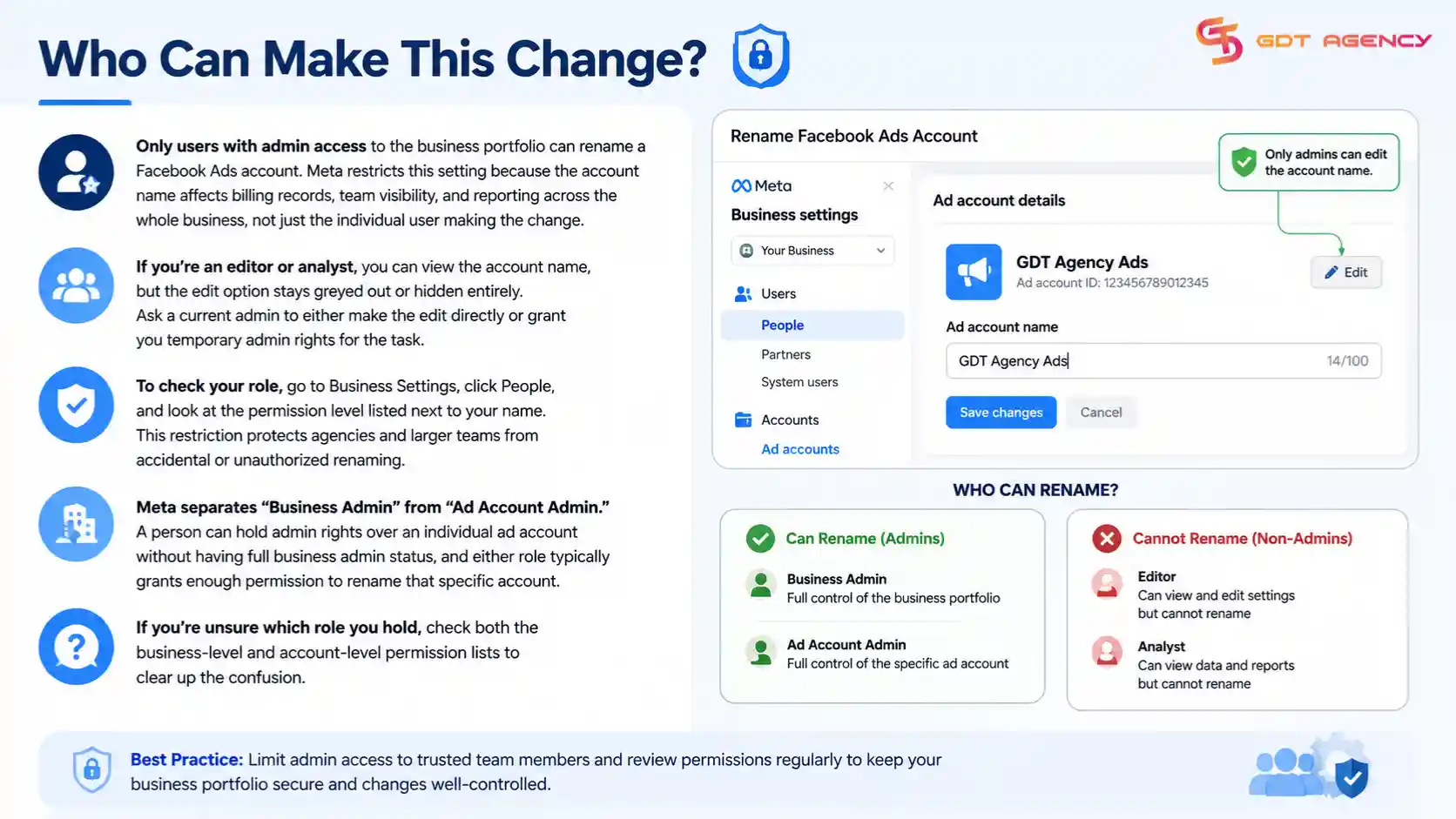
Team members who need the change should ask a current admin to either make the edit directly or grant them temporary admin rights for the task. To check your own role, go to Business Settings, click People, and look at the permission level listed next to your name. This restriction protects agencies and larger teams from accidental or unauthorized renaming, especially when several people manage the same account across different departments or client relationships.
Meta separates “Business Admin” from “Ad Account Admin.” A person can hold admin rights over an individual ad account without having full business admin status, and either role typically grants enough permission to rename that specific account. If you’re unsure which role you hold, check both the business-level and account-level permission lists to clear up the confusion.
→ To better understand how Business Portfolio, ad account permissions, and ownership fit together, see Facebook Ad Account Infrastructure: What It Is & How It Works. It explains the structure behind Meta’s advertising system and why different users have different levels of access.
How to Change Your Facebook Ads Account Name via Ads Manager
You can also change your Facebook Ads account name through Ads Manager, without switching over to Business Suite. Ads Manager pulls from the same account settings that Business Suite uses, so the two methods lead to the same result and update the same underlying record. This route works well if you already spend most of your time inside Ads Manager building campaigns and want to avoid an extra login step or app switch.
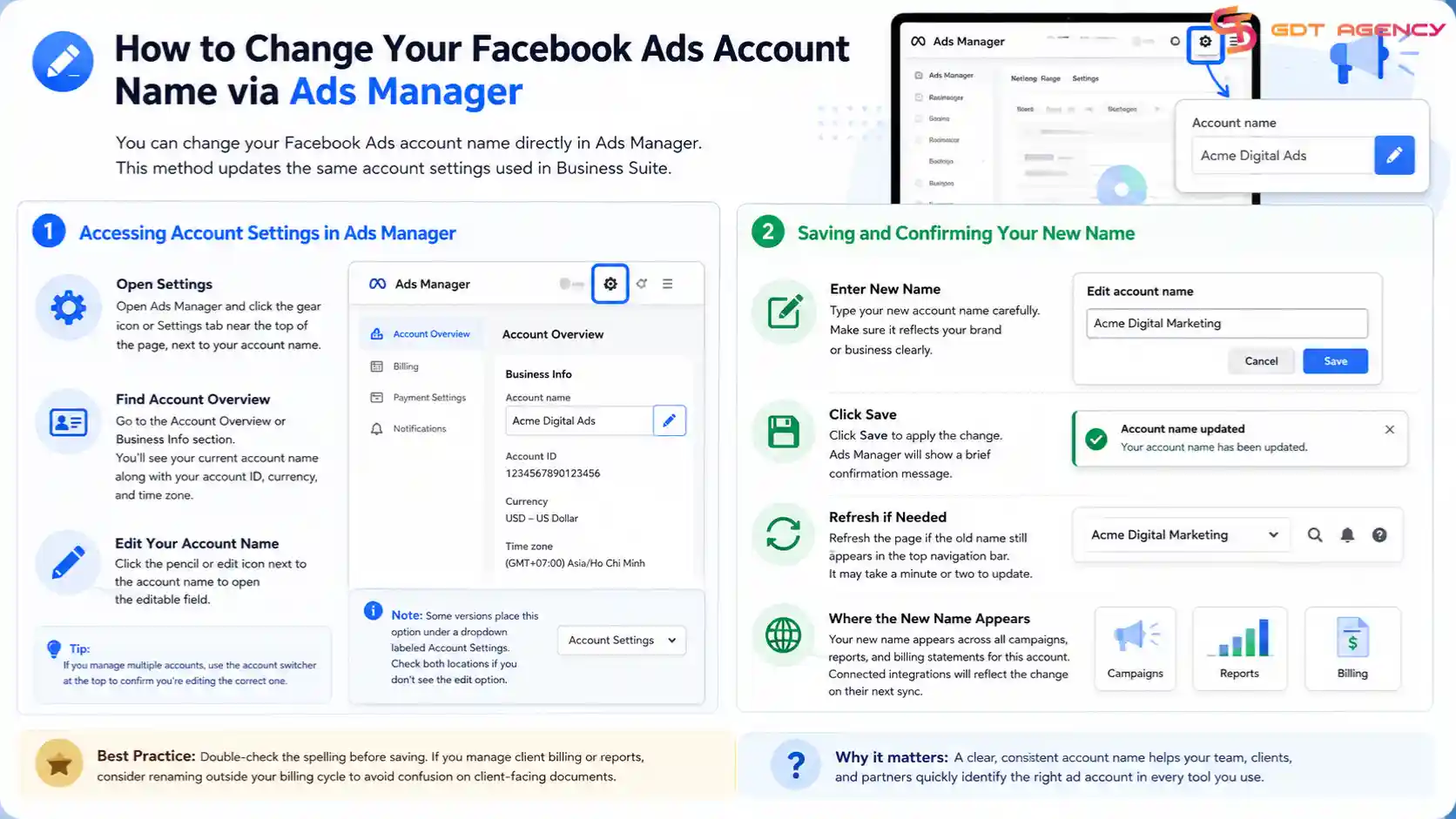
Accessing Account Settings in Ads Manager
Open Ads Manager and click the gear icon or Settings tab near the top of the page, usually next to your account name in the header. From there, look for the Account Overview or Business Info section, which lists your current account name alongside your account ID, currency, and time zone. Click the pencil or edit icon next to the account name to open the editable field.
Some interface versions place this option under a dropdown labeled Account Settings instead of a dedicated tab, so check both locations if you don’t see the edit option right away. Meta periodically shifts the layout of Ads Manager, so users on an older or newer version of the interface may see the setting in a slightly different spot. If you manage multiple accounts under one login, use the account switcher at the top of the page first to confirm you’re editing the correct one before making any change.
→ Need to update more than your account name? See our guide on How to Change Your Facebook Ad Account Time Zone to learn when Meta allows time zone changes, the limitations involved, and the available options if your current setting is incorrect.
Saving and Confirming Your New Name
Once you type the new name, click Save to apply the change. Ads Manager shows a brief confirmation message once the update goes through, usually a small banner or toast notification near the top of the screen. Refresh the page if the old name still shows in the top navigation bar, since cached data sometimes delays the visual update by a minute or two.
Your new name then appears across every campaign, report, and billing statement tied to that account, so double-check the spelling before you confirm the change. If you export scheduled reports or connect the account to a third-party dashboard, expect those integrations to pick up the new name on their next sync rather than instantly. For agencies managing client relationships, this delay matters most around invoicing dates, so timing a rename outside your billing cycle avoids any confusion on client-facing documents.
What Is the Difference Between Renaming an Ad Account and Renaming an Ad?
Renaming an ad account changes the label for your entire advertising account, while renaming an ad only changes the name of one specific ad inside a campaign. The ad account sits at the top of Meta’s structure and covers every campaign, ad set, and ad running under it. An individual ad, by contrast, is a single creative unit inside one ad set, and its name has no effect on billing, team access, or account-level reporting.
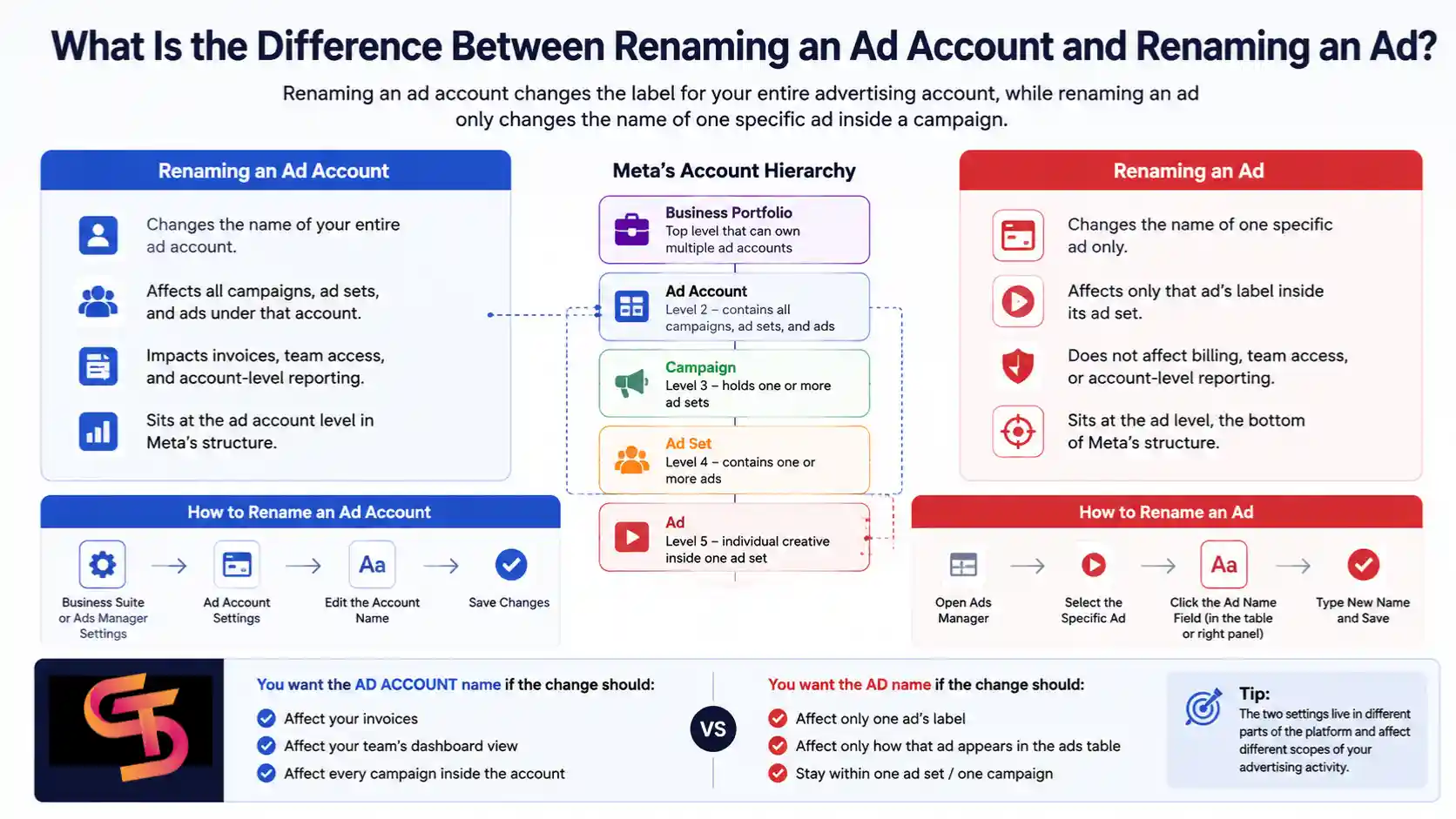
Meta’s account hierarchy runs in four layers: business portfolio, ad account, campaign, and ad. The account name you change through Business Suite or Ads Manager settings sits at the second layer and applies to everything beneath it. Ad names, meanwhile, sit at the very bottom layer and only describe one creative asset within one ad set.
You rename an ad account through Business Suite or Ads Manager account settings, as covered in the sections above. You rename an ad by opening the specific ad inside Ads Manager, clicking its name field in the ads table (or the edit panel on the right side of the screen), and typing a new label. The same distinction applies to campaign names and ad set names, which each have their own separate naming field one level up from the individual ad.
Mixing these settings up is common, especially for new advertisers who search for “change ad name” when they actually mean the account name, or the reverse. A quick way to check which one you need: if the change should affect your invoices, your team’s dashboard view, and every campaign inside the account, you want the account name. If the change should only affect one ad’s label inside the ads table, you want the ad name field instead. The two settings live in different parts of the platform and affect different scopes of your advertising activity.
Why Can’t I Change My Facebook Ads Account Name?
You often can’t change your Facebook Ads account name because you lack admin permission, the account sits under specific business verification restrictions, or the account belongs to an agency or a client structure that limits editing rights. Meta ties account naming to permission levels and business verification status, so a blocked or greyed-out edit field usually points to one of these causes rather than a bug on Meta’s side.
Below, we cover the most common restrictions, what to do if you lack access, and how the process differs for agencies and rented accounts, since these last two scenarios trip up a large share of advertisers who search for this problem.
Common Naming Restrictions and Policy Violations
Meta blocks certain account names for a few clear reasons, and understanding them saves you a support ticket. The platform rejects names that include prohibited terms, mimic another brand without authorization, contain contact information such as phone numbers or emails, or otherwise violate Meta’s naming and advertising policies.
Accounts already flagged for policy violations sometimes lose editing access entirely until the underlying issue gets resolved through Meta’s support channels or the account review process. This means a naming restriction can be a symptom of a separate compliance issue rather than a problem with the name field itself.
Business verification status also plays a role in what you’re allowed to change. Unverified businesses may face tighter restrictions on account-level changes, including the name field, until verification completes through Meta Business Suite. If your account name edit fails with no clear error message, check your business verification status before you contact support.
What to Do If You Don’t Have Admin Access
If you don’t have admin access, ask the current business admin to either make the change for you or upgrade your role to admin. Open Business Settings, go to People, and check your assigned role next to your name. If you see “Employee,” “Analyst,” or “Advertiser” instead of “Admin,” you’ll need someone with admin rights to adjust your permissions or complete the rename on your behalf.
Larger teams sometimes lose track of who holds admin status, especially after staff turnover or agency handoffs, so this step alone resolves a good share of naming issues. If nobody on your current team has admin access, and the original admin has left the company or is unreachable, you may need to go through Meta’s business support process to recover admin rights, which can take several business days to resolve.
How to Rename Multiple Ad Accounts as an Agency
Agencies that manage several ad accounts at once can rename each one individually through the same Business Suite path, account by account. Meta doesn’t offer a bulk-rename tool inside the standard interface, so each account requires its own edit and save action, even if you manage dozens of them.
Agencies with many client accounts often build a naming convention to keep everything organized and searchable inside Business Manager, such as client name plus region plus campaign type. A consistent format like “ClientName – US – Ecommerce” makes it far easier to locate the right account during audits, reporting, or when onboarding new team members. Consistent naming also reduces the risk of a team member editing the wrong client’s campaigns, which becomes a real concern once a portfolio grows past a handful of accounts.
Some agencies with a large number of accounts explore the Meta Marketing API to batch-update account-level fields programmatically, though this requires development resources and API access approval from Meta, so it only makes sense once manual renaming becomes a bottleneck.
Renaming a Rented or Agency Ad Account: What You Need to Know
Renaming a rented or agency-provided ad account works differently, since the naming rights often belong to the agency that owns the underlying business portfolio, not the advertiser using the account day to day. If you rent an ad account from a digital advertising agency, check your service agreement or ask your account manager before attempting to change the name yourself.
Some agencies lock the account name for internal tracking, billing reconciliation, and compliance reasons, particularly when they manage accounts across many clients and countries at once. This isn’t unusual and doesn’t affect your ability to run campaigns or spend budget through the account; it keeps the naming convention consistent on the agency’s side for its own operational tracking.
If you need a custom name for your own reporting purposes, most agencies can apply that change on their end without disrupting the account’s standing, its spending history, or its delivery performance. It’s worth raising this request early in the onboarding process rather than after campaigns are already live, since some agencies batch these changes on a set schedule rather than instantly.
Final Thought
Renaming a Facebook Ads account pays off. A clear, consistent name saves time on every report you pull, every invoice you check, and every conversation with a teammate or client about which account you mean. Once you know where the setting lives and who holds the permission to change it, the process itself takes less than five minutes, whether you work through Business Suite, Ads Manager, or through an agency that manages the account on your behalf.
If you run into a blocked edit field, walk back through the checklist above: confirm your admin role first, then check business verification status, then check whether the account belongs to a rented or agency setup with its own naming rules. Most naming issues trace back to one of these three causes, so working through them in order gets you to a fix faster than guessing.
FAQs
Can I change my Facebook Ads account name more than once?
Yes, Meta doesn’t limit how many times you can rename an ad account. You can update the name as often as your business needs, though frequent changes may confuse team members who rely on a consistent label in shared reports.
Does changing my ad account name affect my campaigns or ad delivery?
No, renaming the account has no effect on active campaigns, ad delivery, budget pacing, or performance data. The change only updates the label Meta displays for the account across the interface.
Will my ad account ID change if I rename the account?
No, your account ID stays the same. The account name works as a display label, while the account ID stays fixed to the account permanently, so use the ID for any technical integrations.
Can a client see the account name I set, or only my team?
Anyone with access to the business portfolio, including clients added as partners or admins, can see the account name. If you manage the account for a client, choose a name that makes sense to them as well as your internal team.
What if the account name field doesn’t save after I click Save Changes?
This usually points to a permission issue, a naming policy violation, or a temporary platform glitch. Confirm your admin role first, try a different name to rule out a policy conflict, and retry after a few minutes if the field still won’t save.