How to Create a Facebook Ad Account and Access Meta Ads Manager


Creating a Facebook ad account follows a straightforward process: go to Meta Ads Manager, set up your account details, including time zone and currency, then add a payment method before you can run any ads. Every advertiser needs at least one ad account to publish campaigns on Facebook, Instagram, or Messenger. Meta assigns one personal ad account automatically when you sign up, but most businesses and agencies create additional accounts through Meta Business Manager to separate billing, access, and campaign management.
Before you create an account, you need 3 things in place: an active Facebook profile, a Meta Business Manager (for business or agency use), and a valid payment method. These requirements determine which type of account you can create and how much control you get over user permissions and billing. Without a Business Manager, your ad account stays tied to your personal profile and cannot be transferred to another owner.
Managing a Facebook ad account goes beyond the initial setup. Once your account is live, you assign roles to teammates or agency partners, each with different permission levels. An Admin controls everything, an Advertiser creates and edits campaigns, and an Analyst reads reports without making changes. Getting these permissions right from the start saves significant trouble later, especially if you work with an external team.
A fourth layer most new advertisers overlook: account health. Meta monitors every new ad account for policy compliance and assigns a spending limit that starts low and increases over time. Understanding how this trust system works – and what triggers a disabled or restricted account – helps you protect your ad spend from day one. Below is a complete guide covering everything from account structure to access, setup, and management.
- How to Create a Facebook Ad Account?
- What Do You Need Before Creating a Facebook Ad Account?
- How to Create a Facebook Ad Account Step-by-Step
- How to Access Meta Ads Manager?
- How to Navigate the Meta Ads Manager Dashboard
- How to Add a Payment Method to Your Facebook Ad Account
- How to Add Users and Manage Permissions in a Facebook Ad Account
- How Do You Keep a Facebook Ad Account Safe?
- What Are the Common Reasons a Facebook Ad Account Gets Disabled?
- How Do You Protect a Facebook Ad Account From Getting Banned?
- Final Thoughts
- FAQs
- 1. How do I create a Facebook ad account?
- 2. Do I need Meta Business Manager to access Ads Manager?
- 3. Is creating a Facebook ad account free?
- 4. How do I access Meta Ads Manager after creating an ad account?
- 5. Why can’t I create a Facebook ad account?
- 6. Can multiple people use the same Facebook ad account?
How to Create a Facebook Ad Account?
You can create a Facebook ad account in two ways: directly through your personal profile via Ads Manager, or through Meta Business Manager for business and agency use – and the process takes under 10 minutes if you have your payment details ready.
Before going further to discover the step-by-step instructions to create a Facebook ad account, let’s check what you need before creating a Facebook ad account:
What Do You Need Before Creating a Facebook Ad Account?
You need 3 things before creating a Facebook ad account: an active Facebook profile, a Meta Business Manager account (for business or agency use), and a valid payment method such as a credit card or PayPal.
These requirements are not just formalities. They determine which type of Facebook ad account you can create and what features you can access from the start.
Do You Need a Meta Business Manager to Create an Ad Account?
No, you do not need Business Manager to create a basic Facebook ad account – Meta creates one automatically with your personal profile. However, as the CEO and Founder of GDT Agency, who has spent more than 10 years working with Facebook ad accounts, especially Facebook agency ad accounts, I have to say that you do need Business Manager if you want to manage multiple ad accounts, give agency access to your campaigns, or separate your personal Facebook activity from your business advertising.
The table below shows the key differences between the two account types:
| Feature | Personal Ad Account | Business Manager Ad Account |
| Created automatically | Yes | No – requires manual setup |
| Can be transferred | No | Yes |
| Supports multiple users | Limited | Yes – up to 25 users per account |
| Agency access | Not recommended | Full support |
| Max accounts per user | 1 | Up to 25 |
This comparison matters most for anyone running ads on behalf of a client or managing multiple brands. A personal ad account locks you into a single billing profile and cannot be handed off to another owner. A Business Manager account gives you full flexibility on ownership, access, and multi-account structure.
How to Create a Facebook Ad Account Step-by-Step
You can create a Facebook ad account directly through your personal profile via Ads Manager, or through Meta Business Manager for business and agency use. Here is a step-by-step guide for both methods.
How to Create a Personal Facebook Ad Account
A personal Facebook ad account gets created automatically when you register on Facebook. To activate and configure it, follow these steps:
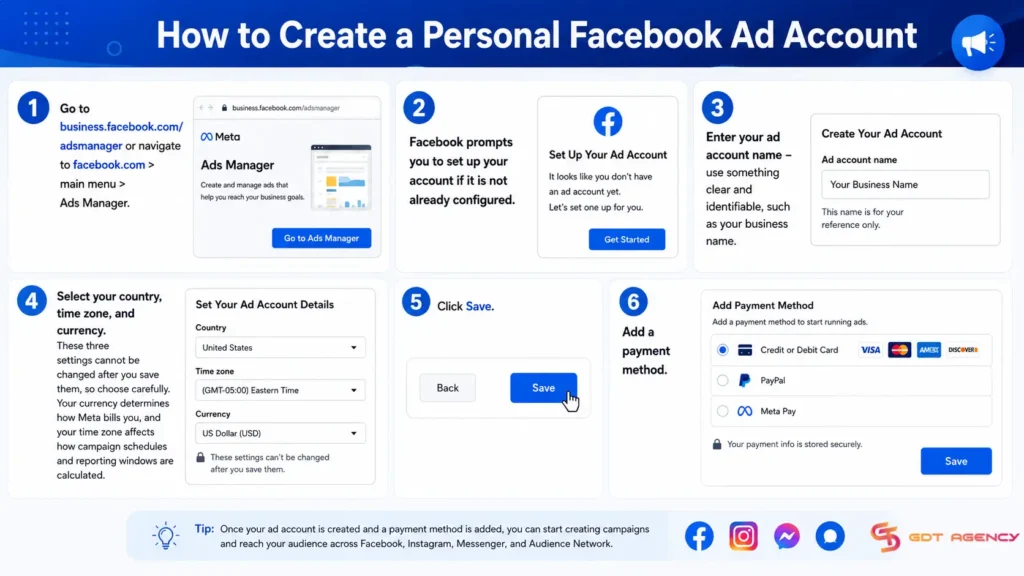
1. Go to business.facebook.com/adsmanager or navigate to facebook.com > main menu > Ads Manager.
2. Facebook prompts you to set up your account if it is not already configured.
3. Enter your ad account name – use something clear and identifiable, such as your business name.
4. Select your country, time zone, and currency. These three settings cannot be changed after you save them, so choose carefully. Your currency determines how Meta bills you, and your time zone affects how campaign schedules and reporting windows are calculated.
5. Click Save.
6. Add a payment method (covered in a separate section below).
One important limitation: a personal ad account stays permanently linked to your Facebook profile. If you stop working on a project or want to hand the account to a client, you cannot transfer ownership. For any serious business advertising, use Business Manager instead.
How to Create a Facebook Ad Account in Meta Business Manager
Creating an ad account inside Meta Business Manager gives you full control over ownership, access, and billing separation. Follow these steps:
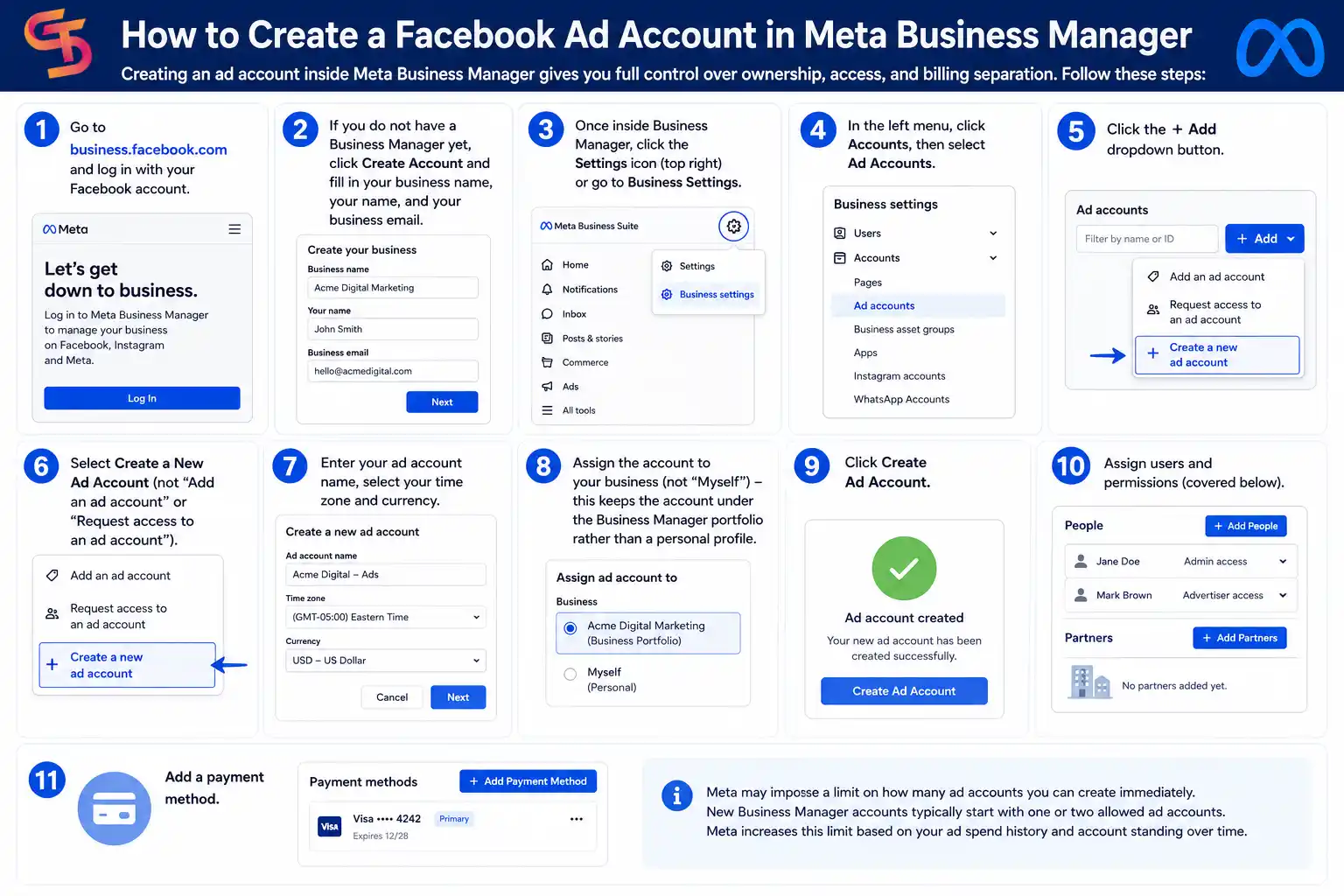
1. Go to business.facebook.com and log in with your Facebook account.
2. If you do not have a Business Manager yet, click Create Account and fill in your business name, your name, and your business email.
3. Once inside Business Manager, click the Settings icon (top right) or go to Business Settings.
4. In the left menu, click Accounts, then select Ad Accounts.
5. Click the + Add dropdown button.
6. Select Create a New Ad Account (not “Add an ad account” or “Request access to an ad account”).
7. Enter your ad account name, select your time zone, and currency.
8. Assign the account to your business (not “Myself”) – this keeps the account under the Business Manager portfolio rather than a personal profile.
9. Click Create Ad Account.
10. Assign users and permissions (covered below).
11. Add a payment method.
Meta may impose a limit on how many ad accounts you can create immediately. New Business Manager accounts typically start with one or two allowed ad accounts. Meta increases this limit based on your ad spend history and account standing over time.
→ Creating a Facebook ad account is only the first step. To understand how account structure affects long-term advertising performance, read Facebook Ad Account Infrastructure: What It Is and Why It Determines Your Campaign Stability.
How to Access Meta Ads Manager?
You can access Meta Ads Manager in 3 ways: through a web browser at adsmanager.facebook.com, through Meta Business Suite at business.facebook.com, or through the Facebook mobile app via the main menu.
Each access method suits a different workflow. The browser version gives you the full dashboard with complete reporting and campaign management tools.
- Meta Business Suite combines Ads Manager with page management, inbox, and insights in one interface. It is useful for social media managers who handle both organic and paid.
- The mobile app works for monitoring campaigns and making minor adjustments on the go, but it has fewer features than the desktop version.
How to Navigate the Meta Ads Manager Dashboard
The Meta Ads Manager dashboard has 4 primary tabs: Campaigns, Ad Sets, Ads, and Reporting. Each tab shows the corresponding level of your campaign hierarchy.
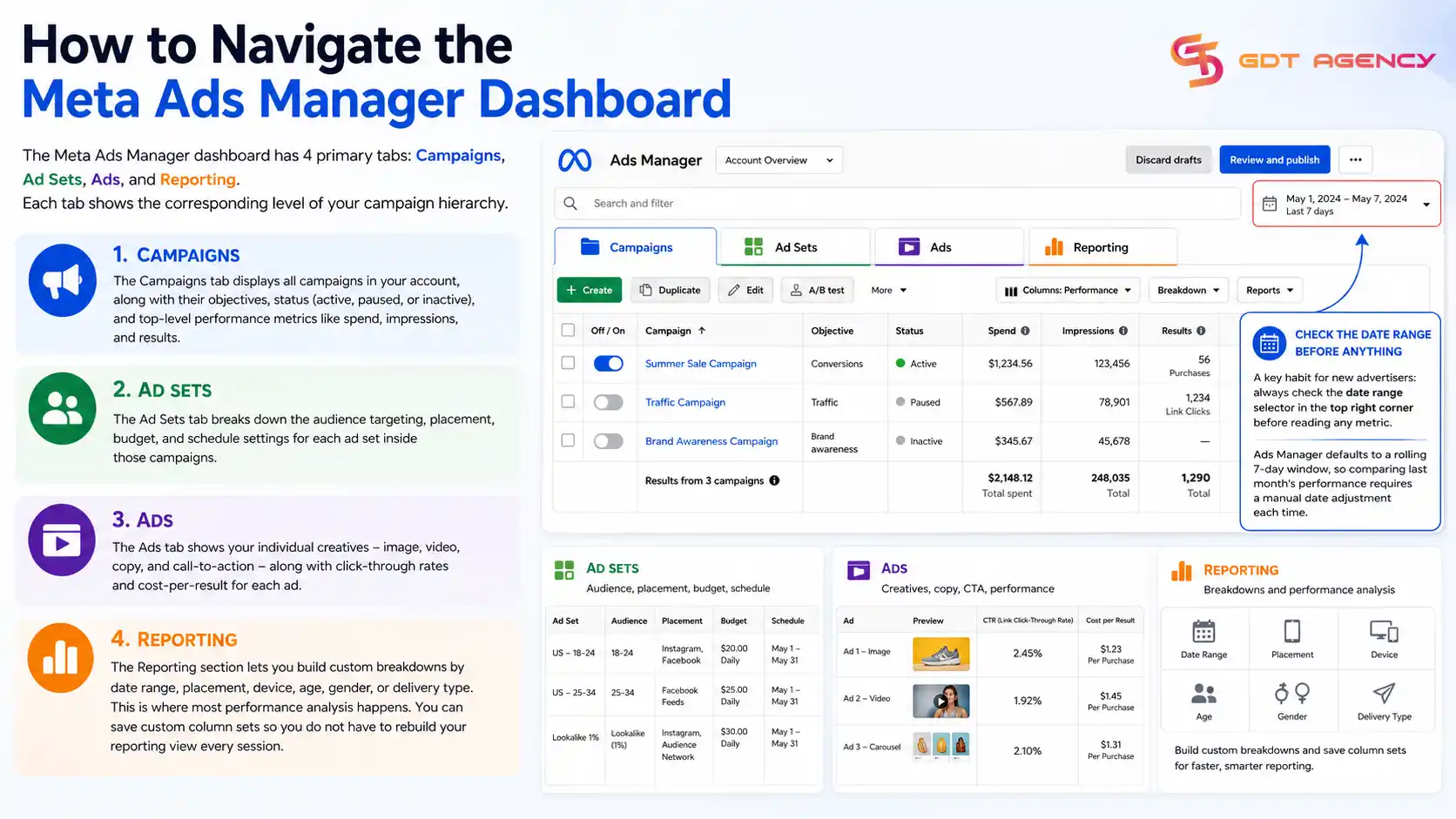
- The Campaigns tab displays all campaigns in your account, along with their objectives, status (active, paused, or inactive), and top-level performance metrics like spend, impressions, and results.
- The Ad Sets tab breaks down the audience targeting, placement, budget, and schedule settings for each ad set inside those campaigns.
- The Ads tab shows your individual creatives – image, video, copy, and call-to-action – along with click-through rates and cost-per-result for each ad.
- The Reporting section lets you build custom breakdowns by date range, placement, device, age, gender, or delivery type. This is where most performance analysis happens. You can save custom column sets so you do not have to rebuild your reporting view every session.
A key habit for new advertisers: always check the date range selector in the top right corner before reading any metric. Ads Manager defaults to a rolling 7-day window, so comparing last month’s performance requires a manual date adjustment each time.
How to Add a Payment Method to Your Facebook Ad Account
To add a payment method, go to Ads Manager > Billing (accessible from the left navigation or the main menu icon) > Payment Settings > Add Payment Method.
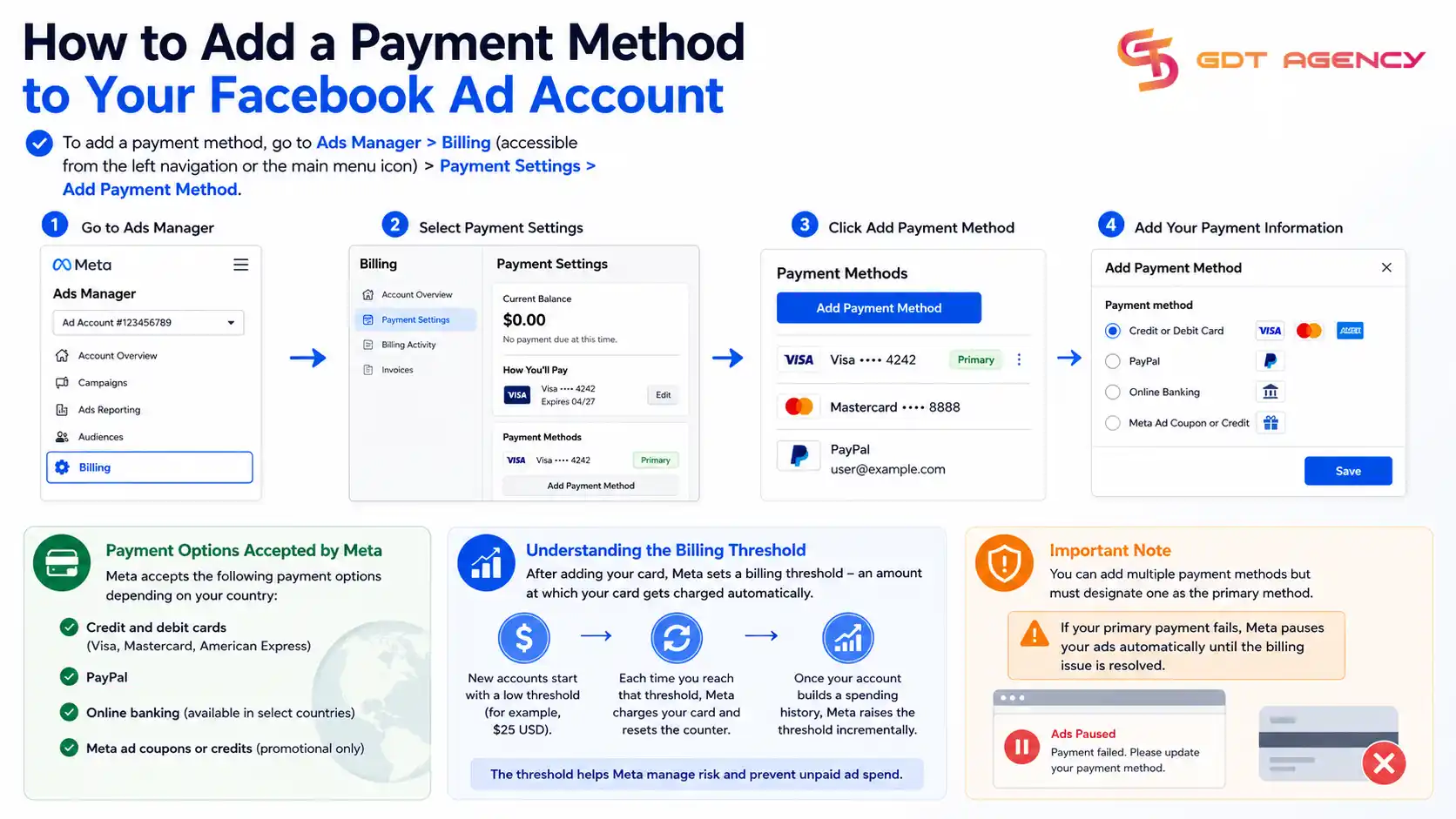
Meta accepts the following payment options, depending on your country:
- Credit and debit cards (Visa, Mastercard, American Express)
- PayPal
- Online banking (available in select countries)
- Meta ad coupons or credits (promotional only)
After adding your card, Meta sets a billing threshold – an amount at which your card gets charged automatically. New accounts start with a low threshold (for example, $25 USD). Each time you reach that threshold, Meta charges your card and resets the counter. Once your account builds a spending history, Meta raises the threshold incrementally.
One important note: you can add multiple payment methods, but must designate one as the primary method. If your primary payment fails, Meta pauses your ads automatically until the billing issue is resolved.
How to Add Users and Manage Permissions in a Facebook Ad Account
Adding users to a Facebook ad account requires Admin access to the Business Manager that owns the account. Go to Business Settings > Accounts > Ad Accounts > select your account > Add People, then assign the appropriate role.

Getting permissions right from the start prevents both access gaps and security risks, especially when working with freelancers or agencies.
What Are the Different Permission Levels in Meta Ads Manager?
Meta Ads Manager offers three main permission levels for ad account users: Admin, Advertiser, and Analyst.
| Permission Level | What They Can Do |
| Admin | Full access: create, edit, delete campaigns; manage billing; add or remove users; view all reports |
| Advertiser | Create and edit campaigns, ad sets, and ads; view reports; cannot manage billing or user access |
| Analyst | View campaigns and reports only; cannot create, edit, or manage anything |
This table defines the scope of each role clearly. The Admin role carries the most risk if assigned to the wrong person – an Admin can change billing details, remove other users, or delete campaigns. Best practice: assign Advertiser access to external agencies and Analyst access to stakeholders who only need to review performance data. Reserve Admin access for internal team members who own the account operationally.
For agencies specifically, Meta recommends requesting access to a client’s ad account through Business Manager’s Partner Access feature rather than being added as an individual user. This keeps the agency’s Business Manager linked to the client’s account without requiring the client to add individual email addresses one at a time.
How Do You Keep a Facebook Ad Account Safe?
You can protect a Facebook ad account by understanding the exact behaviors that trigger restrictions, and then building your account management habits around avoiding those behaviors. Most account bans are not random – they follow a pattern that is largely preventable.
What Are the Common Reasons a Facebook Ad Account Gets Disabled?
Facebook ad accounts get disabled for 4 main categories of reasons.
- Policy violations in ad creative or copy – This is the most common reason. Ads that make misleading claims, use before-and-after images for health products, reference personal attributes of the viewer (age, weight, health condition), or promote prohibited categories will get flagged. Even minor wording issues – like saying “Are you struggling with diabetes?” in ad copy – violate Meta’s anti-discrimination policy.
- Payment failures – If your card declines multiple times, Meta flags the account for billing issues. A single failed payment can trigger a temporary hold. Repeated failures can lead to permanent suspension.
- Unusual account behavior – Rapid changes in spend patterns, frequent targeting edits, launching too many campaigns too quickly on a new account, or accessing the account from multiple IP addresses or devices can all look suspicious to Meta’s automated systems.
- Personal account issues – If your personal Facebook profile (the one you use to access Business Manager) gets restricted or disabled, it can cascade and affect your business assets, including ad accounts. This is why separating your professional and personal Facebook use matters more than most advertisers realize.
How Do You Protect a Facebook Ad Account From Getting Banned?
You can protect a Facebook ad account from getting banned by following 4 core practices consistently.
- Warm up new accounts gradually – A new ad account with zero history that immediately spends $1,000/day looks suspicious to Meta. Start with lower daily budgets ($20-$50/day), run non-aggressive campaigns (traffic or engagement objectives) for the first 1-2 weeks, then gradually increase both budget and objective aggressiveness.
- Know Meta’s Advertising Policies before you launch – Read them. Not the summary – the actual policies. The most dangerous violations are the ones advertisers did not know existed. Pay particular attention to the policies around health and wellness, financial products, and housing/employment ads, which have stricter rules than other categories.
- Keep your payment method stable – Use one payment method per account. Avoid switching cards frequently. If your primary card has a low limit that might be reached during high-spend periods, add a backup payment method in advance rather than scrambling to add one after a failed charge.
- Separate your personal and business identities – Use a dedicated Facebook profile for business management if possible, or at a minimum keep your personal account in good standing. Do not use the same account you use for personal posting to manage high-volume ad operations.
Final Thoughts
Creating a Facebook ad account takes minutes, but setting it up correctly – with the right account type, billing structure, and user permissions – takes deliberate decisions that affect everything downstream. Use Business Manager for any serious advertising work, assign the minimum necessary permissions to each user, and monitor your account health and spending limits early. These foundational choices protect your ad spend, your campaign data, and your ability to scale without interruption.
FAQs
1. How do I create a Facebook ad account?
You can create a Facebook ad account by opening Meta Business Manager or Meta Ads Manager, selecting Create Account, entering your business details, and adding a payment method.
2. Do I need Meta Business Manager to access Ads Manager?
No. You can access Ads Manager with a personal Facebook account, but Business Manager gives businesses better control over permissions, assets, and account management.
3. Is creating a Facebook ad account free?
Yes. Meta does not charge for creating an ad account. Charges only apply when your campaigns start spending budget.
4. How do I access Meta Ads Manager after creating an ad account?
Visit Meta Ads Manager, log in to Facebook, and choose your ad account to begin creating and managing campaigns.
5. Why can’t I create a Facebook ad account?
Common reasons include account restrictions, missing business information, payment setup issues, or limits on the number of ad accounts allowed.
6. Can multiple people use the same Facebook ad account?
Yes. You can assign different access levels inside Business Settings so team members, partners, or agencies can work within the same ad account securely.