
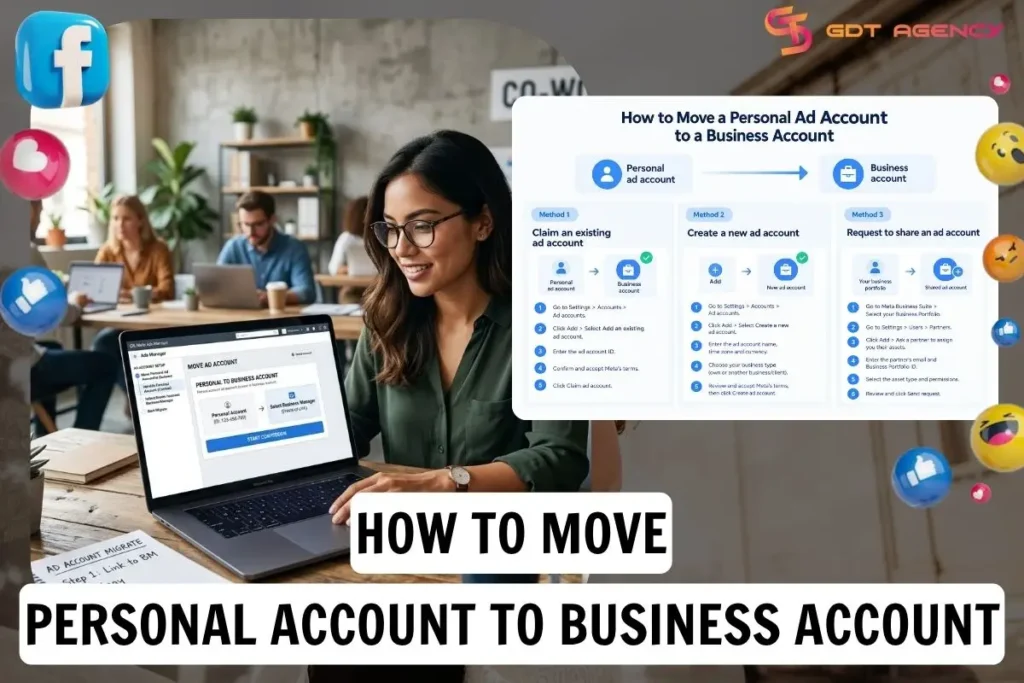
Meta offers three ways to move a personal ad account to a business account: claim an existing one, create a new or request access to a shared account. The right method depends on who currently owns the account and why you need it in a Business Portfolio. Below, this guide walks through each method step by step, along with what changes for your existing campaigns once the move is done
How do you move a personal ad account to business account?
To move a personal ad account to a business account in a Meta Business Portfolio claim an existing ad account. This is the appropriate option when you own the ad account and want your company to manage it.
However, within Meta’s broader ad account infrastructure, there are multiple ways to add an account to a Business Portfolio, including adding an existing account or requesting access to one. These options do not mean the same thing: an existing personal account should be claimed only if your business is the legitimate long-term owner.
If you only need to manage someone else’s ad account, choose request to share an ad account. The original owner keeps ownership, while your business receives permission to work in the account.
Method 1: Claim an existing ad account
Claiming an existing ad account is appropriate when your company legitimately owns an ad account that was created under a personal Facebook profile and you want to manage it inside the company’s Meta Business Portfolio.
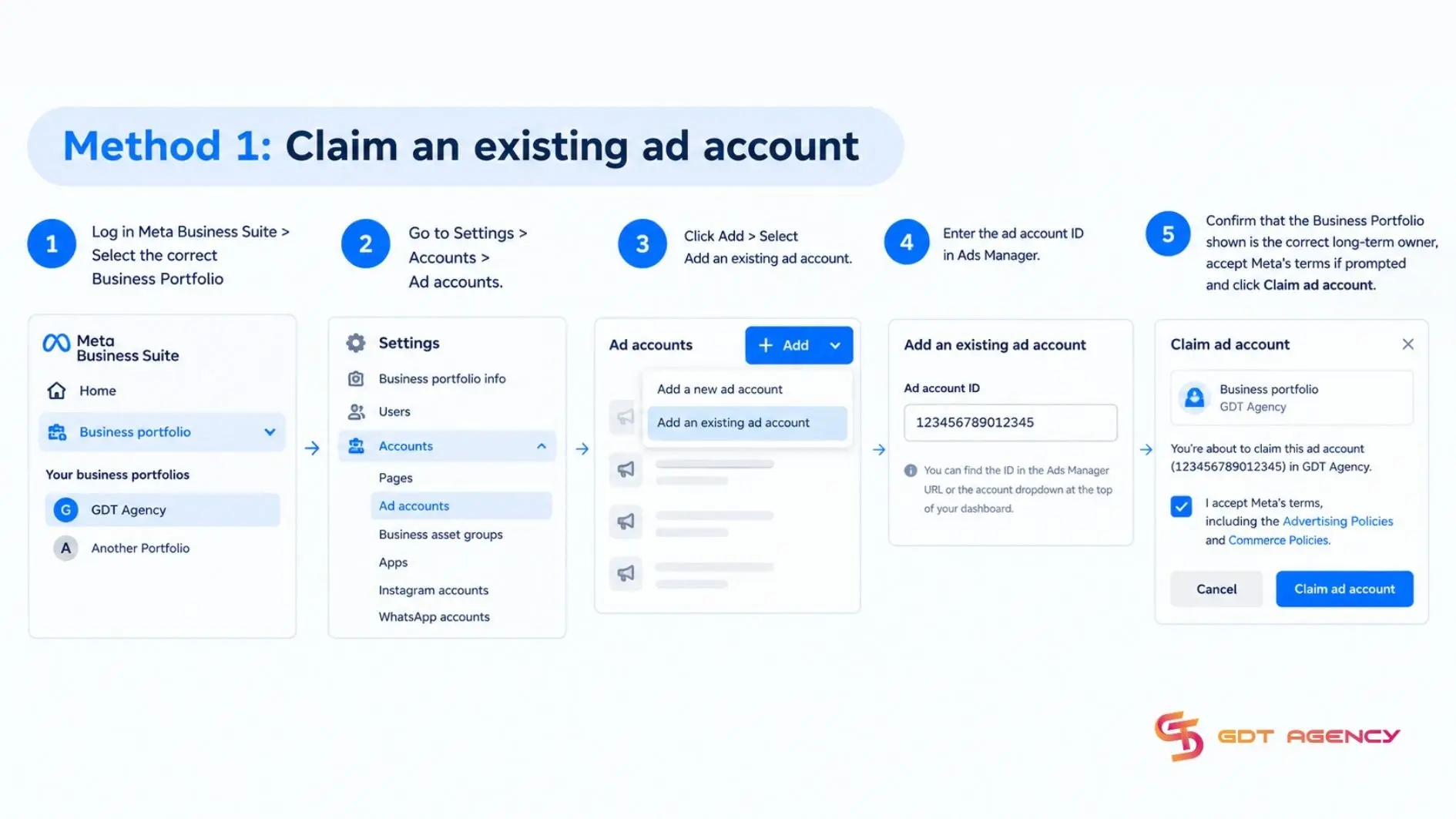
- Log in to Meta Business Suite > Select the correct Business Portfolio
- Go to Settings > Accounts > Ad accounts.
- Click Add > Select Add an existing ad account.
- Enter the ad account ID in Ads Manager
- Confirm that the Business Portfolio shown is the correct long-term owner, accept Meta’s terms if prompted and click Claim ad account.
If someone else owns the ad account, they must approve the request before your business portfolio can access it; if you’re the owner yourself, no approval step is needed. Like a newly created account, a claimed ad account can’t be removed or moved to another business portfolio afterward, and Meta only allows an ad account to sit inside one business portfolio at a time.
Method 2: Create a new ad account
Creating a new ad account is the right choice when your business has no ad account yet, since Meta lets you build one directly inside your business portfolio instead of starting from a personal profile.
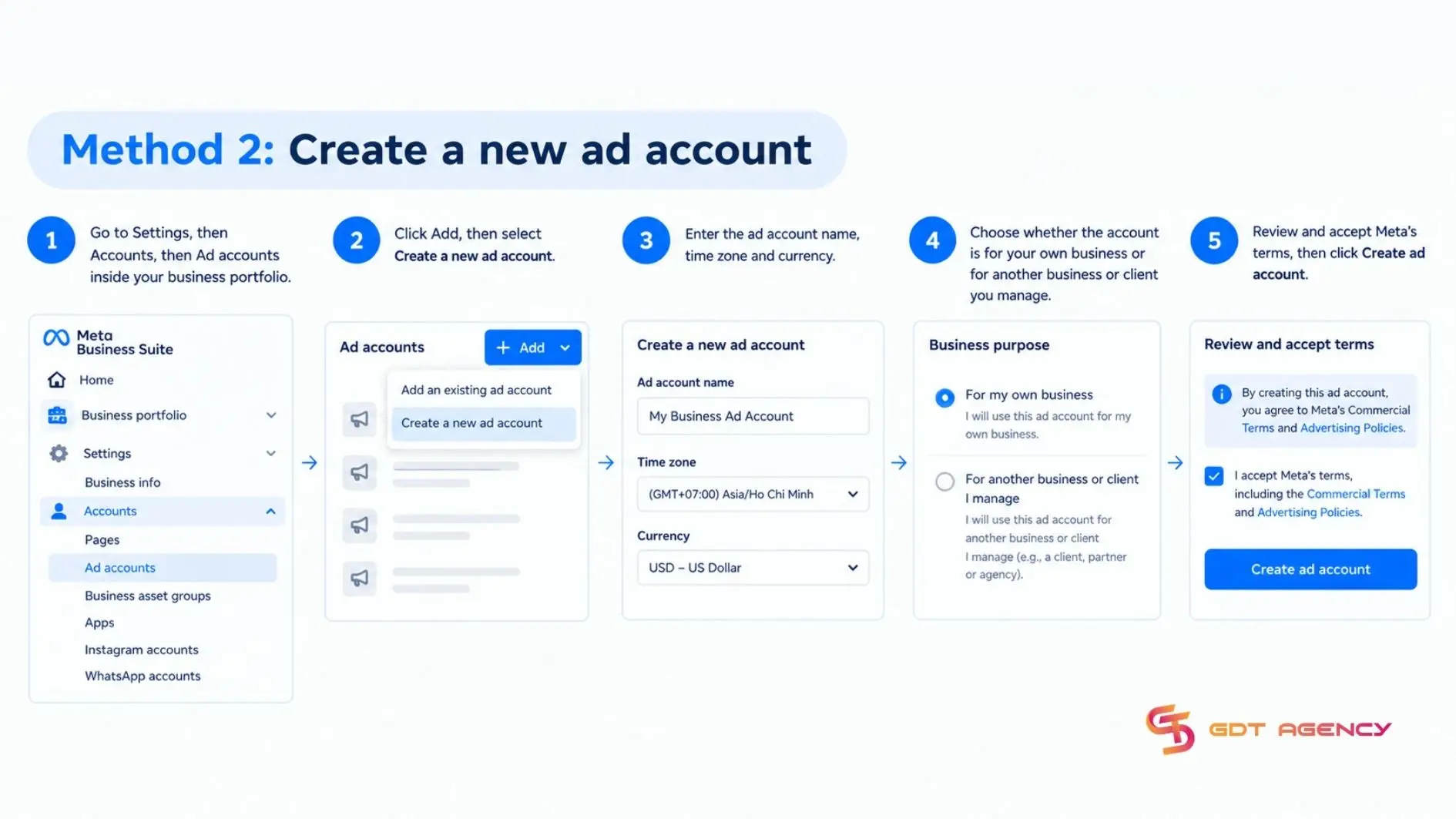
- Go to Settings, then Accounts, then Ad accounts inside your business portfolio.
- Click Add, then select Create a new ad account.
- Enter the ad account name, time zone and currency.
- Choose whether the account is for your own business or for another business or client you manage.
- Review and accept Meta’s terms, then click Create ad account.
Once created, the ad account becomes a permanent part of that business portfolio, it can’t later be removed or transferred to a different one. A brand-new business portfolio can only create one ad account until a campaign has delivered and a payment has posted, after which the limit rises to 3. Naming the account after the retail partner or campaign purpose at Step 3 also saves time later, since a team managing several partnerships will otherwise struggle to tell one generic “Ad Account” apart from another that are running side by side.
Method 3: Request to share an ad account
Requesting to share an ad account is the method to use when the account belongs to someone else and you only need permission to work in it, which is common for agencies managing a client’s ad spend.
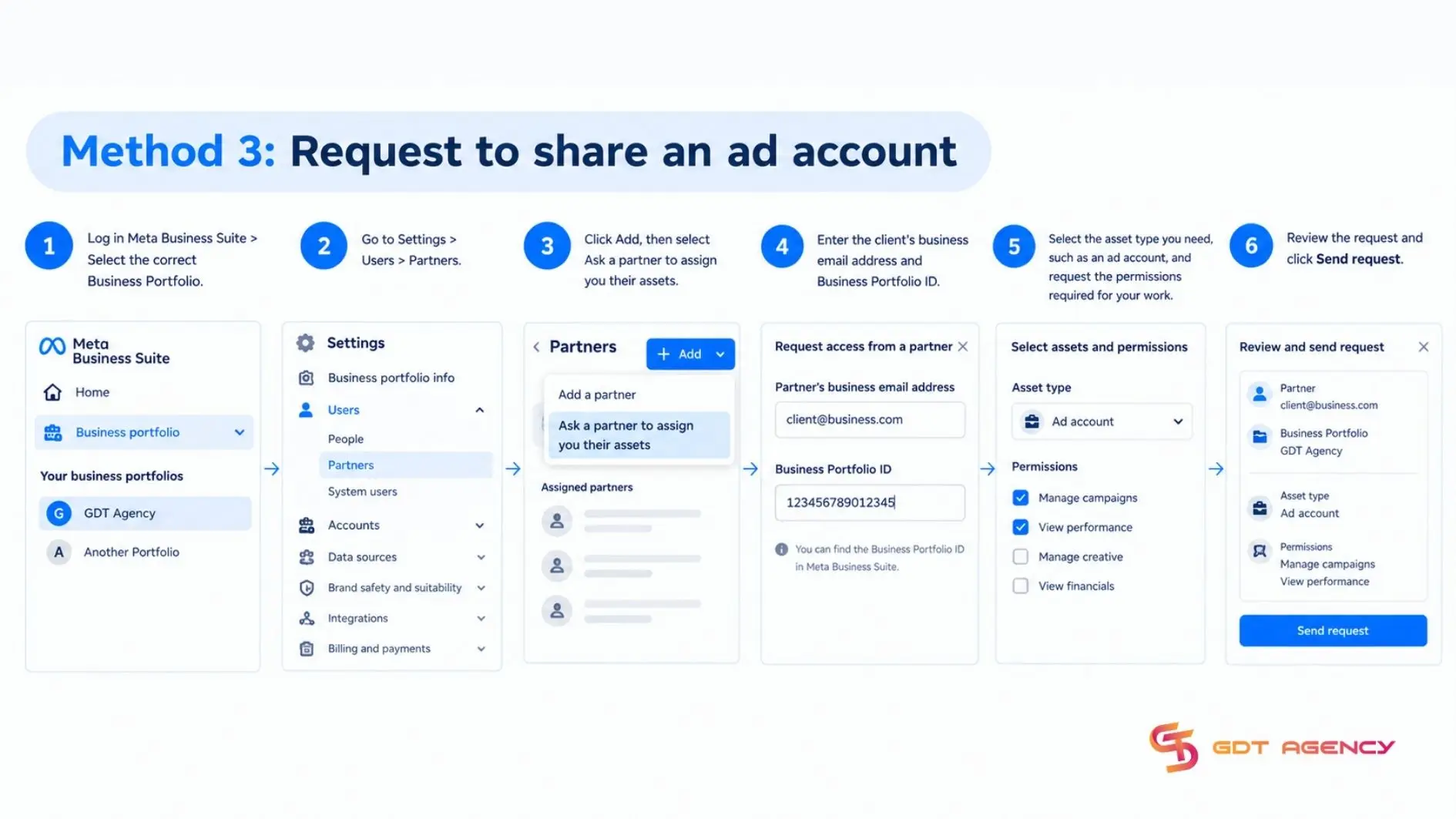
- Log in Meta Business Suite > Select the correct Business Portfolio
- Go to Settings > Users > Partners
- Click Add, then select Ask a partner to assign you their assets
- Enter the client’s business email address and Business Portfolio ID
- Select the asset type you need, such as an ad account, and request the permissions required for your work.
- Review the request and click Send request.
The ad account stays owned by the original Business Portfolio. Access becomes active only after the owner accepts the request and assigns the relevant asset permissions.
As an expert at GDT Agency with nearly 10 years of experience working with multiple account types, from standard to Facebook agency accounts, I see most advertisers assume that claiming and requesting to share an ad account produce the same outcome, because both options ask for the same Meta Ad Account ID. Confusing 2 methods can lead to loss of control over ad assets, disputes with clients or agencies, and disruption to ad campaigns. So, before choosing either option, ask “Which business should still own and control this ad account if the working relationship ends?” If the answer is your company, consider “Claim” and if the answer is your client, use “Request to share”.
For a new agency relationship, request partial access rather than full control, since it limits what your team can touch to the specific tasks a client agrees to, such as managing creative or viewing performance, without exposing billing or admin-level settings. Alternatively, if the account owner wants to initiate the share instead of waiting on your request, they can open Ad Accounts, select Assign Partner, and enter your business portfolio ID directly.
Within these 3 methods, the account you end up moving falls into one of two ownership outcomes: it either becomes a permanent part of your business portfolio, or it stays owned elsewhere while you simply get permission to use it. The table below lines up each method against how it’s used, who owns the account afterward, and whether the move can be reversed.
| Method | Best for | Ownership after setup | Reversibility |
| Claim an existing ad account | Own the account and want the company to manage it long term | Business Portfolio | No |
| Create a new ad account | No existing account Clean new setup | Business Portfolio | No |
| Request shared access | Working on someone else’s ad account | Stay with the original owner | Yes |
What should you check before and after moving your ad account?
Checks for moving a personal ad account to business account Facebook fall into 2 groups: what to confirm before you start: your profile, authority and the exact account ID and what to reconfirm after the move goes through: billing, page, pixel and admin access. Both groups come up constantly once advertisers start comparing the 3 methods above, so it’s worth walking through each before you pick one.
Skipping either group tends to cause a different kind of trouble. Missing before check usually stalls the move itself, Meta rejects a claim coming from someone with no admin rights or a request sent against the wrong ad account ID just sits there unapproved. Missing after check surfaces later instead, once a lapsed payment method or a disconnected Page quietly pauses delivery on a campaign that still looks fine everywhere else in Ads Manager.
Do you need a personal Facebook profile to create business ad account?
Yes, you should have a personal Facebook profile to create a Meta Business Portfolio and set up a business ad account. Because Meta uses personal accounts to verify identity, manage permissions and prevent fraud across its tools.
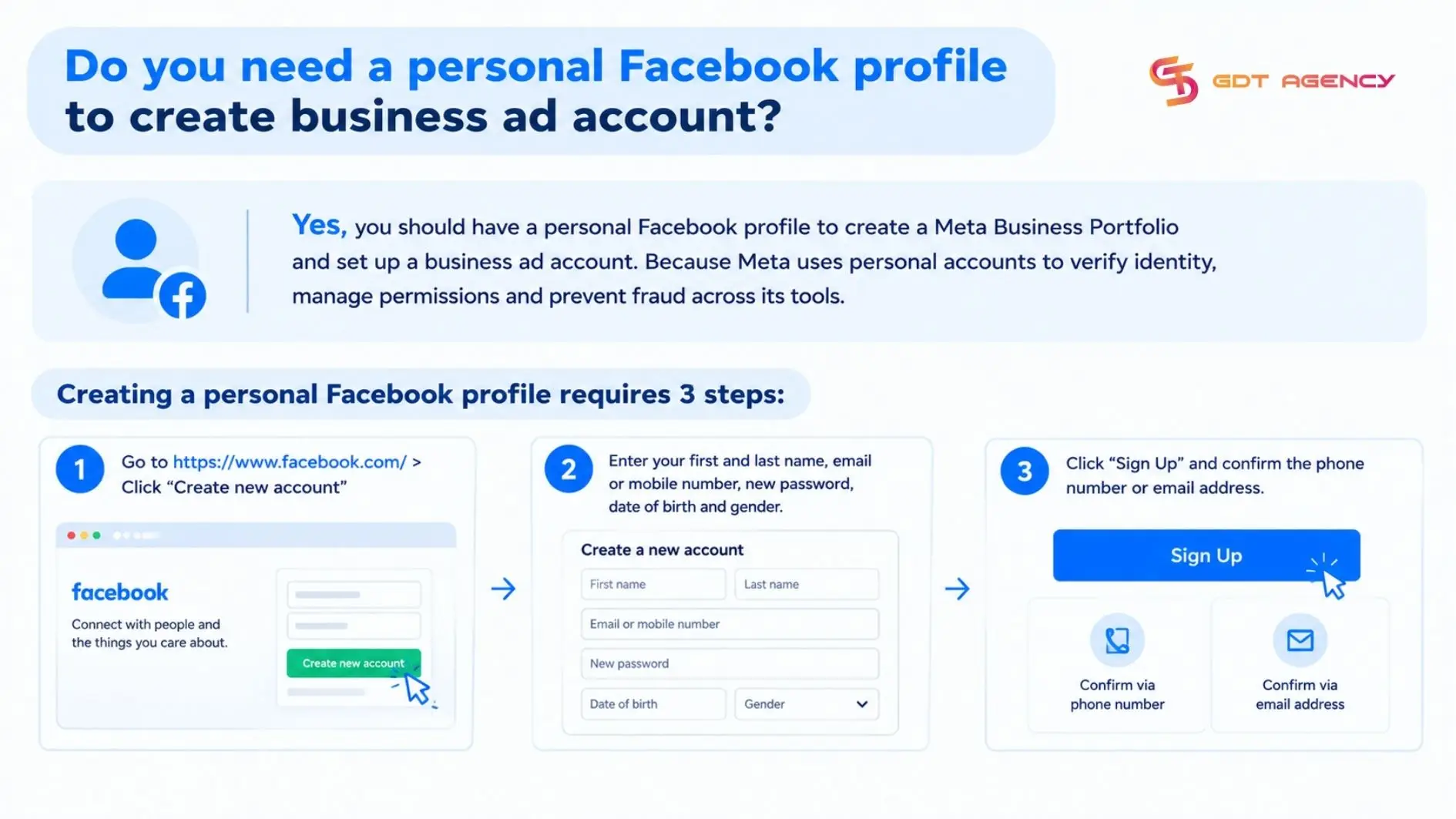
Creating a personal Facebook profile requires 3 steps:
- Go to https://www.facebook.com/ > Click “Create new account”
- Enter your first and last name, email or mobile number, new password, date of birth and gender
- Click “Sign Up” and confirm the phone number or email address
>>> Understanding the role of a personal Facebook profile is important when moving an ad account. To better understand account ownership and access, see our guide the differences between a personal ad account and business.
What happens to your existing campaigns after the move?
Existing campaigns stay attached to the ad account itself, not to whichever profile or portfolio currently owns it, so creating, claiming, or sharing an account does not pause or delete campaign history.
Campaign IDs, budgets, targeting and performance data all remain intact when you claim an account or share access to it, since the underlying ad account ID never changes. What can interrupt delivery instead are the assets connected around it, such as the payment method, the linked Facebook Page, Pixel or dataset permissions, and admin access, so it’s worth reconfirming each of these inside the new business portfolio once the move finishes.
For example, an ad account claimed into a new portfolio will keep running its existing campaigns, but if the payment method tied to it lapses during the switch, delivery can still pause even though nothing about the campaigns themselves changed. A request-to-share account behaves the same way in reverse: since the account never leaves its original owner’s portfolio, nothing about billing or its connected Page has to change at all, which is one reason agencies often prefer this method for short-term or trial partnerships over claiming the account outright
Final thoughts
A personal ad account moves into a business account through one of 3 paths: creating a new account, claiming one you already own, or requesting shared access to one owned elsewhere, and the right path depends on who holds ownership before you start. Two of these paths pull the account permanently into your business portfolio, while the third leaves ownership untouched and only opens temporary access. Whichever route fits your situation, the ad account itself, along with every campaign already running inside it, carries over intact once the move is complete
FAQs
Is it free to change personal ad account to business account Facebook?
Yes, moving a personal ad account into a business portfolio is free. Meta doesn’t charge to create, claim, or request access to an ad account; costs only start once campaigns begin spending budget
Can you undo or reverse the move later?
It depends on which method was used. A created or claimed ad account can’t be removed or transferred once it’s inside a business portfolio, but access granted through a share request can be revoked at any time by whoever has full control of that portfolio.
How long does Meta take to approve an ad account claim?
There’s no fixed timeline, since approval depends on how quickly the ad account’s current owner reviews and accepts the request; if you already own the account yourself, no approval step is needed at all.
Does moving a personal ad account change its ad account ID?
No, the ad account ID stays the same through every method. Claiming or sharing an account only changes who administers it, not the underlying account record or its campaign history
Is a Facebook Page required to move a personal ad account into a business portfolio?
Yes, a connected Facebook Page is required, since ad creation and audience targeting on Facebook and Instagram both depend on having a Page linked to the business portfolio.