Where are ad account settings on Facebook and how to find

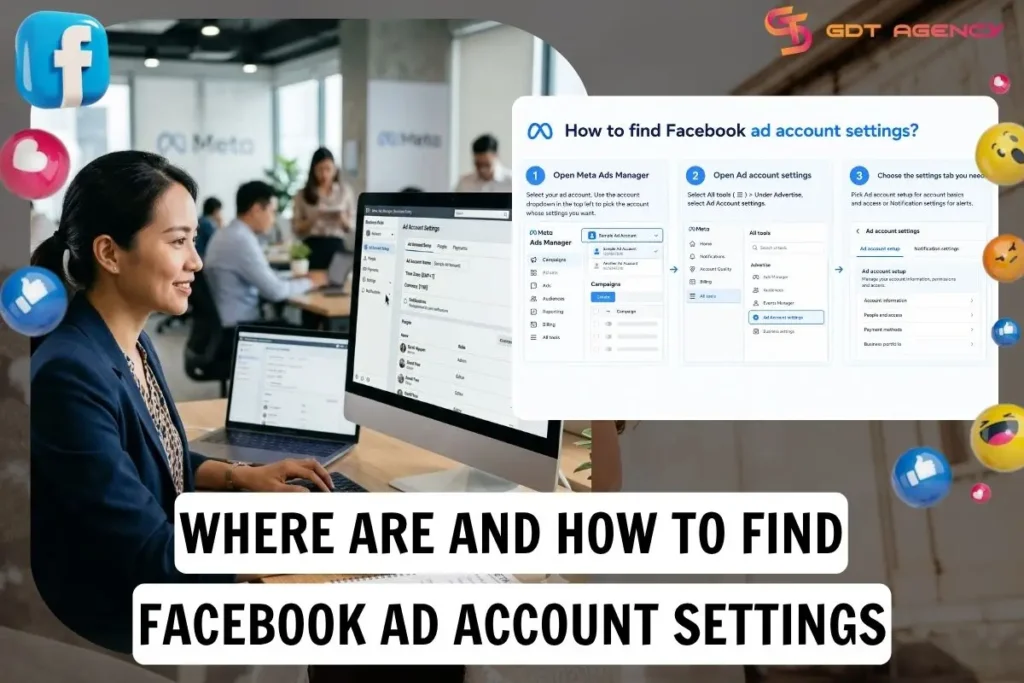
Ad account settings on Facebook aren’t a separate app or a menu on your personal profile; they’re in Meta Ads Manager and control your ad account’s setup and notifications. Each ad account has its own set of settings, so you need to open the right account before you change anything.
Finding them takes 3 steps: open Meta Ads Manager and select your ad account, open Ad account settings, and choose the settings tab you need. Below, this guide shows where each tab sits, how to configure the two you will use most, and how ad account settings differ from advertising settings.
- Where are ad account settings on Facebook?
- How to find Facebook ad account settings?
- How to configure ad account setup?
- How to configure notification settings?
- How are Ad Account settings different from Advertising settings?
- What account controls are found in Advertising settings?
- How do you remove someone’s access to a Facebook ad account in ad account settings?
- Final Thoughts
- FAQs
- Can you find Facebook ad account settings in the Ads Manager mobile app?
- Can you change the currency and time zone of a Facebook ad account after creation?
- Can you change your payment method in Facebook ad account settings?
- What is an Ad Account ID in Facebook ad account settings?
- Do you need a business portfolio to access Facebook ad account settings?
Where are ad account settings on Facebook?
Facebook ad account settings are not a standalone tool; they are the account-level controls inside Meta Ads Manager that manage ad account setup and notification settings.
More precisely, these settings apply to one ad account at a time. The name, currency and notification contacts you see belong to the account you selected in Ads Manager, not to your Facebook profile or Page. Ad account settings also sit within the broader Facebook ad account setup process, the stage where you configure ownership, billing and access before any campaign runs.

Facebook ad account settings are organized into 2 tabs in Meta Ads Manager: Ad account setup and Notification settings. The table below maps each tab to what you manage there, so you know which one to open before you start.
| Settings tab | What you manage there |
| Ad account setup | Ad account name, ID, currency and time zone, people and roles (add, remove or change roles), publisher reporting option and spending limit |
| Notification settings | Billing, alert and account status notifications, plus contact information |
As an expert at GDT Agency who has spent nearly 10 years running Facebook ads across standard to Facebook agency accounts in retail and ecommerce, I see one mistake repeat during ad account setup and staff changes. Nobody keeps the admin with full control, for that, the business can lose access to its own ad account. Before you remove a former employee or an old admin, confirm that at least one trusted person still has full control of the business portfolio or ad account.
>>> Before exploring where to find these settings, first understand How to Set Up a Facebook Ad Account to ensure it’s properly configured and ready for management.
How to find Facebook ad account settings?
Finding Facebook ad account settings takes 3 steps in Meta Ads Manager: select your ad account, open Ad account settings from the All tools menu, and choose the tab you need. Meta documents this path for Ads Manager on a computer, and the steps below follow it.
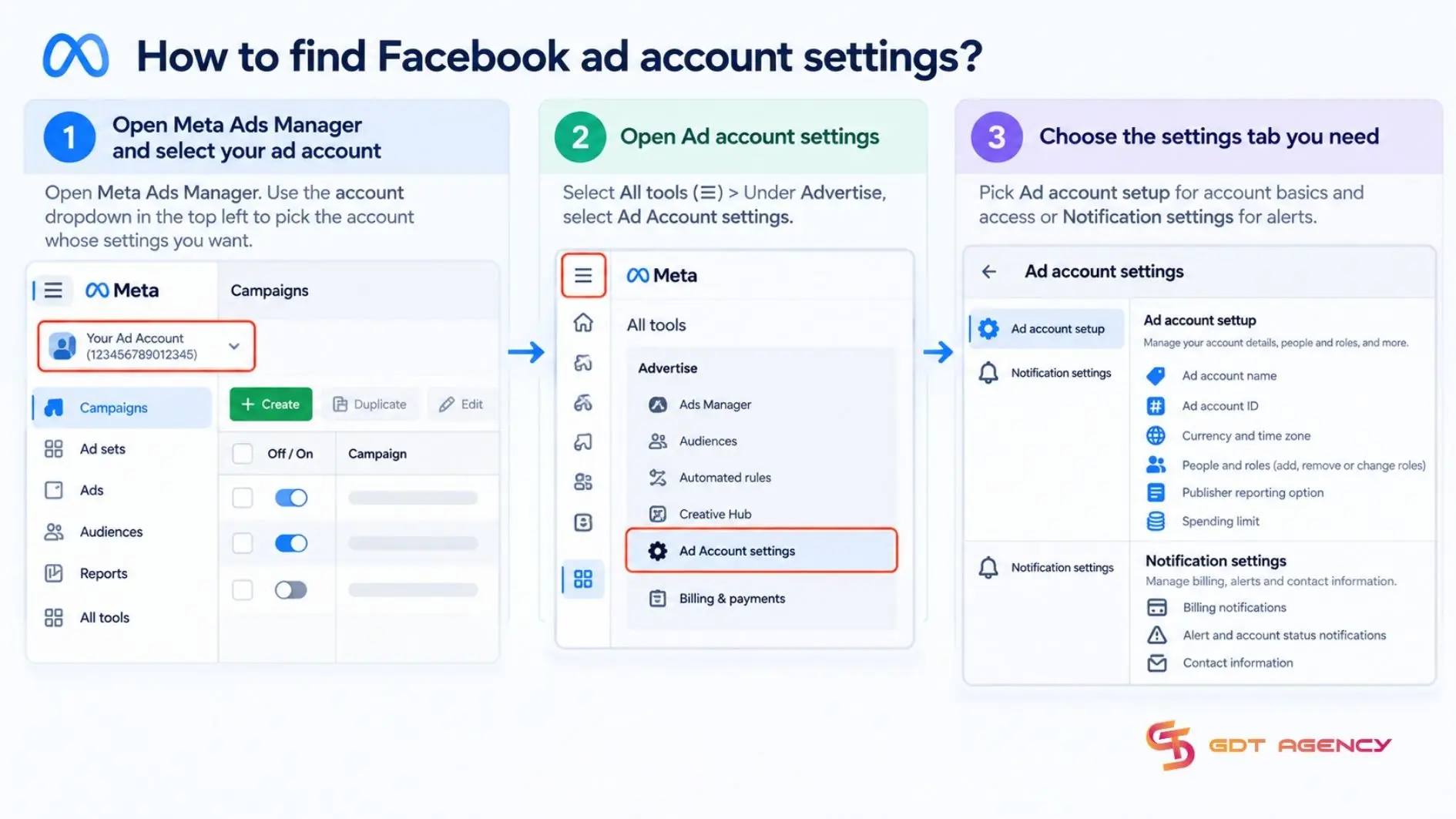
- Open Meta Ads Manager > Select your ad account. Use the account dropdown in the top left to pick the account whose settings you want.
- Open Ad account settings > Select All tools (☰) > Under Advertise, select Ad Account settings.
- Choose the settings tab you need > Pick Ad account setup for account basics and access or Notification settings for alerts.
Once the right tab is open, the next 2 sections cover the ones most advertisers configure first: Ad account setup and Notification settings.
How to configure ad account setup?
Configuring the Ad account setup tab takes 6 steps: open the tab, check the account basics, rename the account if needed, review who has access, limit admin rights, and save your changes.
This tab holds the foundation details of your ad account, so it is worth reviewing before you spend budget or invite anyone else. Check these items first:
- Ad account name: Use a clear name that is easy to scan, for example: Brand US | Main Ads | 2026. This helps most when a business portfolio holds many ad accounts.
- Ad Account ID: Record this number. Meta Support, your agency or your technical team will ask for it when they reconcile data or troubleshoot.
- Currency and time zone: Check both right away. They affect reporting, when daily budgets reset and how spend appears, and for most accounts you should not expect to change them freely after the account exists.
- Account roles and people: Add or remove users and change roles
- Admin or Full control: reserve it for the owner or the person ultimately responsible.
- Advertiser: for people who create and optimize campaigns.
- Analyst: for people who only need to view results, reports and performance.
- Spending limit: If you see this option, you can set a ceiling to reduce the risk of overspending. When the account reaches the limit, ads stop until you raise, remove or reset it

To apply these checks, follow this process:
- In Ad account settings, open Ad account setup
- Check the name, ID, currency and time zone.
- Rename the ad account if it does not follow your team’s naming convention
- Review who has access, then add users, change roles or remove anyone who has left
- Keep Admin access to the smallest possible number of people.
- Save your changes if Meta shows a Save button.
For a business that works with an agency, the owner keeps Admin (Full control), the in-house media buyer or agency works as Advertiser, and the manager or client views results as Analyst. Avoid handing an agency your payment card or Admin access when they only need to build and run campaigns.
How to configure notification settings?
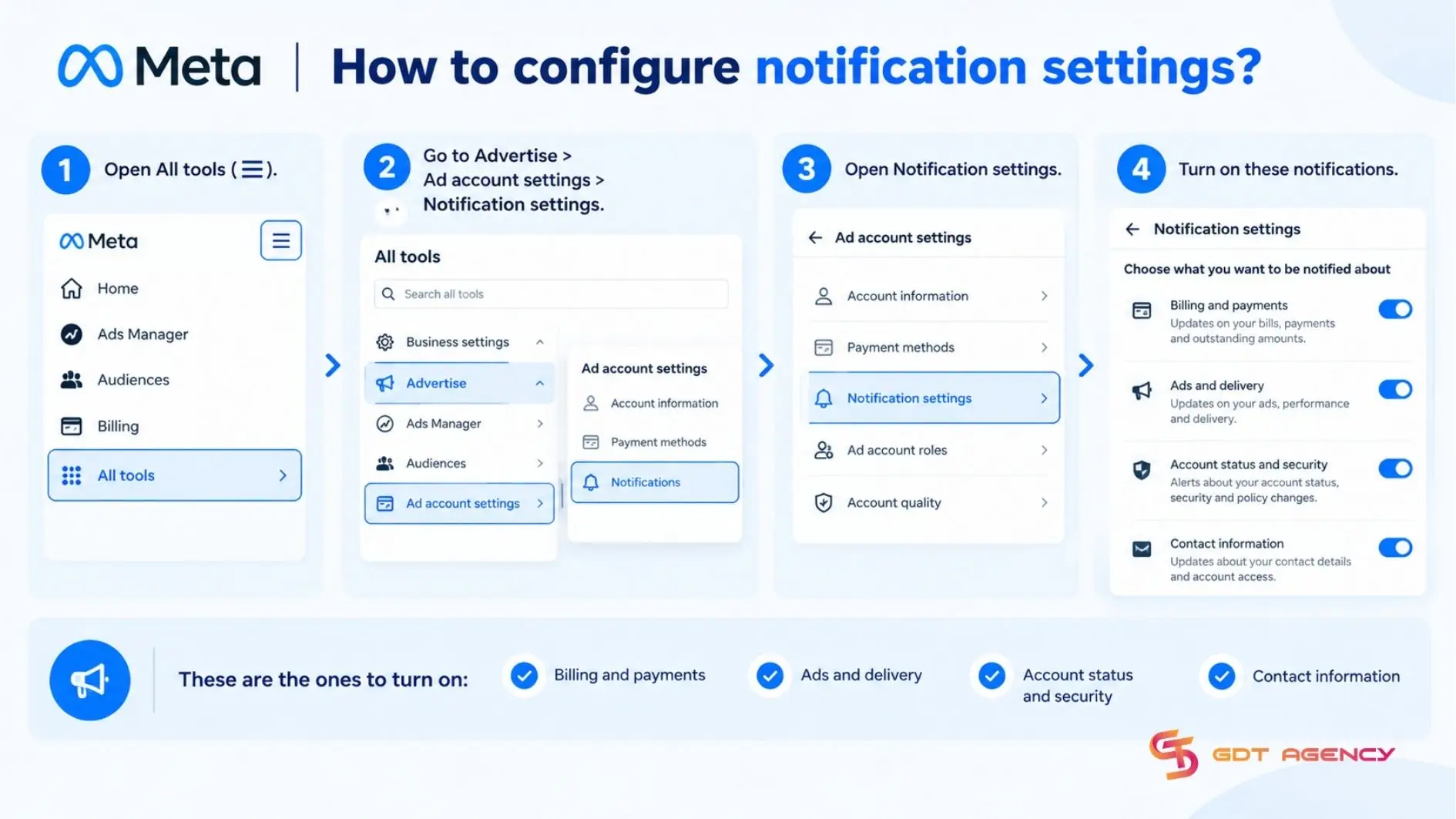
Configuring notification settings takes 4 steps: open All tools (☰) > Advertise > Ad account settings > Notification settings. This area controls the emails and notifications Meta sends about your ads, payments and other account activity. These are the ones to turn on:
- Billing and payments: Turn on notifications for payments, low balance if you use available funds, failed payments, payment method verification requests and other billing issues
- Ads and delivery: Turn on alerts for restricted ad accounts, rejected campaigns, ad sets or ads, delivery problems and issues with running ads.
- Account status and security: Turn on alerts about account status, access changes and other important actions, if Meta shows this group.
- Contact information: Check the email and phone number of the person responsible for operations. Meta lets you update contact details directly in Notification settings.
For a marketing team, a few habits keep alerts reaching the right people:
- Use company email addresses, not employees’ personal emails.
- Add the paid media lead’s email to receive delivery alerts.
- Add the finance contact or owner’s email to receive alerts about payments, invoices, failed payment methods and verification.
- Recheck notification settings after you change agencies, staff or business email addresses.
- Never turn off every alert to reduce noise; at minimum, keep billing, payment failure, ad account restriction and delivery issue alerts on.
How are Ad Account settings different from Advertising settings?
Ad account settings focus on operational control (setup, user access and notifications), while advertising settings are better at shaping how Meta delivers and optimizes your ads.
Meta’s Help Center places both in Meta Ads Manager, but they answer different questions. Unlike advertising settings, which influence how ads are delivered, ad account settings include operational details such as the account name. If you need to rename the account, follow this guide to change your Facebook ad account name.
The table below lines up these 4 areas, so you know which panel to open for a given task.
| Area | Advertising settings | Ad account settings |
| Primary Audience | Business and advertisers managing account-level audience or placement restrictions | People with appropriate access to manage or operate the ad account |
| Purpose | Set account-level audience and placement controls that apply to advertising | Configure the ad account’s administration and operation |
| Typical location | Meta Ads Manager > Advertising settings | Meta Ads Manager > All tools > Ad account settings |
| Key functions | Audience controls such as location restrictions, brand protection and placement controls | Ad account information, access and notification settings |
What account controls are found in Advertising settings?
Advertising settings hold account-level controls in 2 groups, based on what they influence: delivery and optimization controls, such as audience segments and value rules, and workflow controls, such as name templates.
Because these controls apply across the whole ad account rather than to a single campaign, a change here can affect several campaigns at once. Typical options include
- Audience segments: Define groups such as existing customers and an engaged audience at the account level, so Meta can organize how sales campaigns are optimized and reported.
- Value rules: Adjust how Meta values certain audiences, placements or conversion locations, so bidding reflects what matters most to your business.
- Name templates: Automate or semi-automate the naming of campaigns, ad sets and ads based on your settings.
Available options vary by account and change as Meta updates Ads Manager, so check what your account shows before relying on a specific option. If a setting affects who has access or who gets alerts, it belongs to ad account settings; if it affects how Meta delivers or organizes ads, it belongs to advertising settings.
How do you remove someone’s access to a Facebook ad account in ad account settings?
To remove someone’s access to a Facebook ad account, first check whether the account is managed directly in Ads Manager or through a Meta Business Portfolio.

For an individual-owned ad account, it takes 3 steps:
- Open Meta Ads Manager
- Go to All tools > Ad account settings
- Find the person in the People and roles list > Choose “Remove” and confirm
For an ad account in a Business Portfolio, manage access in Meta Business Suite instead:
- Go to Settings > People
- Select the person, locate the ad account under their business assets
- Choose Manage > Remove access and confirm
Before removing anyone, make sure at least one trusted person retains Full control of the relevant ad account or Business Portfolio.
Final Thoughts
Facebook ad account settings are the account-level controls inside Meta Ads Manager that govern setup and notifications for each ad account. You can reach them in 3 steps: select the ad account, open Ad account settings, and pick the tab you need. Ad account settings handle operational control, while advertising settings influence delivery, and a business portfolio adds shared ownership rather than being a requirement for access. Reviewing these tabs whenever staff, agencies or payment details change keeps the account secure and ensures its alerts reach the right people
FAQs
Can you find Facebook ad account settings in the Ads Manager mobile app?
Not reliably. Meta’s step-by-step guide for finding ad account settings covers Ads Manager on a computer, and the mobile app focuses on managing campaigns, insights and alerts, so you may not see every settings tab there. For account-level work such as ad account setup or user roles, use Ads Manager in a desktop browser.
Can you change the currency and time zone of a Facebook ad account after creation?
No. According to Meta’s Help Center, choosing a new currency and time zone in Billing & Payment creates a new ad account and closes the old one. Meta also limits currency changes to once every 60 days when you have no current balance, and accounts that pay by monthly invoicing cannot change currency at all, so set both correctly when you create the account.
Can you change your payment method in Facebook ad account settings?
No. Meta moved payment methods to Billing & payments, so open Billing & payments, then Payment settings. From there, add a new payment method and select it as the default payment method for future ad charges.
What is an Ad Account ID in Facebook ad account settings?
An Ad Account ID is the unique number that identifies a single ad account, and you can find it in the Ad Account setup tab. Save it, because Meta Support, your agency or your technical team may ask for it when they reconcile data or troubleshoot an issue.
Do you need a business portfolio to access Facebook ad account settings?
No, you do not need a business portfolio to access Facebook ad account settings. A personal ad account created in Ads Manager has its own settings, and what you can change depends on your role on the ad account.