How to change language on Facebook ad account?


Changing the language on a Facebook ad account means changing the interface language in Meta Ads Manager, and you do it in 6 steps by updating the language of the personal Facebook profile connected to that ad account. Ads Manager normally inherits that profile setting instead of using a separate ad account preference, so the change only affects your own dashboard. Below, this guide walks through each step, explains why the new language sometimes fails to appear, and compares the interface language with the target audience language of the ad set.
- How to change language on Facebook ad account?
- Does a Facebook ad account have its own language setting?
- What determines whether the new language shows up?
- Which languages can you choose for Ads Manager?
- How is the interface language different from the target audience language in Facebook Ads?
- How to set the target audience language in an ad set?
- How does target audience language impact ad performance?
- Final Thoughts
- FAQs
- Does changing the Facebook language affect your campaigns?
- Can I change the language on Facebook ad account on mobile?
- Do you need admin access to change the language on Facebook ad account?
- Does changing your Facebook language change it for other people using the same ad account?
- Is the audience language field required when creating an ad set?
How to change language on Facebook ad account?
Changing the language on a Facebook ad account requires 6 steps in your personal Facebook settings: log in to your Facebook profile, click your profile picture, open Language & Region, select the current language and choose Edit, choose the language and return to the page.
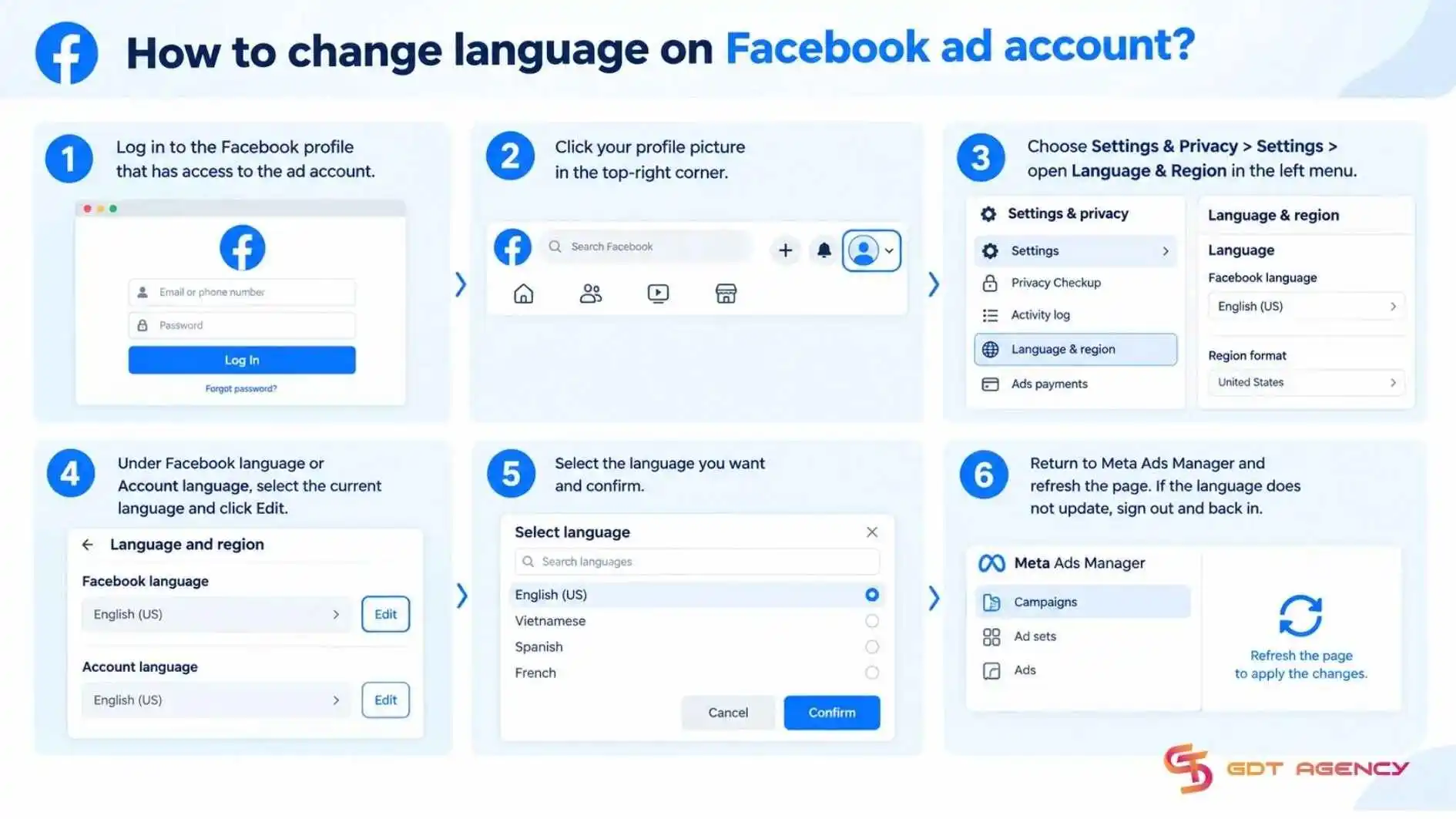
Follow these 6 steps in order:
- Log in to the Facebook profile that has access to the ad account
- Click your profile picture in the top-right corner
- Choose Settings & Privacy > Settings > open Language & Region in the left menu
- Under Facebook language or Account language, select the current language and click Edit
- Select the language you want and confirm
- Return to Meta Ads Manager and refresh the page. If the language does not update, sign out and back in
Once the setting is changed, Ads Manager should display the new language after you refresh the page or sign in again. If several people share the ad account, changing yours doesn’t change the interface language for other users.
Does a Facebook ad account have its own language setting?
No, a Facebook ad account doesn’t have its own standalone interface language setting. The language shown in Meta Ads Manager is generally a personal display preference tied to the Facebook account of the person accessing it.
Facebook notes that language settings can be device-specific, so changing it on your phone doesn’t automatically update the desktop version. Changing this personal display preference affects only the interface such as menus, buttons, notifications, tooltips and regional formatting. It doesn’t change campaigns, ad delivery, audience targeting, billing, ownership, payment method or time zone.
As an expert at GDT Agency with nearly 10 years of working with Facebook ads from standard to Facebook agency accounts in retail and ecommerce, I often see advertisers assume that changing the interface language will also change their target audience. In reality, the interface language only changes how Ads Manager appears to you, while the target audience is set separately in the ad set. The risk of confusing the 2 is that you may believe you have optimized audience targeting when nothing about ad delivery has actually changed. The solution is to decide what you want to change before making any adjustment.
What determines whether the new language shows up?
4 factors determine whether the new language shows up: whether the setting was saved, whether cached data is still being served, whether a per-app phone language overrides it, and whether the language is supported.
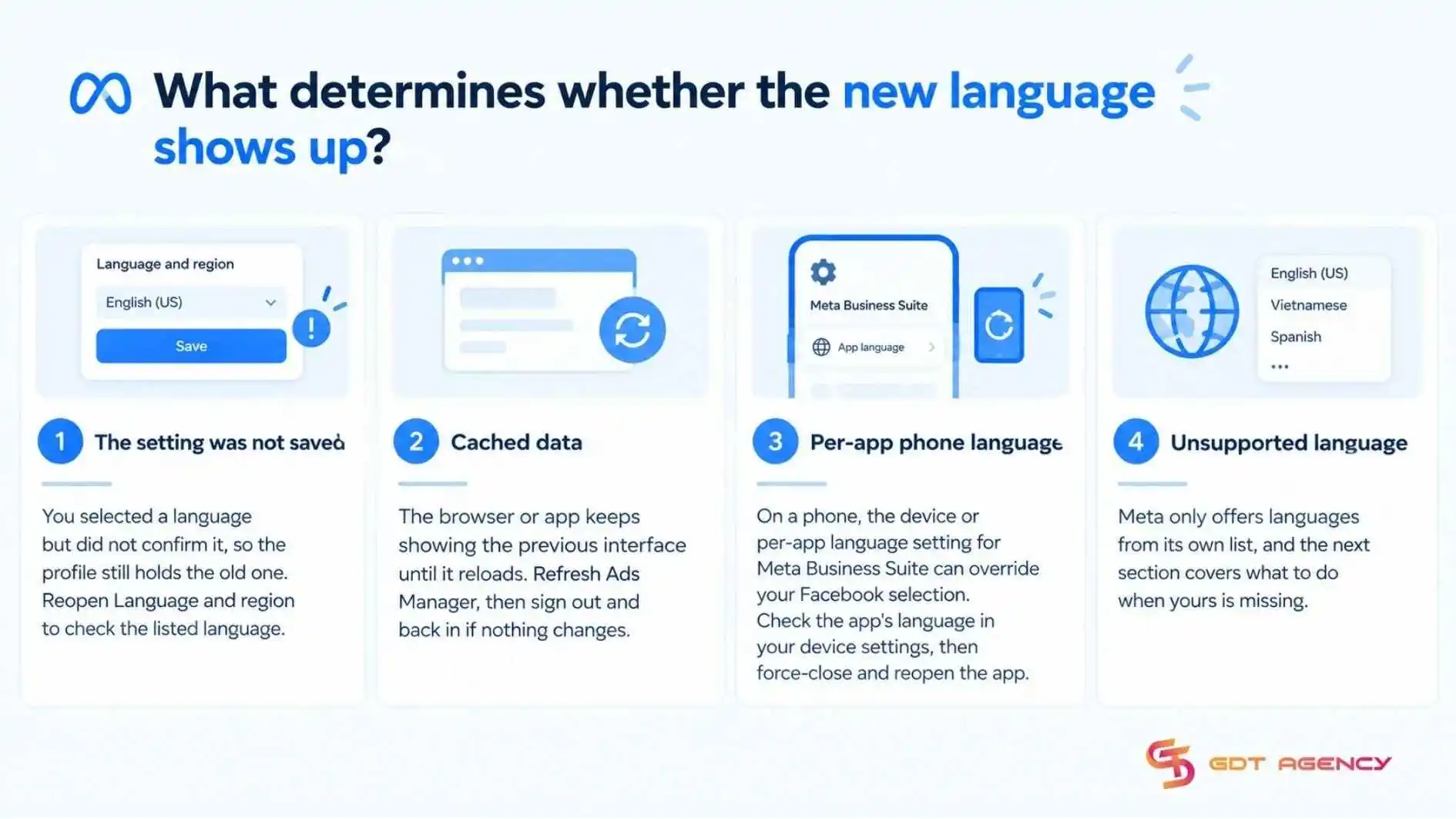
When Ads Manager stays in the old language after a change, check these factors in order:
- The setting was not saved: you selected a language but did not confirm it, so the profile still holds the old one. Reopen Language and region to check the listed language.
- Cached data: the browser or app keeps showing the previous interface until it reloads. Refresh Ads Manager, then sign out and back in if nothing changes.
- Per-app phone language: on a phone, the device or per-app language setting for Meta Business Suite can override your Facebook selection. Check the app’s language in your device settings, then force-close and reopen the app.
- Unsupported language: Meta only offers languages from its own list, and the next section covers what to do when yours is missing.
Which languages can you choose for Ads Manager?
You can choose only from the languages Meta lists under Language and region, and you can’t manually add another language to the Meta Ads Manager interface.
To see the options, go to Settings, then Language and region, then Account language on Facebook. If your preferred language is missing, select the closest supported language, usually English, and use your browser’s translation feature as a temporary workaround. Translation converts the page text but may not handle every dynamic menu or pop-up perfectly.
The language you pick controls buttons, notifications, most text, tooltips and the regional format of dates, times and numbers. Interface language is only half of the language picture in Facebook Ads because it’s set separately.
>>> Changing the display language is only one small part of managing an ad account. Before making further changes, read How to Set Up a Facebook Ad Account to ensure your account settings are properly configured.
How is the interface language different from the target audience language in Facebook Ads?
Interface language is the language you and the advertiser see while using Meta Ads Manager. Target audience language is a delivery setting at the Ad set level that helps Meta show ads to people who use the languages you select. They serve different purposes and changing one does not change the other.
When you change the language on a Facebook ad account, you may mean one of two settings and the table compares them across five criteria: who is affected, where you change it, what it controls, whether it is required, and how it influences ad delivery.
The table below lines them up side by side so you can see at a glance which setting to open:
| Criterion | Interface language | Target audience language |
| Who it affects | Each user who opens Ads Manager under their own profile | The people who may see your ads |
| Where you change it | Facebook settings > Language and region | Ad set > Audience section > Languages |
| What it controls | Button, notifications, most text, tooltips and regional date, time and number formats | The languages of the people Meta prioritizes for delivery |
| Change ad text | No | No |
| Translate ads automatically | No | No |
| Change campaign budget, billing currency or account country | No | No |
| Restrict delivery | No | Yes |
How to set the target audience language in an ad set?
Setting the target audience language requires 5 steps in the Audience section of an Ad set: Open Meta Ads Manager and create a campaign or select one, open Ad set, look for Languages, click the Languages field and add more languages then Publish. It lets you target people who use the languages you select on Facebook, it doesn’t change the language of your Ads Manager interface.
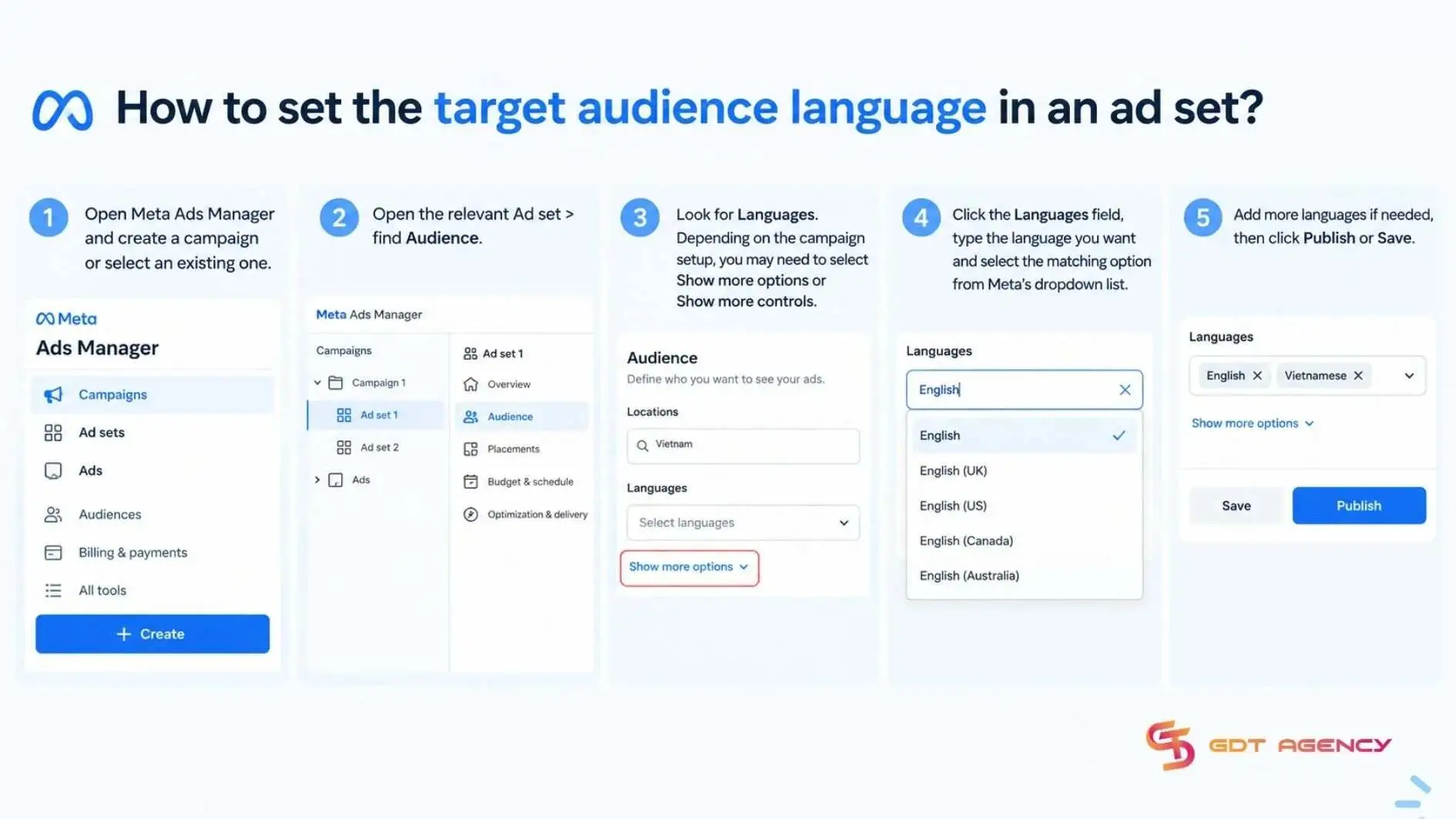
Follow these 5 steps:
- Open Meta Ads Manager and create a campaign or select an existing one
- Open the relevant Ad set > find Audience
- Look for Languages. Depending on the campaign setup, you may need to select Show more options or Show more controls
- Click the Languages field, type the language you want and select the matching option from Meta’s dropdown list
- Add more languages if needed, then click Publish or Save
The Languages field is optional, so leave it blank when you do not need language to restrict or guide delivery. Add one or more languages when the campaign is designed for a distinct language group, particularly when the ad creative, Instant Form, landing page and sales follow-up are available only in that language.
How does target audience language impact ad performance?
Target audience language can improve ad performance when it makes your ad more understandable and relevant to the people receiving it, which affects relevance, click-through rate, conversion rate, cost per result and scale.
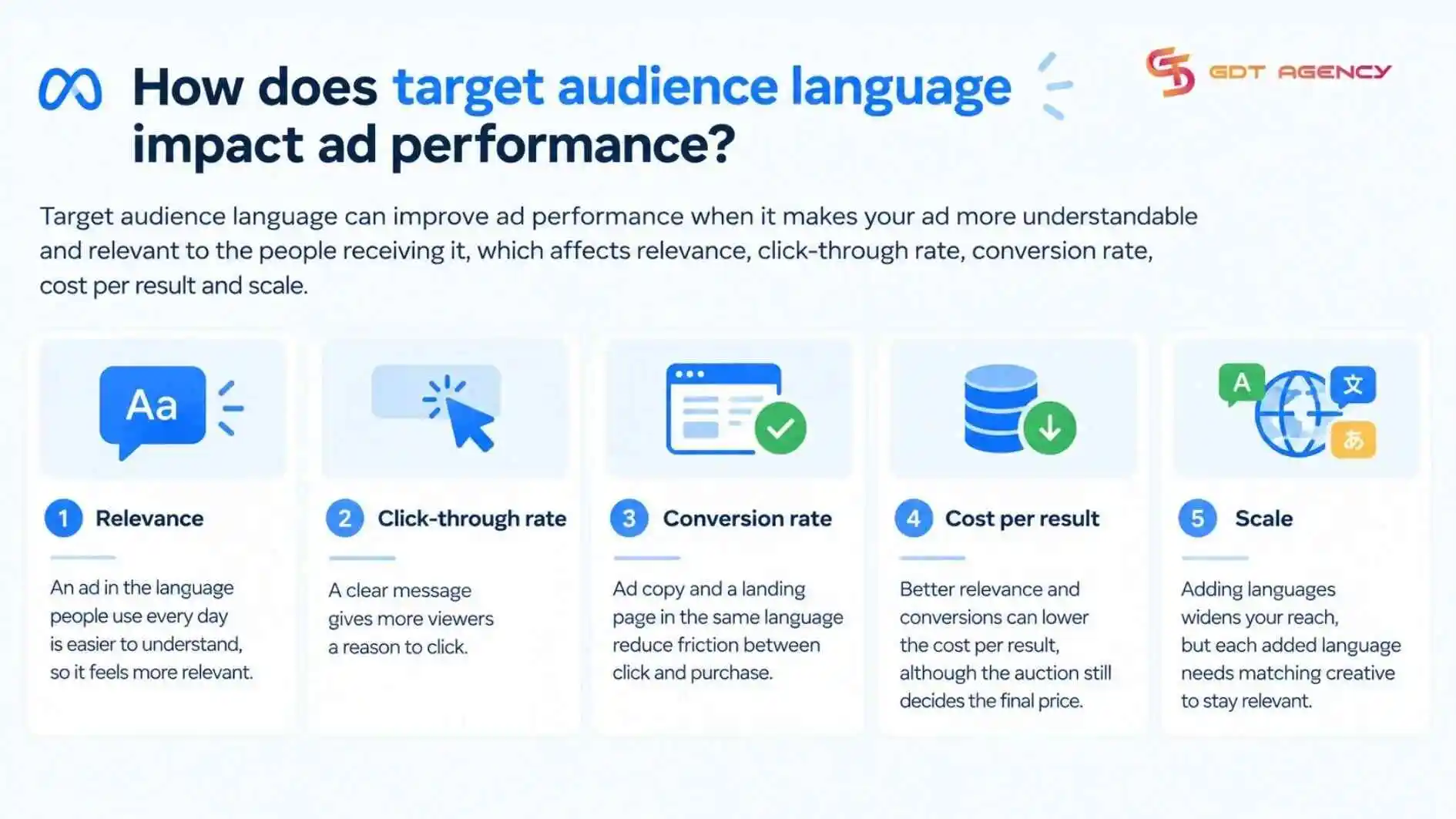
Here’s how each result is affected:
- Relevance: an ad in the language people use every day is easier to understand, so it feels more relevant
- Click-through rate: a clear message gives more viewers a reason to click
- Conversion rate: ad copy and a landing page in the same language reduce friction between click and purchase.
- Cost per result: better relevance and conversions can lower the cost per result, although the auction still decides the final price.
- Scale: adding languages widens your reach, but each added language needs matching creative to stay relevant.
These effects are directional, not guaranteed. Language is one input alongside budget, creative, offer, and landing page, so match the languages you select to your ad copy and landing page, and test the setting against a version without it.
Final Thoughts
A Facebook ad account has no language setting of its own, Meta Ads Manager follows the language of the personal Facebook profile connected to it, so changing it takes 6 steps in your Facebook settings and a refresh. If the new language does not appear, check whether it was saved, cached, overridden by your phone’s app language, or unsupported. The target audience language is a separate ad set setting that shapes who sees your ads, not how the dashboard looks.
FAQs
Does changing the Facebook language affect your campaigns?
No, changing the Facebook language does not change your campaigns, billing currency, country or the ads themselves. It can update regional formatting for dates, time and numbers, so a report may show a different date format, but the data stays the same.
Can I change the language on Facebook ad account on mobile?
Yes, you can change the interface language on mobile: open Facebook, tap Menu, go to Settings & privacy, tap Language and region, select your language, then force-close and reopen Meta Business Suite. The Facebook Help Center notes that language settings aredevice-specific, so changing them on your phone does not automatically update the desktop version.
Do you need admin access to change the language on Facebook ad account?
No, you do not need admin access to change the interface language. Because it is a personal Facebook or Meta account preference, or a device or app setting, it is only your own dashboard. Meta’s roles decide what you can do inside the shared ad account: Analyst has view-only reporting access, Advertiser can create and manage ads, and Admin has full control, including payment methods and access. None of them affects the language you see.
Does changing your Facebook language change it for other people using the same ad account?
No, it changes only your own view, because the language belongs to your profile or device rather than to the ad account. Each person sees Ads Manager in the language set on their own profile or device, so a teammate must change their own setting to switch languages.
Is the audience language field required when creating an ad set?
No, the languages field in the audience section is optional, according to Meta. Leave it empty if you do not need to narrow delivery by language and fill it in when you want Meta to prioritize people who use specific languages.