
Facebook ads stop spending money for 10 common reasons, and each one has a direct fix you can apply today. The ten reasons are a declined payment method, an account spending limit, a bid cap set too low, a daily or lifetime budget too small, Campaign Budget Optimization misallocation, an audience targeted too narrowly, audience overlap between ad sets, restrictive ad scheduling, an unresolved learning phase, and an ad or account stuck in review. Most advertisers spot this problem the same way. The campaign says active, the ad shows as approved, but the spend column stays at zero or barely moves for hours. The good news is that a not-spending campaign is rarely broken beyond repair. Nine times out of ten, the cause sits in one of four places: your payment setup, your bid and budget settings, your audience configuration, or a status flag on the ad itself. Once you know which of these 4 areas holds the problem, the fix usually takes a few minutes inside Ads Manager. Below, we walk through the 10 fixes in order of how often they show up. For each one, we name the exact cause, explain why it stops your budget from spending, and show how our team at GDT Agency resolved it for a real client.
Why Is Your Facebook Ad Not Spending Money? 10 Fixes to Get Your Budget Moving Again
Your Facebook ad stops spending money for one of ten reasons: a payment issue, a spending limit, a bid cap, a budget too small, a CBO misallocation, an audience too narrow, audience overlap, restrictive ad scheduling, an unresolved learning phase, or an ad stuck in review.
As an expert at GDT Agency with nearly 10 years of experience working with Facebook ads across multiple account types, from standard to Facebook agency account, I’ve learned that diagnosing an account issue starts with understanding where the problem originates. Based on my experience, each cause sits in a different part of Ads Manager, so the fix depends on identifying which one applies to your account.
Below is each cause, why it blocks spend, and the fix, in the order most advertisers should check them.
Fix 1: Resolve a Failed or Declined Payment Method
The cause: Your card or PayPal account failed a charge, whether from an expired card, a bank fraud flag, insufficient available credit, or a lapsed PayPal authorization. Meta cannot run an ad it cannot bill for. Rather than let the account accumulate a balance it may never collect, the system halts delivery the moment a charge fails, even while the campaign itself still shows as active.
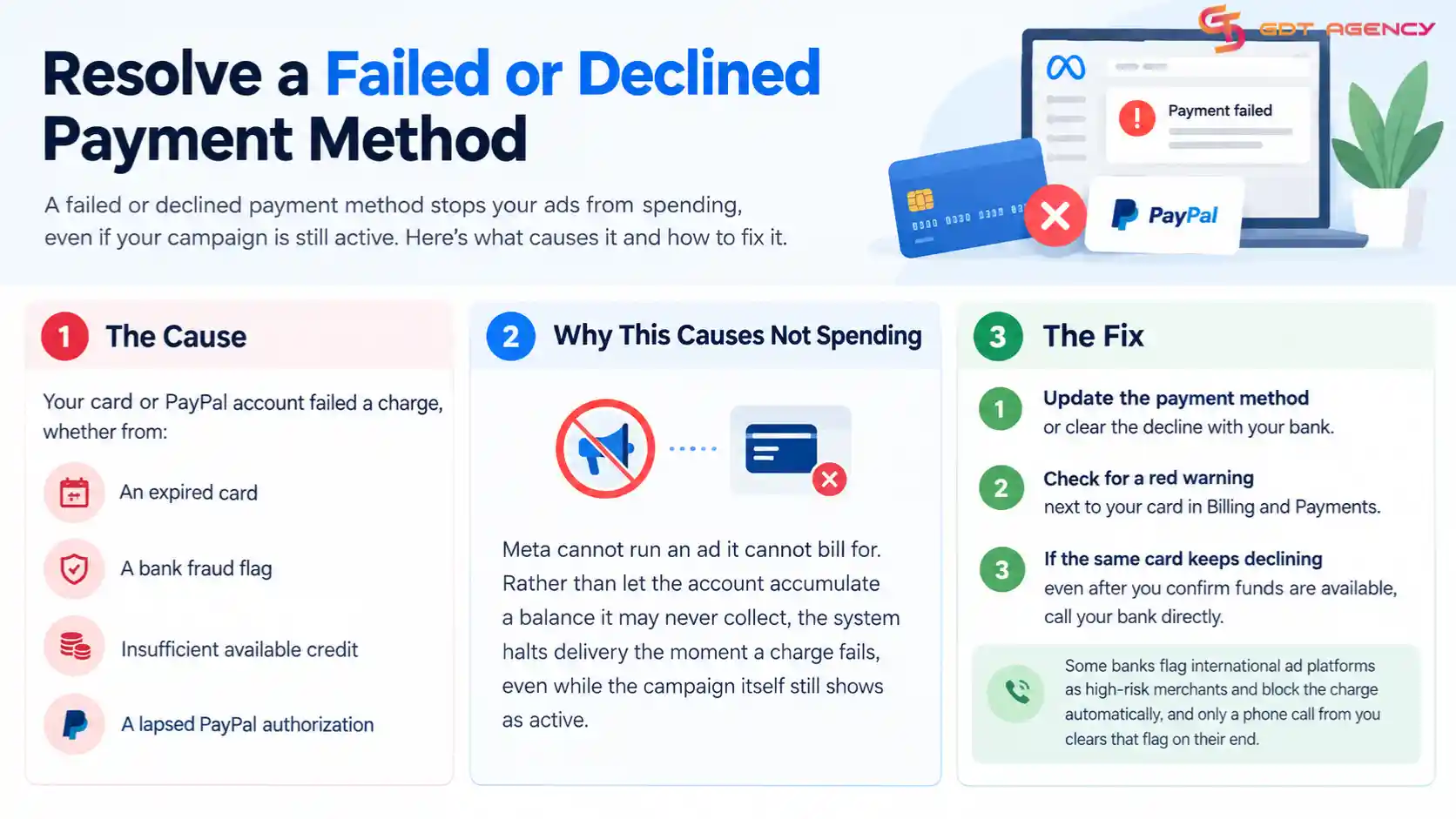
The fix: Update the payment method or clear the decline with your bank, then check for a red warning next to your card in Billing and Payments. If the same card keeps declining even after you confirm funds are available, call your bank directly. Some banks flag international ad platforms as high-risk merchants and block the charge automatically, and only a phone call from you clears that flag on their end.
Fix 2: Check If Your Account Has Hit Its Spending Limit
The cause: Your account spending limit, a cap you set yourself under Billing and Payments, has been reached. This limit applies across the whole account, separate from any individual campaign budget.
Why this causes not spending: Advertisers often set a spending limit as a safeguard, then forget it exists. Once total spend across all campaigns reaches that number, Meta stops every campaign at once, regardless of how much budget each one has left. This confuses advertisers who check campaign budgets first and find nothing wrong.

The fix: Raise or remove the account spending limit under Ads Manager settings, or move to an account that starts with a higher trust score in the first place. GDT Agency saw this exact block with American Van Lines, a national moving company whose internal account faced a strict Meta Daily Spending Limit capped at $250 a day, due to a low trust score, making it impossible to scale in competitive markets. Migrating the account to a rented Facebook agency account bypassed the account “warm-up” phase entirely, lifted the daily spend to over $800, trained the pixel three times faster, and drove a 58% reduction in cost per lead over the following 90 days.
Fix 3: Raise a Bid Cap That’s Too Low
The cause: Your bid strategy uses Cost Cap or Bid Cap, and the value you set sits below what the current auction requires to win impressions.
Why this causes not spending: A bid cap tells Meta the maximum you’re willing to pay per result. If competitors bid higher than your cap, your ad loses every auction it enters. The money is available, and the campaign is healthy, but the ad simply never gets shown, so it never spends.

The fix: Compare your bid cap against the average cost per result Meta shows in Ads Manager insights, then raise the cap in increments of 10 to 20%, checking delivery after each change before adjusting further.
Fix 4: Fix a Daily or Lifetime Budget That’s Too Low to Spend
The cause: Your daily or lifetime budget sits below the minimum Meta needs to enter and complete enough auctions in your ad category.
Why this causes not spending: Meta’s pacing system spreads your budget across the day, testing placements and audiences as it goes. A budget too thin gets held back by that same pacing logic, since the system can only spend a small amount before running out of room to test anything further.
The fix: Raise the daily budget to at least 2 to 3 times your average cost per result, based on the minimum Meta suggests during ad set setup, then give the campaign a full day to show whether pacing improves.
Fix 5: Correct Campaign Budget Optimization (CBO) Misallocation
The cause: Campaign Budget Optimization has directed most or all of your budget toward one ad set it predicts will perform best, leaving sibling ad sets in the same campaign with almost nothing.
Why this causes not spending: This is CBO working exactly as designed, not a malfunction. The algorithm optimizes for overall campaign performance, so it starves lower-predicted ad sets of budget rather than splitting spend evenly, which can look like a broken ad set when it’s really just an underfunded one.
The fix: Switch to Ad Set Budget Optimization for guaranteed budgets per ad set, or set a minimum spend limit within the CBO campaign, so no single ad set can absorb the entire budget.
Fix 6: Widen an Audience That’s Targeted Too Narrow
The cause: Your audience, built from a narrow interest stack, a small custom audience, or a tight geographic radius, gives Meta too few people to enter into auctions.
Why this causes not spending: A small audience pool means Meta simply runs out of eligible people to show your ad to well before it can spend the full daily budget. This shows up most often on new campaigns built around highly specific targeting from the start.
The fix: Broaden the audience by removing an interest layer, expanding the geographic radius, or widening the age range, aiming for an estimated reach in the hundreds of thousands where your budget allows.
Fix 7: Reduce Audience Overlap Between Ad Sets
The cause: Two or more ad sets in the same account target overlapping groups of people, so Meta’s own auction competes against itself for the same users.
Why this causes not spending: Meta avoids showing multiple ads from the same advertiser to the same person too frequently, so overlapping ad sets drive up costs and slow spend across both, since neither one gets full access to the shared audience.
The fix: Check overlap percentage using the Audience Overlap tool under the Audiences tab, and consolidate or exclude audiences above 20 to 30% overlap.
Fix 8: Adjust Ad Scheduling (Dayparting) That’s Limiting Delivery Hours
The cause: Ad scheduling, also called dayparting, restricts delivery to specific hours or days, available only on campaigns using a lifetime budget.
Why this causes not spending: A narrow delivery window gives your budget fewer hours in the day to spend within, so even a well-funded campaign can fall short of its allocation if the schedule closes before the budget is used up.
The fix: Review the schedule under the ad set’s budget and schedule section, then widen the hours or switch to full-day delivery if pacing consistently falls short.
Fix 9: Get Past a Learning Phase That’s Restricting Delivery
The cause: A new or recently edited ad set has entered the learning phase, and hasn’t yet reached roughly 50 optimization events within a seven-day window.
Why this causes not spending: Meta intentionally limits delivery during learning while it gathers enough data to optimize the ad set. This is normal algorithm behavior, not a fault, but it slows spend noticeably until the ad set collects enough conversions to exit the phase.
The fix: Raise the budget, choose a higher-volume optimization event, or consolidate ad sets to reach the 50-event threshold faster.
Fix 10: Resolve an Ad or Account Stuck in Review
The cause: The ad or the account itself remains under Meta’s review process, which typically completes within 24 hours but can extend further for certain content categories or account histories.
Why this causes not spending: Meta cannot enter an unreviewed ad into the auction, so the campaign cannot spend until review clears, regardless of how correctly every other setting is configured.
The fix: Avoid editing the ad while it’s under review, since edits restart the review clock, and request a manual review through Meta support if the delay passes 48 to 72 hours. GDT Agency saw this exact block with Arbor, a sustainability SaaS client whose environmental claims kept triggering longer review times on new ad copy. Instead of contesting each review, our team repositioned the sustainability messaging within Meta’s compliance guidelines and shifted the focus onto platform capabilities rather than guaranteed outcomes. That single change kept the account at an excellent health score with zero shutdowns across the following 90 days.
How to Know If My Facebook Ads Are Not Spending Money
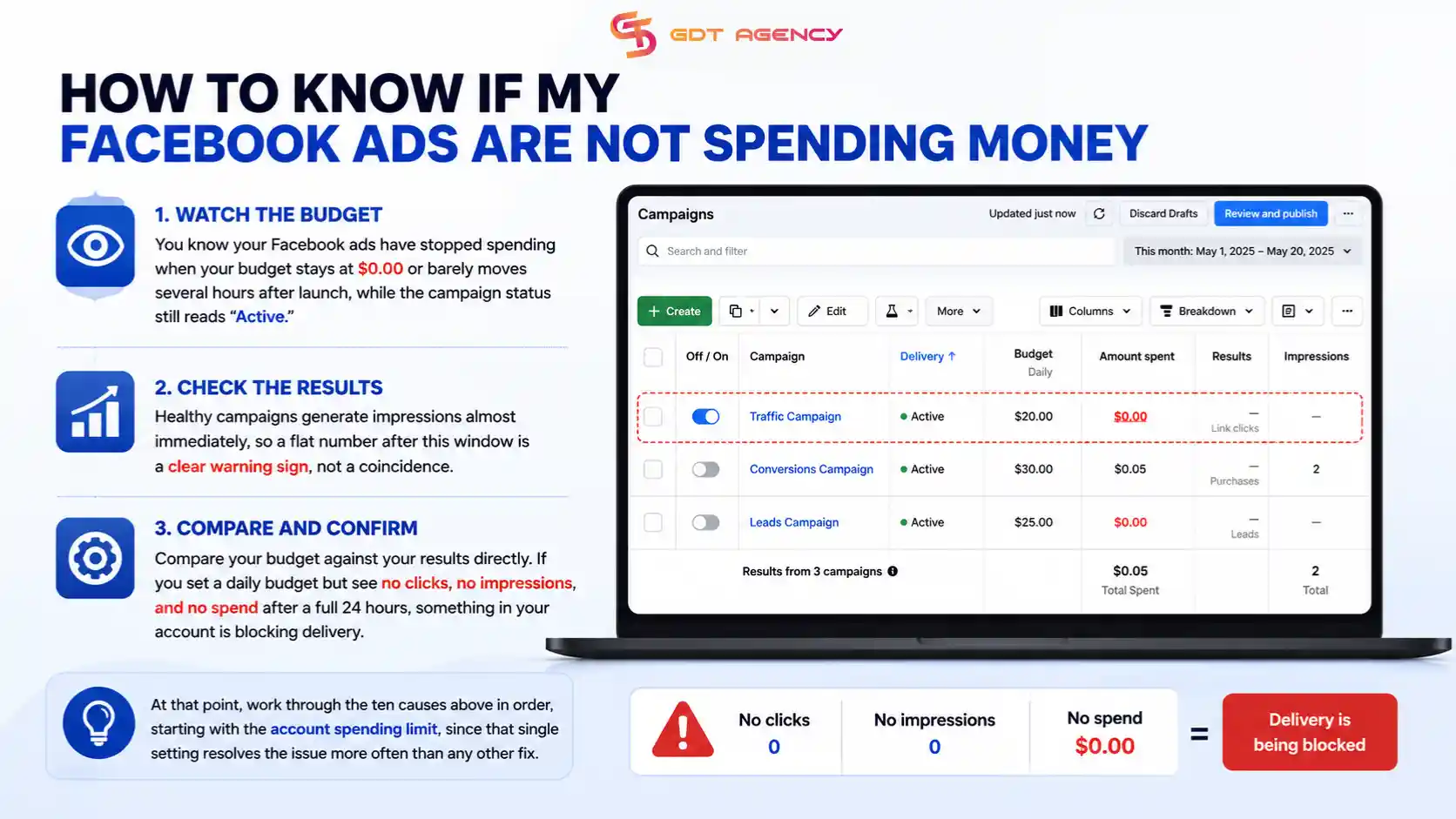
You know your Facebook ads have stopped spending when your budget stays at $0.00 or barely moves several hours after launch, while the campaign status still reads “Active.” Healthy campaigns generate impressions almost immediately, so a flat number after this window is a clear warning sign, not a coincidence.
Compare your budget against your results directly.
If you set a daily budget but see no clicks, no impressions, and no spend after a full 24 hours, something in your account is blocking delivery. At that point, work through the ten causes above in order, starting with the account spending limit, since that single setting resolves the issue more often than any other fix.
Facebook Ads Not Spending vs. Not Delivering vs. Learning Limited: What’s the Difference?
Not Spending, Not Delivering, and Learning Limited describe three separate campaign states, each with its own root cause and its own fix. Not Spending means the budget sits unused due to a payment, bid, or setting issue. Not Delivering covers a broader set of blockers, including policy rejections and asset health problems, that stop the ad from running at all. Learning Limited means the ad runs, but Meta cannot gather enough data to optimize it properly.
The table below defines each state by its primary symptom, its most common cause, and the first place to check when troubleshooting.
| Status | Primary Symptom | Most Common Cause | Where to Check First |
Not Spending | Active status, but spend stays at or near zero | Payment failure, low bid cap, or CBO misallocation | Billing and Payments, then Bid Strategy |
Not Delivering | Zero impressions despite active status | Policy rejection, page restriction, or asset error | Ad-level status flags in Ads Manager |
Learning Limited | Some spend and impressions, but inconsistent results | Too few optimization events for the algorithm to learn from | Ad set results and optimization event count |
Not Spending sits closest to a billing or configuration problem, one you can usually fix directly inside Ads Manager without contacting Meta. Facebook ads not delivering, in contrast, more often traces back to a policy or account health issue that needs a status change from Meta itself. Learning Limited is neither a delivery block nor a spend block. The ad works, but it works inefficiently until it collects more data, and the fix is almost always to give it more volume, not to change a setting.
Expert Tips To Avoid Facebook Ads Not Spending in The Future
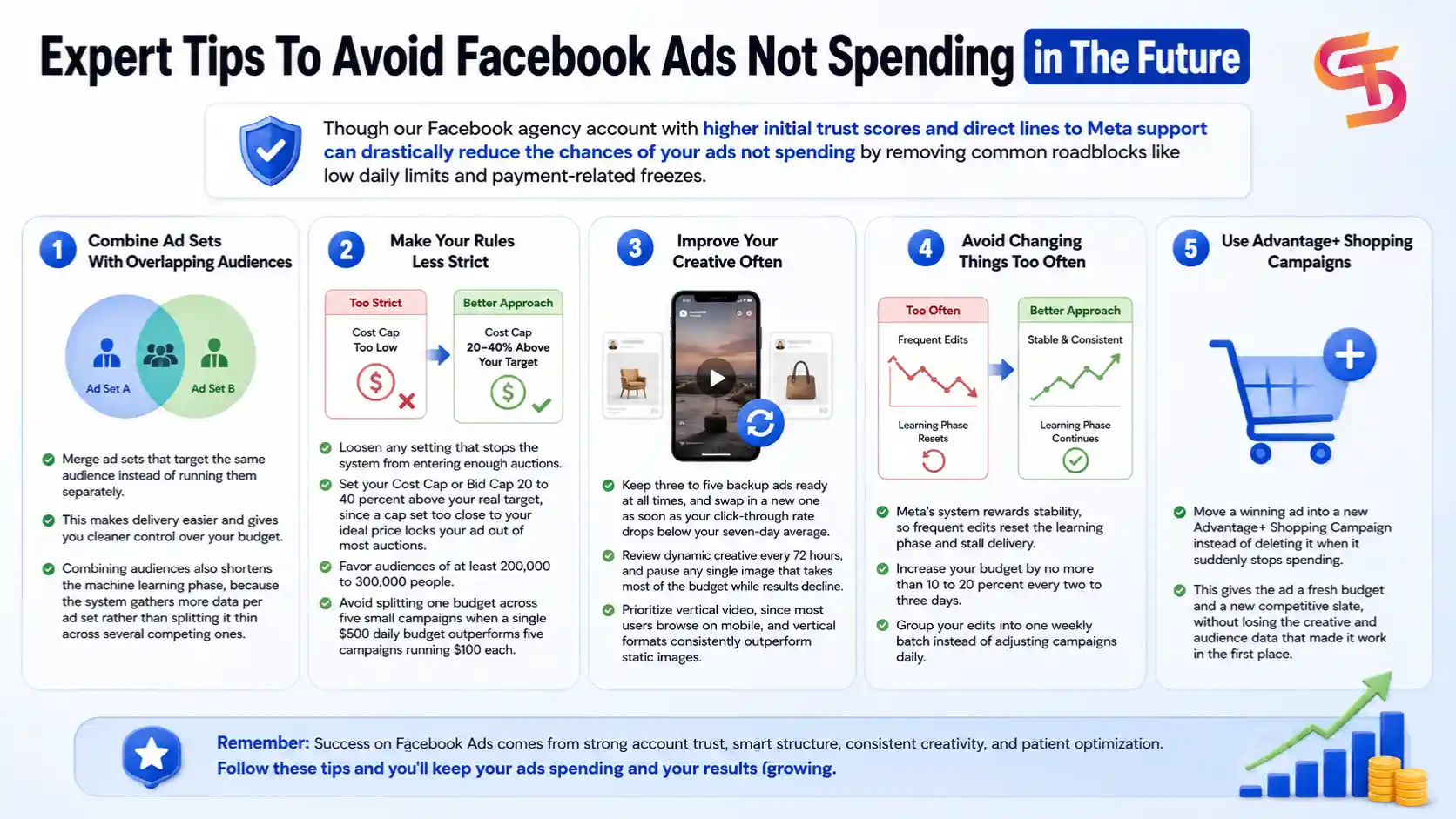
1. Combine Ad Sets With Overlapping Audiences: Merge ad sets that target the same audience instead of running them separately, since this makes delivery easier and gives you cleaner control over your budget. Combining audiences also shortens the machine learning phase, because the system gathers more data per ad set rather than splitting it thin across several competing ones.
2. Make Your Rules Less Strict: Loosen any setting that stops the system from entering enough auctions. Set your Cost Cap or Bid Cap 20 to 40 percent above your real target, since a cap set too close to your ideal price locks your ad out of most auctions. Favor audiences of at least 200,000 to 300,000 people, and avoid splitting one budget across five small campaigns when a single $500 daily budget outperforms five campaigns running $100 each.
3. Improve Your Creative Often: Keep 3to 5 backup ads ready at all times, and swap in a new one as soon as your click-through rate drops below your seven-day average. Review dynamic creative every 72 hours, and pause any single image that takes most of the budget while results decline. Prioritize vertical video, since most users browse on mobile, and vertical formats consistently outperform static images.
4. Avoid Changing Things Too Often: Meta’s system rewards stability, so frequent edits reset the learning phase and stall delivery. Increase your budget by no more than 10 to 20 percent every two to three days, and group your edits into one weekly batch instead of adjusting campaigns daily.
5. Use Advantage+ Shopping Campaigns: Move a winning ad into a new Advantage+ Shopping Campaign instead of deleting it when it suddenly stops spending. This gives the ad a fresh budget and a new competitive slate, without losing the creative and audience data that made it work in the first place.
>>> For a broader look at related issues, see our guide to Facebook Ads Account Error: Guide for Every Error Type 2026.
When Should You Contact Meta Support Instead of Troubleshooting Yourself?
Contact Meta support when a campaign shows a stuck status for more than 48 hours, when Ads Manager gives no visible error despite zero spend, or when your account faces a restriction you did not trigger through any setting. These three situations sit outside what a settings change inside Ads Manager can fix, since they involve account-level enforcement decisions made on Meta’s end.
Most spend problems resolve through the ten fixes above, but a smaller set of cases need Meta’s direct intervention. If you have checked payment, bid, budget, audience, and review status, and the campaign still refuses to spend, escalate through Meta Business Help Center rather than continuing to adjust settings that were never the actual cause.
How Long Should You Wait Before Ads Start Spending Normally After a Fix?
Most fixes restore normal spending within 30 minutes to 24 hours, depending on which of the ten causes applied to your campaign. Payment and bid changes tend to take effect fastest, often within an hour, since these are settings Meta applies immediately. Review-related fixes and learning phase resets take longer, since both depend on Meta’s own processing time rather than an instant setting change.
If spend has not resumed after 24 hours following a fix, recheck the same setting rather than assuming a new problem has appeared. In most cases, a slow recovery means the original fix did not fully address the issue, not that a second cause has emerged.
A useful habit is to change only one setting at a time and give it a full 24-hour window before making another adjustment. Advertisers who change the bid, the budget, and the audience all in the same sitting lose the ability to tell which change actually fixed the problem, and they often reintroduce a new version of the same issue without realizing it. Patience at this stage saves more time than it costs.
Final Thought
A Facebook ad that stops spending almost always points to one of ten specific causes, not a mystery bug in the platform. Payment issues and bid caps explain most cases, while CBO misallocation, audience problems, and review delays cover the rest. Work through the fixes in order, starting with payment and spending limits, since these two alone resolve the majority of stalled campaigns.
Keep the three states straight as you troubleshoot. Not Spending points to a setting inside your control. Not Delivering usually points to a policy or asset problem Meta needs to clear. Learning Limited just means the ad needs more data, not a different setting. Sorting your campaign into the right category saves you from fixing a setting that was never the actual cause.
If you have gone through every fix above and the campaign still refuses to spend, the problem likely sits with Meta’s own account review process, not with your settings. At that point, escalate to Meta support directly, and consider whether your current ad account setup, personal or agency, gives you the spending headroom your campaigns actually need.
FAQs
Why is my Facebook ad active but not spending any money?
Your ad is most likely blocked by a failed payment method, an account spending limit, or a bid cap set below what the auction requires. Check Billing and Payments first, since payment issues cause the largest share of not-spending cases.
How long does it take for a Facebook ad to start spending after I fix the issue?
Most fixes take effect within 30 minutes to 24 hours. Payment and bid changes apply almost immediately, while review-related fixes depend on Meta’s own processing time and can take longer.
Does raising my daily budget make my ad spend faster?
Raising the budget helps only if the budget itself was the blocker. If a payment issue, a low bid cap, or a review delay is the actual cause, a higher budget will not change the outcome.
Why does one ad set in my campaign spend while another one doesn’t?
This usually points to Campaign Budget Optimization sending most of the budget to the stronger-performing ad set. Switch to Ad Set Budget Optimization, or set a minimum spend limit per ad set, to give every ad set a guaranteed share.
Is Facebook Ads Not Spending the same problem as Not Delivering?
No. Not Spending points to a payment, bid, or budget setting inside your control. Not Delivering usually points to a policy rejection or an asset health issue that needs a status change from Meta.