

Facebook Ads not delivering happens due to 8 main groups of causes, ranging from billing and budget limits to page health, creative errors, and tracking issues. Once you know which group applies to your ad, you can diagnose the problem in minutes and get delivery running again.
To find the exact cause, you need to check delivery status at 3 levels: campaign, ad set, and ad. Each level can carry a different problem, so checking only one level often leads advertisers to miss the real issue and waste time on the wrong fix. Once you identify the cause, most fixes take only a few minutes. Below, this article walks through every major reason Facebook Ads stop delivering, then gives you a fast, step-by-step way to check status and restore delivery.
Why Is Your Facebook Ads Not Delivering?
From my experience troubleshooting delivery issues across different types of Facebook ad accounts, from standard accounts to Facebook agency ad accounts handling larger budgets and more complex campaign structures at GDT Agency, I have found that nearly every case falls into one of 8 cause groups: account limits, bidding and budget mechanics, audience constraints, page health, creative conflicts, policy review, tracking issues, and scheduling errors.
Not Delivering” is a status label Meta assigns when your ad is active but not entering the auction for impressions. Below, each group breaks down the specific triggers advertisers run into most often, so you can match your situation to the right cause before moving to the fix.
Account Limits and Billing Failures
Account-level limits stop delivery immediately, because Meta will not let the auction spend money it cannot collect.
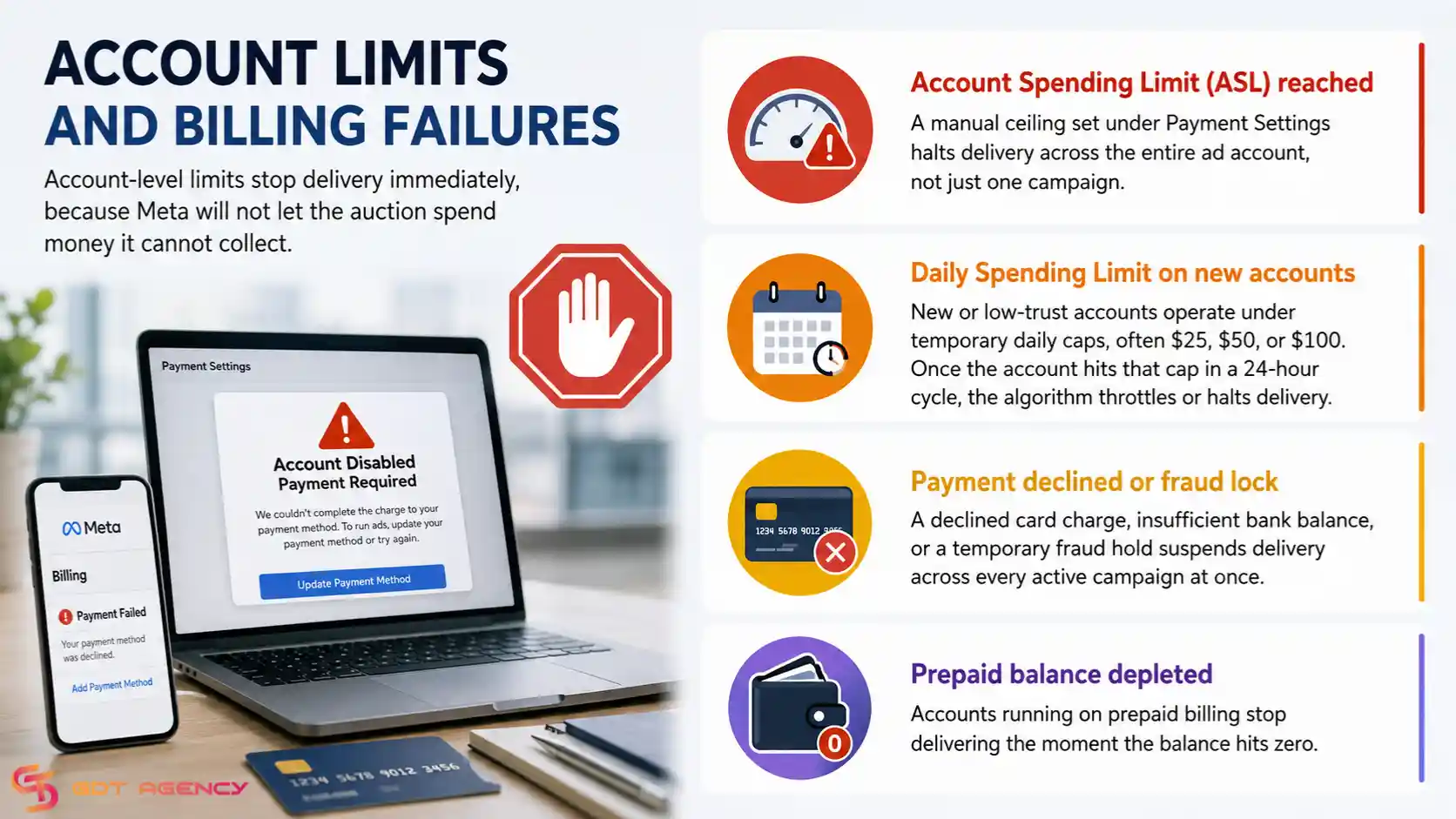
- Account Spending Limit (ASL) reached: a manual ceiling set under Payment Settings halts delivery across the entire ad account, not just one campaign.
- Daily Spending Limit on new accounts: new or low-trust accounts operate under temporary daily caps, often $25, $50, or $100. Once the account hits that cap in a 24-hour cycle, the algorithm throttles or halts delivery.
- Payment declined or fraud lock: a declined card charge, insufficient bank balance, or a temporary fraud hold suspends delivery across every active campaign at once.
- Prepaid balance depleted: accounts running on prepaid billing stop delivering the moment the balance hits zero.
Bidding, Budget, and Auction Mechanics
Bidding and budget settings decide whether your ad can compete in the auction at all, so a mismatch here quietly kills delivery without any error message.
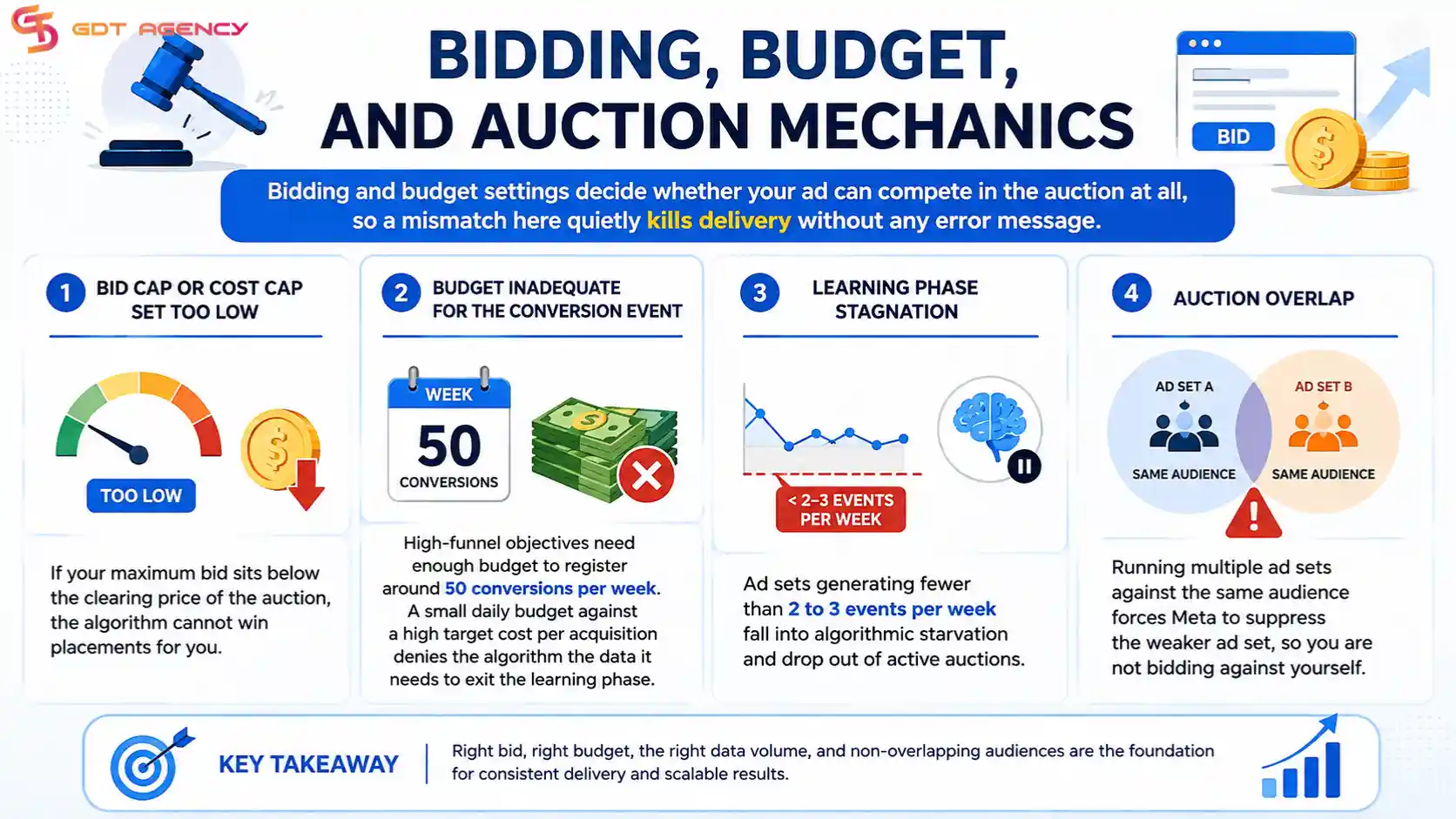
- Bid cap or cost cap set too low: if your maximum bid sits below the clearing price of the auction, the algorithm cannot win placements for you.
- Budget inadequate for the conversion event: high-funnel objectives need enough budget to register around 50 conversions per week. A small daily budget against a high target cost per acquisition denies the algorithm the data it needs to exit the learning phase.
- Learning phase stagnation: ad sets generating fewer than 2 to 3 events per week fall into algorithmic starvation and drop out of active auctions.
- Auction overlap: running multiple ad sets against the same audience forces Meta to suppress the weaker ad set, so you are not bidding against yourself.
Audience Constraints
An audience that is too narrow or too filtered leaves the auction with no active users to show your ad to.
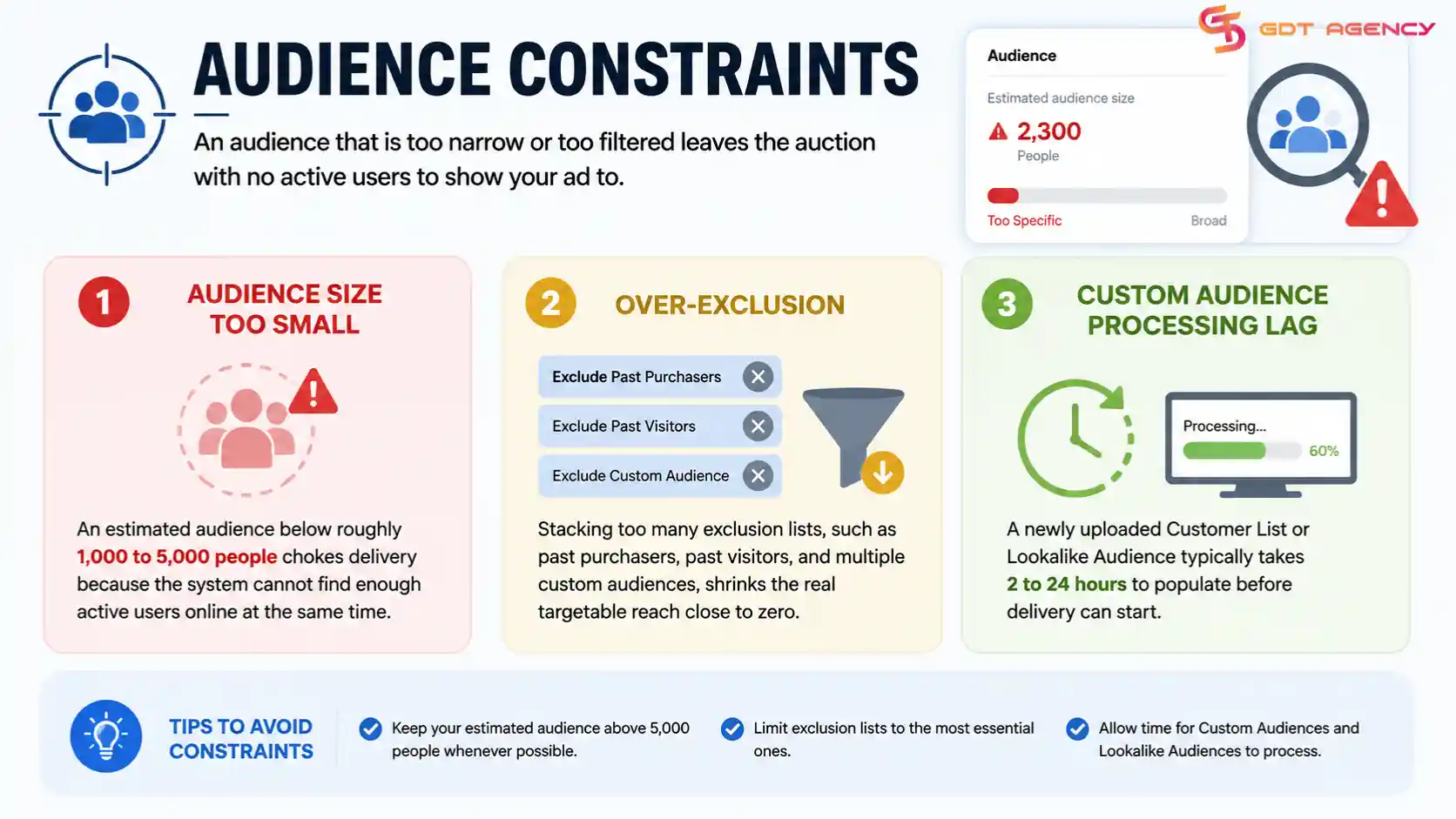
- Audience size too small: an estimated audience below roughly 1,000 to 5,000 people chokes delivery because the system cannot find enough active users online at the same time.
- Over-exclusion: stacking too many exclusion lists, such as past purchasers, past visitors, and multiple custom audiences, shrinks the real targetable reach close to zero.
- Custom Audience processing lag: a newly uploaded Customer List or Lookalike Audience typically takes 2 to 24 hours to populate before delivery can start.
Page Health and Asset Permissions
A Facebook Page carries its own health score, and a weak score or broken permission chain can block delivery even when the ad itself looks fine.

- Low Customer Feedback Score: a score below 2.0, and especially below 1.0, causes Meta to penalize reach or disable delivery outright.
- Shadowbanned or restricted Page: repeated minor policy flags, or an admin account with disabled personal assets, can trigger algorithmic throttling on the whole Page.
- Asset Authorization disconnect: a broken permission link between the Business Portfolio, the Page, and the Ad Account blocks the delivery pipeline before the ad ever reaches the auction. This often happens after an admin loses access, a Business Manager gets restructured, or a Page changes ownership without updating the connected assets.
Creative, Format, and Placement Conflicts
The creative file itself can quietly stop an ad from delivering, even when every setting in Ads Manager looks correct.
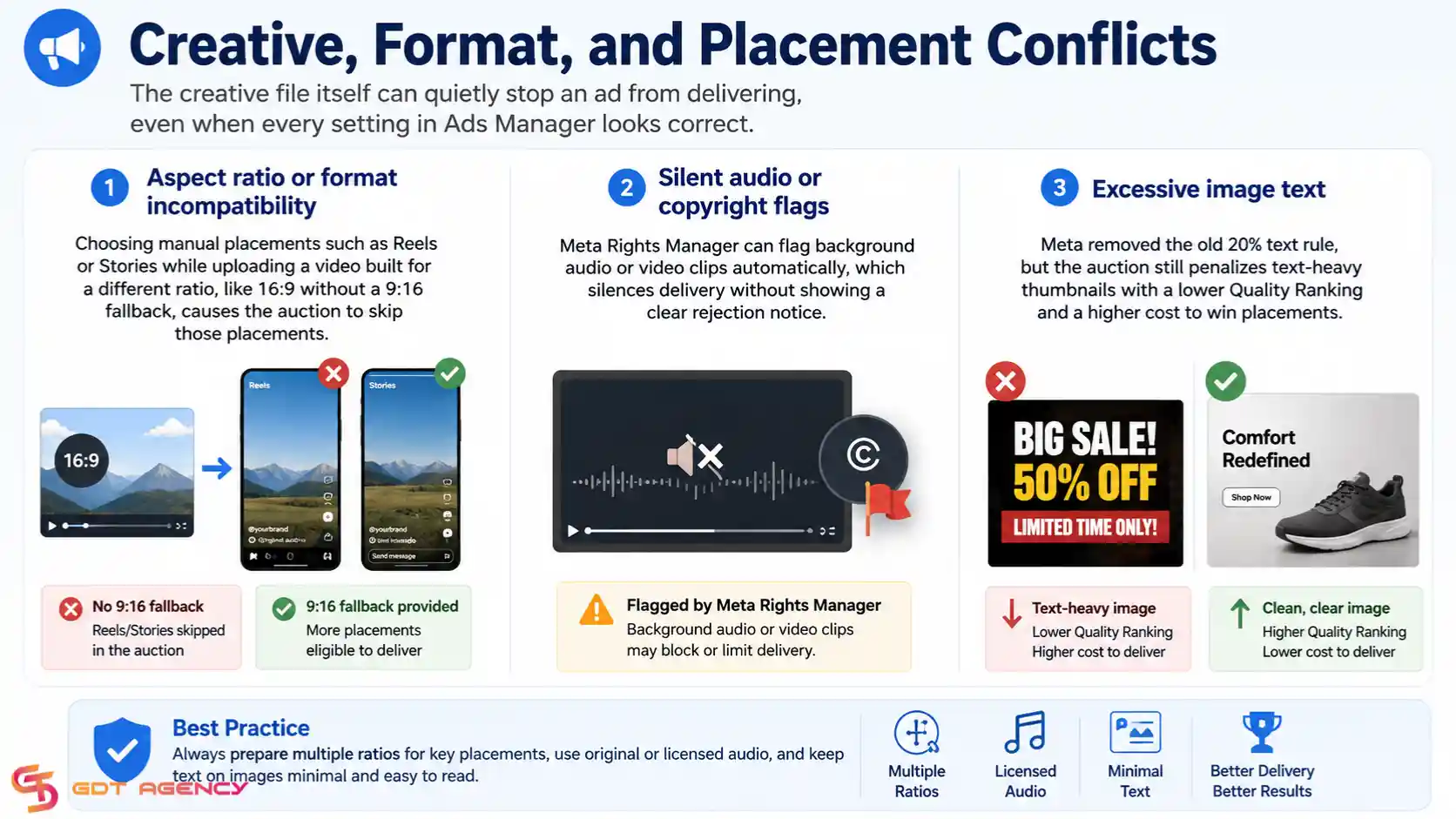
- Aspect ratio or format incompatibility: choosing manual placements such as Reels or Stories while uploading a video built for a different ratio, like 16:9 without a 9:16 fallback, causes the auction to skip those placements.
- Silent audio or copyright flags: Meta Rights Manager can flag background audio or video clips automatically, which silences delivery without showing a clear rejection notice.
- Excessive image text: Meta removed the old 20% text rule, but the auction still penalizes text-heavy thumbnails with a lower Quality Ranking and a higher cost to win placements.
Policy and Review Bottlenecks
Some review steps happen quietly in the background, so the ad can display “Active” on the surface while still stuck behind a compliance check.

- Secondary or silent safety reviews: this is common in finance, health, employment, housing, or social-issue campaigns, where Meta runs manual or automated checks after the initial approval.
- Landing page failures: broken links, 404 or 500 server errors, slow load times, or forced pop-ups on the destination page trigger an automatic delivery cutoff.
- Unverified domain or missing Special Ad Category: failing to declare a Special Ad Category for Credit, Housing, Employment, or Politics, or running on an unverified domain in a restricted niche, halts delivery automatically.
Tracking and Data Issues
When Meta cannot read a clean signal from your pixel or Conversions API, the algorithm loses the data it needs to keep delivering efficiently.
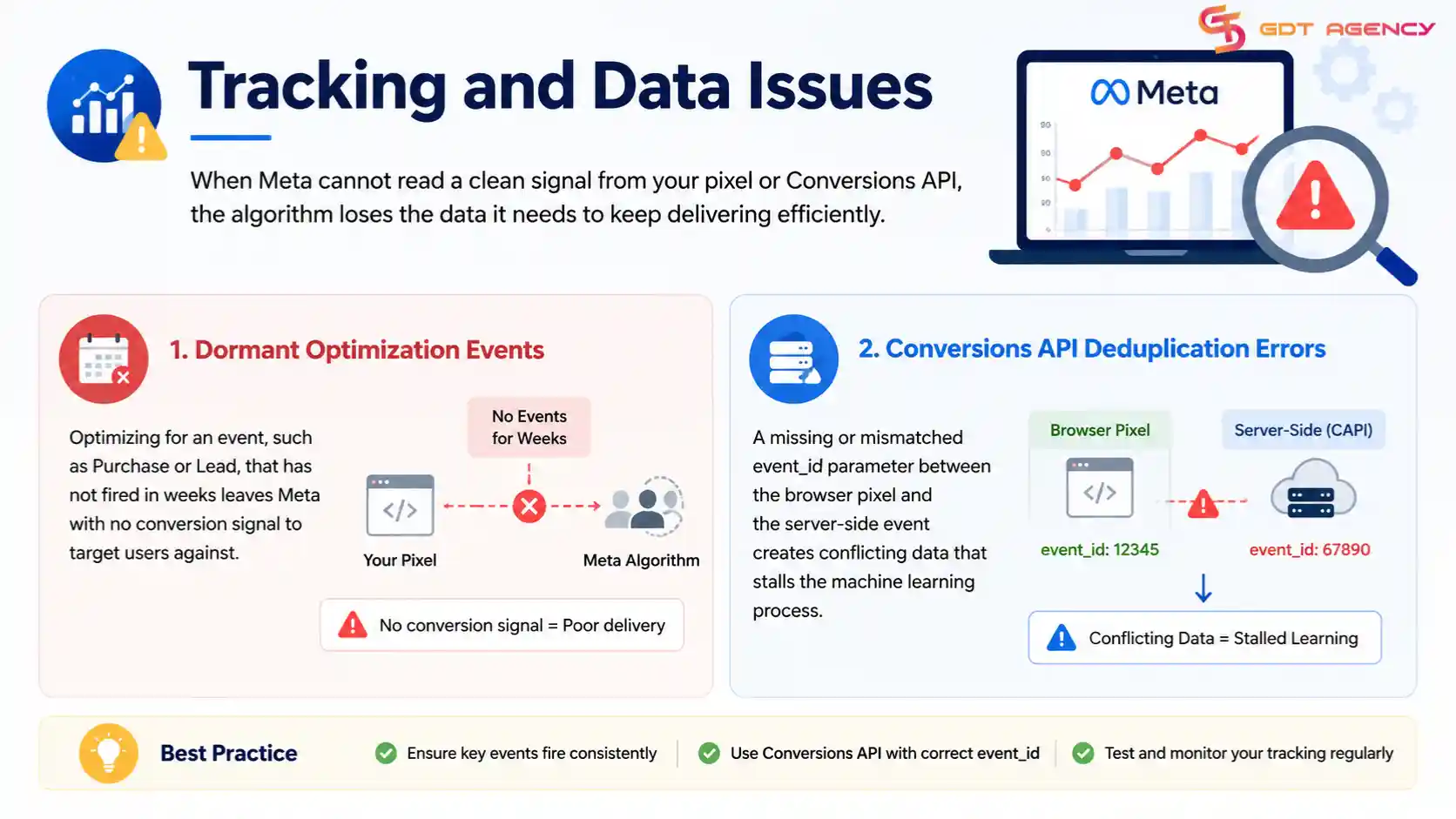
- Dormant optimization events: optimizing for an event, such as Purchase or Lead, that has not fired in weeks leaves Meta with no conversion signal to target users against.
- Conversions API deduplication errors: a missing or mismatched event_id parameter between the browser pixel and the server-side event creates conflicting data that stalls the machine learning process.
Scheduling and Timezone Discrepancies
Scheduling settings are easy to overlook, but a mismatch here can make a perfectly healthy ad appear stuck.
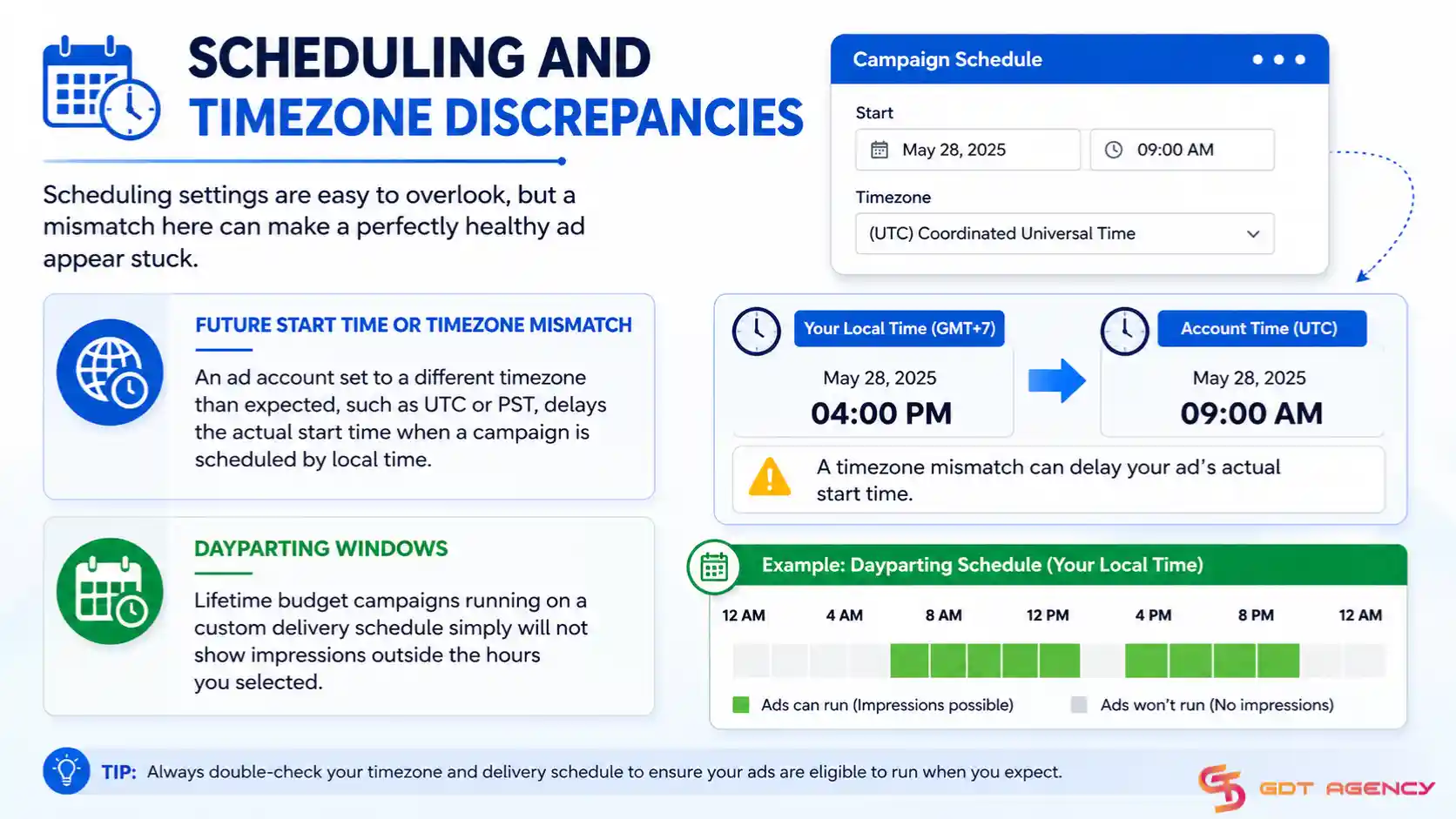
- Future start time or timezone mismatch: an ad account set to a different timezone than expected, such as UTC or PST, delays the actual start time when a campaign is scheduled by local time.
- Dayparting windows: lifetime budget campaigns running on a custom delivery schedule simply will not show impressions outside the hours you selected.
How to Diagnose Facebook Ads Not Delivering and Fix It Fast
Diagnosing and fixing Facebook Ads Not Delivering takes three steps: check status at every level, run through a fix checklist matched to the cause, and decide whether to edit the ad set or duplicate it. Most fixes restore delivery within a few hours.
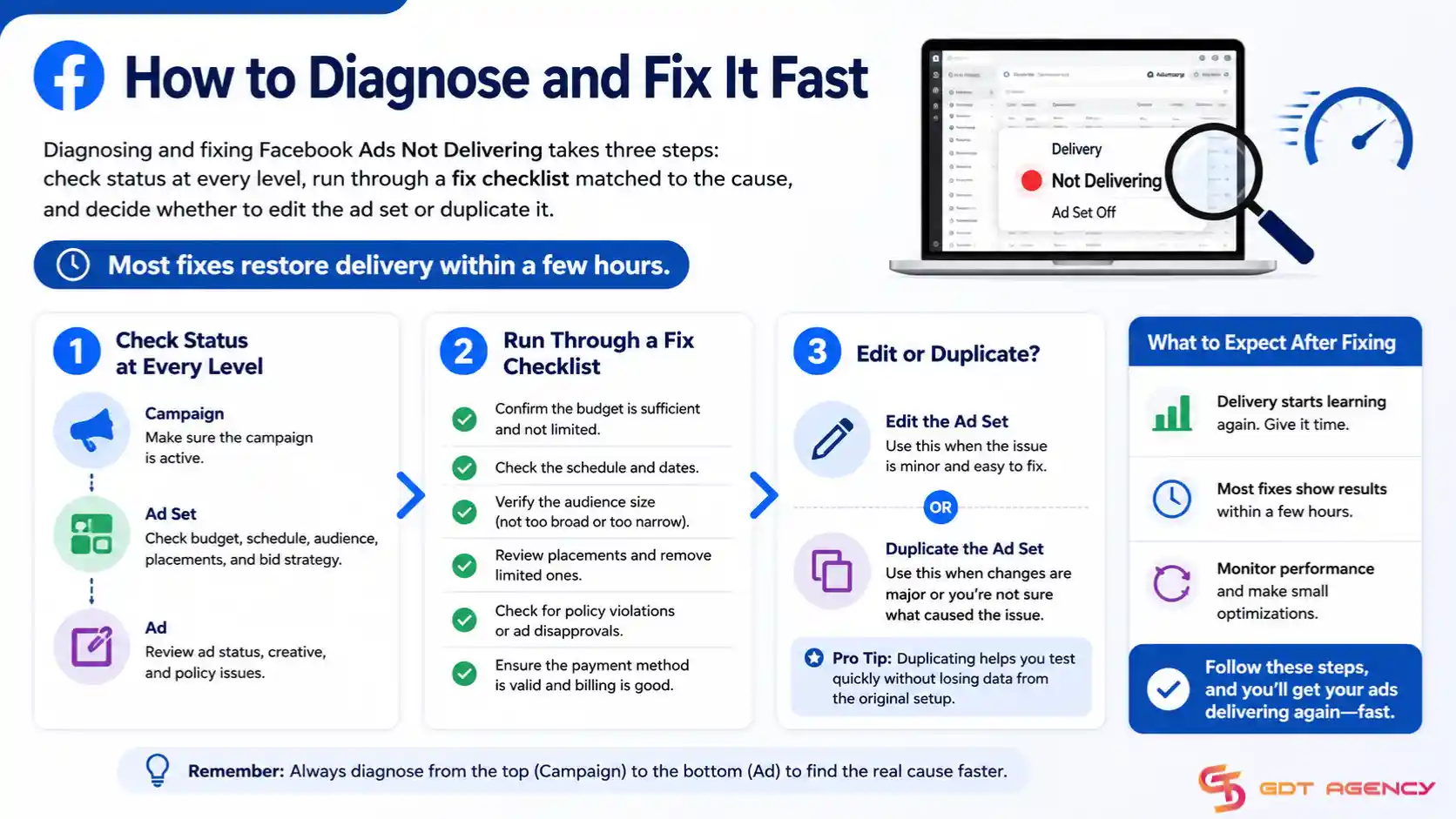
To start, work through the checks below in order, since each step narrows down which of the eight causes above applies to your ad.
How to Check Delivery Status at Campaign, Ad Set, and Ad Level
Checking all three levels matters, because a campaign can look active while the actual block sits at the ad set or ad level.
- Campaign level: confirm the campaign budget has not hit its limit, and the campaign is not paused or ended by schedule.
- Ad set level: check the Delivery column for status messages like “Learning Limited,” “Audience Network Limited,” or “Not Delivering,” and open the ad set to see the specific reason Meta lists.
- Ad level: review the individual ad’s review status, since one ad inside an otherwise healthy ad set can be stuck in review or rejected while the rest deliver normally.
Quick Fix Checklist for Each Cause
Matching the fix to the exact cause saves time, instead of guessing and changing settings at random. Work down the list below and stop at the first item that matches what you saw during the diagnosis step.
Cause group | Common triggers | What to do |
| Billing and account limits | Payment failures, Account Spending Limit reached, insufficient prepaid balance, expired cards, or suspicious bank transactions | Update the payment method, raise the Account Spending Limit under Payment Settings, or top up the prepaid balance. Confirm that the card has not expired and that the bank has not flagged the charge as suspicious. |
| Bidding and budget | Bid caps or cost caps that are too restrictive, insufficient daily budget, or overlapping ad sets competing for the same audience | Raise the bid cap or cost cap so it sits closer to the current auction clearing price. Increase the daily budget or pause overlapping ad sets that compete for the same audience. |
| Audience | Audience size is too small, excessive exclusions, or a new Custom Audience is still processing | Widen the audience above the minimum size, remove unnecessary exclusions, or wait for a new Custom Audience to finish processing before judging delivery. |
| Page health | Recent Page policy flags, broken asset permissions, or a low Feedback Score | Review recent policy flags on the Page, reconnect broken permissions between the Business Portfolio, Page, and Ad Account, and monitor the Feedback Score in Meta Business Suite. |
| Creative and format | Incorrect placement dimensions, flagged audio or video, or overly dense image text | Upload the correct aspect ratio for each placement, replace flagged audio or video with an original file, and reduce text density on image ads to protect the Quality Ranking. |
| Policy and review | Landing page problems, unverified domains, or incorrect Special Ad Category settings | Fix landing page errors such as broken links or slow load times. Verify the domain in Business Settings and select the correct Special Ad Category when the campaign covers a restricted topic. |
| Tracking | Optimization events not firing correctly or conflicting browser Pixel and Conversions API data | Confirm that the optimization event fires correctly in Events Manager. Align the event_id between the browser Pixel and Conversions API so both sources report the same event correctly. |
| Scheduling | Account timezone differences or dayparting settings that prevent ads from running during the intended hours | Check the account timezone against your local time and adjust dayparting hours if the ad needs to run outside the current schedule. |
When to Duplicate the Ad Set vs Edit the Existing One
Editing works for small, surface-level fixes, while duplicating works better when the ad set has already accumulated a poor learning history.
Edit the existing ad set when the fix is simple, such as raising a budget, widening an audience, or correcting a bid cap, since these changes do not reset delivery from scratch. Duplicate the ad set instead when the original has been stuck in Learning Limited for a long stretch, when multiple major settings need to change at once, or when the ad set has triggered repeated policy flags, since a fresh ad set gives the algorithm a clean start without the same flagged history.
How Long Does It Take for a Fixed Ad to Start Delivering Again?
Most ads resume delivery within a few hours of a fix, though the exact timing depends on which cause was involved. A billing fix, such as updating a payment method, typically restores delivery almost immediately once the charge clears. A policy or review-related fix can take longer, sometimes up to 24 hours, because the ad re-enters Meta’s review queue rather than skipping straight back into the auction.
A duplicated ad set generally needs its own new learning phase, which can take several days to stabilize before delivery becomes fully efficient again. During this window, cost per result often looks worse than before the fix, which is normal and not a sign the fix failed. Avoid making further changes to budget, audience, or creative during this stabilization period, since each new edit can restart the learning phase and push the timeline back further.
>> If the issue comes from an account-level error, check our Facebook Ads Account Error: Guide for Every Error Type 2026 to identify the error and find the right fix.
What’s the Difference Between “Not Delivering” and “Learning Limited”?
“Not Delivering” and “Learning Limited” are two different statuses, and confusing them leads advertisers to apply the wrong fix. “Not Delivering” means the ad is not entering the auction at all, usually because of a billing, budget, audience, or policy block. “Learning Limited” means the ad is delivering, but not gathering enough conversion events per week to exit Meta’s learning phase efficiently.
In other words, “Not Delivering” is a hard stop, while “Learning Limited” is a slow, underperforming delivery that still technically runs. Treating a Learning Limited ad set like a Not Delivering one, by pausing or duplicating it too early, often restarts the learning phase and makes performance worse rather than better.
Why Do New Facebook Ad Accounts Face More Delivery Issues?
New accounts run under temporary daily spending caps and carry no trust history with Meta’s algorithm, which makes delivery issues far more common in the first few weeks. A brand-new account has not yet built the account-level trust signals that reduce review friction, so ads from new accounts face stricter scrutiny and lower initial spending limits than established accounts with a clean history.
How Does CBO vs ABO Structure Affect Ad Delivery?
Campaign Budget Optimization (CBO) and Ad Set Budget Optimization (ABO) distribute budget differently, and that difference directly affects which ad sets get enough data to deliver well. CBO lets Meta shift budget automatically toward the best-performing ad set within a campaign, which can starve weaker ad sets of the events they need to exit learning. ABO fixes a set budget per ad set, giving each one a more predictable, even chance to gather enough data, though it removes Meta’s ability to automatically favor the stronger performer.
What Delivery Issues Are Common During Seasonal or High-Spend Campaigns?
Seasonal and high-spend campaigns put extra pressure on the auction, which surfaces delivery issues that smaller, steady campaigns rarely trigger. Rapid budget increases during peak seasons, such as holiday sales, can push an ad set back into a fresh learning phase, since a large jump in daily spend resets the pacing the algorithm had settled into. Heavy competition from other advertisers during the same season also raises the clearing price in the auction, so a bid cap that worked fine in a quieter month can suddenly become too low to win placements.
Final Thoughts
Facebook Ads Not Delivering almost always traces back to one of the eight causes covered above, so the fastest path to a fix is checking status at the campaign, ad set, and ad level before changing anything. Most advertisers lose time by adjusting the wrong setting first, so match the exact status message to its cause, apply the matching fix, and give the ad set a few hours to a few days to stabilize depending on which fix you used. Keeping billing current, audiences wide enough, and tracking clean prevents most of these issues from happening again in the first place.
FAQs
Why does my Facebook ad say “Not Delivering” even though it’s active?
An active status only means the ad is turned on, not that it is entering the auction. A block from one of the eight cause groups, such as a billing failure, a narrow audience, or a broken asset permission, can keep an active ad out of the auction entirely.
Will a Not Delivering ad start showing again on its own?
Some causes resolve on their own, such as a Custom Audience finishing its processing window, but most require a manual fix, such as updating a payment method or widening an audience. Waiting without checking the cause usually wastes ad set time rather than solving the problem.
Does pausing and reactivating an ad fix delivery issues?
Pausing and reactivating rarely fixes the underlying cause, since the block is tied to a setting, not to the ad’s on/off state. It can also reset the learning phase, which often makes performance worse instead of better.
Can a low Page Quality or Feedback Score stop delivery on every ad?
Yes. A Feedback Score below 2.0, and especially below 1.0, applies at the Page level, so it can throttle or disable delivery across every ad running from that Page, not just one campaign.
Is Facebook Ads Not Delivering the same issue as Facebook Ads Not Spending?
No. Not Delivering means the ad is not entering the auction at all, while Facebook Ads not spending usually means the ad is delivering but at a very low or inconsistent rate. The two share some overlapping causes, such as budget and audience issues, but they call for different diagnostic steps.