What is a Collaborative Ad Account and How to Set Up


A Collaborative Ad Account is Meta’s advertising program that enables brands or retailers to run performance campaigns using a product catalogue, audience data, and campaign management responsibilities. Essentially, this account type bridges the gap between manufacturers who own products and retailers who sell them online, enabling both parties to advertise the same products without duplicating effort or budget.
The process requires creating a dedicated ad account and activating Collaborative Ads, receiving catalog segments from the retailer, assigning the correct permissions, and launching a catalog sales campaign, all completed within an active Business Manager connected to your retail partner. Below, this guide breaks down each step in detail, along with the most common setup issues advertisers encounter.
- What is a Collaborative Ad Account?
- How does a Collaborative Ad Work?
- Who Manages a Collaborative Account?
- How to Set Up a Collaborative Ad Account?
- Step 1: Create a new ad account
- Step 2: Activate Collaborative Ads
- Step 3: Receive Catalog Segments from the retailer
- Step 4: Activate and Assign Permissions
- What makes a Collaborative Ad Campaign Effective?
- How to set up a campaign for Collaborative Ads?
- Why can’t you set up the right Campaign for Collaborative Ads?
- How is a Collaborative Ad different from a Partnership Ad?
- Final Thoughts
- FAQs
- Is a Collaborative Ad Account free to set up?
- Are Collaborative Ad Account and Regular Ad Account different?
- How long does it take to get approval for a Collaborative Ad Account?
- Do you need a Facebook page to create a Collaborative Ad Account?
- Can a Collaborative Advertising Account connect to multiple marketplace accounts?
What is a Collaborative Ad Account?
A Collaborative Ad Account is not an account; it is a Meta advertising solution (formerly known as CPAS) that allows retailers and brands to collaborate on running joint product ads by sharing assets (Catalog Segment and Conversion Signals) between regular Meta Business Manager accounts
More precisely, this setup serves as the operational hub where the retailer’s product catalog meets the brand’s advertising budget and creative strategy. Unlike a standard ad account that a single business owns and operates independently, this collaborative model supports a partnership model, one where two separate businesses, each with their own Business Manager, work from a shared data source.
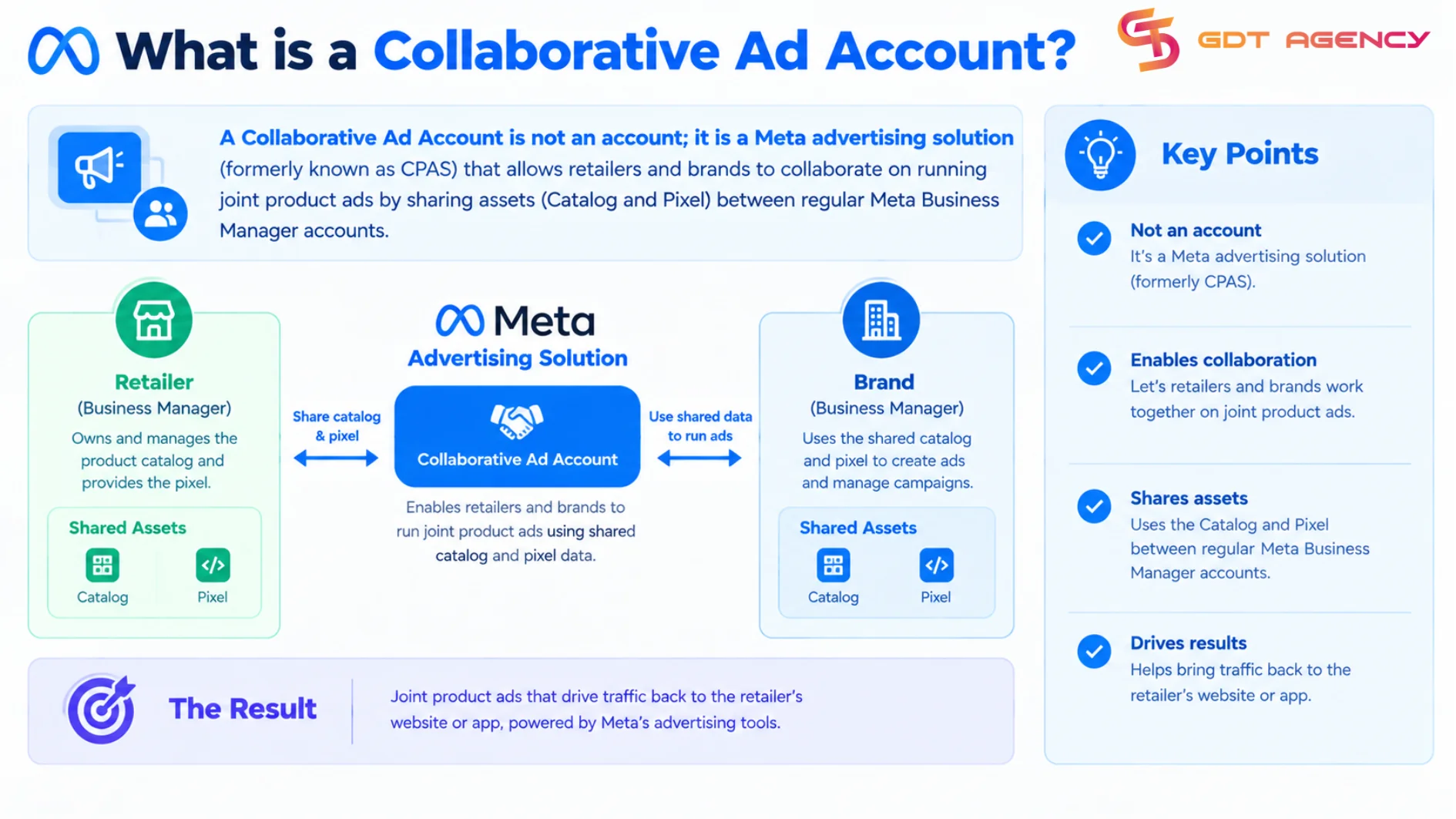
Within the Meta Ads ecosystem, this account type connects three key components:
| Component | Role in a Collaborative Ad Account |
| Retailer’s Business Manager | Owns and maintains the product catalog and inventory data |
| Brand’s Business Manager | Receives shared catalog segments and manages ad creative and budget |
| Meta Ads Manager | Hosts the Collaborative Ad Account where campaigns are built and launched |
As an expert at GDT Agency who has spent nearly 10 years working with Facebook ads via multiple account types, from standard to Facebook agency accounts across various industries, including retail and ecommerce. I have had the chance to work with many brands and have witnessed them repeatedly run into the same wall across almost every retail partnership.
They drive traffic to their storefront on ecommerce platforms through Facebook Ads, only to see most of that traffic disappear without converting. This isn’t because the ads lack quality, it’s because most shoppers don’t purchase the moment they see an ad, even when the intent is genuinely there. They keep scrolling, get distracted, forget what they came to buy. Or worse, end up purchasing a similar product from a competing brand instead.
This is precisely the gap a Collaborative Ad Account is built to close. By sharing real-time catalog data, pricing, and inventory status directly between the retailer and the brand, it allows Meta to retarget those same shoppers with dynamic ads showing the exact product they viewed, at the exact price and availability shown on the retailer’s platform to complete the purchase.
How does a Collaborative Ad Work?
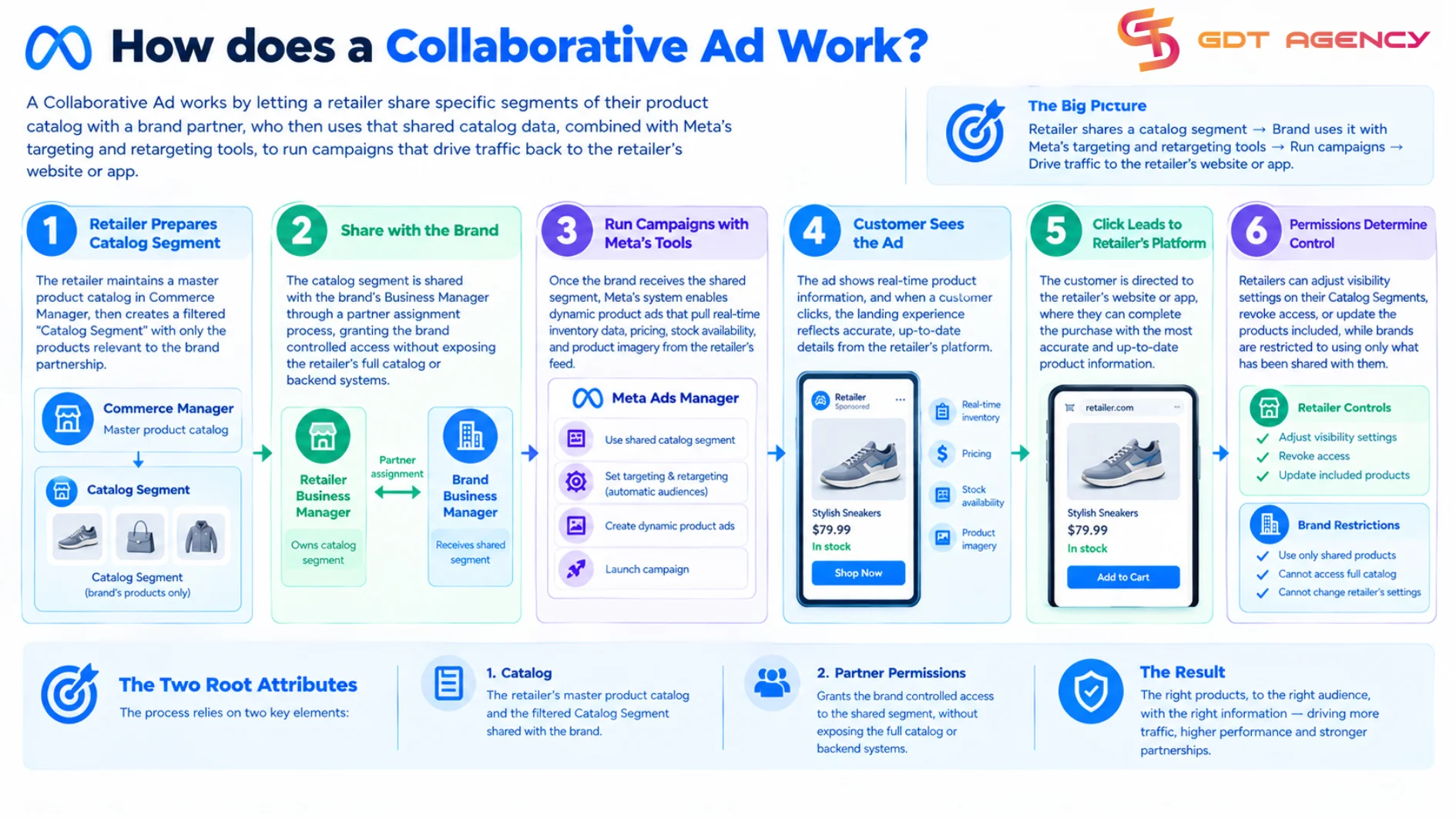
A Collaborative Ad works by letting a retailer share specific segments of their product catalog with a brand partner, who then uses that shared catalog data, combined with Meta’s targeting and retargeting tools, to run campaigns that drive traffic back to the retailer’s website or app.
This mechanism hinges on two Root Attributes: the Catalog and Partner Permissions. The retailer maintains a master product catalog in Commerce Manager, then creates a filtered “Catalog Segment” containing only the products relevant to the brand partnership, for instance, only the brand’s own products rather than the retailer’s entire inventory. This segment is then shared with the brand’s Business Manager through a partner assignment process, granting the brand controlled access without exposing the retailer’s full catalog or backend systems.
Once the brand receives this shared segment, Meta’s system enables dynamic product ads that pull real-time inventory data, pricing, stock availability, and product imagery directly from the retailer’s feed. When a customer clicks an ad, the landing experience reflects accurate, up-to-date information from the retailer’s platform.
Permissions also determine how much control each party retains. Retailers can adjust visibility settings on their Catalog Segments, revoke access, or update the products included, while brands are restricted to using only what has been shared with them.
Who Manages a Collaborative Account?
Two parties manage a Collaborative Ad Account:
- The retailer: controls catalog data and product-level permissions
- The brand: manages the ad campaigns, budgets, and creative assets built on top of that shared data.
The retailer’s management scope includes maintaining accurate product feeds, configuring Catalog Segment rules, linking conversion tracking (Pixel or Dataset), and approving or revoking brand access. The brand’s scope covers campaign structure, audience targeting, ad creative, bidding strategy, and budget allocation. In most partnerships, day-to-day campaign optimization sits with the brand’s marketing team or agency, while the retailer plays more of a data-provider and gatekeeper role once setup is complete.
How to Set Up a Collaborative Ad Account?
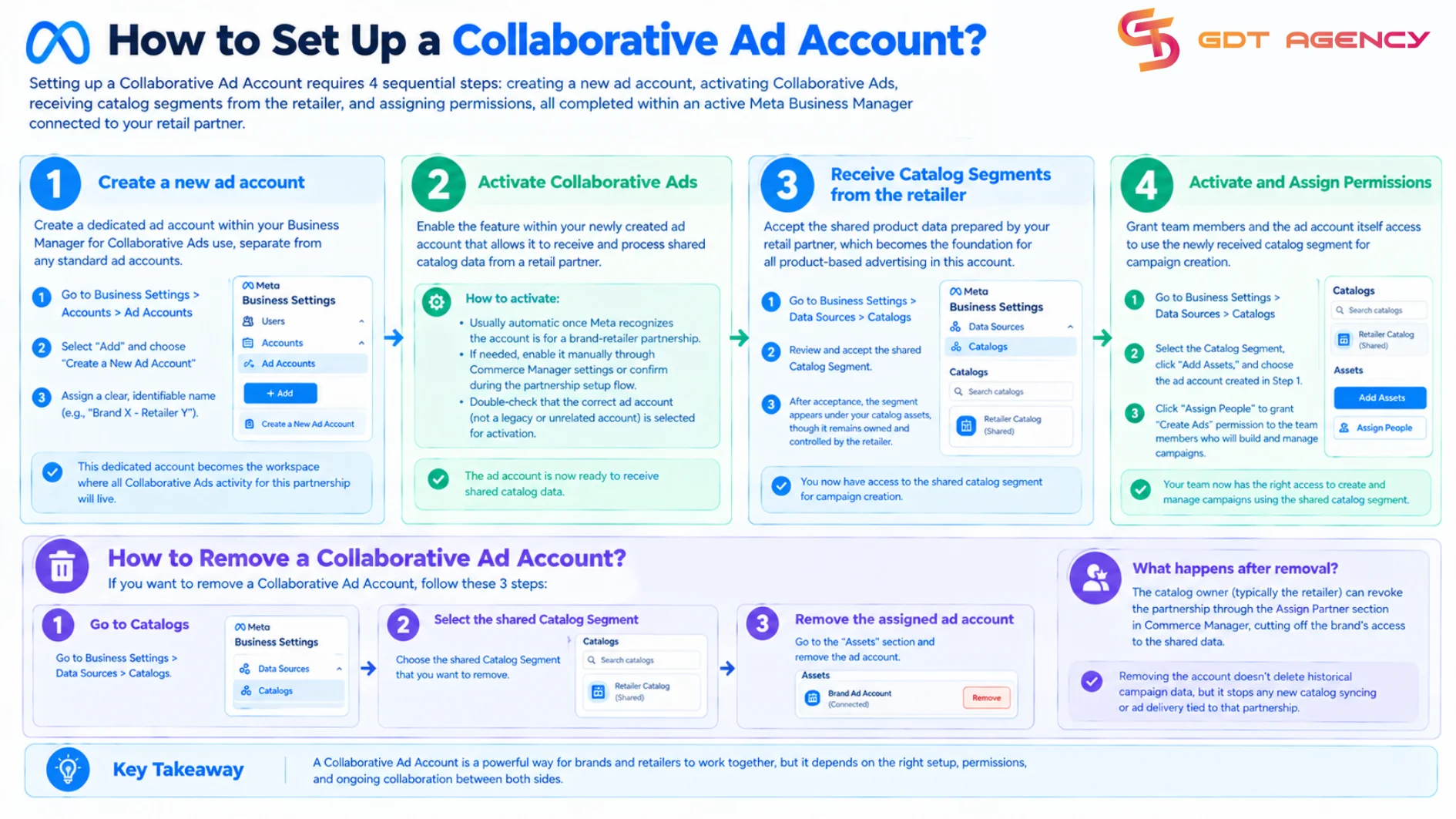
Setting up a Collaborative Ad Account requires 4 sequential steps: creating a new ad account, activating Collaborative Ads, receiving catalog segments from the retailer, and assigning permissions, all completed within an active Meta Business Manager connected to your retail partner.
You’ll need an active Meta Business Manager account, and your business assets must already be connected with your retail partner, meaning the retailer has agreed to the partnership and is ready to share their catalog. With these prerequisites confirmed, the process unfolds as follows:
Step 1: Create a new ad account
The first step involves creating a dedicated ad account within your Business Manager for Collaborative Ads use, separate from any standard ad accounts your business already operates.
- Go to Business Settings > Accounts > Ad Accounts
- Select “Add” and choose “Create a New Ad Account”
Assign a clear, identifiable name, something that references the retail partner or campaign purpose, so your team can distinguish it from other ad accounts later. This dedicated account becomes the workspace where all Collaborative Ads activity for this partnership will live.
>>> Before creating additional ad accounts, it helps to understand how Meta’s account architecture and Business Manager structure work together across different advertising setups. Learn more about Facebook Ad Account Infrastructure: What it is & How it works
Step 2: Activate Collaborative Ads
Activating Collaborative Ads means enabling the feature within your newly created ad account that lets it receive and process shared catalog data from a retail partner. This activation usually happens automatically once Meta recognizes the account is intended for a brand-retailer partnership, but in some cases, you may need to manually enable Collaborative Ads through Commerce Manager settings or by confirming the feature during the partnership setup flow. Double-check that the correct ad account, not a legacy or unrelated account, is selected for activation.
Step 3: Receive Catalog Segments from the retailer
Receiving Catalog Segments means accepting the shared product data that your retail partner has prepared for your brand, which becomes the foundation for all product-based advertising in this account.
The retailer initiates this process by creating a Catalog Segment, a filtered subset of their full inventory, and sending a partnership invitation to your Business Manager using your Business ID. Go to Business Settings > Data Sources > Catalogs, review and accept it. After acceptance, the shared segment appears under your catalog assets, though it remains owned and controlled by the retailer.
Step 4: Activate and Assign Permissions
Activating and assigning permissions involves granting team members and the ad account itself access to use the newly received catalog segment for campaign creation. Step-by-step guide:
- Go to Business Settings > Data Sources > Catalogs
- Select the Catalog Segment, click “Add Assets,” and choose the ad account created in Step 1.
- Click “Assign People” to grant “Create Ads” permission to the team members who will build and manage campaigns.
If you want to remove a Collaborative Ad requires 3 steps:
- Go to Business Settings > Data Sources > Catalogs
- Select the shared Catalog Segment
- Remove the assigned ad account under “Assets”
The party that owns the catalog, typically the retailer, can then revoke the partnership through the Assign Partner section in Commerce Manager, cutting off the brand’s access to the shared data. Removing the account doesn’t delete historical campaign data already generated, but it stops any new catalog syncing or ad delivery tied to that partnership.
What makes a Collaborative Ad Campaign Effective?
Running a Collaborative Ad Campaign effectively depends on two factors that carry the most weight: how you structure your audience funnel and how you approach creative formatting. Get either one wrong, and even a perfectly configured account will underperform.
An audience funnel defines distinct stages of the buying journey, rather than targeting everyone with the same message. With a Collaborative Ad Account, catalog and engagement data make it possible to identify exactly which stage a shopper falls into. A typical funnel breaks down into 4 stages:
- Acquire: Targets people who haven’t engaged yet
- Upsell: Targets shoppers who have viewed products within 1 to 180 days, segmented by recency
- Convert: Targets shoppers who added to cart but didn’t complete the purchase; need direct, focused messaging
- Cross-sell: Targets past purchasers where timing matters most
Collaborative Ads support 3 creative formats:
- Single Image or Video: Meta generally doesn’t recommend this format because of the dynamic multi-product nature of catalog-based advertising.
- Carousel: Displays up to 10 images or videos within a single ad, letting shoppers swipe through multiple products on mobile or click through arrows on desktop.
- Collection: A mobile-first format featuring one primary image or video with a grid below; tapping a product leads straight to its retailer page.
Beyond following Meta’s format-specific best practices, effective Collaborative Ads campaigns usually come from ongoing creative testing, running multiple image and copy variations, and applying what wins to keep performance improving over time.
>>> If your campaigns run at high volume, consider using a Facebook postpaid ad account for this step, since postpaid billing reduces the risk of payment failures interrupting catalog-based ad delivery mid-campaign. To better understand, read Facebook Postpaid Ad Account: How It Works and When You Should Use It
How to set up a campaign for Collaborative Ads?
Before building the campaign, confirm 2 things are in place:
- Catalog Segment Access: Ensure your retail partner has shared their catalog segment with your Meta Business Manager
- Dedicated Ad Account: Use a separate ad account per retail partner to keep budgets, data and permissions isolated.
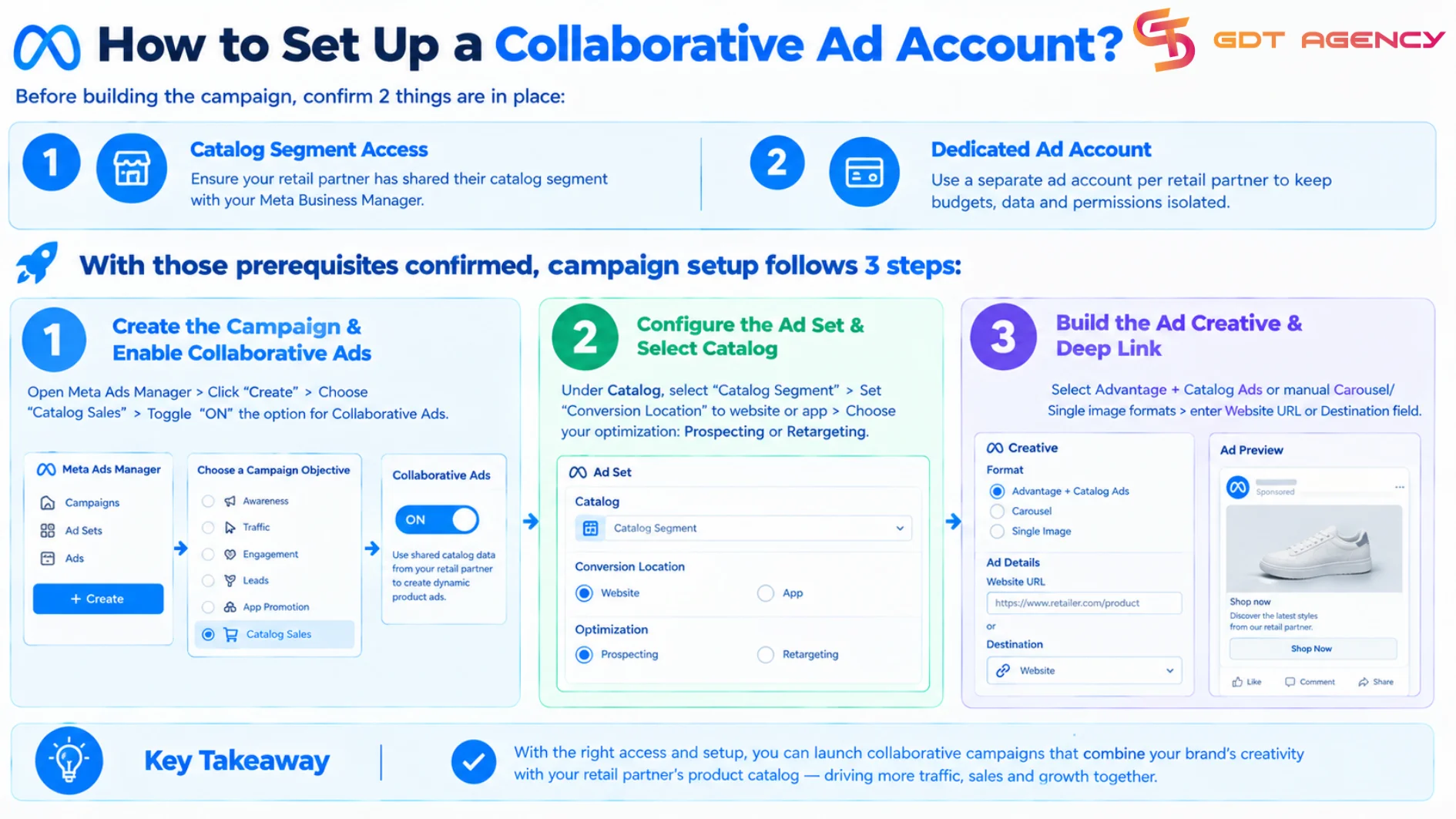
3 steps to set up a collaborative campaign adWith those prerequisites confirmed, campaign setup follows 3 steps:
- Create the Campaign & Enable Collaborative Ads: Open Meta Ads Manager > Click “Create” > Choose “Catalog Sales” > Toggle “ON” the option for Collaborative Ads
- Configure the Ad Set & Select Catalog: Under Catalog, select “Catalog Segment” > Set “Conversion Location” to website or app > Choose your optimization: Prospecting or Retargeting
- Build the Ad Creative & Deep Link: Select Advantage + Catalog Ads or manual Carousel/ Single image formats > enter Website URL or Destination field
Why can’t you set up the right Campaign for Collaborative Ads?
You can’t set up the right campaign most often because an incorrect objective was selected, preventing Meta from enabling the Catalog feature, or because the audience targeting configuration conflicts with the shared catalog data.
If the campaign objective doesn’t align with Meta’s requirements for catalog-based advertising, the “Use Catalog” toggle won’t activate at the campaign level. Targeting errors can also arise from selecting the wrong Catalog Segment type or uploading a Custom Audience list that conflicts with the e-commerce platform’s third-party data rules.
To resolve these issues:
- Fix the objective: Select Catalog Sales as your campaign goal, then enable the “Use Catalog” option within campaign-level settings.
- Correct audience targeting: At the Ad Set level, choose the Catalog source shared by the retailer, and prioritize Meta’s automatically generated product retargeting audiences over manually uploaded lists that may be incompatible.
How is a Collaborative Ad different from a Partnership Ad?
A Collaborative Ad and Partnership Ad solve 2 entirely different problems: who you’re partnering with and what that partnership is meant to achieve.
A Partnership Ad connects a brand with a creator or influencer. It lets a brand run ads through the creator’s own profile, typically pulling from a post already tagged as a paid partnership to borrow the creator’s audience trust and content style. A Collaborative Ad connects a brand with a retailer or e-commerce. The entire mechanism runs on shared catalog data rather than shared content.
| Aspect | Collaborative Ad | Partnership Ad |
| Partner type | Brand ↔ Retailer/Marketplace | Brand ↔ Creator/ Influencer |
| Core mechanism | Shared product catalog | Whitelisted creator content |
| Ad identity | Runs under the brand’s ad account | Runs under the creator’s handle |
| Desstination link | Fixed to the retailer’s product/store page | Flexible (brand site, app, landing page) |
| Best fit for | Driving sales and measurable ROAS on a specific retail platform | Influencer campaigns, brand awareness, UGC-driven trust |
The 2 aren’t mutually exclusive; in practice, many brands run them together. A Partnership Ad builds awareness and trust through a creator’s review or storytelling, driving shoppers to view the product on the retailer’s platform, while a Collaborative Ad Account then retargets those same shoppers who viewed or added the product to cart, with dynamic ads that pull them back to complete the purchase.
Final Thoughts
A Collaborative Ad Account is a solution in Meta Ads that lets brands and retailers share product catalogs and jointly manage advertising campaigns, built on shared data permissions rather than independent ownership. Setting one up follows a 4 step path: creating a dedicated ad account, activating Collaborative Ads, receiving catalog segments from the retail partner, and assigning permission. Collaborative Campaign Ads help brands and retailers coordinate advertising more efficiently than running separate campaigns. For any brand working closely with retail partners, correctly configuring a Collaborative Ad Account is a direct lever for improving shared advertising ROI.
FAQs
Is a Collaborative Ad Account free to set up?
Yes, setting up a Collaborative Ad Account is free, Meta doesn’t charge a separate fee to create the account or configure the catalog-sharing partnership. Costs apply once you begin running ad campaigns through the account, based on your budget and bidding strategy.
Are Collaborative Ad Account and Regular Ad Account different?
Yes. A regular ad account is owned and operated independently by a single business for its own advertising needs, while a Collaborative Ad Account supports a partnership between a brand and a retailer, built around shared catalog data and cross-business permissions rather than single-party ownership.
How long does it take to get approval for a Collaborative Ad Account?
Approval time depends mainly on how quickly the retail partner accepts the partnership invitation and shares the Catalog Segment. When both Business Managers are already properly configured, the process can finish within the same day; delays typically come from Business ID errors, catalog filter issues, or permission misconfigurations that need resolving first.
Do you need a Facebook page to create a Collaborative Ad Account?
Yes, a Facebook Page linked to your Business Manager is required, since Collaborative Ads campaigns rely on the Page as part of the ad creative and audience targeting infrastructure, similar to standard Meta advertising requirements.
Can a Collaborative Advertising Account connect to multiple marketplace accounts?
Yes, a brand can maintain separate Collaborative Ad Account partnerships with multiple retailers simultaneously, though each partnership requires its own dedicated Catalog Segment and permission setup, since Meta treats each brand-retailer relationship as a distinct partnership rather than a shared pool across marketplaces.