
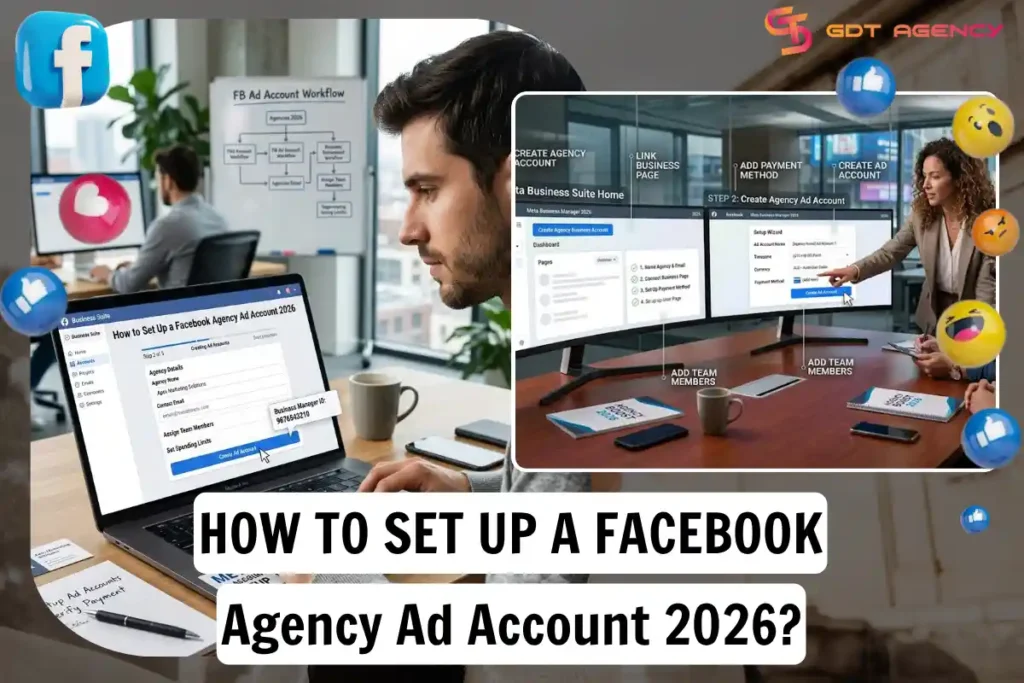
Setting up a Facebook agency ad account takes 6 steps: confirm ownership and the access model, establish the partner connection, connect the dataset to the ad account, assign access to agency staff, verify billing and spending controls, and run a pre-flight check. Each step depends on the one before it, so skipping the order often causes delays or rejected submissions. Most agencies complete the full setup in under a few hours once the client acts on their side. The exact timeline depends on how quickly the client grants partner access and how fast the Dataset connects to the ad account. Below in this guide on Facebook ads account setup agency, we walk through the steps first, then cover what you need going in, how long the process realistically takes, and how partner access compares to a rented or BM2500 setup.
How Do You Set Up a Facebook Agency Ad Account?
You set up a Facebook agency account in 6 steps: confirm ownership and the access model, establish the partner connection, connect the dataset to the ad account, assign access to agency staff, verify billing and spending controls, and run a pre-flight check. Each step builds on the last one.
If you are not familiar with Facebook agency ad accounts, you can refer to our dedicated article: What Is a Facebook Agency Ad Account to understand how they work before moving on to the setup process.
Step 1: Confirm Ownership and Access Model
Confirming ownership means identifying exactly which assets the client controls before any sharing happens. This list usually covers the Business Portfolio, the Facebook Page, the Instagram account, the ad account, the Dataset or Pixel, and sometimes the domain, catalog, and other related assets.
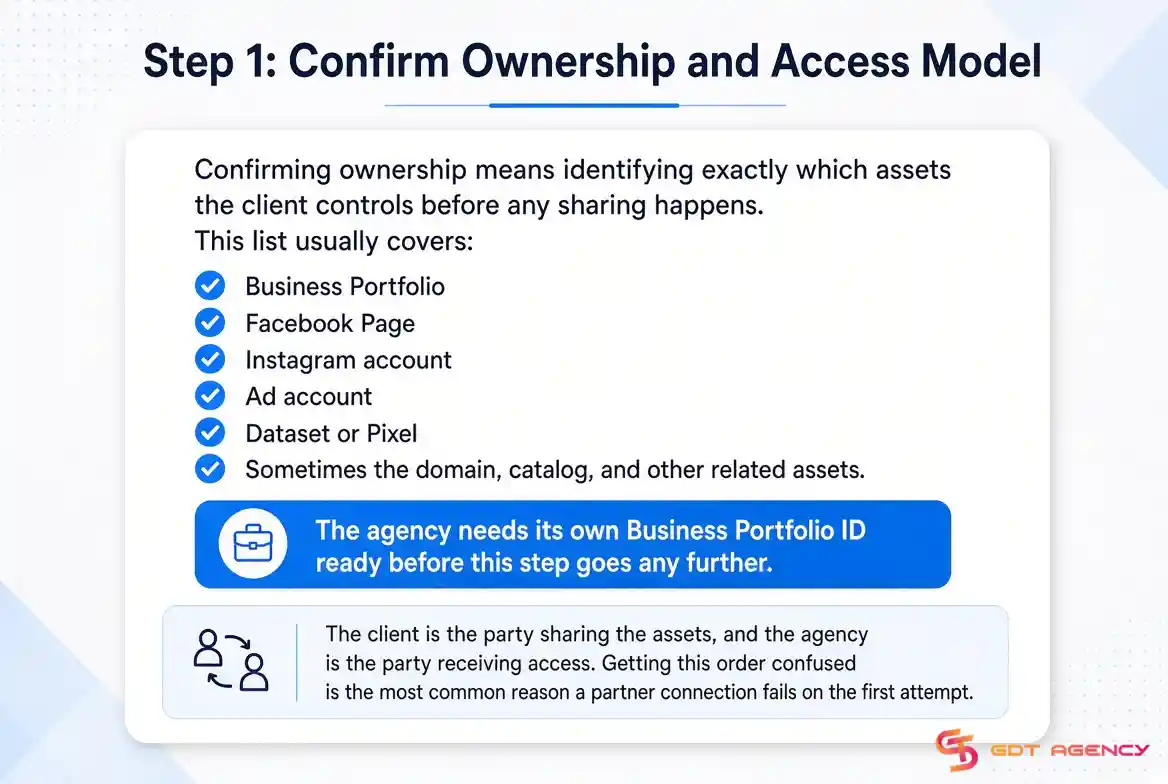
The agency needs its own Business Portfolio ID ready before this step goes any further. The client is the party sharing the assets, and the agency is the party receiving access. Getting this order confused is the most common reason a partner connection fails on the first attempt.
Step 2: Establish the Partner Connection
Establishing the partner connection is how the client formally grants the agency access to their assets. The client opens Meta Business Suite Settings, goes to Users > Partners, selects Add, enters the agency’s Business Portfolio ID, then picks the specific assets and the matching permissions for each one.
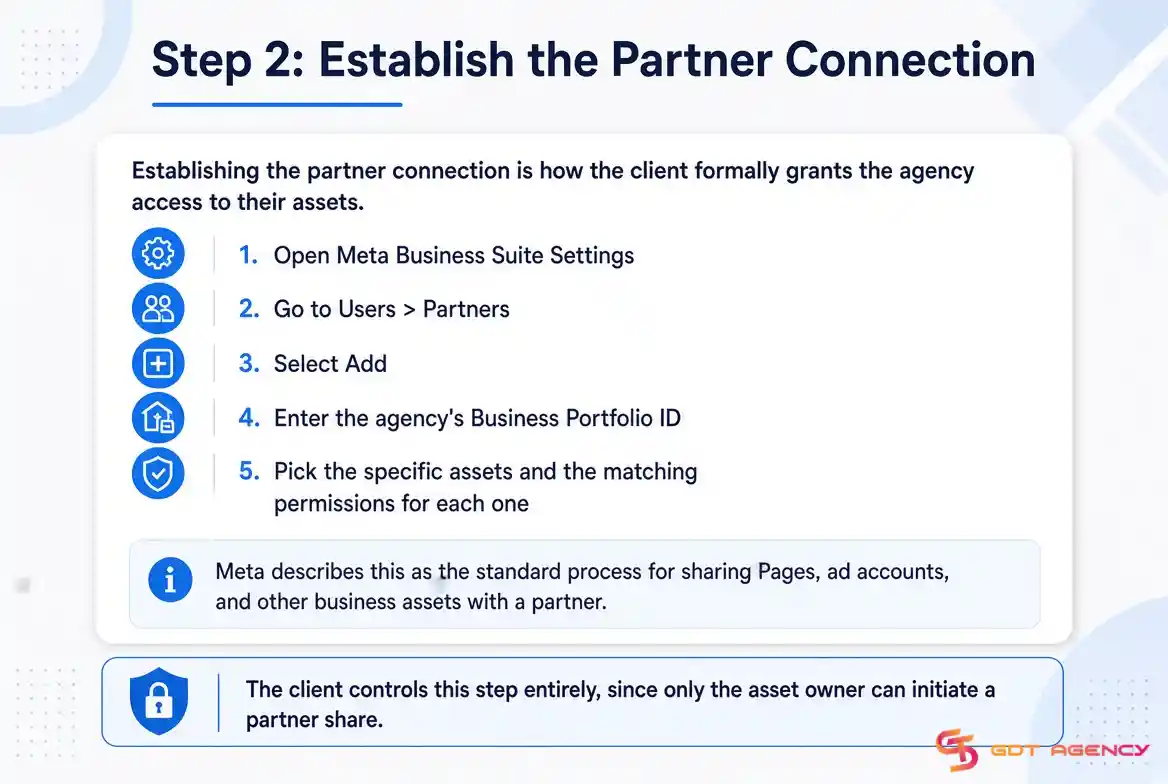
Meta describes this as the standard process for sharing Pages, ad accounts, and other business assets with a partner. The client controls this step entirely, since only the asset owner can initiate a partner share.
Step 3: Connect the Dataset to the Ad Account
Connecting the Dataset to the ad account links tracking to delivery, so conversions from the client’s Pixel or events actually attribute back to the campaigns the agency runs. In Business Settings, go to Data sources > Datasets, select the client’s Dataset, then add the ad account that needs to use it.
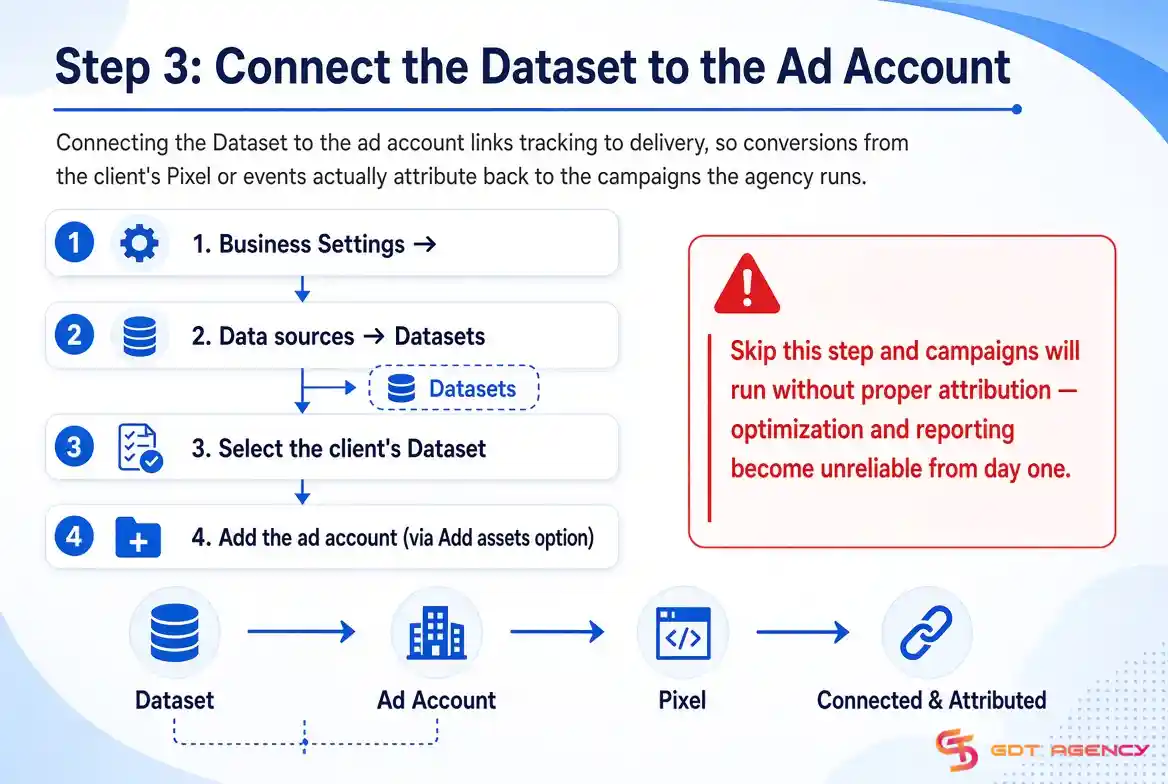
Meta handles this through the Add assets option inside the Dataset section. Skip this step, and campaigns will run without proper attribution, which makes optimization and reporting unreliable from day one.
Step 4: Assign Access to Agency Staff
Assigning access to agency staff means matching each team member’s permission level to their actual role, not giving out broad access by default. A media buyer needs the ability to create and edit ads. An analyst needs view access to reporting and performance data. A tracking specialist needs access limited to the Dataset, Pixel, or specific events they manage. An agency admin should only get full control when the work genuinely requires it.
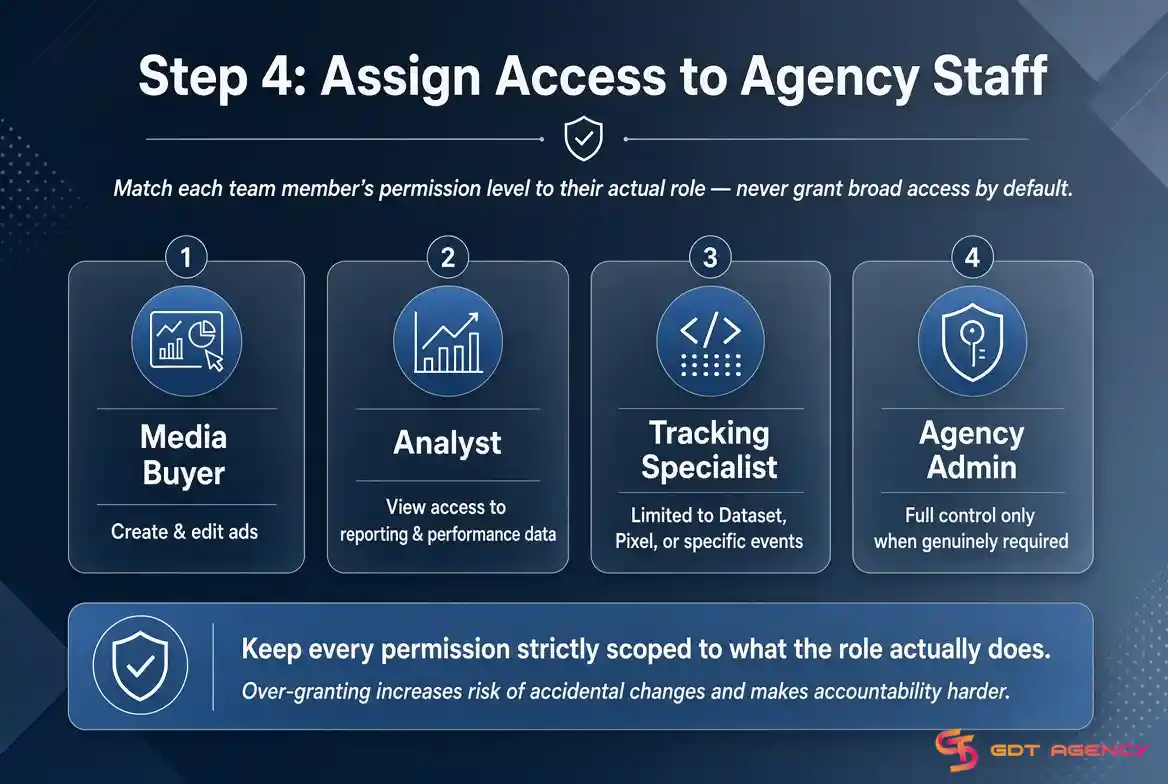
Keep every permission scoped to what the role actually does. Granting access beyond that scope increases the risk of accidental changes and makes it harder to track who touched what later on.
Step 5: Verify Billing and Spending Controls
Verifying billing and spending controls confirms the account can actually deliver ads before the agency starts building campaigns. Check that the payment method is active, that there are no payment failures on the account, and that the ad account carries no restrictions.
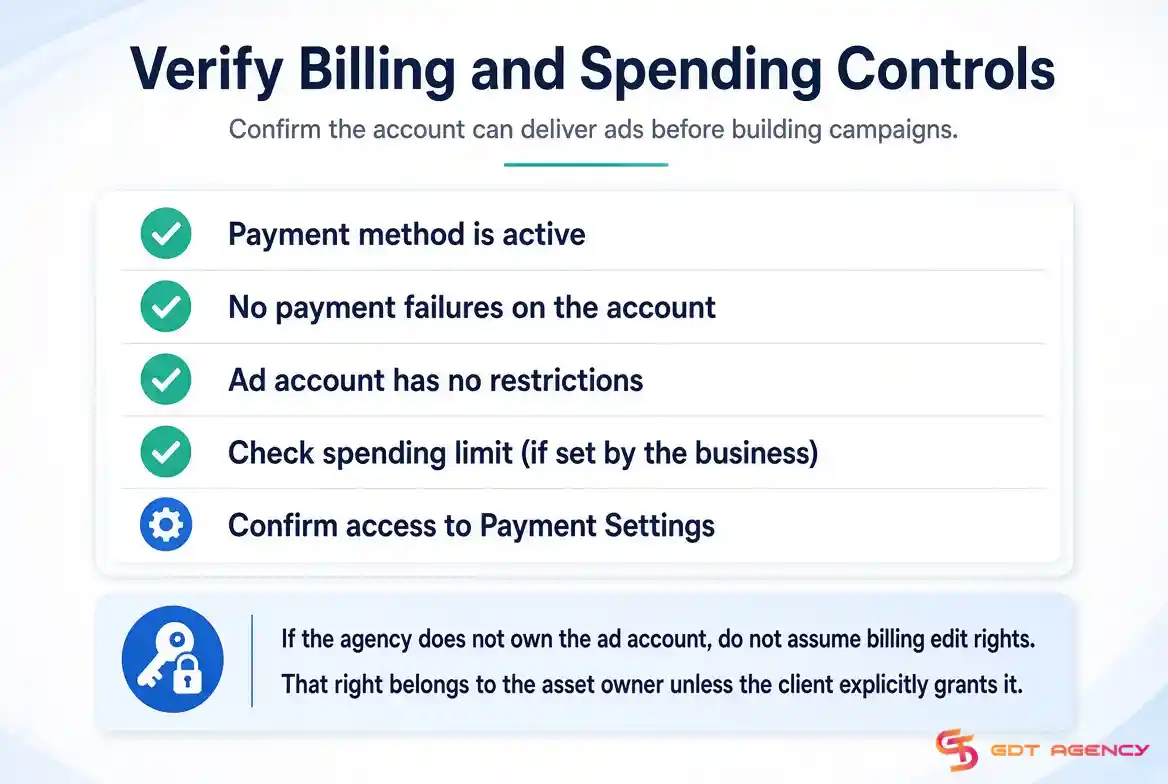
Also check the spending limit, if the business has one set, and confirm whether the person in charge can even see Payment Settings. If the agency does not own the ad account, don’t assume the agency has the right to edit billing. That right belongs to whoever owns the asset, unless the client explicitly grants it.
Step 6: Run a Pre-Flight Check
Running a pre-flight check catches setup problems before they turn into wasted ad spend. Work through this list in order: confirm the agency sees the correct ad account inside Ads Manager, confirm the Page and Instagram identity can be selected, confirm the Dataset is connected to the ad account, and confirm the required events are actually receiving data.
Then check that no permission warning appears anywhere in the account, and confirm you can create a campaign draft without publishing it. If every item on this list checks out, the account is genuinely ready to launch.
>> The setup process is only one part of choosing a Facebook agency ad account. Advertisers should also understand the fees, pricing models, and costs involved before selecting a provider. For a detailed breakdown, see our guide on Facebook Agency Ad Account Price.
What Do You Need Before Setting Up a Facebook Agency Ad Account?
Before you begin setup, you need 2 things confirmed: a clear list of which assets the client owns, and the agency’s own Business Portfolio ID. Missing either one will stall the partner connection before it starts.
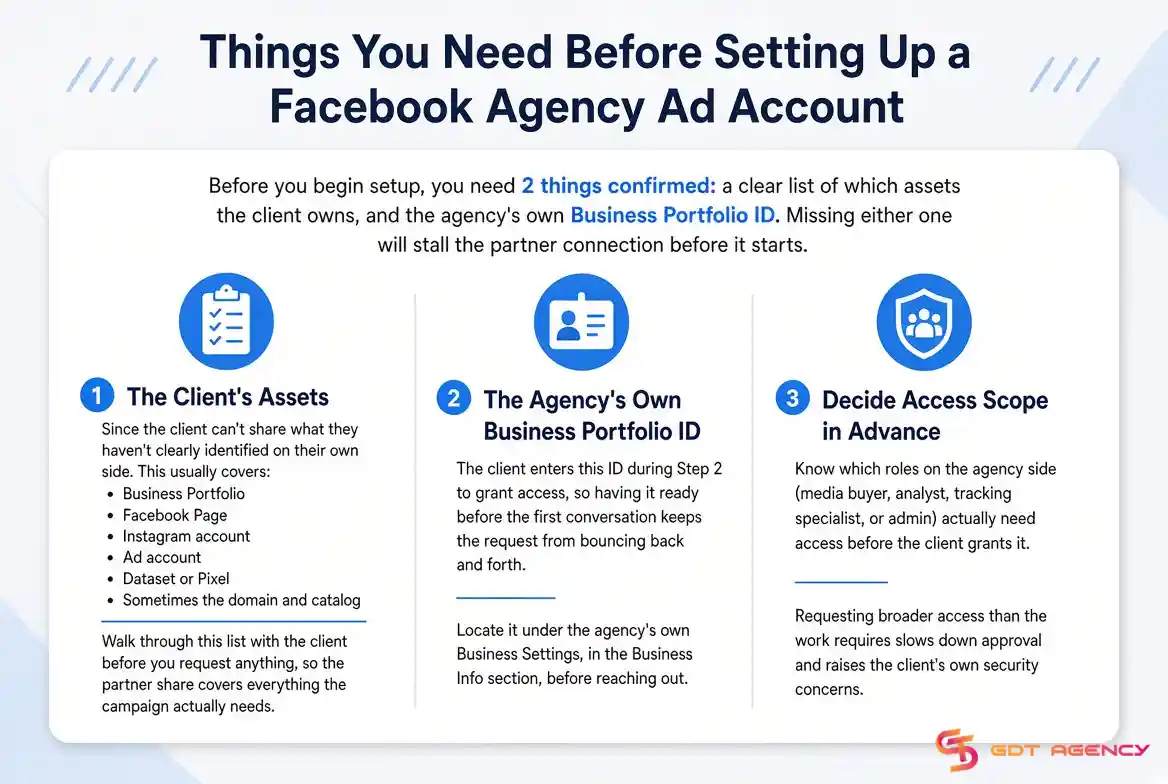
The client’s assets: since the client can’t share what they haven’t clearly identified on their own side. This usually covers the Business Portfolio, the Facebook Page, the Instagram account, the ad account, the Dataset or Pixel, and sometimes the domain and catalog. Walk through this list with the client before you request anything, so the partner share covers everything the campaign actually needs.
The agency’s own Business Portfolio ID: The client enters this ID during Step 2 to grant access, so having it ready before the first conversation keeps the request from bouncing back and forth. Locate it under the agency’s own Business Settings, in the Business Info section, before reaching out.
Deciding access scope in advance rounds out the list. Know which roles on the agency side (media buyer, analyst, tracking specialist, or admin) actually need access before the client grants it. Requesting broader access than the work requires slows down approval and raises the client’s own security concerns.
How Long Does the Setup Process Take?
Most agencies complete partner-access setup in under a few hours once the client grants access, provided the Dataset connection and pre-flight check don’t turn up issues. The bottleneck is rarely anything on the agency’s side.
The real delay usually sits with the client. Step 2 requires the client to log into their own Business Suite Settings and act, so setup stalls whenever the client is slow to respond or unsure which assets to share. Walking the client through the exact asset list in Step 1 cuts this wait down significantly.
If the client’s Dataset or event tracking isn’t fully configured on their end, add extra time for Step 3. Getting events to fire correctly can take anywhere from a few hours to a full day, depending on how quickly the client’s own tech team confirms the setup.
Partner access still moves slower than getting an already-verified rented account, since that path skips the client dependency entirely. GIP Fulfillment, a client of GDT Agency, needed to bring 15 or more Facebook agency accounts online without repeated setup delays after facing bans every 2 to 3 days on accounts they managed themselves. Working through rented agency accounts let them get new accounts active almost immediately, which held their spend steady at $180,000 with zero bans over four months.
What Happens If the Partner Connection Fails or Gets Rejected?
The partner connection can fail for a few common reasons: the client enters the wrong Business Portfolio ID, the permission selected doesn’t match what the agency actually requested, or the asset is already shared with another partner in a way that blocks the new request. When this happens, the agency won’t see the ad account appear in Ads Manager at all.
Double-check the Business Portfolio ID first, since a typo here is the most common cause. If the ID is correct and the connection still fails, ask the client to confirm the asset isn’t already tied up in a conflicting partner share, then have them resend the request with the correct permissions selected.
Can One Agency Handle Multiple Client Partner Connections at Once?
Yes, one agency Business Portfolio ID can receive partner connections from as many clients as needed, since each connection is scoped to that specific client’s assets. The agency doesn’t need a separate Business Portfolio for every client relationship it manages.
This differs from the account limit that applies to a rented or BM2500 setup, where the number of ad accounts under one Business Manager is capped by that Business Manager’s tier and history. Partner access sidesteps that limit entirely, since the agency isn’t creating new accounts, just receiving permission to work inside accounts the client already owns.
Setup Checklist for First-Time Advertisers
If this is your first time setting up a Facebook agency ad account, run through this list before you start:
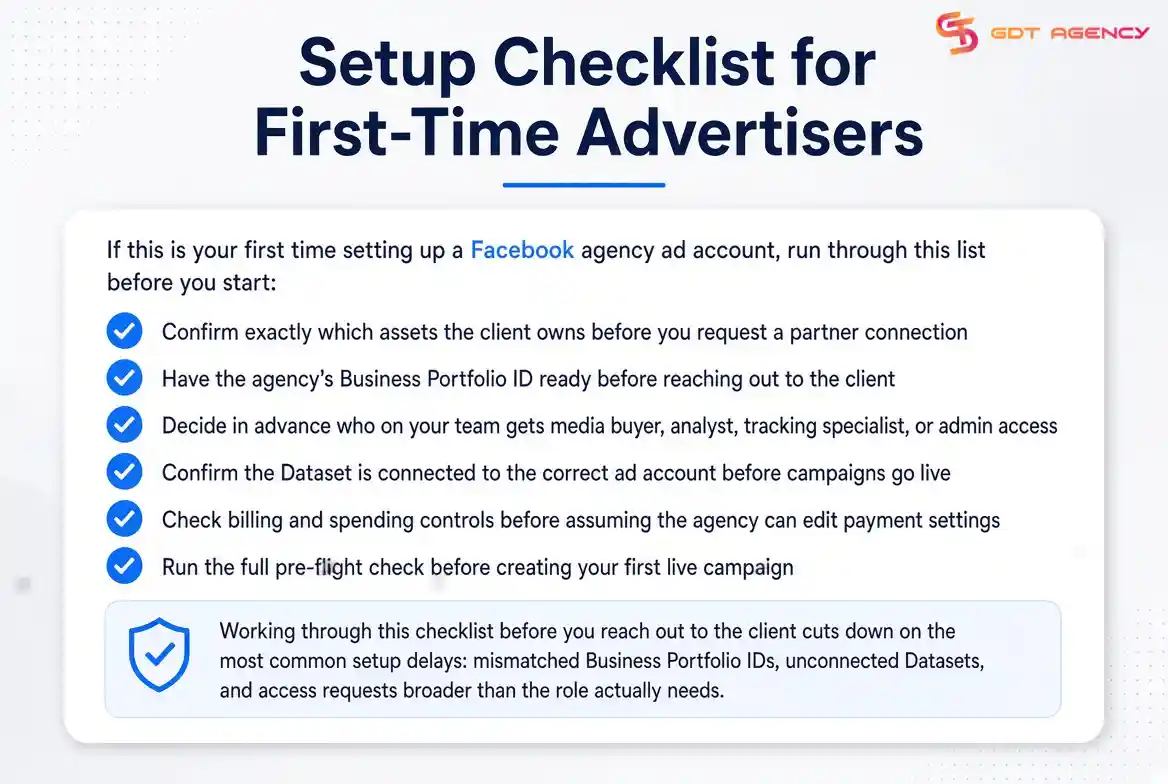
- Confirm exactly which assets the client owns before you request a partner connection
- Have the agency’s Business Portfolio ID ready before reaching out to the client
- Decide in advance who on your team gets media buyer, analyst, tracking specialist, or admin access
- Confirm the Dataset is connected to the correct ad account before campaigns go live
- Check billing and spending controls before assuming the agency can edit payment settings
- Run the full pre-flight check before creating your first live campaign
Working through this checklist before you reach out to the client cuts down on the most common setup delays: mismatched Business Portfolio IDs, unconnected Datasets, and access requests broader than the role actually needs.
Final Thoughts
Setting up a Facebook agency ad account through partner access comes down to 6 steps in order: confirm ownership, establish the partner connection, connect the Dataset, assign staff access, verify billing, and run the pre-flight check. Most delays come from skipped prep work, not the steps themselves. A missing Business Portfolio ID, a Dataset left unconnected, or access granted broader than the role needs will slow launch more than anything technical.
Frequently Asked Questions
Does the client need to do anything themselves, or can the agency handle the whole setup?
The client needs to complete Step 2 themselves, since only the asset owner can initiate a partner share. The agency can prepare everything else, including its own Business Portfolio ID and the access plan for its team.
What happens if the client shares the wrong ad account?
The client can remove the incorrect share from Users > Partners and grant access to the correct account instead. Run the pre-flight check again afterward to confirm the right account now appears in Ads Manager.
Can the agency see the client’s billing details after partner access is granted?
Not unless the client explicitly grants that permission during Step 2. Ownership of billing stays with whoever owns the ad account, regardless of what access level the agency holds for campaigns.
Do conversions stop tracking if the Dataset isn’t connected to the ad account?
Yes, an unconnected Dataset means conversions from the client’s Pixel or events won’t attribute back to the campaigns the agency runs, which breaks optimization and reporting from the start.
How is partner access different from getting a rented agency account?
Partner access keeps the account under the client’s ownership, while a rented account puts the agency in full control and skips the client dependency entirely. See our guide on how to get a Facebook agency ad account for the rented-account route.