How To Set A Facebook Ads Account Spending Limit?


You can set a Facebook Ads account spending limit directly inside Ads Manager, under Billing settings. This limit acts as a hard stop, so Facebook stops running your ads once your total spend hits the number you choose. Setting it takes only a few minutes, and it gives you a simple way to control your ad budget without watching your account every day. Below, we walk through the setup steps first, then cover the concept, the rules, and common issues you might run into along the way.
- How Do You Set a Spending Limit on Your Facebook Ad Account?
- Where to Find the Spending Limit Setting in Ads Manager
- Step-by-Step Instructions to Set Your Spending Limit
- What Is a Facebook Ads Account Spending Limit?
- What Are the Types of Spending Limits on Facebook Ads?
- What Happens When Your Ad Account Reaches Its Spending Limit?
- Can You Remove a Spending Limit Once It’s Set?
- Final Thoughts
- FAQs
- Does setting a spending limit affect my ad performance or delivery speed?
- Can I set a spending limit lower than what I’ve already spent this month?
- Is the account spending limit the same as a payment threshold?
- Do I need admin access to set a spending limit in Business Manager?
- Will Facebook notify me before I reach my spending limit?
- Can You Set a Spending Limit Without Adding a Payment Method First?
- How Does Spending Limit Work Across Multiple Ad Accounts in Business Manager?
How Do You Set a Spending Limit on Your Facebook Ad Account?
You set a spending limit by going to Ads Manager, opening Billing settings, and entering a dollar amount under account spending limit. The whole process takes 3 steps and gives you a hard budget ceiling for your entire ad account.
To walk through this properly, you first need to know where this setting lives inside Ads Manager, then follow the exact steps to enter and save your number.
Where to Find the Spending Limit Setting in Ads Manager
The spending limit setting sits inside your Billing settings, not inside a campaign or ad set. Facebook keeps this setting at the account level because it applies to your whole account, not to one specific ad.
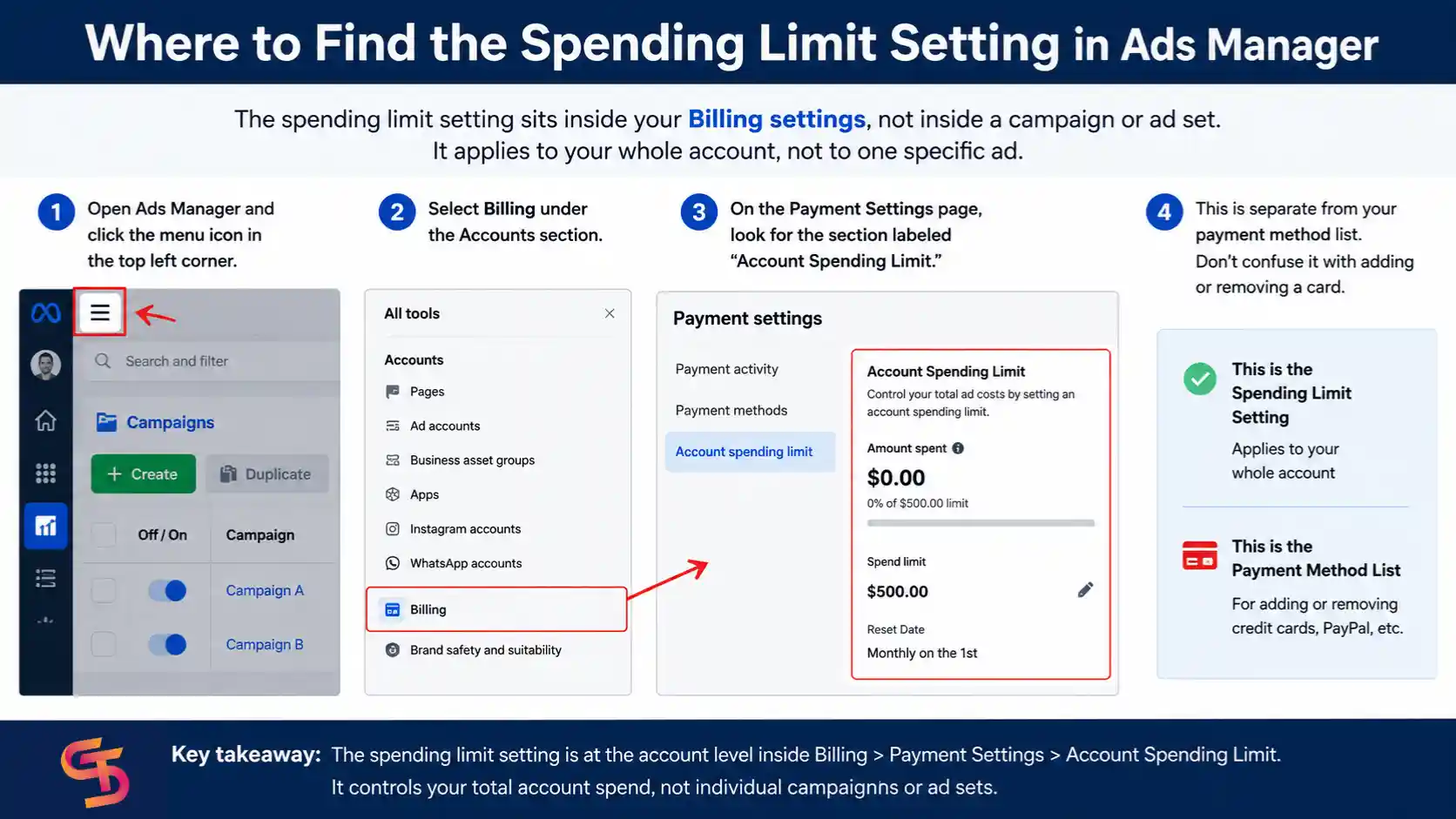
To get there, open Ads Manager and click the menu icon in the top left corner. Select Billing under the Accounts section. On the Payment Settings page, look for the section labeled “Account Spending Limit.” This is a separate section from your payment method list, so don’t confuse it with adding or removing a card.
→ Before you set an account spending limit, make sure your payment method is correctly configured. Your payment method determines how Facebook charges your ad account, while the spending limit controls the maximum amount the account can spend. If you need to add, remove, or update a payment method, see our guide on How to Manage Your Facebook Ad Account Payment Method for detailed instructions.
Step-by-Step Instructions to Set Your Spending Limit
Once you find the right page, setting your limit takes only a few clicks. Follow these steps:
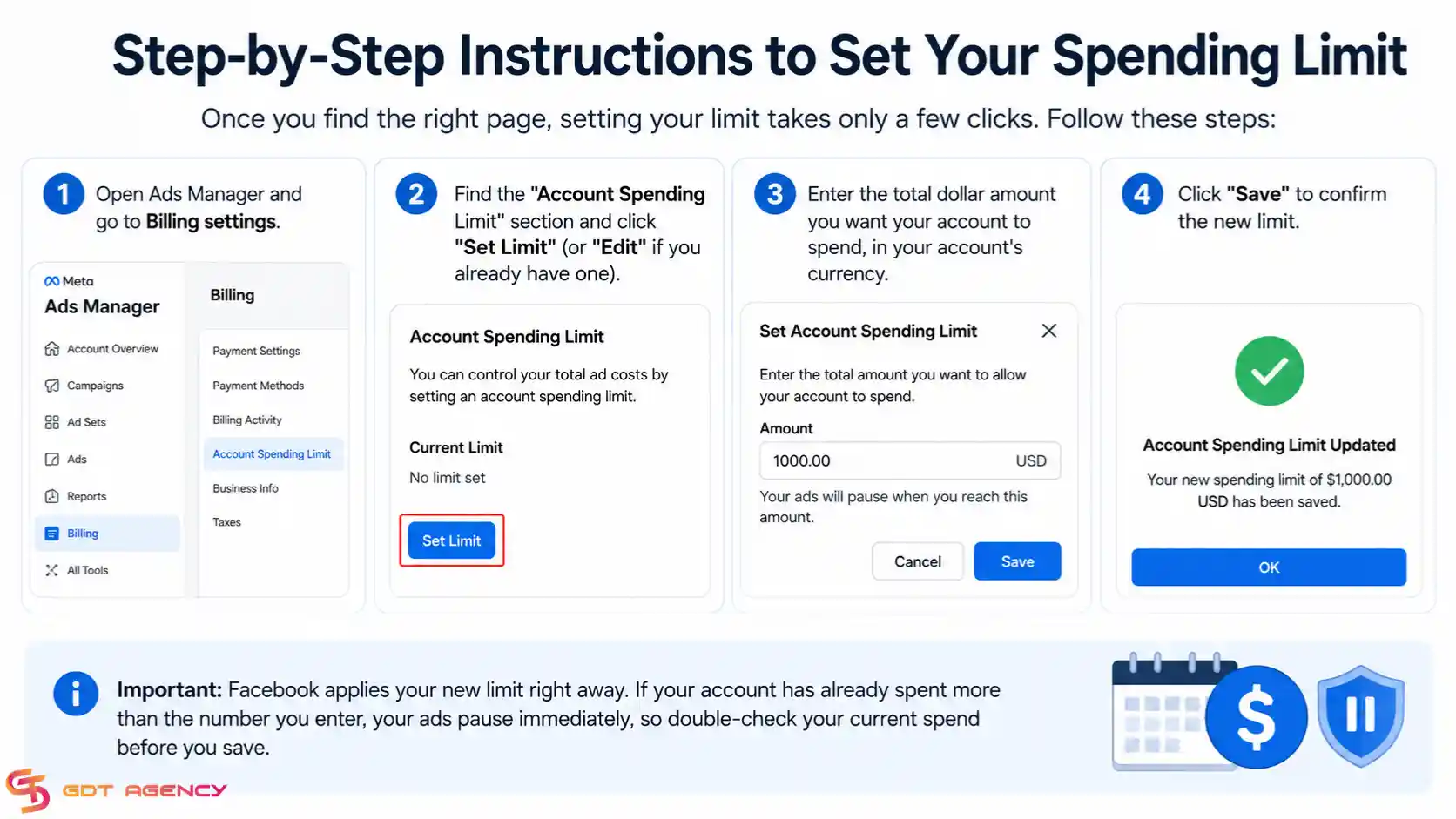
- Step 1: Open Ads Manager and go to Billing settings.
- Step 2: Find the “Account Spending Limit” section and click “Set Limit” (or “Edit” if you already have one).
- Step 3: Enter the total dollar amount you want your account to spend, in your account’s currency.
- Step 4: Click “Save” to confirm the new limit.
Facebook applies your new limit right away. If your account has already spent more than the number you enter, your ads pause immediately, so double-check your current spend before you save.
What Is a Facebook Ads Account Spending Limit?
A Facebook ads account spending limit is a fixed budget cap you set for your entire ad account, and it stops all ad delivery once your total spend reaches that number. Facebook created this feature, so advertisers have a simple, top-level way to control cost without adjusting every campaign one by one. This makes it useful as a safety net, especially if you run several campaigns at the same time and want one number that caps your total risk.
What Are the Types of Spending Limits on Facebook Ads?
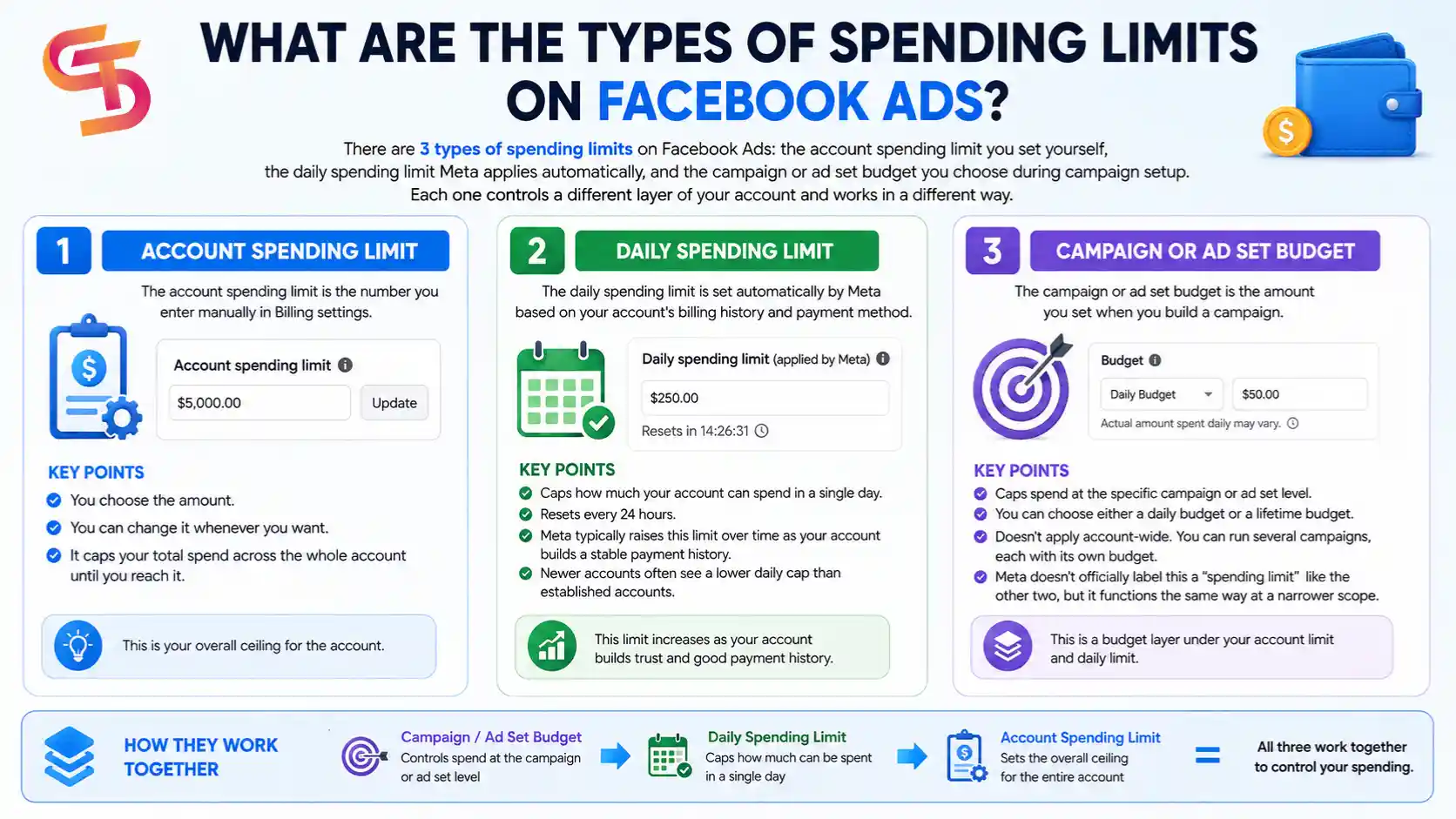
There are 3 types of spending limits on Facebook Ads: the account spending limit you set yourself, the daily spending limit Meta applies automatically, and the campaign or ad set budget you choose during campaign setup. Each one controls a different layer of your account and works in a different way.
To tell these apart clearly, let’s break down how each type functions.
Account Spending Limit
The account spending limit is the number you enter manually in Billing settings, as covered earlier in this article. You choose the amount. You can change it whenever you want, and it caps your total spend across the whole account until you reach it.
Daily Spending Limit
The daily spending limit works differently because Meta sets this one automatically based on your account’s billing history and payment method. This limit caps how much your account can spend in a single day, and it resets every 24 hours rather than staying fixed like your account spending limit. Meta typically raises this limit over time as your account builds a stable payment history, so newer accounts often see a lower daily cap than accounts that have run ads for months without payment issues.
Campaign or Ad Set Budget
The campaign or ad set budget is the amount you set when you build a campaign, and it caps spend at that specific campaign or ad set level rather than the whole account. You choose either a daily budget, which sets how much you’re willing to spend per day, or a lifetime budget, which sets a total cap for the entire run of the campaign.
Unlike the account spending limit, this one doesn’t apply account-wide. You can run 10 ad sets with 10 different budgets, and your account spending limit still caps the combined total across all of them. Meta doesn’t officially label this a “spending limit” the way it does the other two, but it functions the same way at a narrower scope, so it’s worth treating as a third layer of control.
What Happens When Your Ad Account Reaches Its Spending Limit?
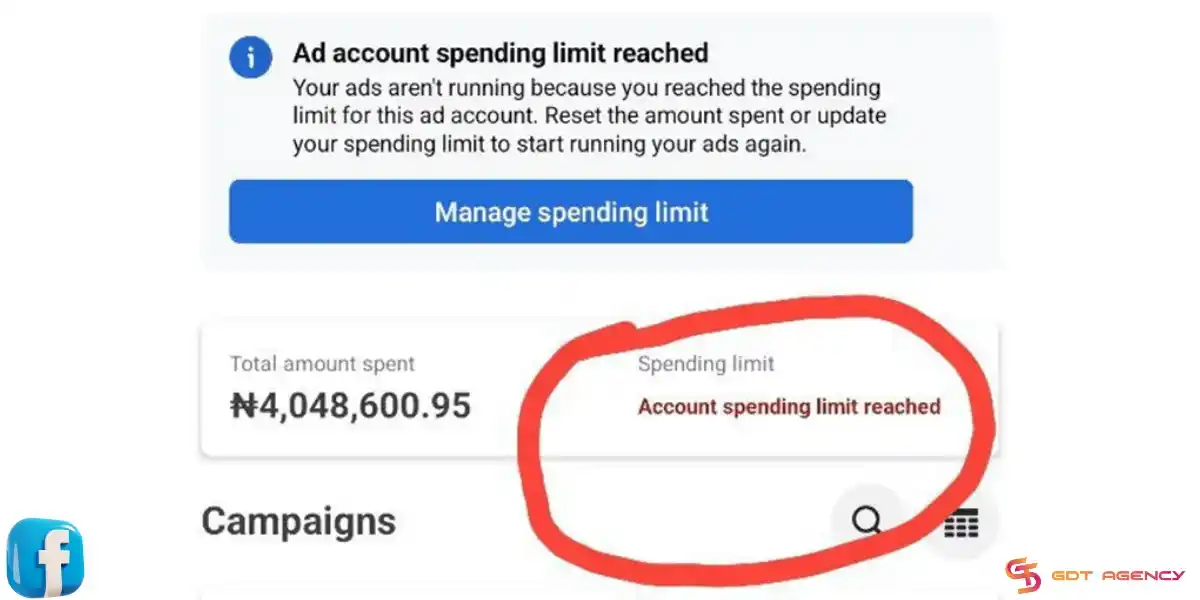
When your ad account reaches its spending limit, Facebook pauses every active ad in that account right away. Your campaigns don’t get deleted or archived, but just simply stop delivering until you take action. This pause affects your whole account, not just one campaign, so it’s worth understanding exactly what changes.
To start running ads again, you have two options: raise your spending limit to a higher number, or remove it completely. As soon as you save the change, Facebook picks up delivery again for any ad sets that still have an active schedule and available budget.
As an expert at GDT Agency with nearly 10 years of experience working with Facebook ads, I’m no longer strange with spending limit status, and I know how serious it can affect the business. Once your spend hits the limit, all your ad sets show a “Limit Reached” status inside Ads Manager. Your campaign settings, targeting, and creative all stay saved exactly as they were.
One eCommerce advertiser working with GDT Agency was scaling a Facebook campaign during a high-demand sales period. The advertiser initially used a standard ad account with a relatively low spending capacity. The account was spending approximately $1,500 per day, but its available account spending limit created repeated interruptions as the campaign scaled.
On several occasions, the account reached its limit during active campaigns, which caused all running ads to stop delivering until the advertiser manually adjusted the limit. After moving the campaigns to our Facebook agency ad account, the advertiser gained access to a significantly higher spending capacity. The advertiser increased daily ad spend from approximately $1,500/day to $8,000/day without experiencing delivery interruptions caused by a low account spending limit.
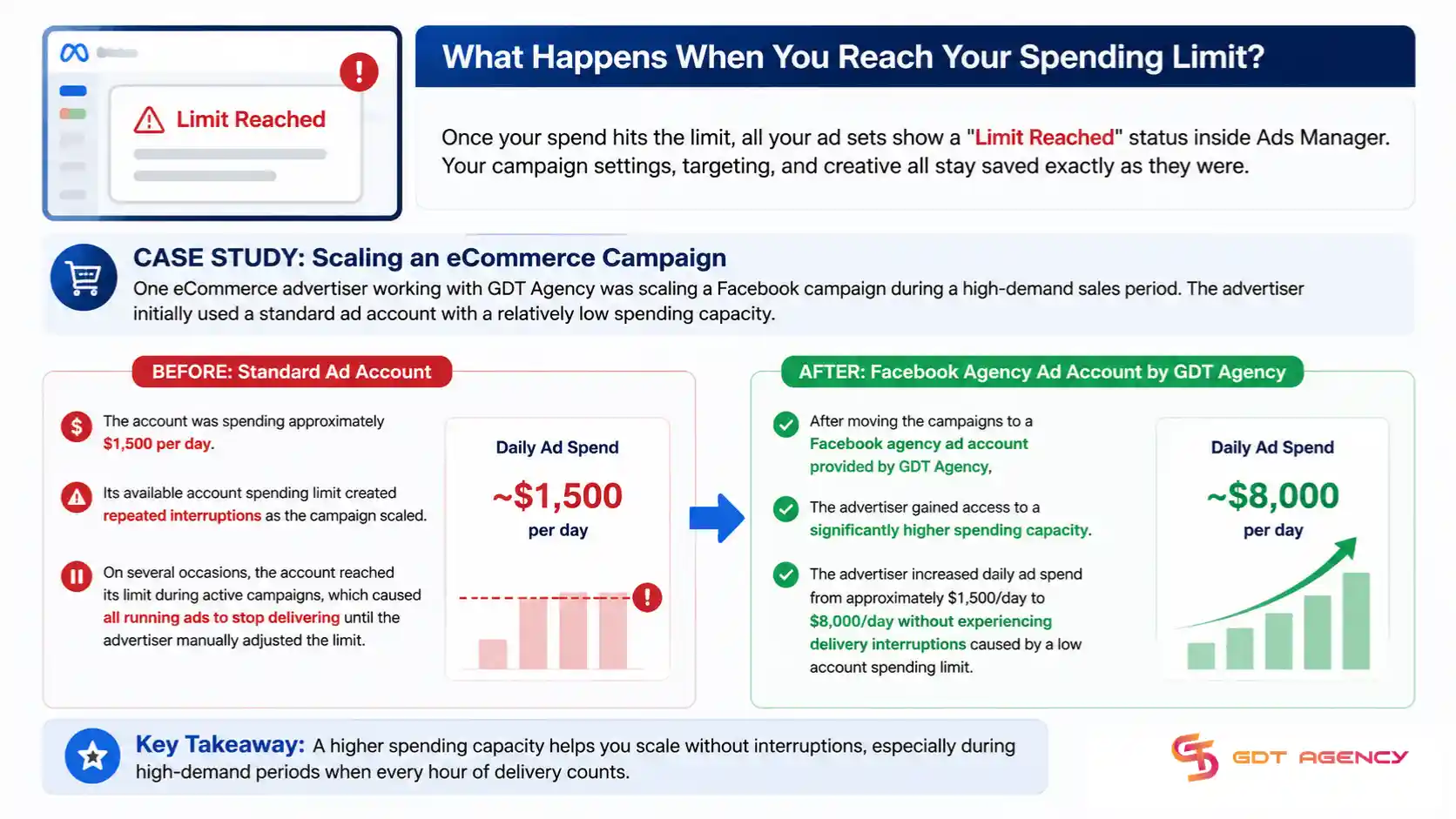
Reaching a spending limit does not damage your ad account, but an unexpected delivery pause can interrupt campaigns, affect conversion volume, and create unnecessary gaps during important sales periods. For advertisers with consistently high advertising budgets, a Facebook agency ad account can provide the higher spending capacity needed to support scaling without repeatedly stopping campaigns to manage account limits.
Can You Remove a Spending Limit Once It’s Set?
Yes, you can remove a spending limit at any time, and Facebook lets you do this from the same Billing settings page where you created it. Removing the limit takes effect immediately, so your account no longer has a spending cap once you save the change.
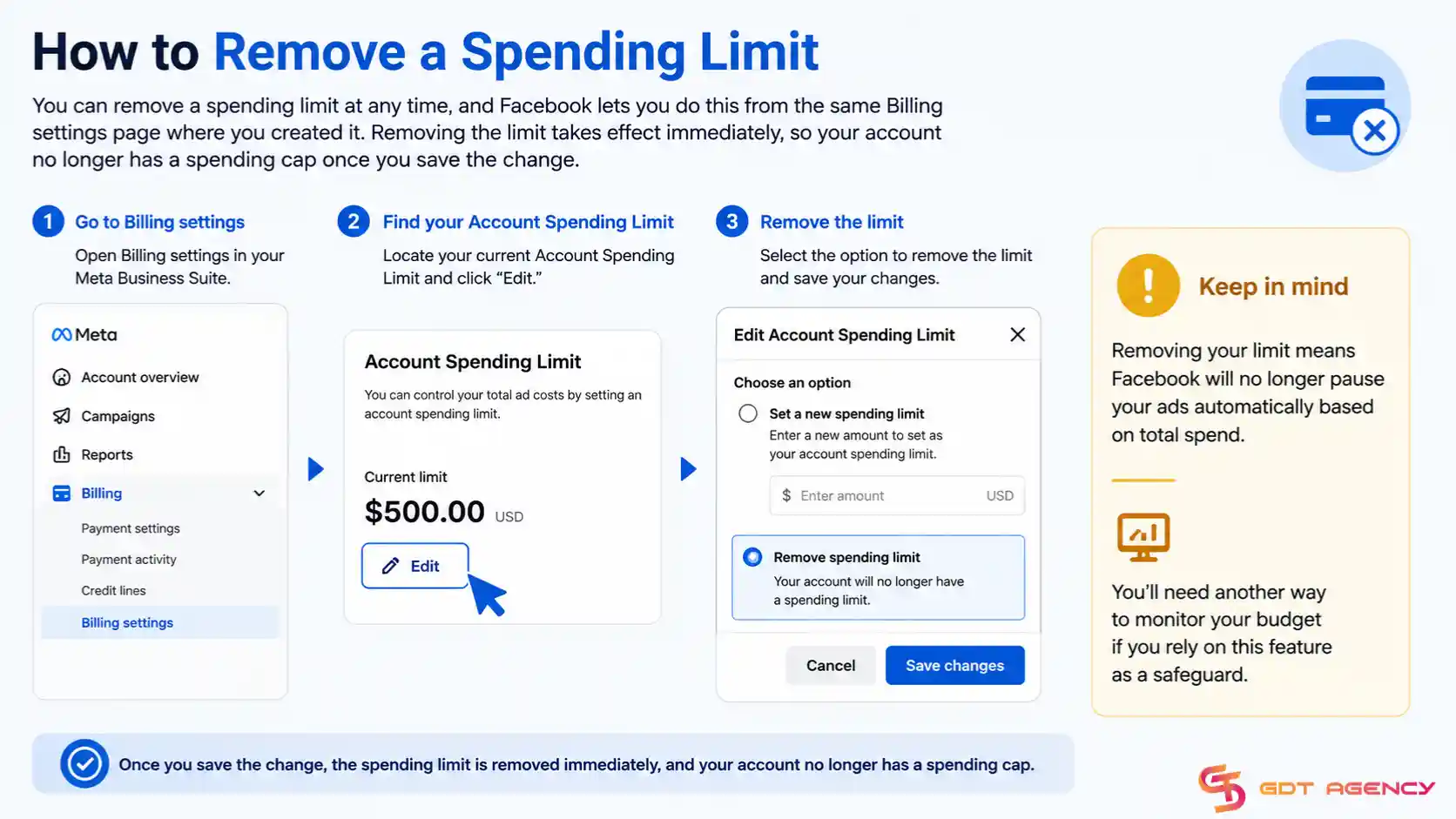
To remove it, go back to Billing settings, find your current Account Spending Limit, and click “Edit.” From there, select the option to remove the limit rather than entering a new number. Keep in mind that removing your limit means Facebook will no longer pause your ads automatically based on total spend, so you’ll need another way to monitor your budget if you rely on this feature as a safeguard.
Final Thoughts
Setting a spending limit gives you direct control over your Facebook ad costs, and it takes only a few minutes inside Ads Manager. Once you enter your number in Billing settings, Facebook enforces it automatically, so you don’t need to check your account every day to avoid overspending.
The steps stay simple: add a payment method first, open Billing settings, enter your limit, and save. From there, you can raise it, lower it, or remove it whenever your budget needs change. Pair this with a clear understanding of how it differs from ad set budgets and daily limits, and you’ll have a much better handle on your total ad spend across every campaign you run.
FAQs
Does setting a spending limit affect my ad performance or delivery speed?
No, a spending limit does not affect how Facebook delivers your ads while you’re under the cap. Your campaigns run exactly as configured until your total spend reaches the limit, at which point delivery pauses across the account.
Can I set a spending limit lower than what I’ve already spent this month?
No, Facebook won’t let you set a limit below your current spend total. If you try, the system either rejects the number or pauses your ads immediately once you save it, since you’d already be over the new cap.
Is the account spending limit the same as a payment threshold?
No, these are two different settings. A payment threshold determines when Facebook charges your card based on accumulated spend, while an account spending limit caps your total spend and pauses ads once you hit it.
Do I need admin access to set a spending limit in Business Manager?
Yes, you typically need admin or finance editor access on the ad account to change this setting. Team members with limited roles, such as ad account analysts, usually can’t view or edit the spending limit.
Will Facebook notify me before I reach my spending limit?
Yes, Facebook usually sends a notification and an email as your account approaches the limit. This gives you a chance to raise the limit or plan for the pause before your ads actually stop running.
Can You Set a Spending Limit Without Adding a Payment Method First?
No, you generally need to add a payment method before you can set a spending limit, because Facebook ties this setting to your billing profile. Ads Manager expects a valid payment method on file so it can track and enforce your limit against actual charges.
How Does Spending Limit Work Across Multiple Ad Accounts in Business Manager?
Each ad account inside Business Manager has its own separate spending limit, and Facebook does not combine or share this setting across accounts. If you manage several ad accounts under one Business Manager, you need to set a limit for each account individually.