


You add credit to your Facebook ad account by redeeming an Ad Credit coupon inside Payment Settings, or, if your account runs on Monthly Invoicing, by drawing against a Credit Line. Once applied, the balance shows up in your billing summary and your ads can run without interruption. Ad Credit works differently from money you fund yourself. Meta calls a self-funded balance Available Funds or a prepaid balance, and keeps it separate from Ad Credit, which is a promotional coupon or sponsored amount Meta or a partner grants to your account. Below, we walk through the exact steps to add credit, explain what Ad Credit means on a Facebook ad account, show how to claim a Meta ad credit, and compare Ad Credit against Available Funds, a Credit Line, and Automatic Billing so you know which option fits your account.
How To Add Credit to Facebook Ad Account For Beginners?
You add credit to your Facebook ad account in one of two ways: redeeming a promotional ad coupon inside Payment Settings, or drawing against a Credit Line if your account runs on Monthly Invoicing. As an expert at GDT Agency with nearly 10 years of experience working with Facebook ads via multiple account types from standard to Facebook agency ad accounts, I am no longer unfamiliar with the process of adding credit to a Facebook ad account.
Which path applies to you depends on how your account is billed. Each case follows its own steps, so it helps to walk through them separately below.
Case 1 – Redeem an Ad Coupon (Ad Credit)
Redeeming an ad coupon takes four steps inside Ads Manager, starting with opening Payment Settings and ending with applying the code Meta gave you.
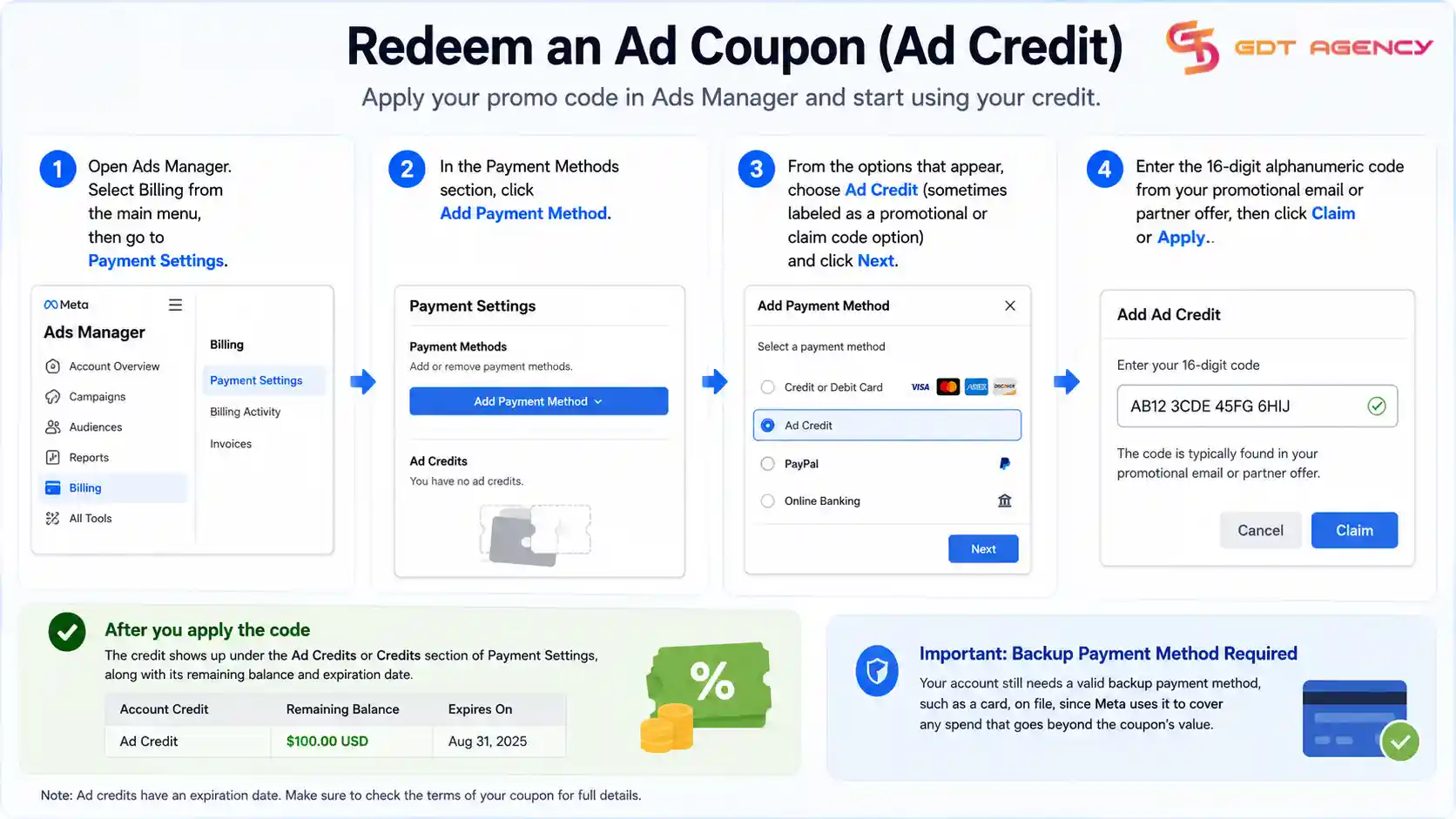
Open Ads Manager and select Billing from the main menu, then go to Payment Settings. In the Payment Methods section, click Add Payment Method. From the options that appear, choose Ad Credit (sometimes labeled as a promotional or claim code option) and click Next. Enter the 16-digit alphanumeric code from your promotional email or partner offer, then click Claim or Apply.
Once applied, the credit shows up under the Ad Credits or Credits section of Payment Settings, along with its remaining balance and expiration date. Your account still needs a valid backup payment method, such as a card, on file, since Meta uses it to cover any spend that goes beyond the coupon’s value.
Case 2 – Draw From a Credit Line (Monthly Invoicing)
Drawing from a Credit Line applies to accounts on Monthly Invoicing, where an agency or business shares a pre-approved credit limit with one or more connected ad accounts instead of charging a card per transaction.
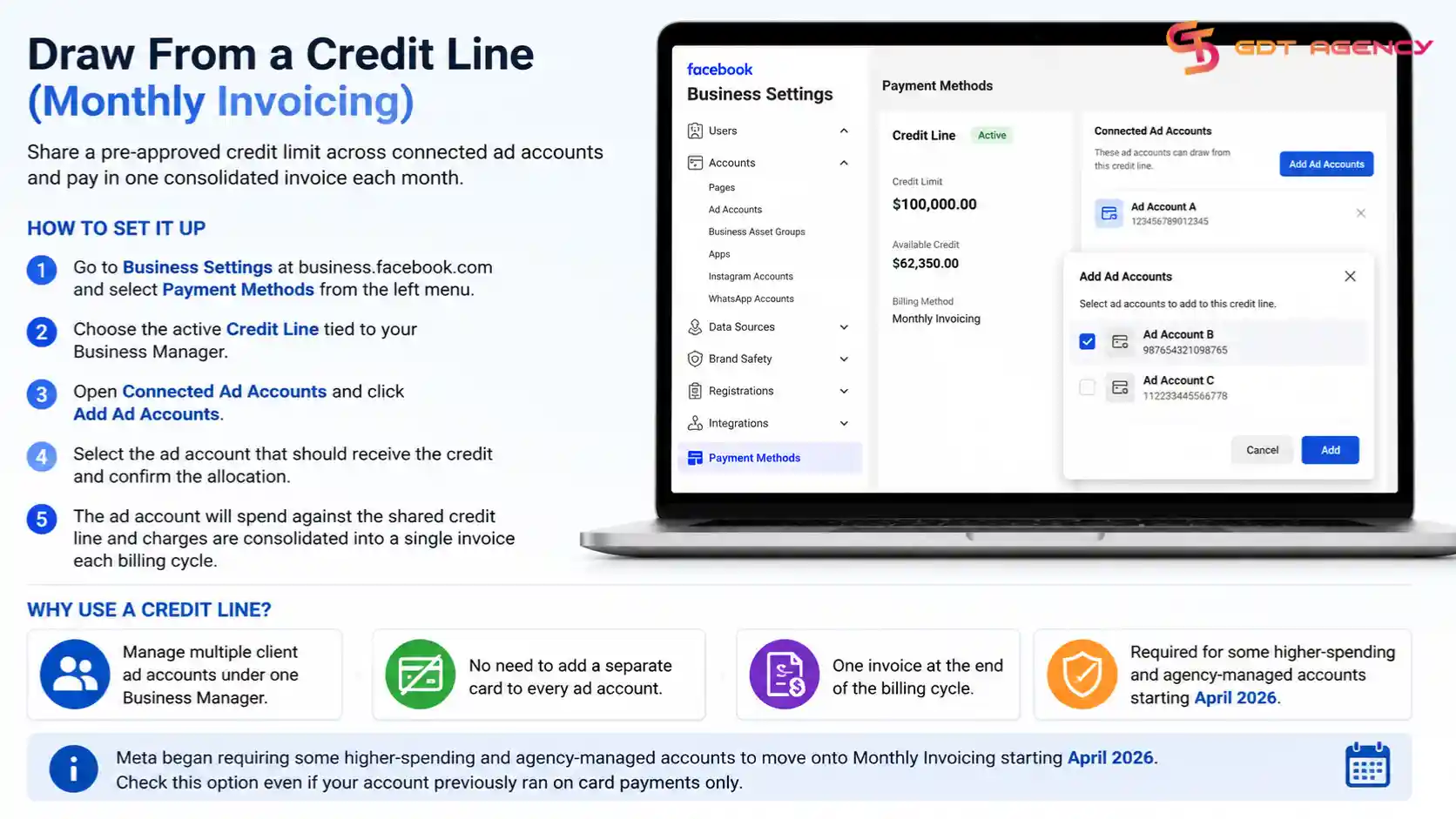
To set this up, go to Business Settings at business.facebook.com and select Payment Methods from the left menu. Choose the active Credit Line tied to your Business Manager, then open Connected Ad Accounts and click Add Ad Accounts. Select the ad account that should receive the credit and confirm the allocation.
Once connected, that ad account spends directly against the shared credit line rather than a card, and Meta consolidates the spend into a single invoice at the end of the billing cycle. This setup is common for agencies managing several client ad accounts under one Business Manager, since it avoids adding a separate card to every account. Meta began requiring some higher-spending and agency-managed accounts to move onto Monthly Invoicing starting April 2026, so this option is worth checking even if your account previously ran on card payments only.
How Do You Claim a Meta Ad Credit?
You claim a Meta ad credit by opening the claim link or entering the code Meta sent you, then confirming it inside your ad account’s billing section. The credit appears as a separate balance once it’s successfully applied, and it doesn’t require a new payment method.
Following the sequence below keeps the claim process straightforward and avoids common mistakes.
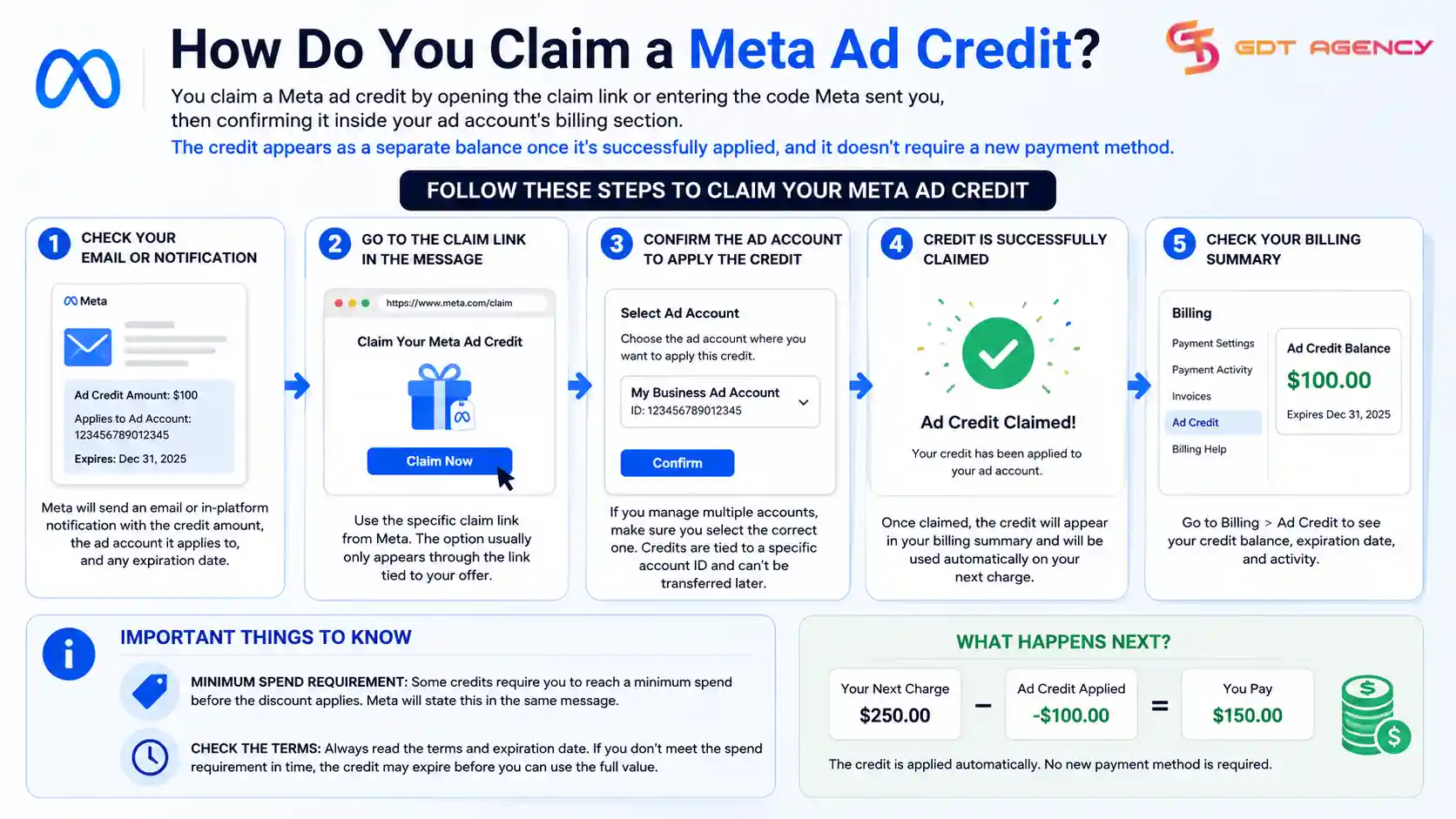
First, check the email or in-platform notification Meta sent about the credit. This message usually includes the credit amount, the ad account it applies to, and any expiration date. Second, go to the claim link in that message rather than trying to find a generic “claim credit” button inside Ads Manager, since the option often only appears through the specific link tied to your offer. Third, confirm the ad account the credit should apply to, especially if you manage more than one account, because credits are usually tied to a specific account ID and can’t be transferred afterward.
Once claimed, the credit shows up in your billing summary and gets used automatically on your next charge. If the credit has a minimum spend requirement, Meta typically states this in the same message, and your account needs to reach that spend threshold before the discount portion applies. Advertisers who claim credit without reading the terms sometimes find the credit expired before they spent enough to unlock the full value, so it’s worth checking the fine print before assuming the full amount is usable.
What Is Credit on a Facebook Ad Account?
Credit on a Facebook ad account, in Meta’s own terminology, refers specifically to Ad Credit: a promotional coupon or sponsored amount that Meta or a partner grants to your account. It’s separate from money you add yourself, which Meta calls Available Funds or prepaid balance, and separate from a Credit Line under Monthly Invoicing.
To understand why this distinction matters, it helps to look at where each type of balance comes from.
Ad Credit comes from Meta as part of a new-advertiser promotion, a partner program, or a compensation credit after a service issue. It almost always carries an expiration date and sometimes a minimum spend requirement before it applies. Available Funds, by contrast, is a prepaid balance you top up yourself through a card, PayPal, or a local payment method, and it doesn’t expire on its own. A Credit Line under Monthly Invoicing works differently again: it’s a postpaid limit Meta approves for a business, letting an ad account spend against that limit before Meta issues a single consolidated invoice at the end of the billing cycle.
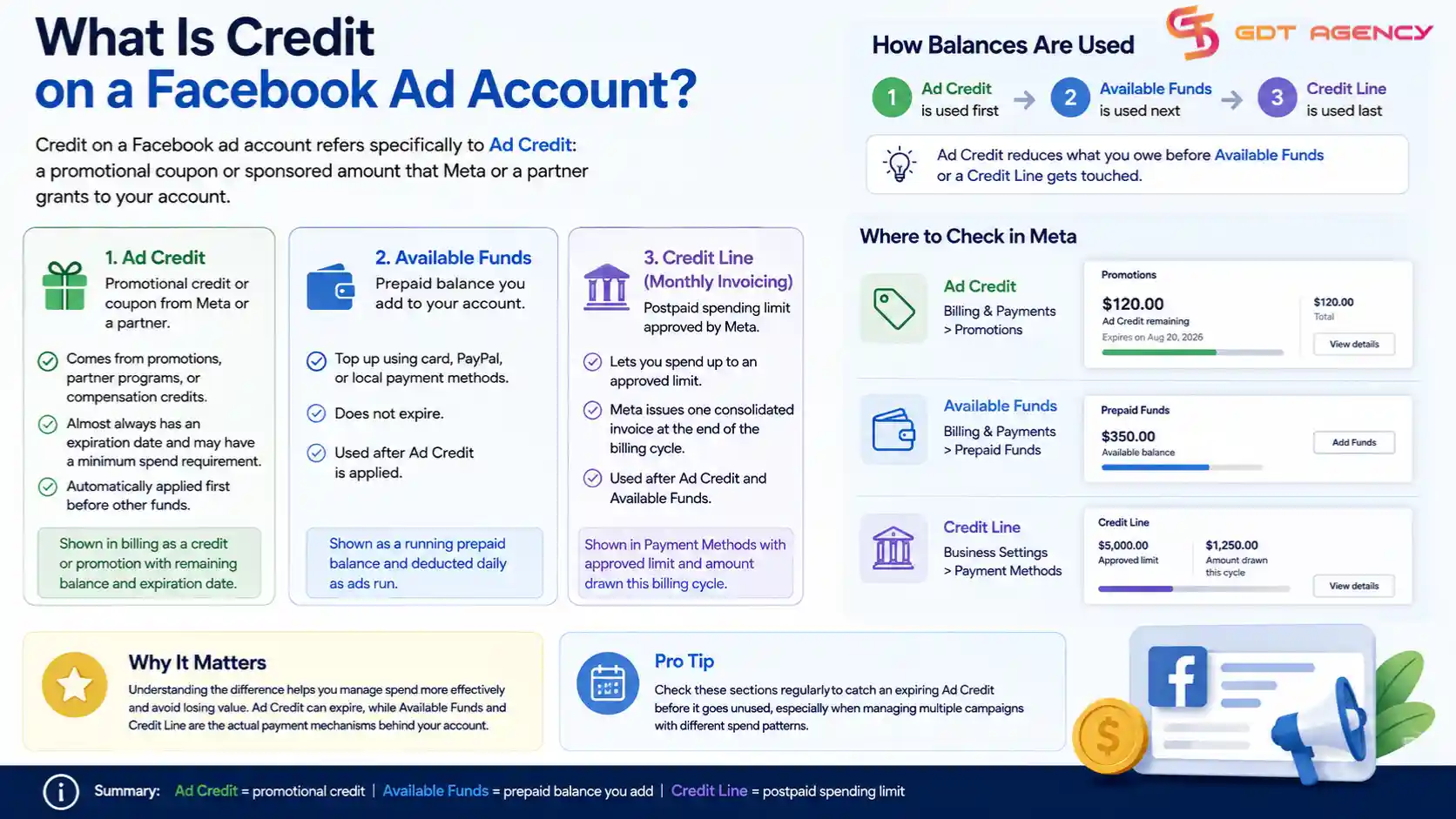
Ad Credit reduces what you owe before either Available Funds or a Credit Line gets touched, since Meta’s system always deducts the coupon balance first. Available Funds and a Credit Line, on the other hand, are the actual payment mechanisms behind your account, not a discount layered on top of them.
There’s also a practical difference in how each shows up in reporting. Ad Credit gets its own line item in your billing summary, labeled as a credit or promotion, along with the remaining balance and an expiration date. Available Funds appears as a running prepaid balance that gets deducted daily as ads run. A Credit Line shows up under Payment Methods in Business Settings, with the approved limit and the amount already drawn against it for the current billing cycle. Checking these sections regularly helps you catch an expiring Ad Credit before it goes unused, which matters most for advertisers managing several campaigns where spend doesn’t always line up neatly with the credit’s terms.
>>> If you need to add, change, or manage the payment method connected to your Facebook ad account, see our guide on How to Manage Your Facebook Ad Account Payment Method.
Credit vs Available Funds vs Automatic Billing: What Is the Difference?
Credit, Available Funds, and Automatic Billing are three separate ways Facebook ad accounts get paid for. Based on my knowledge, credit is a promotional or prepaid balance applied before other charges, Available Funds is a prepaid balance you top up yourself in supported countries, and Automatic Billing charges your payment method automatically once you hit a spend threshold or a billing date.
The table below breaks down how each option works so you can see which one fits your account setup.
| Payment type | How it’s funded | When you’re charged | Best for |
| Credit | Coupon or promotional grant from Meta | Applied automatically to your next bill | New advertisers or accounts with a promo offer |
| Available Funds | You add money in advance | Deducted as ad spend | Advertisers who want to cap spend by pre-funding |
| Automatic Billing | A card or PayPal on file | Charged after you reach a threshold or on a set billing date | Advertisers who want ads to run without manual top-ups |
Available Funds gives you the most control over spend, since you can’t spend more than what you’ve added. Automatic Billing offers the least friction because you never have to remember to add funds, but it also carries the highest risk of an unexpected charge if you’re not tracking your daily spend closely. Credit sits outside both systems since Meta applies it directly and it’s used up before either of the other two methods gets charged.
For agencies or advertisers who manage several ad accounts, the choice between these 3 often comes down to how tightly spend needs to be controlled per account. Available Funds works well for accounts on a fixed monthly budget, since a team can’t accidentally overspend past what’s been topped up. Automatic Billing suits accounts where consistent, uninterrupted delivery matters more than tight budget control, such as always-on campaigns that can’t afford a delivery gap. Credit, meanwhile, isn’t something an advertiser chooses on its own; it’s applied whenever Meta grants it, so the real decision is which of the other two methods should back up the account once the credit runs out.
Why Did Your Payment Fail When Adding Credit?
A payment usually fails when adding credit because of an expired card, insufficient funds, a bank security block, or a mismatch between the billing address on file and the one your bank has on record. These four causes account for most failed transactions Meta advertisers report.
Expired or soon-to-expire cards are the most common cause, since many advertisers forget to update their payment method after their bank issues a new card number. Insufficient funds is the second most common issue, particularly for advertisers who set up automatic billing without monitoring their account balance closely. Bank security blocks happen when a bank’s fraud system flags a charge from Meta as unusual, especially for a first-time payment or a large top-up; calling your bank to authorize the specific charge usually resolves this quickly. Address mismatches occur when the billing address entered in Ads Manager doesn’t match your bank’s records exactly, down to formatting details like abbreviations or unit numbers.
If a payment keeps failing after checking all four causes, switching to a different payment method, such as PayPal instead of a card, often resolves the issue faster than continuing to retry the same method.
Are There Facebook Ad Account Coupons or Gift Cards You Can Use?
Facebook doesn’t sell traditional gift cards for ad accounts, but it does offer ad credit, often referred to informally as a coupon, which functions the same way a gift card would. This credit gets applied to your account balance and reduces what you owe, but you can’t buy or transfer it like a retail gift card.
The confusion between “coupon” and “gift card” usually comes from how other platforms describe similar features. On Google Ads, for example, promotional credit is commonly called a coupon code that you redeem directly. Meta uses similar language internally, and third-party resellers sometimes advertise “Facebook ad credit” or “Facebook ad coupons” for sale, which is against Meta’s terms and carries real risk, since these credits are typically tied to a specific account and can’t be legitimately resold.
If you come across a site offering to sell you Facebook ad account credit or a gift card, treat it as a red flag. The only legitimate source for ad credit is Meta itself, delivered through an official promotion, a partner program, or a compensation offer tied directly to your account.
Can You Add Credit to a Facebook Ad Account Without a Credit Card?
Yes, you can add credit to a Facebook ad account without a credit card in countries where Available Funds is supported, since this method lets you pay through bank transfer, local payment options, or PayPal instead. Available Funds works as a prepaid balance rather than requiring a linked card.
To use this option, Meta first needs to confirm your account is eligible, since Available Funds isn’t offered everywhere and eligibility depends on your business location and advertising history. Eligible advertisers see an “Available Funds” or “Add Money” option directly in their Payment Settings page, separate from the standard “Add a Payment Method” flow. Once set up, you add funds through your chosen non-card method, and the balance becomes available for spend after the transfer clears, which can take longer than a card payment depending on the method.
Advertisers in countries without Available Funds support still have alternatives, such as PayPal, which doesn’t require a traditional credit card and can be linked to a bank account or debit card instead.
How Often Should You Add Credit to Avoid Ad Delivery Interruptions?
You should add credit at least 3 to 5 business days before your account balance is likely to run out, since bank transfers and some payment methods take time to clear and a stalled top-up can pause your ads mid-campaign. Cards and PayPal usually clear faster, but building in a buffer avoids any gap in delivery.
Checking your daily spend against your remaining balance is the simplest way to stay ahead of this. If your account spends a predictable amount each day, dividing your remaining balance by that daily figure gives a rough estimate of how many days of runway you have left. Advertisers running larger campaigns, or managing several ad accounts at once, often set a recurring reminder or a low-balance alert so a top-up never gets missed during a high-spend period like a launch or a seasonal sale.
Automatic Billing removes most of this concern for accounts on a card or PayPal, since Meta charges the payment method directly once a threshold is hit rather than waiting for the balance to hit zero. Even with Automatic Billing active, it’s still worth confirming the payment method on file is current, since a failed automatic charge causes the same delivery interruption as running out of manually added funds.
It also helps to review your billing history once a month, even when nothing seems wrong. This habit catches slow shifts in daily spend that a one-time estimate might miss, such as a campaign that gradually scales up after strong performance or a new product launch that pulls in extra budget. Advertisers who only check their balance after an ad has already paused tend to lose delivery momentum during the gap, and rebuilding that momentum afterward often takes longer than the pause itself. A short monthly review, paired with a low-balance alert where the payment method supports one, keeps the account running smoothly without needing constant manual attention.
Final Thoughts
Adding credit to a Facebook ad account comes down to a short process inside Ads Manager, but the details around it matter more than the steps themselves. Knowing the difference between self-funded credit and coupon-based credit stops you from mixing up two things that behave very differently on your bill. Claiming a Meta ad credit correctly, through the right link and the right account, keeps you from losing value to an expired offer. And picking the right mix of Available Funds and Automatic Billing, backed by a habit of checking your balance ahead of time, keeps your ads running without a gap.
None of this needs to be complicated once you know where each setting lives and why it works the way it does. Set a reminder to check your billing page on a regular basis, keep your payment method current, and treat any offer to buy ad credit from outside Meta as a warning sign rather than a shortcut.
FAQs
Does adding credit to a Facebook ad account cost extra fees?
No, Facebook doesn’t charge a separate fee for adding credit. Your bank or payment provider may apply its own transaction fee depending on the method you use, but Meta itself doesn’t add a surcharge for topping up your balance.
Can unused Facebook ad credit be refunded?
Self-funded credit added through a card, PayPal, or Available Funds can generally be refunded through Meta’s standard refund process for unspent balances. Coupon-based ad credit from a promotion usually can’t be refunded, since it was never a cash payment to begin with.
Does Meta ad credit expire?
Coupon-based ad credit almost always comes with an expiration date, which is stated in the offer message when Meta grants it. Self-funded credit, such as money added through Available Funds, doesn’t expire on its own.
Can you transfer Facebook ad credit to another ad account?
No, ad credit is tied to the specific account it was granted to and can’t be transferred to a different ad account, even if both accounts belong to the same business.
Is Meta Pay the same as adding credit to an ad account?
No, Meta Pay is a separate payment service for purchases across Meta’s apps, and it isn’t used to add credit to an ad account. Ad account credit is managed entirely through Ads Manager’s Payment Settings.