Facebook Ads Reporting Full Detailed Guide For All Advertisers


Facebook ads reporting is the key to understanding the level of success of your campaigns and where exactly your budget is being spent. If everything is set up correctly, you will be able to see the results, compare different audiences, and have a higher degree of certainty in your decisions. So exactly what is ad reporting on Facebook? How do I use it? How can I use this feature to optimize my ads? Pay close attention to this entire article to learn about this valuable Facebook feature.
What is Facebook Ads Reporting?
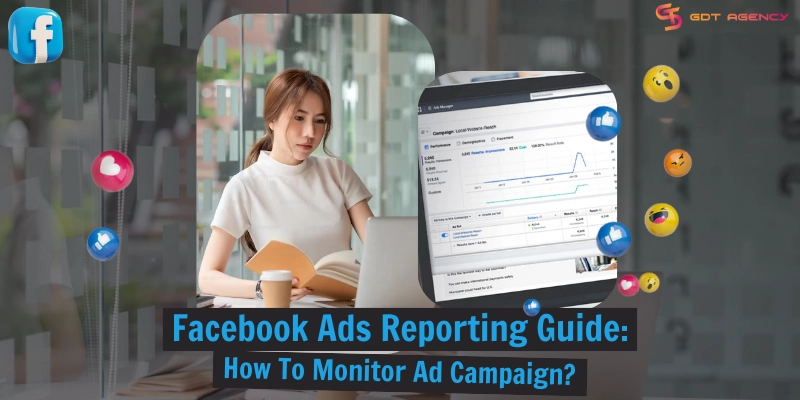
Meta Ads Manager is a powerful tool for businesses that helps you advertise on Facebook, Instagram, and other Meta networks. Meta Ads Manager is a central hub for tracking and optimizing ads, and Facebook ads reporting is a free feature that allows advertisers to generate reports on their past campaigns.

The unique aspect of Facebook Ads Reporting is the ability to select specific ad metrics and relevant factors for your reports. Whether you want to monitor vital metrics like CPA, CPP, and CPM for evaluating cost efficiency, CTR and A/B Test are done for improving engagement, or the average CTR for Facebook Ads to define your position, Facebook Ads reporting can all bring you the most accurate results.
Additionally, you can gain valuable insights into the strengths and weaknesses of your campaigns, discovering unique ways to optimize them and maximize your return on investment, all while ensuring you get the most out of your advertising budget.
Types of Facebook Ads Reporting
When you start tracking your campaigns, you will notice that Facebook offers several reporting view types, and each type is designed to highlight a different part of your performance. To understand your results clearly, let’s clarify:
Pivot table
Pivot tables are quite flexible and can be customized to view multiple indicators at the same time, comparing data in many dimensions.
You can choose this type of chart for in-depth analysis, custom reporting, or needing to synthesize a lot of detailed information.

Pivot tables are suitable for all types of metrics, especially when you need to see the relationship between multiple metrics (for example, comparing performance between ad groups by age, gender).
Trend line chart
This type of report helps you easily track changing trends over time, identifying sudden increases/decreases.
You can use Trend line charts to evaluate campaign performance over time, comparing trends of important metrics (e.g. costs, conversions).
The x-axis is time, the y-axis is your chosen metric (e.g., clicks, impressions).

Can display up to two metrics on separate charts. Maximum of 10 lines for clarity.
This type of chart is suitable for metrics that fluctuate over time such as costs, impressions, clicks, and conversions.
Bar chart
For the last one, the bar chart helps you clearly see the visual comparison between groups, easily identifying which group has the best/worst performance. The main characteristics of this type of chart are:
- Each group of bars represents a segment.
- Each bar within a group represents a different metric.
- Can display up to three metrics on one chart.
- Sort bars by metric or segment.
- Maximum of 10 bar groups for clarity.

You can use bar charts to compare performance between ads, ad groups, campaigns, or compare by criteria such as location and device.
How Are Facebook Ads Reporting Help Advertisers to Transform Campaign Management?
If you’re new to Facebook advertising, mastering how to create and interpret ad reports is essential. 6 months ago, GDT used to have a client who was a new fitness brand. They rented our Facebook agency account because their ad account kept constantly hitting the spending limits when scaling, so they couldn’t hit their sales targets.
Once the campaigns were live, they told us that the detailed Facebook Ads reporting helped them a lot in driving the most conversions. We discussed together the way to optimize campaigns in real time, the metrics of audience segments, creatives, and placements.
And underperforming ads were paused, budgets were shifted to high-performing segments, and new creatives were tested based on reporting data.
After 6 weeks, TrendyFit saw ROAS increase from 2.1x to 4.8x, and cost per purchase dropped by 38%. They also reduced the number of campaigns, making management simpler and faster.
From our real-life case study, we can clearly see that Facebook ads reports can bring a clear picture of your campaigns’ current status and performance, allowing you to track key metrics and optimize your ads for better results in the future.
- Monitor key performance indicators (KPIs): Facebook ad reporting can help you understand the goals that you set for your Facebook ad campaigns if you’ve reached them successfully. With ad reports, you can monitor KPIs for everything from impressions to engagement and clicks, …
- Benchmark campaign performance: With Facebook ad reports, you can see how your campaign trends look over time, and help you determine what’s typical for your ad account so you can budget more effectively.
- Identify ways to optimize campaigns: The detailed reports in Facebook Ads Manager can show what’s working and what isn’t. From campaign types and optimization events to target audiences and creative assets, you can gain valuable insights and optimize your ads.
- Customization: The Facebook Ads Manager provides a report customization feature that can be created according to the user’s needs and audiences with the selection of metrics, columns, and breakdowns (age, gender, location, device, etc.) for analysis.
- Automation and Scheduling: The reports can be scheduled and sent automatically to keep the stakeholders informed regularly without the need for manual intervention.
- Advanced Analytics and AI Insights: A few of the reporting tools incorporate AI to deliver more profound insights like predictive performance, creative assets auto-tagging, and multi-touch attribution across channels.
- Collaboration: The reporting tools commonly enable team cooperation by permitting the sharing and discussion of interactive reports to synchronize the targets across the marketing, sales, and creative teams.
- Audience Insights: The reports offer comprehensive demographic and behavioral data about the ad audience, which aids in targeting and personalization improvement.
- Offline and Cross-Device Tracking: Facebook reporting can capture offline conversions and cross-device attribution, illustrating the comprehensive effect of advertising beyond just online clicks.
10. ROI and Financial Metrics: Some tools focus on the revenue-related metrics like return on ad spend (ROAS), customer lifetime value, and profit per campaign, thus helping advertisers in the optimization of budget allocation.
How To Monitor Ad Campaign With Facebook Ads Reporting?
It’s hard to deny the fact that Facebook Ads Manager offers the easiest way to review and measure the ad performance data from every campaign that you run. To help you explore the way to track and export advertising reports. Below are detailed instructions on how to track and export advertising reports. Let’s get right to the first step:
Create Facebook Ads Reporting
First, go to Meta Ads Manager and click on the ‘Ads Reporting’ section on the left:

After that, Meta will take you to a new window called ‘Ads Reporting’, you can click ‘Create report’ and choose one of three report types as below (you can also flexibly change the layout via the menu on the left):


Customize your ad reporting

Next, you can edit your report. The first is ‘Customize’, where you can add a selection of metrics you want to track. For example, I want to calculate the age of customers who click on my ad. Then I just need to tick the ‘Age’ box once:

Next, there is a small menu that includes the date here. This is where you will choose a specific time for Meta to accurately relist changes in metrics from your ads. If you want to compare indicators from two different time periods, you can click on the ‘Compare’ box:

All breakdowns for Facebook Ad Reporting
Below are all breakdowns for Facebook Ad Reporting:

Level:
- Ad name
- Page name
- Campaign ID
- Ad set ID
- Ad ID
- Page ID
Delivery breakdowns:
- Age&Gender: See which age or gender groups are most responsive to your ads.
- Country: Track ad performance in different countries to optimize spending.
- Business Locations: Useful for local businesses targeting specific areas.
- Region: Analyze results by state or province for more targeted campaigns.
- Device: Understand how your ads perform on different devices (e.g., phones vs. computers).
- Platform: Compare results between Facebook and Instagram to adjust your strategy.
- Product ID: If you sell products, see which ones are performing best in your ads.
The actions you can track using native Facebook Ads Reporting are:
- Performance: Track your ads’ reach, impressions, clicks, and more to measure how well they’re doing.
- Engagement: See how much people interact with your ads through likes, comments, and clicks.
- Conversions: Understand your ads’ impact on your bottom line by tracking purchases, add-to-carts, and other actions.
- Custom Events & Conversions: Track unique actions specific to your business, like “Scroll 50%.”
- Settings: Filter and organize your reports by buying type, campaign name, call to action, and other details.
Export your Facebook Ad Reporting
To export the report file, you can click the ‘Export’ button in the top right corner. You can export to an image or excel file with the extension .xlsx or .csv, you can also share it for others to see and export the report with the ‘Share’ button right next to it.

Facebook Ads Reporting Vs. 3rd Party Tools: Which One Is Better?
Surely, when reading this, many advertisers will wonder whether paid third-party Facebook Ads Reporting Tools are any different from native Facebook Ads Reporting? The answer is yes, it differs in features and service price. I have compiled a comparison table here for your convenience:
| Feature | Meta Ads Reporting (Free) | 3rd-Party Facebook Ads Reporting Tools (Paid) |
| Interface & User Experience | Familiar interface, integrated within Meta Ads Manager. | Customizable interface, potentially more user-friendly. |
| Data | Direct data from Meta, ensuring accuracy and timeliness. | Aggregated and customizable data, but may have some delay. |
| Report Customization | Moderate customization, limited to available metrics and formats. | High customization, allows for creating reports with diverse formats, metrics, and visualizations. |
| In-depth Analysis | Basic analysis, focused on main performance metrics. | More in-depth analysis, can combine data from multiple sources. |
| Automation | Limited scheduled reporting automation. | High automation, scheduling, automated email reports, integration with other tools. |
| Support & Resources | Support from Meta, can be limited and time-consuming. | Professional support, quick response times, detailed documentation. |
| Cost | Free. | Monthly or annual fees, depending on the service package. |
| Scalability | Limited scalability, suitable for basic reporting needs. | High scalability, caters to the reporting needs of large and complex businesses. |
In my opinion, if you are a small business or just starting out with Facebook advertising, Meta Ads Reporting can meet your needs.
However, if you need more in-depth, highly customized and automated reports, consider using a 3rd party Facebook Ads reporting tool. It has its own metrics that have been further developed. to suit the tracking needs of professional advertisers (especially the premium paid version with more attractive features).
Guide To Use 3rd-Party Facebook Ads Reporting Tools For Advertisers
Though there are many third-party tools that can be used for Facebook Ads reporting, I will only talk about Agency Analytics (agencyanalytics.com) here. It is a versatile platform that simplifies monitoring, presenting, and understanding the effectiveness of a campaign. Let’s explore how to organize metrics by campaigns, audiences, and creatives!

After successfully logging in or creating an account, you can visit the start page of this tool. Here, it suggests you two types of posts that can create reports on Facebook are post or ad:

Let’s continue with the ‘Facebook Ads’ option, you can see that a new window appears for you to start creating Facebook Ads Reporting, first connect to your Facebook account:


There, after connecting to your Facebook account, you can start creating reports. Click on ‘Report’ on the left, then click ‘Create report’:

Right here, you can choose 1 of 4 types of report templates:

- Create a blank report: Create a blank report template without any information.
- Create a Smart Report: This option helps you quickly create a complete report template from the metrics in your Facebook Ads account.
- Start from a template: You can start from an available template of this tool.
- Clone an existing report: You can choose another pre-existing report template and copy it to use.
Next, you need to name the report template and continue clicking ‘Continue’:

Wait a few seconds for loading, you can start creating reports for Facebook Ads. Pay attention to the ‘Add widgets’ section in the right column, where you can select metrics for your report:


Here, I will drag and drop the tracking indicator options to include in the report (like the image above). Then, repeating this will help me complete the Facebook Ads report as shown below:

Summary
In conclusion, you can utilize Facebook Ads Reporting in the ways I’ve shared above. Just try to make an effort to read and understand the most important ad metrics. It will give you a fresh perspective and uncover effective ways to optimize your advertising efforts.
If you are interested in agency accounts or encounter persistent challenges while running Facebook Ads, you can contact us via the information on our website https://agencygdt.com/. Our seasoned experts are always ready to help you!

Follow if you find it useful


Was this helpful?
Thanks for your feedback!
You can contact us, with our experience in successfully deploying thousands of conversion advertising campaigns, GDT Agency confidently believes we can help you optimize effectiveness and maximize cost savings with advertising operations.