
You can add an agency to your Facebook ad account through Meta Business Portfolio by entering the agency’s Business ID and assigning the appropriate permission level to that specific ad account. Once you have the necessary information, the process usually takes just a few minutes, and you never need to share your personal login credentials. This guide will show you step-by-step on how to add agency to Facebook ad account for advertisers.
How Do You Add an Agency to Your Facebook Ad Account?
You can connect an agency to your Facebook ad account through Business Portfolio by opening the Partners section, entering the agency’s Business ID, selecting the relevant ad account, and choosing the appropriate permission level.
With nearly 10 years of experience working with Facebook ads at GDT Agency, including standard and Facebook agency ad accounts, I have worked with different account structures and permission setups to help businesses and agencies manage advertising access correctly.
Based on my experience, paying close attention to each permission setting can help you avoid common access and invitation issues. The process contains 5 main steps, and following them in the correct order helps prevent access or invitation problems.
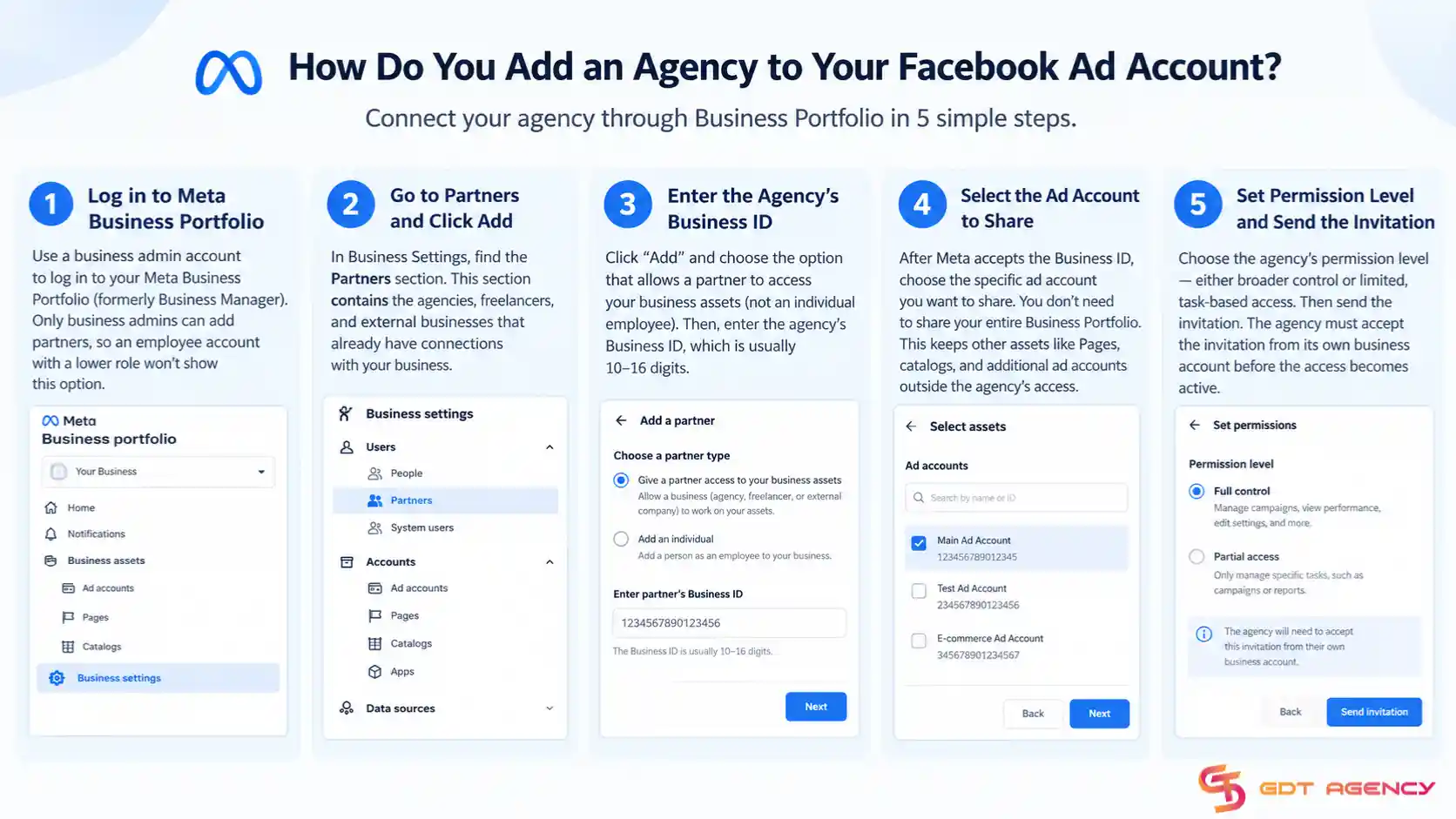
- Step 1: You first need to log into your Meta Business Portfolio, which Meta previously called Business Manager, with an admin account. Meta only allows business admins to add partners, so an employee account with a lower role will not provide the same option.
- Step 2: After logging in, open Business Settings and locate the Partners section. This section contains the agencies, freelancers, and external businesses that already have connections with your business. Next, click “Add” and select the option that allows a partner to access your business assets. This option differs from adding an individual employee.
- Step 3: Meta then asks for the agency’s Business ID, which normally contains 10 to 16 digits. The agency should provide this number directly because the Business ID identifies the agency’s business account rather than one of its employees.
- Step 4: You then select the asset that you want to share after Meta accepts the Business ID. For this process, select the specific ad account that the agency needs to manage. You do not need to share the entire Business Portfolio. Sharing only the relevant ad account keeps other assets, including Pages, catalogs, and additional ad accounts, outside the agency’s access.
- Step 5: The last step requires you to select the agency’s permission level and send the invitation. Meta gives you the choice between broader control and more limited task-based access. The agency must accept the invitation from its own business account before the access becomes active.
What Information Do You Need Before Adding an Agency?
You need 3 details before you start the agency invitation process: the agency’s Business ID, the exact name of the ad account you want to share, and admin-level access to your own Business Portfolio. A missing detail can prevent the invitation from being completed correctly.
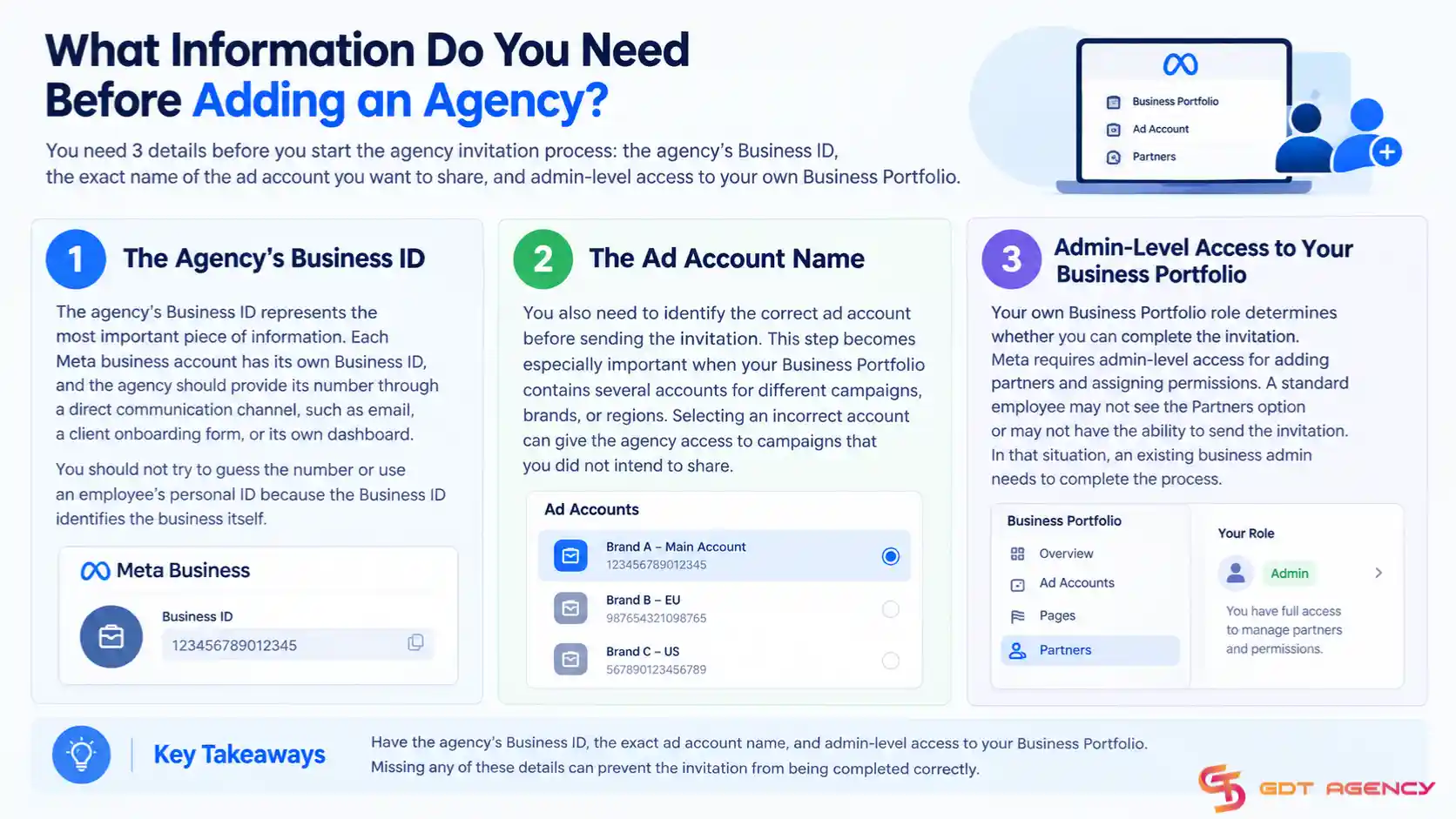
The agency’s Business ID represents the most important piece of information. Each Meta business account has its own Business ID, and the agency should provide its number through a direct communication channel, such as email, a client onboarding form, or its own dashboard. You should not try to guess the number or use an employee’s personal ID because the Business ID identifies the business itself.
You also need to identify the correct ad account before sending the invitation. This step becomes especially important when your Business Portfolio contains several accounts for different campaigns, brands, or regions. Selecting an incorrect account can give the agency access to campaigns that you did not intend to share.
Your own Business Portfolio role determines whether you can complete the invitation. Meta requires admin-level access for adding partners and assigning permissions. A standard employee may not see the Partners option or may not have the ability to send the invitation. In that situation, an existing business admin needs to complete the process.
What Permission Levels Can You Assign to an Agency?
Meta provides two main access options for agency partners: full control and partial access. The first option gives the agency broad control over the ad account, while the second lets you select the specific tasks the agency can perform.

- Full control gives the agency extensive management rights over the ad account. The agency can create and edit campaigns, modify budgets, access billing information, and review performance reports. Agencies that manage an advertiser’s complete paid media operation may need this level because campaign management can sometimes require access to billing or payment-related settings.
- Partial access gives you more control over what the agency can do. Meta lets you select individual tasks, which can include managing advertisements, viewing performance information, or handling comments associated with ad creative. You can therefore let an agency manage campaigns and reporting while keeping billing and other sensitive settings under your internal team’s control.
The access level does not become permanent after you select it. You can return to the Partners section and change the agency’s permissions later. You can increase or reduce access without removing the agency and creating a completely new connection.
>>> If you are an agency or freelancer working with a client’s Facebook ads, you may first need access to the client’s ad account before adding your agency as a partner. See our guide on How to Get Access to a Client’s Facebook Ad Account for the steps to request and manage client access.
Is Adding an Agency Different from Adding an Individual Employee?
Yes. Meta uses different processes for agencies and individual employees because each relationship operates at a different level inside Business Portfolio.
You add an individual employee through the “People” section in Business Settings. The process requires the employee’s email address, and Meta connects the invitation directly to that person’s Meta account. If the employee leaves your company, you can remove that person’s email from the People section and end their access.
You add an agency through the “Partners” section instead. This connection links your ad account to the agency’s entire business account rather than to one employee. The distinction matters because an agency can have several people working on the same campaigns, including media buyers, strategists, and account managers.
Once you connect the agency’s Business ID, the agency manages access for its own employees. You do not need to add every member of the agency individually to your Business Portfolio.
The same distinction applies when you end the relationship. Removing an individual employee affects only that employee. Removing an agency partner cuts access for the agency as a whole because the connection exists between two businesses rather than between your business and one person.
Businesses that work with an external marketing agency should therefore use the Partners process instead of adding the agency’s employees individually through the People section.
How Do You Confirm the Agency Was Added Successfully?
You can verify the connection through the Partners section in Business Settings. An accepted agency should show an active status alongside the ad account that you shared with it.
The invitation initially appears as pending after you send it. The agency must accept the request from its own business account before Meta activates the connection. After acceptance, the status changes and you can inspect the connected ad account and its assigned permission level.
If the invitation remains pending for a day or two, contact the agency directly and ask them to check their business account. Meta does not send automatic reminders for you, so direct follow-up can help resolve a pending invitation.
The agency can also verify the connection from its own Business Portfolio. After accepting the invitation, the shared ad account should appear on its side. You can ask the agency to confirm that it sees the account and has the intended permission level. This additional confirmation can identify problems such as partial access being assigned when full control was expected.
How Do You Remove an Agency’s Access Later?
You can remove an agency through the Partners section in Business Settings. Select the agency, then choose whether you want to remove its access to a particular ad account or disconnect the agency from your Business Portfolio completely.

You can choose between 2 removal approaches depending on how you use the agency.
- Removing the agency from one ad account leaves the agency connected to other assets that you may still want it to access, such as a Facebook Page or catalog.
- Removing the agency entirely disconnects its Business ID from your business and ends its access to all assets that you previously shared.
The change takes effect immediately after you confirm the removal. The agency therefore loses access without a waiting period.
The Partners section gives you a central place to manage the relationship throughout the entire engagement. You can use the same area when you end a contract, change agencies, or reduce an existing partner’s access.
How Many Agencies Can You Add to One Ad Account?
Meta does not publish a fixed number of agencies that you can add as partners to one individual ad account. The practical limit depends on the access limits of the Business Portfolio, including its people, partner, and ad account capacity.
You can check available limits in Business Settings → Business Info. Meta may show information such as Ad Account Creation Limit, while People and Partners limits can vary by account and interface. I have seen some third-party sources reference limits of around 250 people and 50 business partners, but in my opnion, these figures should be treated as reference points rather than official universal limits.
The commonly cited 25-person ad account limit also needs context. Agency users with direct access can count toward the available user capacity, so the limit does not mean 25 internal users plus additional users from every agency. For example, 5 internal users plus 3 agencies with 5 users each would already create 20 users with access.
Most businesses only need 1 or 2 agencies connected to one ad account at a time. This is an operational best practice, not a Meta rule. Multiple agencies can work with the same account when the business gives each agency the required permissions, such as during an agency transition or when separate agencies handle creative and media buying.
Businesses should keep agency access limited and clearly separated because multiple teams can create conflicts when they change campaigns, budgets, or account settings. Businesses should also consider separate ad accounts for different brands or operating teams because this structure makes access easier to audit and can limit the impact of policy, billing, or access issues.
When switching agencies, businesses can temporarily keep both agencies connected during the handover. The business can give the new agency the required access, complete the transition, then remove the old agency’s permissions and disconnect its partner access.
In practice, the limit is not simply the number of agencies. The real constraint comes from Business Portfolio limits, ad account access capacity, and the number of users each agency brings into the account.
Final Thoughts
Adding an agency to your Facebook ad account requires 5 main actions inside Business Portfolio. You need to log in as an admin, open the Partners section, enter the agency’s Business ID, select the correct ad account, and assign the appropriate permission level.
Preparing the agency’s Business ID and identifying the correct ad account before starting can prevent the most common invitation problems. You should also confirm that your own Business Portfolio account has admin-level access before beginning the process.
The permission level determines how much control the agency receives. Full control gives the agency broad access, while partial access lets you limit the agency to specific tasks. You can change that permission later without removing the agency and starting the process again.
You can also verify the connection from both sides after the agency accepts the invitation. The Partners section lets you manage the relationship afterward, whether you need to remove the agency, change its permissions, or connect another agency.
FAQs
Can I add an agency without giving them my login credentials?
Yes. Meta connects the agency through its Business ID, so you do not need to give the agency your Facebook password or other login credentials. The agency uses its own business account to access the ad account.
What happens if I enter the wrong Business ID?
Meta sends the invitation to the business associated with the Business ID that you enter. An incorrect ID can therefore send access to the wrong company. You should verify the Business ID with the agency before sending the invitation. If you discover a mistake, remove the incorrect connection immediately.
Does the agency need to accept the invite before access starts?
Yes. Meta keeps the invitation pending until the agency accepts it from its own business account. Sending the invitation alone does not activate the agency’s access. The Partners section shows an active status after the agency accepts.
Can I change an agency’s permission level after adding them?
Yes. You can change the agency’s access level from the Partners section after you add it. You can switch between full control and partial access without removing the agency and sending another invitation.
Does removing an agency delete my campaign data?
No. Removing the agency only ends its access to the ad account. Your campaigns, advertising history, and performance data remain inside your Business Portfolio after you remove the agency.