

A Facebook Sandbox Ad Account is a test account provided through Meta’s Marketing API that allows developers to create and manage campaigns, ad sets, and ads without delivering real advertisements or spending money. It provides a safe environment for testing API integrations before connecting them to a live ad account.
Creating one involves five steps: signing in to Meta for Developers, creating an app, adding the Marketing API, setting up a Sandbox Ad Account, and generating an access token. This guide explains each step, its capabilities, limitations, and how to prepare for production testing.
What is a Facebook Sandbox Ad Account?
A Facebook Sandbox Ad Account is a test ad account that Meta provides through the Marketing API Sandbox. It supports read and write API calls, but ads created in it aren’t delivered and no money is spent.
Within the Marketing API Sandbox, a Sandbox Ad Account connects four key components: the Meta for Developers app, the Marketing API, the Sandbox Ad Account, and an access token.
- Meta for Developers app: Hosts the Marketing API product and manages the connection to the Sandbox Ad Account.
- Marketing API: Allows your application to create, retrieve, update, and manage campaigns, ad sets, and ads.
- Sandbox Ad Account: Stores test advertising objects without delivering real ads or generating advertising costs.
- Access token: Authenticates API requests and allows your application to perform authorized operations within the sandbox environment.
As an expert at GDT Agency with nearly 10 years of working with Facebook Ads via multiple account types, from standard to Facebook agency accounts, I have seen many advertisers believe that renting an agency ad account comes with some kind of built-in test mode. In reality, an agency account behaves exactly like a standard ad account. Any campaign created inside it will deliver and spend real budget the moment billing is attached.
How does it work?
A Sandbox Ad Account works by linking a test ad account to your Meta app, so API calls made with an access token create campaigns, ad sets and ads inside the sandbox account. But they exist only inside the sandbox and are never delivered.
In practice, the flow runs 4 stages: create or open an app in Meta for Developers, enable the Marketing API, create and link its Sandbox Ad Account. Then use the sandbox account ID in API calls to build and inspect test objects. This validates your request structure, permissions and parsing.
What can you test in a Sandbox Ad Account?
In a Sandbox Ad Account, you can test your Marketing API integration, including campaign and ad set management, creating ads and creatives, permissions, request formats and workflows.
- Campaign management: Create, read, update and delete campaigns through the API
- Ad set management: Build and inspect ad sets, including objectives, budgets, schedules, targeting fields and statuses
- Ads and creatives: Create ad objects and link them to ad sets
- Permissions: Confirm that your access token, app permission and account linkage work before moving to a live account
- Request format: Validate request formats, required fields, error messages, pagination and how your application parses API responses
- Workflow: Retrieve the sandbox and the test objects you created, so you can test listing and reporting-style calls at a structural level
>>> Understanding how Facebook ad account infrastructure works can also help you choose the right way to test Facebook Ads without spending real money.
How to create a Facebook Sandbox Ad Account?
Creating a Sandbox Ad Account requires 5 steps: sign in to Meta for Developers, create or open an existing app, add the Marketing API product, create a Sandbox Ad Account and generate an access token.
Here’s how the setup unfolds:
Step 1: Sign in to Meta for Developers
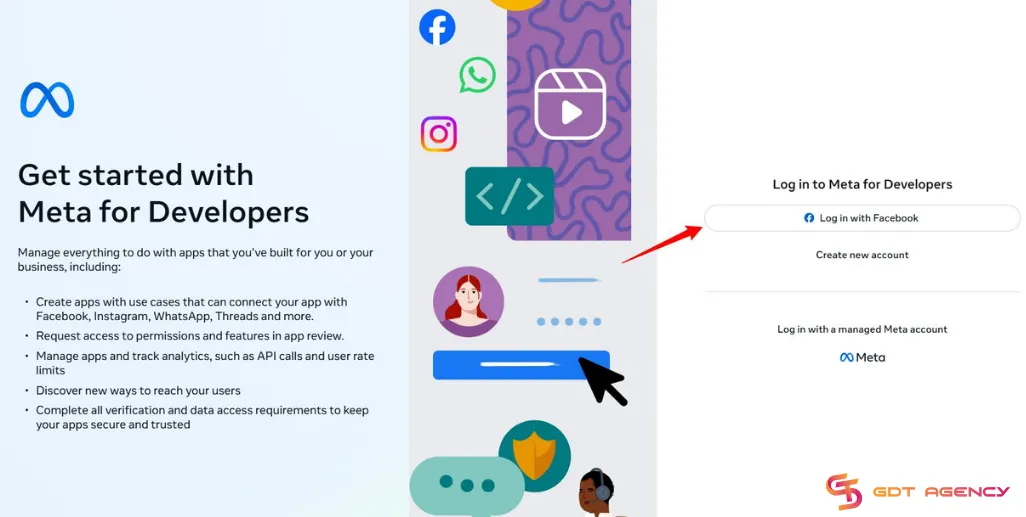
- Go to Meta for Developers.
- Click Log In in the top-right corner.
- Sign in using your Facebook account.
- If this is your first time, follow the prompts to register as a Meta developer and complete the required verification.
Once registered, you can access the developer dashboard and create apps.
Step 2: Create or open app
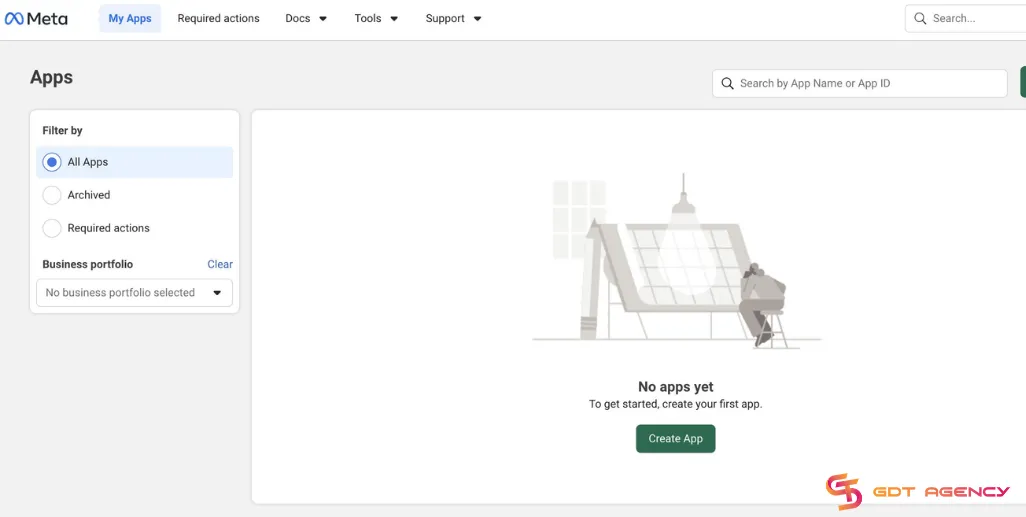
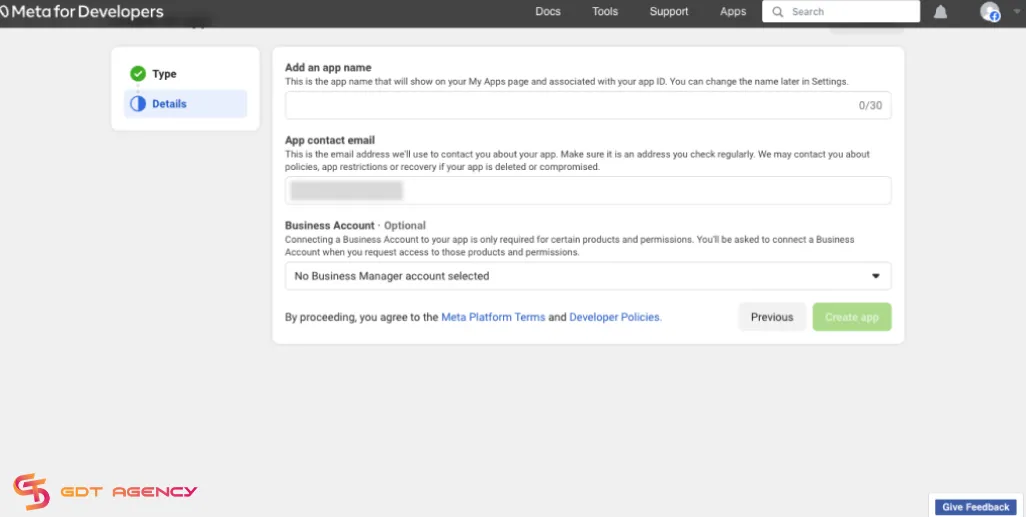
- Open the Meta App Dashboard.
- Click Create App to create a new app.
- Follow the setup prompts and select an app type or use case that supports the Marketing API.
- Enter your app’s display name and contact email.
- If prompted, select the relevant Business Portfolio.
- Click Create App to finish.
If you already have an app that you manage, select it from the dashboard instead of creating a new one.
Step 3: Add the Marketing API Product
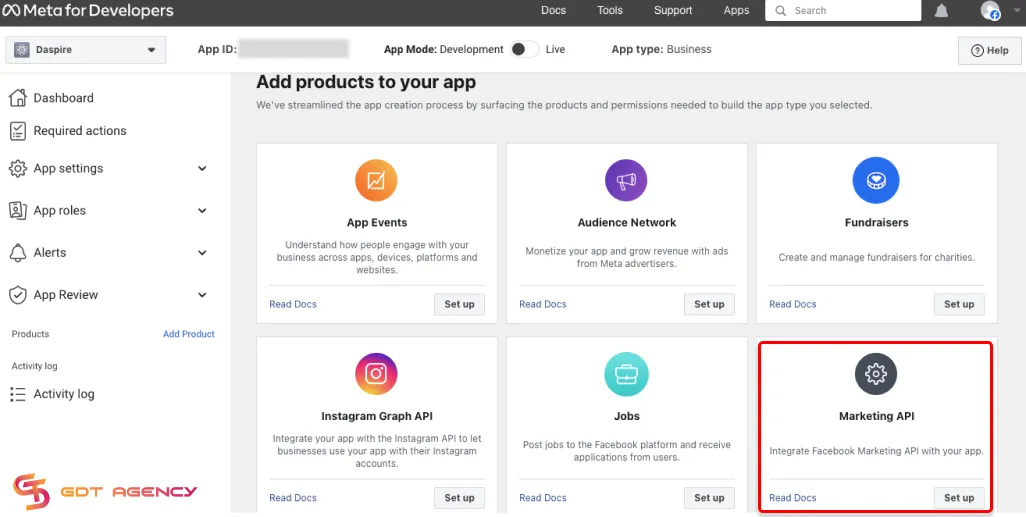
- Open your app in the Meta App Dashboard.
- Find the Add Products or Products section.
- Locate Marketing API.
- Click Set Up to add it to your app.
- Check the app’s left-hand navigation to confirm that Marketing API is available.
This enables your app to access the Marketing API tools, including Sandbox Ad Account Management.
Step 4: Create a Sandbox Ad Account
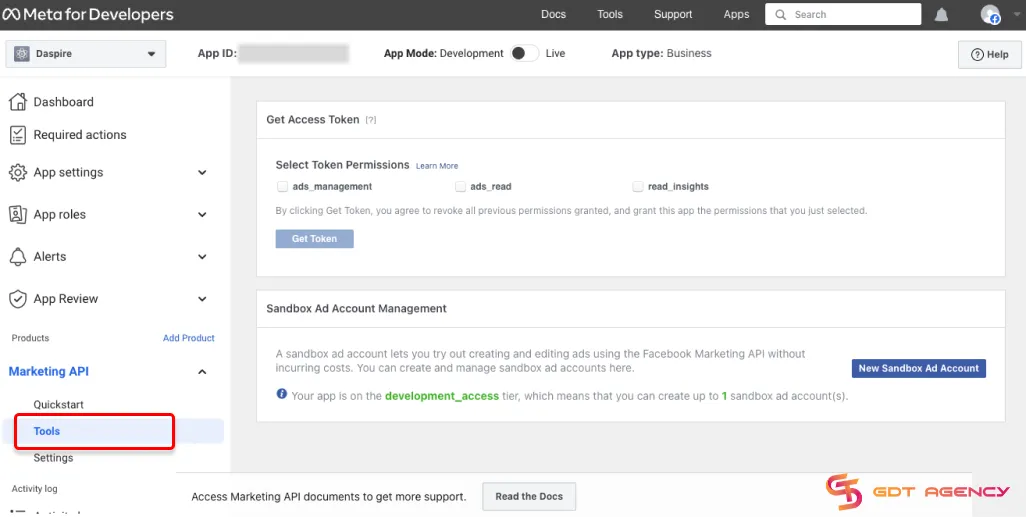
- In your app dashboard, expand the Marketing API section in the left-hand menu.
Select Tools. - Find the Sandbox Ad Account Management section.
- Click Create Sandbox Ad Account.
- Enter a name for your sandbox account if prompted.
Complete the creation process.
Once created, your Sandbox Ad Account should appear in the Sandbox Ad Account Management section.
Note: A Sandbox Ad Account is a testing environment, not a regular advertising account in Ads Manager. It allows you to test Marketing API operations without delivering real ads or incurring advertising costs.
Step 5: Generate an Access Token
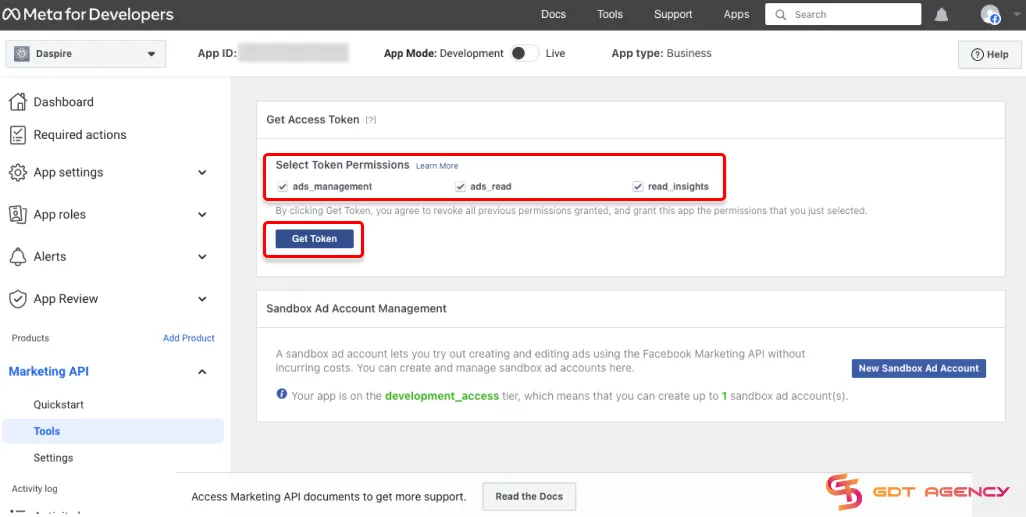
After creating your sandbox account, generate an access token to authenticate API requests.
- Return to Marketing API → Tools.
- Locate your Sandbox Ad Account in the management section.
- Find the Actions column next to the account.
- Click the key icon to open the Generate Access Token window.
- Click Generate to create your sandbox access token.
- Copy the generated token and store it securely. You can now use this token to authenticate requests to the Marketing API and test operations against your Sandbox Ad Account.
Important: Keep your access token private. Anyone who obtains a valid token may be able to access resources permitted by that token.
Step 6: Test Your Sandbox Ad Account (Optional)
After generating your access token, you can verify that your sandbox account is accessible through the Graph API.
- Open Graph API Explorer.
- Select your Meta app.
- Enter your sandbox access token.
- Use the following endpoint to retrieve your sandbox ad account information:
GET https://graph.facebook.com/vXX.X/act_<SANDBOX_AD_ACCOUNT_ID> - Add the required fields, such as id and name, and submit the request.
- Check the response to confirm that the API can access your sandbox account
Replace vXX.X with a supported Graph API version and SANDBOX_AD_ACCOUNT_ID with your actual sandbox account ID:
How to Test Meta Ads & API using a Sandbox Ad Account?
Beyond the basics, developers and technically minded marketers often need to understand how the Sandbox Ad Account behaves under real API usage, where its limits lie, and how it compares to the informal “testing account” concept many marketers use instead.
How do you enable ads_read permission for Sandbox testing?
Enabling ads_read for sandbox testing happens through the same access token generated during setup. The permission is scoped at the token level, rather than toggled separately inside the account.
When you generate a user or system user token for your Sandbox Ad Account, you request the ads_read scope alongside any other Marketing API permissions your app needs. Meta grants it against the sandbox environment without the stricter review process that production apps face.
In practice, this means sandbox testing is far more forgiving than requesting the same permission for a live production ad account. Meta typically requires an App Review process before ads_read becomes available for accounts you don’t own. Since sandbox data is isolated and non-delivering, Meta treats it as low risk and unlocks the permission faster, which is exactly why it’s the recommended starting point before applying for live API access.
What is the difference between a Sandbox Account and a testing account?
A Sandbox Account and a testing account solve 2 different problems:
- The Sandbox is an API only environment with zero real delivery.
- A testing account is a real ad account used deliberately for small scale experiments.
The confusion is understandable since both terms get used loosely, but they sit in different parts of Meta’s ecosystem.
The table below lines up both concepts side by side, so it’s clear which one fits your situation before you build around either:
| Feature | Sandbox Ad Account | Testing Ad Account |
| Purpose | API development & integration testing | Small-scale ad experiments |
| Created where | Inside the Meta for Developers dashboard | Inside Business Manager |
| Ads delivered | No | Yes |
| Billing required | No | Yes |
| Real spend possible | No | Yes |
Are there any limitations on Sandbox Ad Accounts?
Yes, Sandbox Ad Accounts come with several real limitations compared to live accounts. The ads inside them never serve. Because delivery is disabled by design, insights typically return zero or placeholder data, so you can’t validate anything tied to real-time optimization, pacing, or delivery diagnostics in the sandbox.
Beyond delivery, a few other constraints matter for anyone building on top of it:
- Feature limitations: not every feature behaves like production; some advanced or newer capabilities may be partially supported, disabled, or dependent on assets like verified domains or real Pages.
- Lower API rate limits: sandbox apps usually run on the Development tier, with roughly 300 plus 40 times the number of active ads in management calls per hour, compared to around 100,000 plus the same multiplier on the Standard tier, according to Meta’s official rate limiting documentation.
- Data isolation: sandbox data never appears in production and can’t be used to build historical performance or train audience models for real campaigns.
Taken together, these limits confirm that Meta designed the sandbox purely for development, testing and demonstration, not as a substitute for a live environment at scale.
What do you need to prepare before moving from Sandbox test to production?
Moving from a Sandbox Ad Account to production, prepare 4 things: a real ad account and Business Manager, permissions and access level, a valid long-lived token strategy and a safe rollout plan for spend, errors and compliance.
Since sandbox testing never touches billing or real delivery, transition to production introduces financial risk. GDT Agency recommends a staged rollout that lets you experience real delivery while limiting financial risk.
Follow 4 steps:
- Create a new Business Manager dedicated just to this learning phase.
- Create a new ad account inside it with no card attached yet.
- Once you’re comfortable, add a card and set a low account spending limit, then run a campaign with a small daily budget, around $1 to $2, for a short observation period.
- Monitor performance closely for the first 24 to 48 hours, then pause or delete the campaign once you’ve learned what you need.
If your campaigns will run through a product catalog rather than a single landing page, there’s one more piece to prepare beyond a Facebook merchant ad account, which is a separate account type built specifically for managing catalog and commerce data rather than campaign delivery. Sandbox testing doesn’t touch this at all, so it’s worth setting up in parallel once you know your campaigns will involve product ads.
Key Takeaways for Sandbox Ad Account
A Facebook Sandbox Ad Account is a developer test account, linked to an app in Meta for Developers, that lets you create and read campaigns, ad sets, and ads through the Marketing API without them being delivered or billed. Setting one up follows a 5-step path: open Meta for Developers, create or open an app, add the Marketing API product, create the account, and generate an access token. In short, it is the safest place to test API integrations, and the limits you meet there tell you when it is time to move to a live ad account.
- Create the Sandbox Ad Account from an app in Meta for Developers, not from Ads Manager.
- Generate an access token with ads_read, and add ads_management when your test creates objects.
- Check your results against the sandbox limits before trusting them, since delivery-based data stays at zero.
- Prepare a billing-ready ad account, the right access level, and real assets before going live, then roll out with a small budget
FAQs
Is a Sandbox Ad Account the same as a Facebook Ads demo account?
No, Facebook doesn’t offer a public demo account that you can log into to run real ads for free. A Sandbox Ad Account is Meta’s own term for the API only test environment.
Is a Sandbox Ad Account free to use?
Yes, ads in a Sandbox Ad Account are never delivered, so no payment method is needed and no spend or impressions accrue. There is no ad spend to pay for at any point in the sandbox
Can I test custom audiences in the Sandbox ad account?
No, Meta’s Sandbox Ad Account is intended for testing Marketing API calls against a limited subset of APIs. It doesn’t behave like a production ad account and isn’t a substitute for validating audience matching, delivery or reporting.
Does using a Sandbox Ad Account affect your live ad accounts?
No. Sandbox ad accounts are isolated from production Business Manager and ad accounts, so campaigns, ads, and data created in the sandbox never appear in a live account. For the same reason, sandbox activity cannot build historical performance, audience learning, or model training for real campaigns.
Do you need an app to create a Sandbox Ad Account?
Yes. A Sandbox Ad Account is created from the app dashboard in Meta for Developers and linked to your app. The app’s Marketing API product and its access token are what let you call the sandbox account.