Google Ads Account Management: Manage Multiple Accounts with MCC

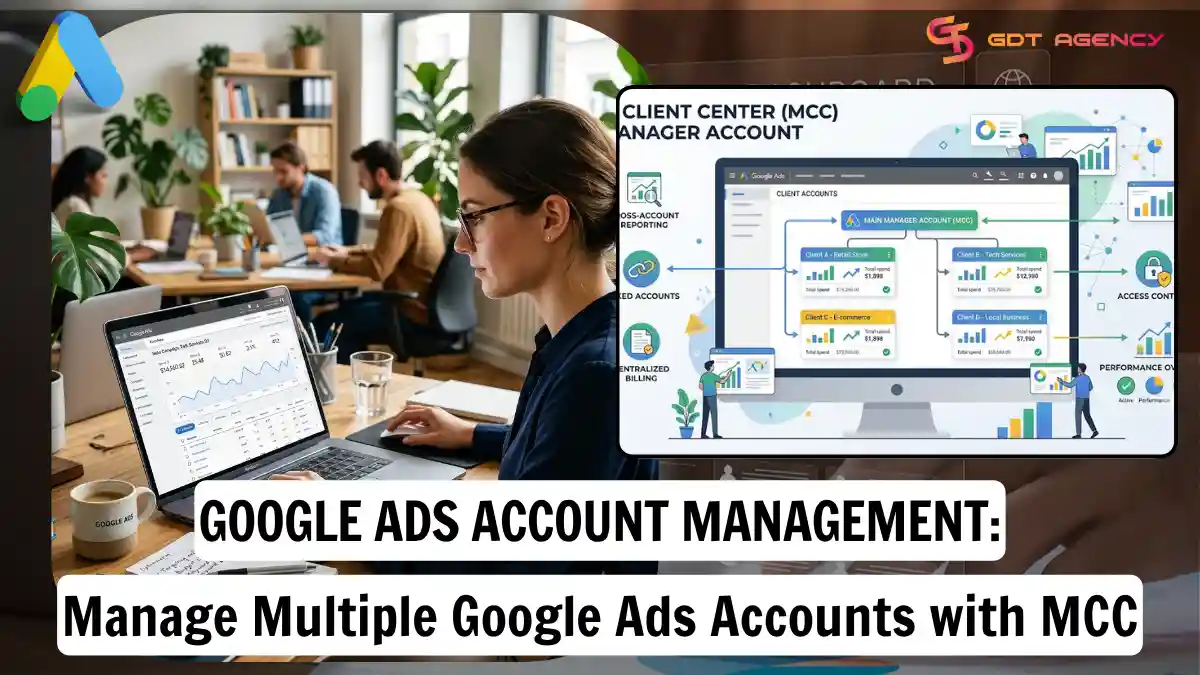
You manage multiple Google Ads accounts through a Manager Account, also known as MCC. This account type lets you view, control, and report on several Google Ads accounts from a single login, without switching between different sets of credentials. Advertisers who run campaigns for more than one business, or agencies who handle client accounts, rely on this structure to save time and reduce errors.
A Manager Account works differently from a regular Google Ads account. The regular account runs your actual ad campaigns, while the Manager Account sits on top and links to those accounts, giving you a central place to check performance, adjust access, and manage billing. This distinction matters because many advertisers confuse the two account types when they first set up their structure.
Setting up an MCC takes a few straightforward steps, and linking existing accounts to it takes only a little more effort. You need a Google account, some basic business information, and a plan for how many accounts you intend to manage. Once the account is live, you send link requests to each sub-account you want to control, and the owner of that account approves the request before access transfers.
Beyond the setup process, a Manager Account also handles access permissions and billing across every linked account. You can assign different access levels to team members, so not everyone sees the same data or holds the same control. Below, this article walks through each of these areas in detail, starting with what a Manager Account actually is and how it fits into your overall Google Ads setup.
What Is a Google Ads Manager Account (MCC)?
As an expert at GDT Agency with nearly 10 years of experience working with multiple types of Google Ads accounts, from standard to Google Ads agency accounts, I could say that a Google Ads Manager Account is a special account type that lets you view and manage multiple Google Ads accounts from one central dashboard, without running campaigns directly.
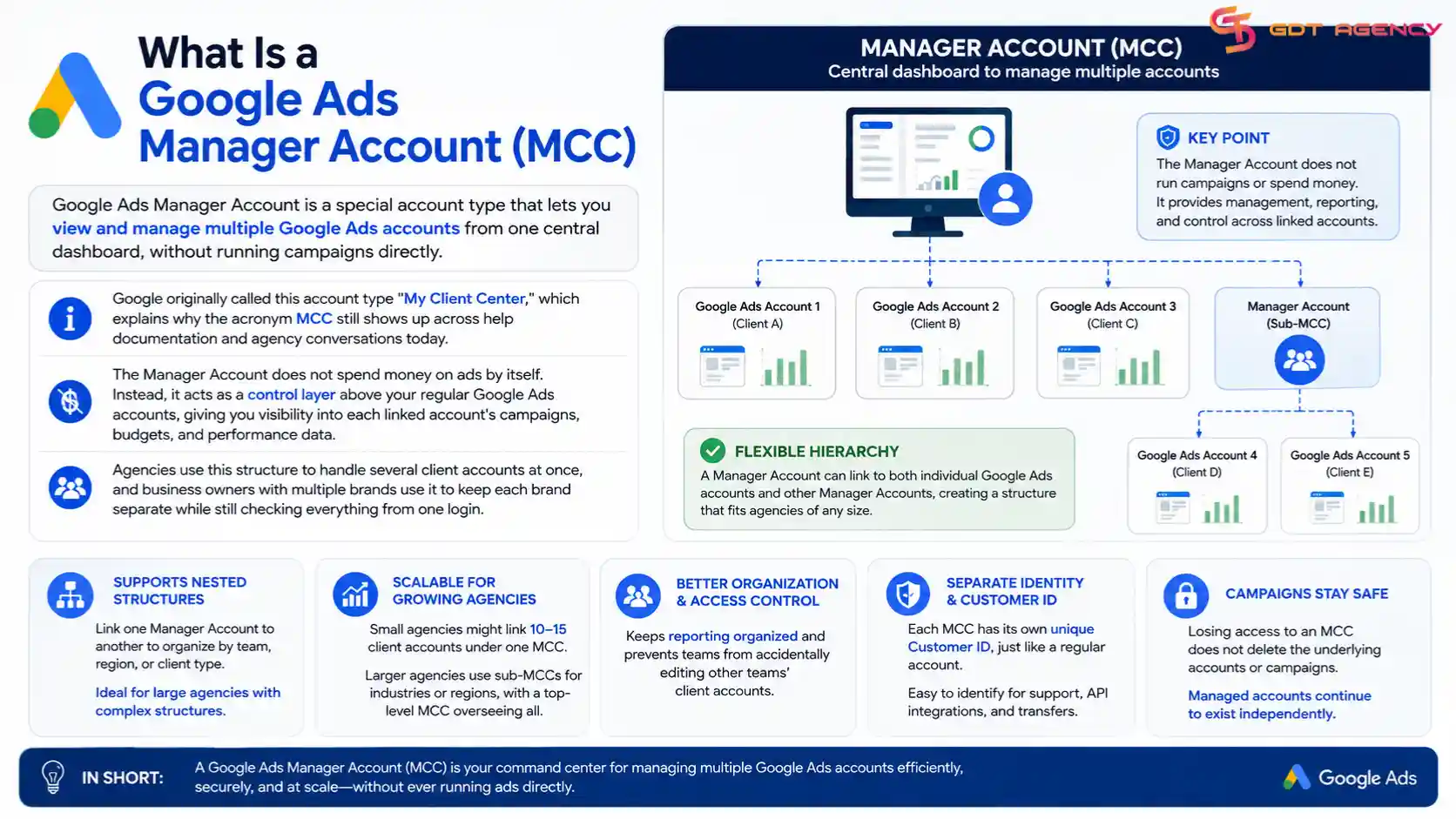
Google originally called this account type "My Client Center," which explains why the acronym MCC still shows up across help documentation and agency conversations today.
The Manager Account does not spend money on ads by itself. Instead, it acts as a control layer above your regular Google Ads accounts, giving you visibility into each linked account's campaigns, budgets, and performance data. Agencies use this structure to handle several client accounts at once, and business owners with multiple brands use it to keep each brand separate while still checking everything from one login.
A Manager Account also supports nested structures, meaning you can link one Manager Account to another. This setup helps larger agencies that organize accounts by team, region, or client type. According to Google's own documentation, a Manager Account can link to both individual Google Ads accounts and other Manager Accounts, which creates a flexible hierarchy for complex organizations.
This hierarchy becomes useful once an agency grows past a handful of clients. A small agency might link 10 or 15 client accounts directly under one Manager Account. A larger agency often splits that structure into sub-Manager Accounts, with each one handling a specific industry or region, and a top-level Manager Account overseeing all of them. This layered setup keeps reporting organized and prevents one team from accidentally editing another team's client accounts.
The Manager Account also carries its own identity within Google's system, separate from any single Google Ads account it manages. Google assigns each Manager Account a unique Customer ID, just like a regular account, which makes it easy to identify in support tickets, API integrations, and account transfer requests. This separation is part of why removing or losing access to a Manager Account does not delete the underlying campaigns in the accounts it manages, since those accounts continue to exist independently.
How Does a Manager Account Differ From a Standard Google Ads Account?
A Manager Account differs from a standard Google Ads account because it cannot run campaigns on its own, while a standard account exists specifically to launch and manage ads. The Manager Account instead connects to one or more standard accounts, giving the account owner a management layer without duplicating campaign data.
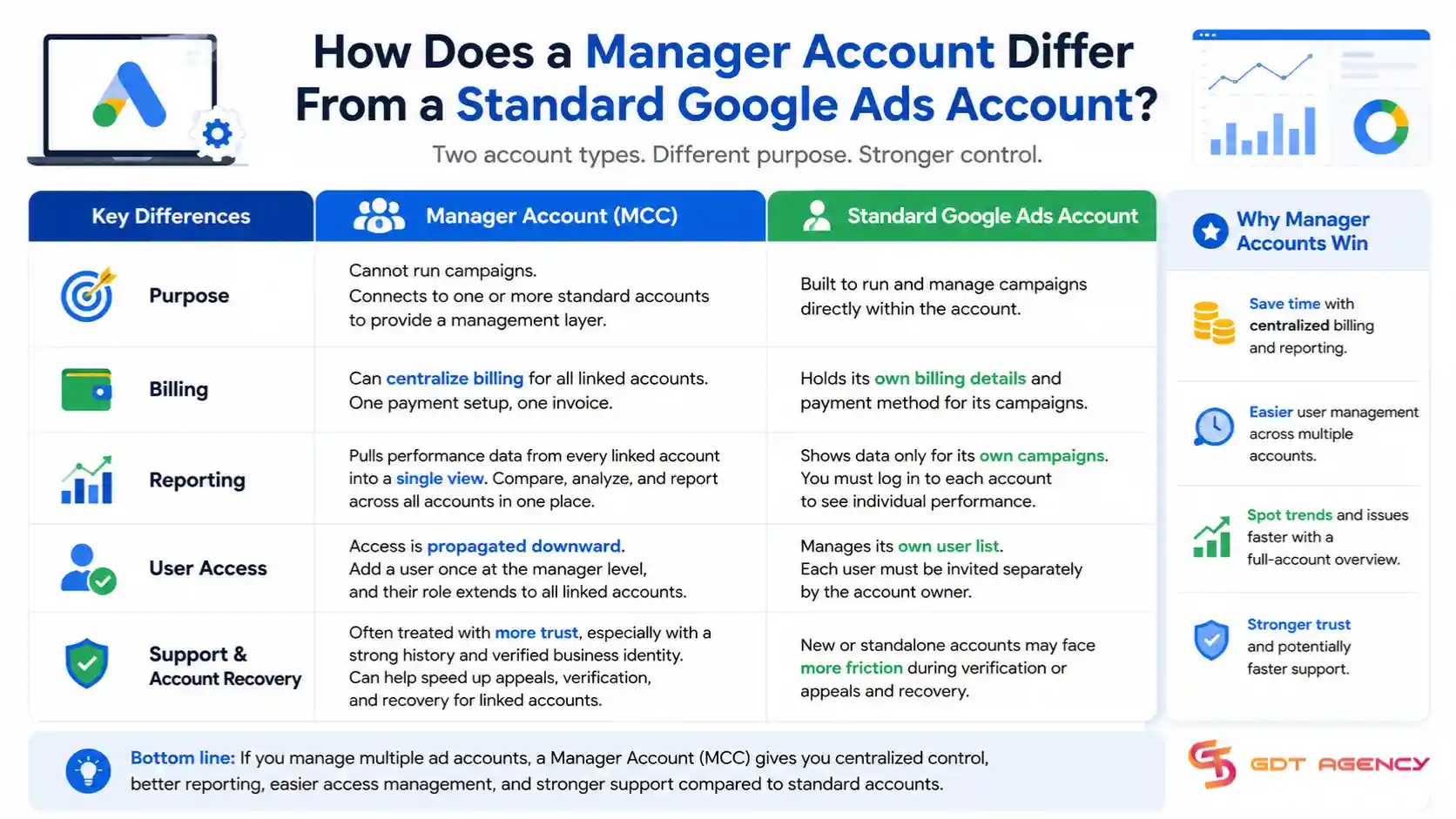
This difference becomes clearer when you look at billing and reporting. A standard account holds its own billing details and payment method tied directly to its campaigns. A Manager Account, however, can centralize billing for every linked account, so an agency or advertiser pays for several accounts through one payment setup instead of managing separate invoices.
The two account types also differ in reporting scope. A standard account only shows data for its own campaigns, but a Manager Account pulls performance data from every linked account into a single view. This lets you compare accounts side by side, spot underperforming campaigns faster, and generate reports without logging into each account one at a time. For advertisers who manage even three or four accounts, this saved time adds up quickly across a typical work week.
The two account types also handle user access differently. A standard Google Ads account manages its own list of users directly, with each person invited separately by the account owner. A Manager Account, on the other hand, propagates access downward: once a user holds a role in the Manager Account, that role can extend to every linked sub-account without requiring a separate invitation for each one. This saves significant setup time for agencies onboarding a new team member who needs access to a dozen client accounts at once.
Support and account recovery also work differently between the two. Google often treats accounts under an established Manager Account, especially one with a strong history and verified business identity, as carrying more trust than a brand new standalone account. This can matter during appeals, verification requests, or when Google flags unusual account activity, since a Manager Account with a clean track record can sometimes speed up the resolution process for a linked account that runs into trouble.
How Do You Create a Google Ads Manager Account?
You create a Google Ads Manager Account by visiting the Manager Accounts sign-up page, entering your business details, and selecting how you plan to use the account before Google activates it. The process usually takes less than fifteen minutes, and no credit card is required at this stage since the Manager Account itself does not run ads.
Once you understand the basic idea behind a Manager Account, the next step is walking through the actual setup process and gathering the right information beforehand.
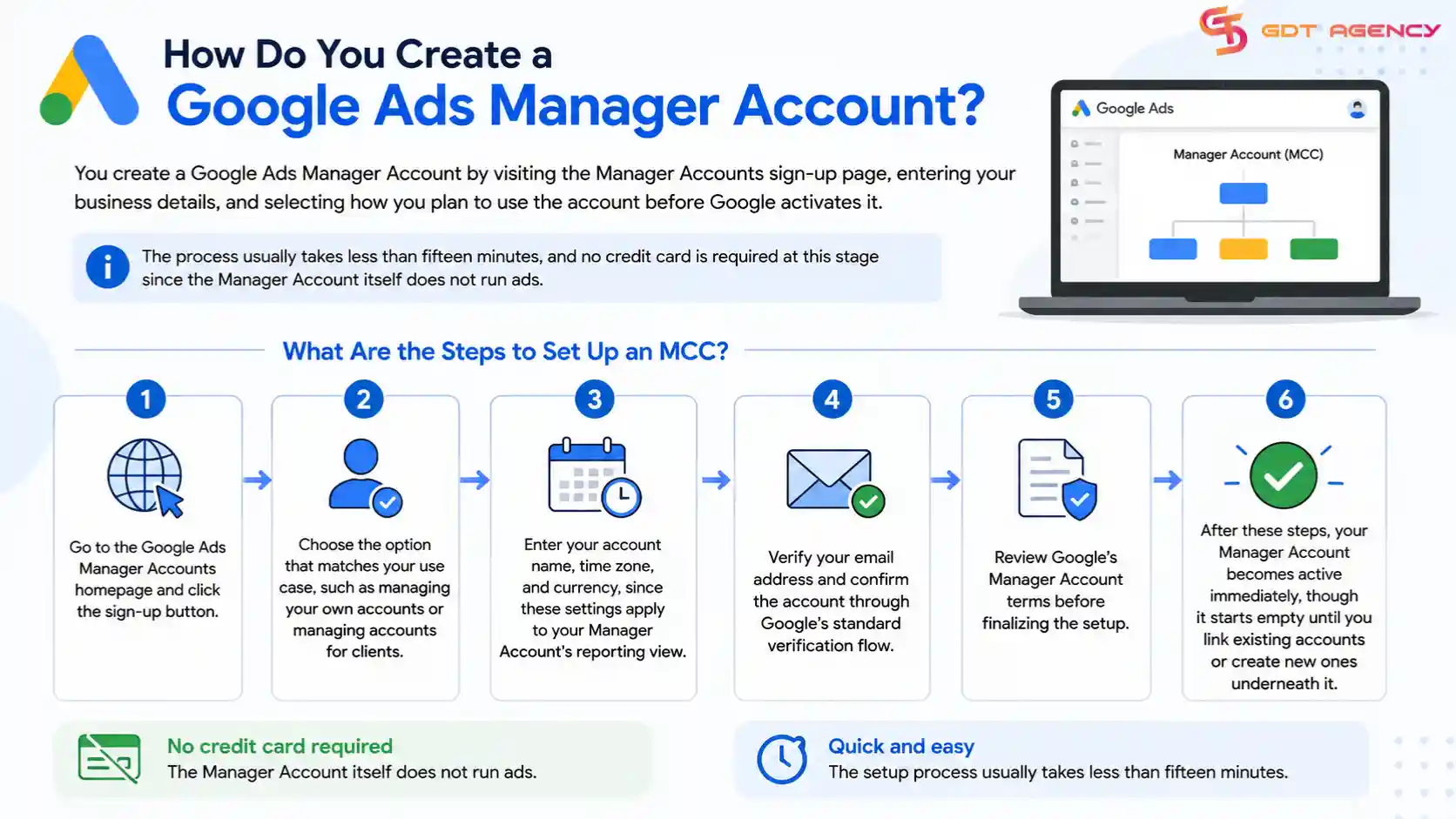
What Are the Steps to Set Up an MCC?
- Go to the Google Ads Manager Accounts homepage and click the sign-up button.
- Choose the option that matches your use case, such as managing your own accounts or managing accounts for clients.
- Enter your account name, time zone, and currency, since these settings apply to your Manager Account's reporting view.
- Verify your email address and confirm the account through Google's standard verification flow.
- Review Google's Manager Account terms before finalizing the setup.
After these steps, your Manager Account becomes active immediately, though it starts empty until you link existing accounts or create new ones underneath it.
What Information Do You Need Before Creating an MCC?
- A valid Google account, either a new one created specifically for account management or an existing one you already use.
- Basic business information, including your company name and the primary contact email.
- A clear list of the Google Ads accounts you plan to link, along with their Customer ID numbers.
- A decision on your account naming convention, especially if you expect to manage many accounts over time.
Having this information ready before you start speeds up the setup process and reduces the chance of naming conflicts once you begin linking accounts.
How Do You Link Multiple Google Ads Accounts to a Manager Account?
You link multiple Google Ads accounts to a Manager Account by sending a link request from your Manager Account dashboard, then waiting for the account owner to approve that request. This two-step process protects account owners from unauthorized access, since no link becomes active until both sides confirm it.
The linking process follows a clear sequence, starting with the request itself and ending with the approval step on the other side.
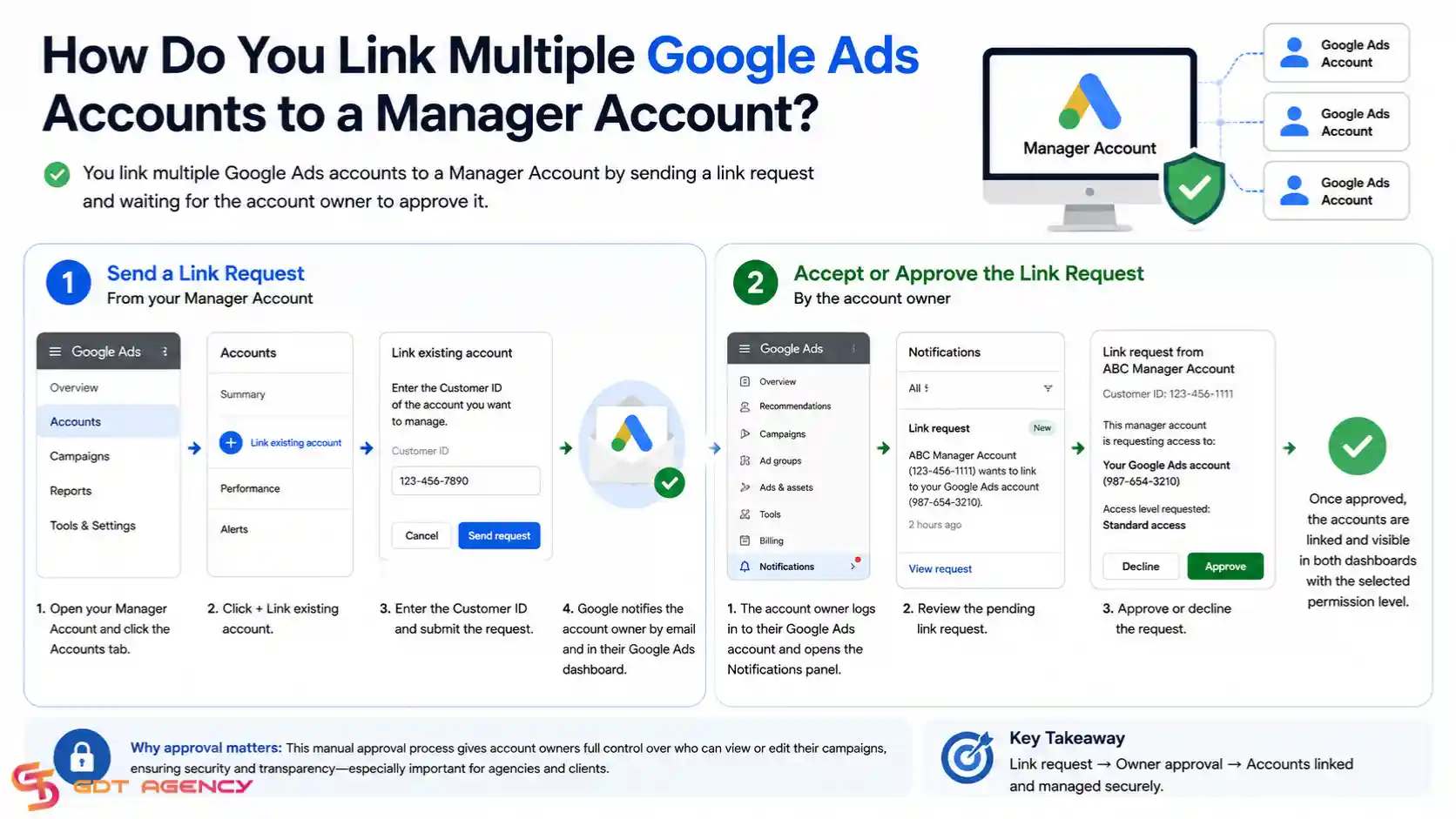
How Do You Send a Link Request to an Existing Account?
To send a link request, open your Manager Account, click the accounts tab, and select the option to link an existing account. Enter the Customer ID of the account you want to manage, then submit the request. Google notifies the account owner through email and through their own Google Ads dashboard, letting them know a Manager Account wants access.
How Do You Accept or Approve a Link Request?
The account owner logs into their standard Google Ads account, opens the notifications panel, and reviews the pending link request before approving or declining it. Once approved, the Manager Account gains access according to the permission level set during the request, and the two accounts appear linked in both dashboards going forward.
This approval step matters for agencies especially, since clients often want to confirm exactly who holds access before granting it. Google's help documentation notes that this manual approval process exists specifically to give account owners full control over who can view or edit their campaigns.
What Access Levels Can You Assign in a Manager Account?
A Manager Account lets you assign four main access levels: Admin, Standard, Read-only, and Email-only, each controlling how much a user can see or change within a linked account. This tiered system lets you match access to a person's actual role instead of giving everyone the same broad permissions.
Admin access gives a user full control over the account, including the ability to add or remove other users. Standard access allows a user to make changes to campaigns and settings, but without managing other people's permissions. Read-only access restricts a user to viewing data without editing anything, which works well for stakeholders who only need visibility. Email-only access limits a user to receiving automated reports, with no dashboard access at all.
Can you restrict what a specific team member sees within a linked account? Yes, and this flexibility is one of the more practical benefits of using a Manager Account, since it lets agencies onboard junior staff with limited permissions while senior strategists retain full control.
How Does Billing Work Across Accounts in a Manager Account?
Billing across accounts in a Manager Account works by centralizing payment methods and invoices under one Manager Account, so you pay for multiple linked accounts through a single billing setup instead of managing separate payment details for each one. This structure particularly benefits agencies that handle several client accounts at once.
Once billing is centralized, the Manager Account owner sets a payment method that applies across every linked account included in that billing group. Invoices then arrive consolidated, showing spend broken down by individual account, which simplifies bookkeeping for agencies that need to bill clients based on actual ad spend. Some Manager Accounts still allow individual accounts to keep their own separate billing if the advertiser prefers that setup, so the centralized option remains flexible rather than mandatory.
For agencies managing client budgets, this billing structure also reduces the risk of payment failures interrupting campaigns, since one central payment method covers everything rather than relying on each client to keep their own card updated.
What Else Should You Know About Managing Accounts Through an MCC?
Once your Manager Account is set up, linked, and configured with the right access levels and billing structure, a few operational areas still shape how well your account management runs day to day. These areas go beyond the basic setup and cover what happens after you start actively managing several accounts through your MCC.
How Do You Manage Budget Across Multiple Accounts in an MCC?
You manage budget across multiple accounts by using the cross-account budget tools inside your Manager Account, which let you set spending limits that apply to several linked accounts at once instead of adjusting each one separately. This feature helps agencies allocate a fixed monthly budget across a group of client accounts without manually tracking spend in each dashboard.
Cross-account budgets also send alerts when an account approaches its limit, giving account managers time to adjust campaigns before overspending occurs. For advertisers running seasonal promotions across several brands, this tool prevents one account from consuming a disproportionate share of the overall budget.
Setting up a cross-account budget usually starts with selecting the group of accounts you want to include, then entering a total spend cap and a date range. Google then distributes that budget dynamically across the selected accounts based on each campaign's actual performance, rather than splitting the amount evenly. This means a campaign that converts well can draw a larger share of the shared budget automatically, while underperforming campaigns pull less, without requiring the account manager to intervene manually every day.
How Do You Track Performance Across Multiple Accounts?
You track performance across multiple accounts by using the cross-account reporting feature built into the Manager Account dashboard, which pulls key metrics from every linked account into one consolidated view. This eliminates the need to log into each account separately just to compile a weekly or monthly performance summary.
The reporting view supports custom columns and filters, so you can compare cost per click, conversion rate, and spend across accounts side by side. Agencies often build recurring reports through this feature to share consistent performance updates with each client without manually assembling data from scratch every time.
Beyond standard columns, the Manager Account dashboard also supports saved views and scheduled exports, so a recurring weekly report can generate and send automatically without anyone opening the dashboard that day. Many agencies set this up once during onboarding, then rely on the automated export for the rest of the client relationship, only checking the live dashboard when a specific metric needs closer attention. This automation matters most for agencies managing accounts across different time zones, since a scheduled report removes the need to log in at a specific hour just to catch fresh data.
How Do You Troubleshoot Common Issues in a Manager Account?
You troubleshoot common issues in a Manager Account by checking the account's notification panel first, since most linking, billing, and access problems generate a specific alert that points directly to the cause. Common issues include rejected link requests, lost access after a client revokes permission, and accounts flagged for suspension due to policy violations.
If a link request gets rejected, the fastest fix is contacting the account owner directly to confirm they received the notification and understand what they are approving. If access disappears unexpectedly, checking the account's user list often reveals that someone changed permission levels or removed the Manager Account link entirely. For suspended accounts, reviewing Google's policy notice and submitting an appeal through the standard process usually resolves the issue faster than starting a new account from scratch.
Final Thoughts
A Google Ads Manager Account gives you one central place to control multiple accounts, instead of juggling separate logins and separate reports for each one. You get a clear picture of setup, linking, access levels, and billing once you walk through each step in order, and that clarity makes the whole system easier to manage day to day.
The real value shows up once you move past setup and into daily operation. Budget tools, performance tracking, and troubleshooting steps all matter more once you actually run several accounts at scale, since small inefficiencies multiply fast across ten or twenty linked accounts.
Advertisers who take the time to set access levels correctly and centralize billing early tend to avoid most of the common problems that slow other accounts down later.
After your Manager Account is in place, the next priority is learning how to use each Google Ads account effectively. Our Google Ads Account Usage: Activation, Campaign & Policy Guide covers campaign setup, account activation, and policy compliance to help you manage accounts with confidence.
FAQs
Is a Google Ads Manager Account free to create?
Yes, creating a Manager Account costs nothing on its own. You only pay for the actual ad spend inside the linked accounts, not for the Manager Account layer itself.
Can one Google Ads account link to more than one Manager Account?
No, a standard Google Ads account can only link to one Manager Account at a time. If you need to switch management to a different Manager Account, the current link must be removed first.
Do I need a separate Manager Account for each client if I run an agency?
No, one Manager Account can hold as many linked client accounts as you need. Most agencies use a single Manager Account, or a small set of them organized by team, rather than creating a new one for every client.
Can I remove an account from my Manager Account without deleting the account itself?
Yes, unlinking an account from a Manager Account does not delete the account or its campaign history. The account simply returns to being managed independently, or gets linked to a different Manager Account instead.
What happens to my campaigns if my Manager Account gets suspended?
Your individual linked accounts and their campaigns are not automatically deleted if the Manager Account itself gets suspended, though your ability to manage them through that Manager Account gets cut off until the issue is resolved. Each linked account owner can still access their account directly during that time.
Articles in the category Google Ads Account Management
No articles found in this category yet.