
Google Ads Verification News: Latest Policy Changes Advertisers Must Track
Google Ads advertiser verification has changed several times in the past year, and advertisers who ignore these updates risk account suspension. The most recent Google…
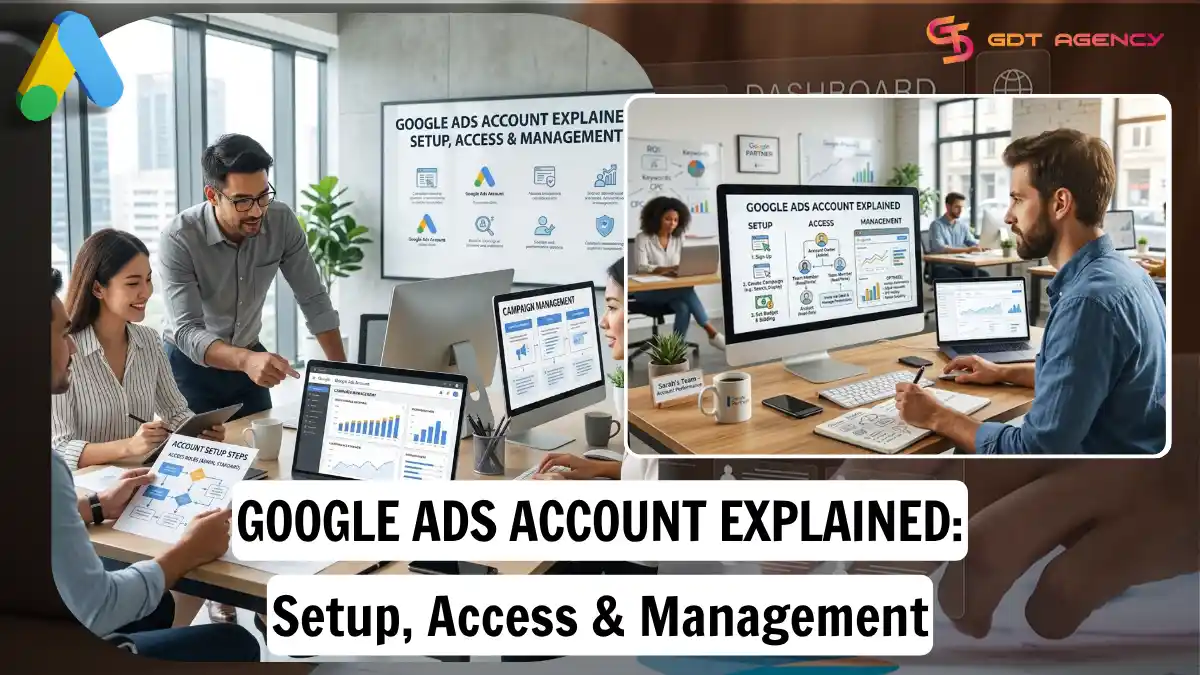
A Google Ads Account works as the control center for anyone who wants to run ads on Google Search, Display, YouTube, or Shopping. Setting up an account takes only a few steps, but managing access and permissions matters just as much as the setup itself. Business owners often need to grant access to agencies, freelancers, or team members without giving away full control of billing. Larger businesses often manage several accounts at once through a Manager Account, which changes how access and reporting work across the board. Below, we break down everything you need to know about setting up, accessing, and managing a Google Ads Account.
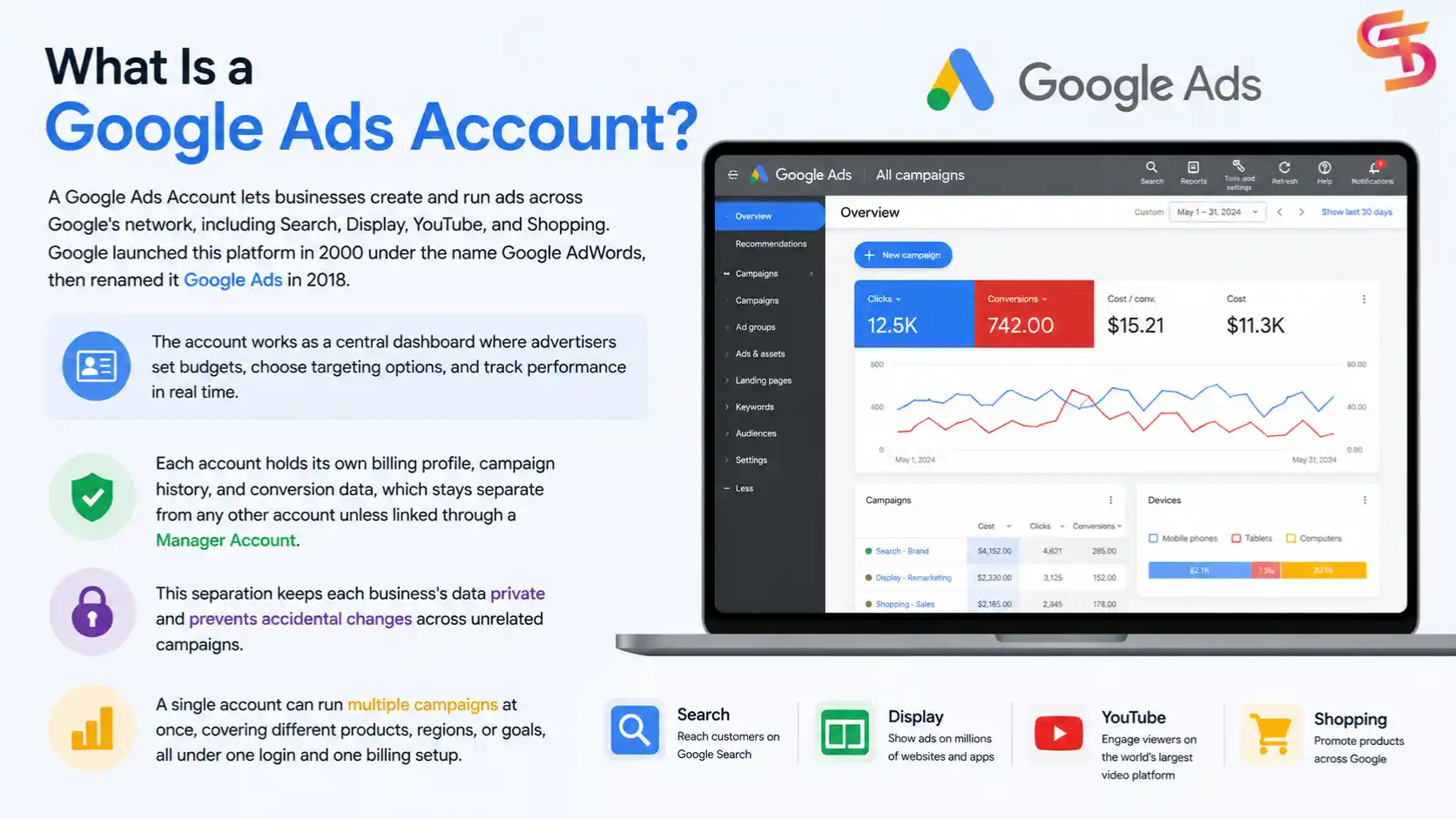
A Google Ads Account lets businesses create and run ads across Google's network, including Search, Display, YouTube, and Shopping. Google launched this platform in 2000 under the name Google AdWords, then renamed it Google Ads in 2018. The account works as a central dashboard where advertisers set budgets, choose targeting options, and track performance in real time.
Each account holds its own billing profile, campaign history, and conversion data, which stays separate from any other account unless linked through a Manager Account. This separation keeps each business's data private and prevents accidental changes across unrelated campaigns. A single account can run multiple campaigns at once, covering different products, regions, or goals, all under one login and one billing setup.
Yes, it is. As an expert at GDT Agency with years of experience working with Google Ads, ad accounts (especially Google Ads agency accounts), I can say that creating a Google Ads Account costs nothing, and Google only charges you once your ads start running. Signing up takes a few minutes and requires no upfront payment, no subscription fee, and no setup charge.
The cost only kicks in when someone clicks your ad or when your ad reaches a set number of views, depending on the campaign type you choose. Google runs Ads on a pay-per-click or pay-per-impression model, so you only pay for engagement rather than a flat fee for holding an account. This model gives businesses full control over spending, since they can pause a campaign at any time and stop charges immediately. According to Google's advertiser data from Wordstream, the average small business using Search campaigns spends between $9,000 and $10,000 per month on Google Ads, though this figure varies widely depending on industry and competition.
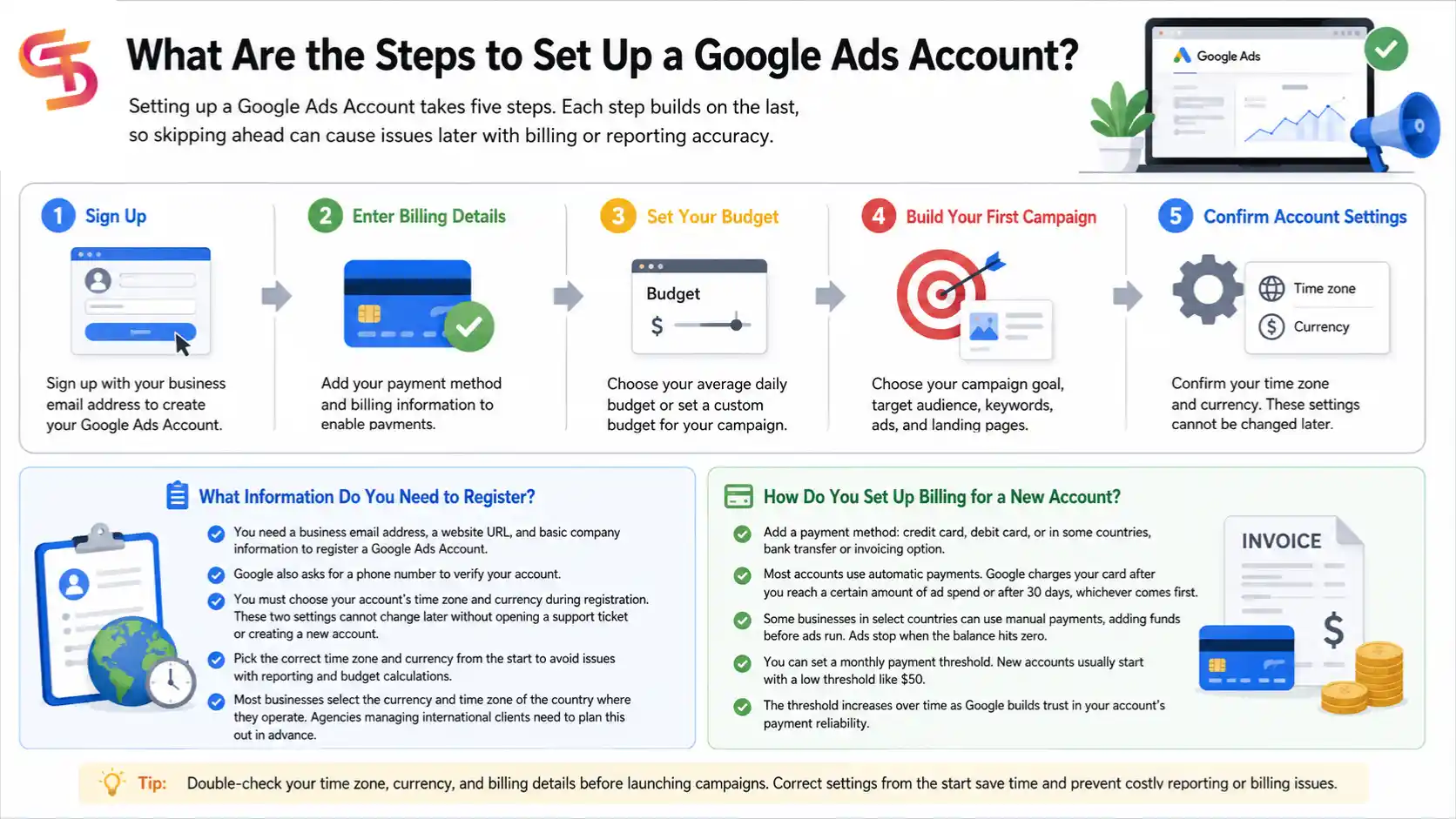
Setting up a Google Ads Account takes five steps: signing up with a business email, entering billing details, setting your budget, building your first campaign, and confirming account settings like time zone and currency. Each step builds on the last, so skipping ahead can cause issues later with billing or reporting accuracy.
Below, we walk through what each step involves and what information you need before you start.
→ If you want a complete walkthrough, read our guide on Account Setup & Structure, where we explain campaign organization, account hierarchy, and the best practices for new advertisers.
You need a business email address, a website URL, and basic company information to register a Google Ads Account. Google also asks for a phone number to verify the account and confirm you're a real business rather than a bot or duplicate account.
During registration, you also choose your account's time zone and currency, and these two settings cannot change later without opening a support ticket or creating a new account. This makes it critical to pick the correct time zone and currency from the start, since a wrong currency setting could throw off every budget calculation down the line. Most businesses select the currency and time zone of the country where they operate, but agencies managing international clients need to plan this out in advance.
You set up billing by adding a payment method: a credit card, debit card, or in some countries, a bank transfer or invoicing option. Google runs most accounts on automatic payments, charging your card after you accumulate a certain amount of ad spend or after 30 days, whichever comes first.
Some businesses in select countries can apply for manual payments instead, where they add funds to the account before ads run. This option works well for businesses that want tighter control over cash flow, though it requires active management since ads stop the moment the balance hits zero. Google also lets advertisers set a monthly billing threshold, called a payment threshold, which increases over time as the account builds a payment history. New accounts usually start with a low threshold like $50, and this amount grows gradually as Google gathers more trust signals about the account's payment reliability.
→ Learn more about Billing & Account Limits to understand payment thresholds, billing options, spending limits, and how Google adjusts account limits over time.
Four main access levels exist in a Google Ads Account: Admin, Standard, Read-only, and Email-only, and each level determines what a user can see or change within the account. Google structured these permission tiers so business owners can share account access without losing control over sensitive settings like billing or user management.
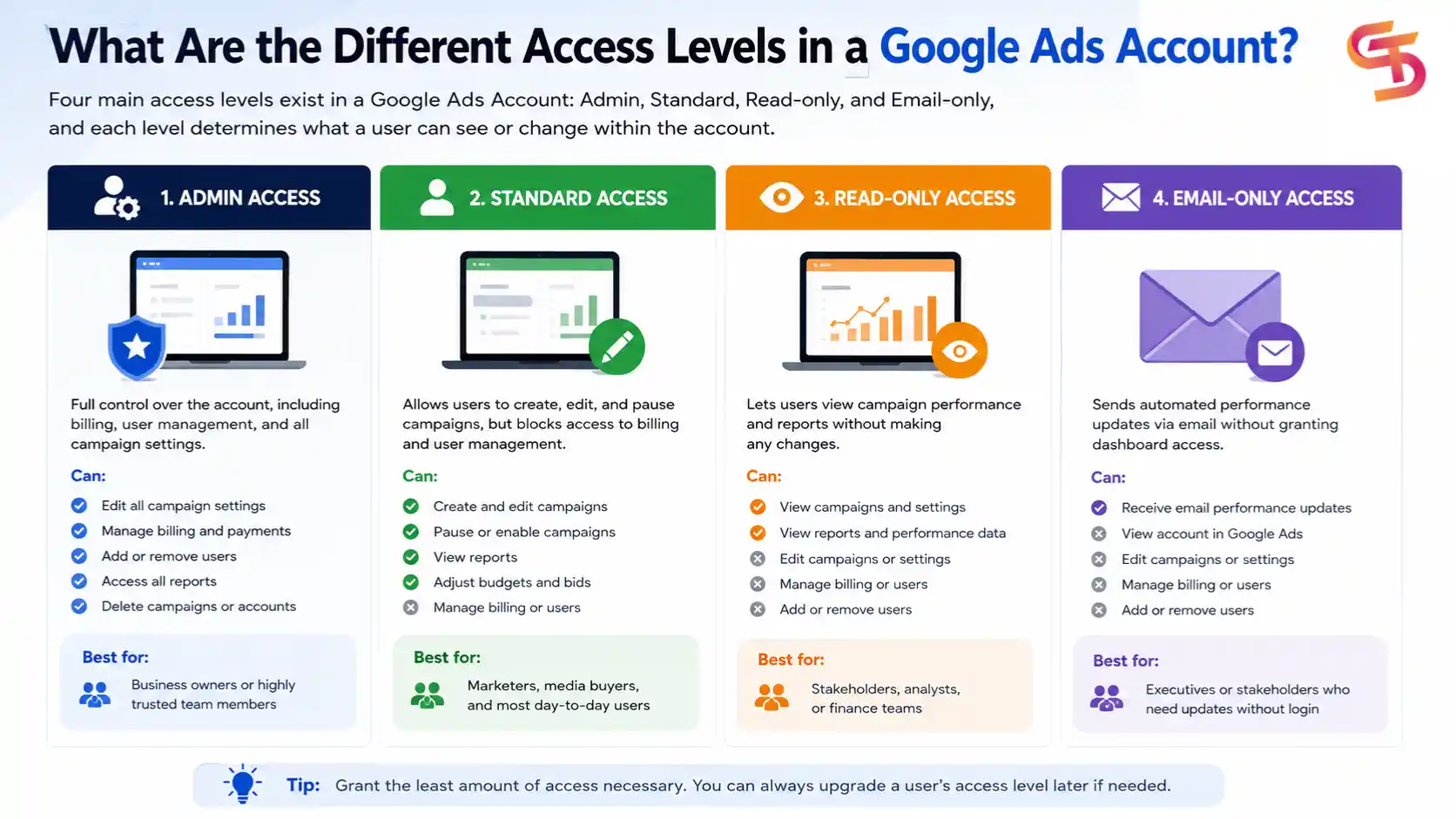
Admin access gives a user full control over the account, including the ability to change billing information, add or remove other users, and edit every campaign setting. Only account owners or highly trusted team members should hold Admin access, since this level allows someone to make irreversible changes like deleting campaigns or changing payment methods.
Agencies that manage client accounts often request Admin access temporarily to complete a full account audit, then step down to Standard access once the setup work finishes. This approach protects the business owner from unnecessary exposure while still giving the agency the tools it needs to do its job.
Standard access lets a user create, edit, and pause campaigns, but it blocks them from managing billing details or adding new users to the account. This tier fits most day-to-day advertising work, since marketers and media buyers need campaign control far more often than billing access.
Most agencies, including performance marketing teams and freelance media buyers, operate at this level because it covers everything needed to run and optimize campaigns without exposing the client's payment information.
Read-only access lets a user view campaign performance and reports without making changes, while Email-only access sends automated performance updates without granting dashboard access. Business owners typically hand these two access levels to stakeholders who need visibility into results but have no direct role in running campaigns.
A company's finance team, for example, might request Read-only access to review ad spend each month, while an executive might prefer Email-only access to receive a weekly summary without logging into the platform.
You grant access to a Google Ads Account by opening the account's settings, selecting the "Access and Security" tab, and entering the new user's email along with their chosen access level. Google sends an invitation email immediately, and the new user gains access once they accept it through their own Google account.
Removing access works just as fast. The account owner opens the same settings tab, finds the user in the list, and clicks Remove, which cuts off that person's access instantly with no delay. This instant removal matters in situations like ending a contract with an agency or letting go of an employee, since it prevents unauthorized changes after the relationship ends. Google also logs every access change, so account owners can check who added or removed a user and when.
→ For more information about permissions, account transfers, and administrator roles, see our guide on Access & Ownership.
A Google Ads Manager Account, often called an MCC (My Client Center), manages multiple individual Google Ads accounts from one central login. Agencies, freelancers, and businesses running ads across several brands or regions rely on an MCC to avoid juggling separate logins for every account.
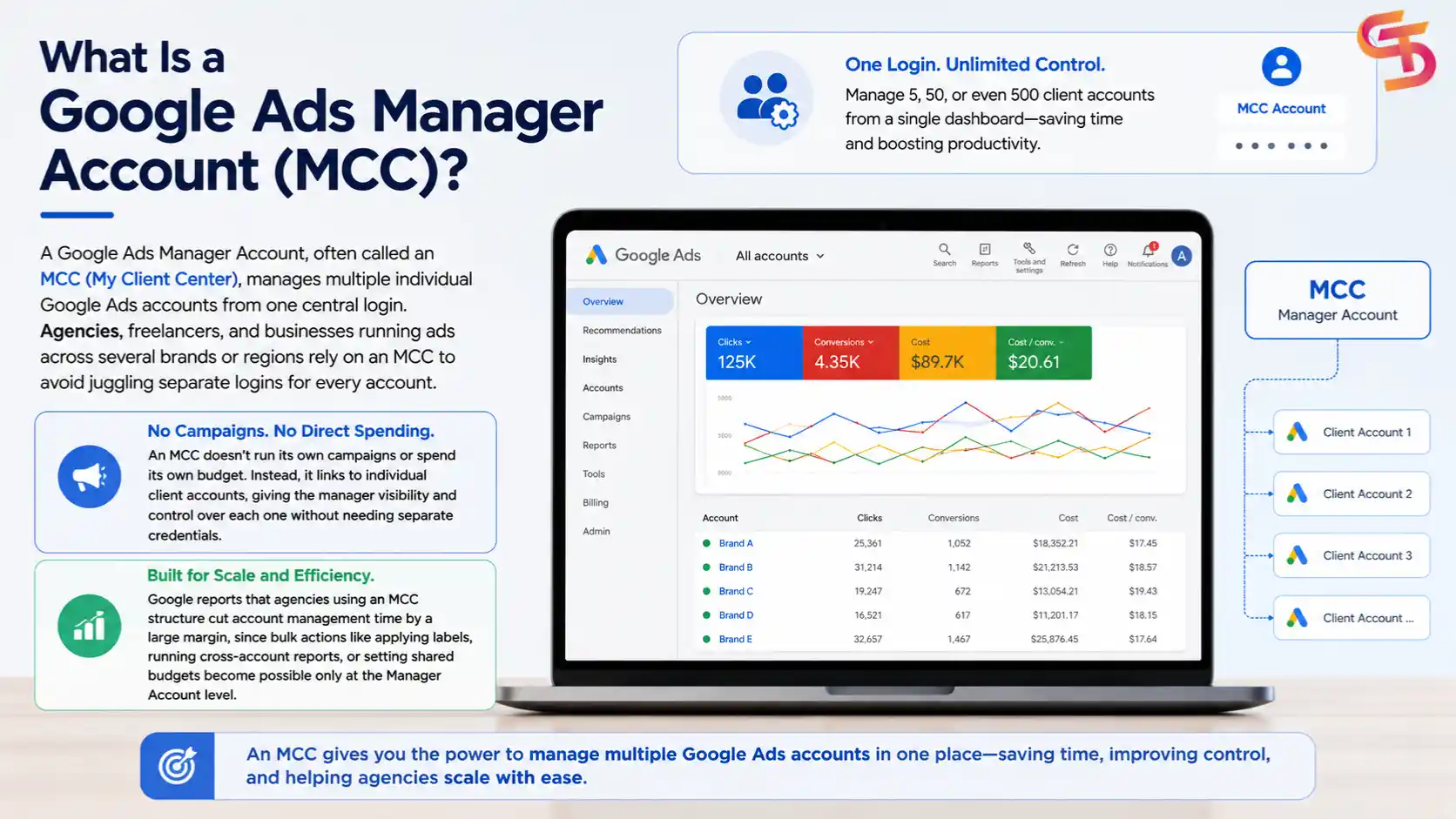
An MCC doesn't run its own campaigns or spend its own budget. Instead, it links to individual client accounts, giving the manager visibility and control over each one without needing separate credentials. This structure lets an agency manage 5, 50, or even 500 client accounts at once, all from a single dashboard, which saves significant time compared to logging into each account separately. Google reports that agencies using an MCC structure cut account management time by a large margin, since bulk actions like applying labels, running cross-account reports, or setting shared budgets become possible only at the Manager Account level.
→ Businesses and agencies managing multiple clients should also read Manager Account (MCC) & Multi-Account Management to learn how to organize and oversee several Google Ads accounts efficiently.
A Manager Account oversees multiple standard accounts, while a Standard Account runs ad campaigns and holds its own billing profile. The two account types serve different purposes, and confusing them often leads to setup mistakes for people new to the platform.
A Standard Account works as a single, independent unit. It has its own billing, its own campaigns, and its own performance history that stays isolated unless linked elsewhere. A Manager Account, on the other hand, holds no campaigns or billing of its own. It functions as a management layer that sits above one or more Standard Accounts, giving the manager a unified view of performance, budgets, and settings across every linked account. Agencies almost always need both: a Manager Account for oversight and a Standard Account for each client whose ads run. Businesses that only need to manage their own single account, without overseeing anyone else's, never need a Manager Account.
→ Our Verification & Policy Compliance guide explains Google's advertiser verification process, policy requirements, and how to keep your account compliant.
Common issues with Google Ads Accounts include suspensions, verification problems, and confusion around linking accounts to other Google tools like Merchant Center or Analytics. These issues tend to show up after an account has run for a while, rather than during the initial setup phase.
Below, we cover the situations advertisers run into most often, along with what causes each one.
An aged Google Ads Account refers to an account that has existed for a long period and built up a spending and payment history over time. Unlike a new account, an aged account usually carries a higher payment threshold and a stronger trust signal with Google's automated review systems.
This matters because new accounts face stricter scrutiny during their first few months, especially when running ads in competitive or regulated niches. An account with years of clean history behind it moves through ad approvals faster and encounters fewer holds on payment thresholds.
Google Ads Accounts get suspended mainly for policy violations, billing issues, or suspicious activity flagged by Google's automated systems. Common triggers include promoting restricted products, using misleading claims in ad copy, or having a payment method that repeatedly fails.
Suspensions can hit an account with little warning, and Google typically sends an email explaining the reason, though the explanation isn't always detailed enough to pinpoint the exact issue. Advertisers can appeal a suspension through Google's support channels, but the process can take anywhere from a few days to several weeks depending on the complexity of the case.
→ If your account has already been restricted, visit Suspension & Recovery for practical steps to identify the cause, submit an appeal, and reduce the risk of future suspensions.
A new account hasn't gone through Google's Advertiser Identity
Verification process, while a verified account has confirmed its legal business identity directly with Google. Google rolled out this verification requirement in phases across different countries, and it now applies to a growing number of advertisers worldwide.
An unverified account can still run ads in many cases, but it may face restrictions on certain ad formats or industries until verification finishes. A verified account, by contrast, builds trust faster with Google's systems and often experiences fewer holds during the ad review process.
You link a Google Ads Account to Merchant Center or Analytics through the "Linked Accounts" section in the account's settings menu. This connection lets product data from Merchant Center power Shopping campaigns, or lets Analytics data flow into Ads for deeper audience insights and conversion tracking.
Once linked, the two platforms share data automatically, so changes made in Merchant Center, like updating a product price or availability, reflect in Google Ads campaigns without manual re-entry. The same principle applies to Analytics, where user behavior data feeds directly into Ads to build smarter audience segments and more accurate conversion reports.
A Google Ads Account gives businesses full control over how they reach customers on Google's network, but that control only works well when the setup, access, and management stay organized from day one. Getting the billing, time zone, and currency right at registration saves headaches later, and choosing the correct access level for each team member or agency partner keeps the account secure without slowing anyone down. For businesses running more than one account, an MCC turns a scattered set of logins into one clear view of performance and budgets. And once the account matures, staying alert to policy changes, verification requirements, and proper linking with tools like Merchant Center keeps the account healthy for the long run.
→ Different industries also require different campaign structures and compliance strategies. Explore our Business Use Cases hub to see how Google Ads accounts are used across e-commerce, local services, SaaS, healthcare, education, and other business sectors.
Yes, you can transfer account ownership through the "Access and Security" settings by adding the new owner as an Admin, then removing your own access once the transfer completes.
No, one account can run campaigns targeting multiple countries at once, though currency and billing stay fixed to the account's original setup.
Yes, an agency can create the account directly under the client's business information, then link it to the agency's Manager Account for ongoing management.
Verification usually takes a few business days, though it can extend to a few weeks if Google requests additional documents to confirm the business identity.
All campaigns stop running immediately once a suspension takes effect, and they stay paused until the appeal process resolves the issue.

Google Ads advertiser verification has changed several times in the past year, and advertisers who ignore these updates risk account suspension. The most recent Google…

You apply for Google Ads monthly invoicing through the Billing settings in your account, and Google reviews your business credit history before approval. The Google…
Google Ads monthly invoicing lets qualified advertisers run campaigns first and pay for the cost later, based on a line of credit that Google extends…
You get verified for Local Services Ads by submitting your business documents to Google, passing a background check, and waiting for Google to review your…

Google Ads advertiser verification requires you to submit specific documents that prove your identity and your business legitimacy. These documents include a government-issued photo ID,…

You can buy verified Google Ads account safely by checking the seller’s business history, confirming payment terms in writing, and testing the account with a…

Google Ads works for clothing brands because it puts products in front of people who already search for them. A shopper types “women’s linen dress”…

Google Ads gives weight loss surgery clinics a direct way to reach patients who already search for bariatric procedures, consultation costs, and nearby surgeons. A…
Google Ads works for IaaS companies when the campaign structure matches the technical buying process, not a generic B2B funnel. IaaS buyers research longer, compare…

Google Ads works well for roofing companies because it puts your business in front of homeowners at the exact moment they search for a roofer.…